Find the AI translation tools you need
Translation tools for real-time conversations and meetings
Explore 9 Transync AI tools for bilingual subtitles, voice translation, meeting notes, and personalized assistance. Start with AI Assistant to prepare your terminology, or open the Transync AI web app to begin.
Choose the right translation tools for your meeting
Start with the way you want to follow the conversation. For a discussion where you need to read both languages, explore real-time translation and live meeting translation. If you also want to hear the translated speech, review AI Voice Translator. Open each feature page to check the workflow before choosing the tools for your next call.
Before the conversation
Check the supported languages for both sides of the conversation. A language supported for translated text may need a separate check for voice output, so use the language and voice feature pages when planning your setup. Decide whether you will read subtitles privately, present them to an audience, or keep a floating subtitle window above your other work.
Prepare names, company names, and specialist vocabulary in AI Assistant. Add preferred translations where needed, then give the assistant a short description of your role and the meeting topic. For example, a technical review may need different terminology from a sales conversation. Review personal vocabulary learning and personalized memory separately, and choose whether saved background should be added to context.
During the conversation
Use live translation to follow what is being said in the selected languages. Presentation Mode is worth exploring when subtitles need to be shown to an audience. Picture in Picture keeps a floating subtitle window visible while you use other apps; check its feature page for the supported workflow on your device.
For conversations with several participants, speaker separation helps distinguish who said what. Review the speaker labels when working with the transcript, and use the available rename or reassignment controls when a label needs correction. These tools serve different parts of the same workflow, so choose the combination that fits how your team listens, reads, and reviews the discussion.
After the conversation
Explore AI Meeting Notes when you need to review the discussion afterward. Check important names and terms against the conversation, especially when those details will be shared with colleagues. Return to your personal vocabulary to review manually added and automatically learned entries before the next meeting.
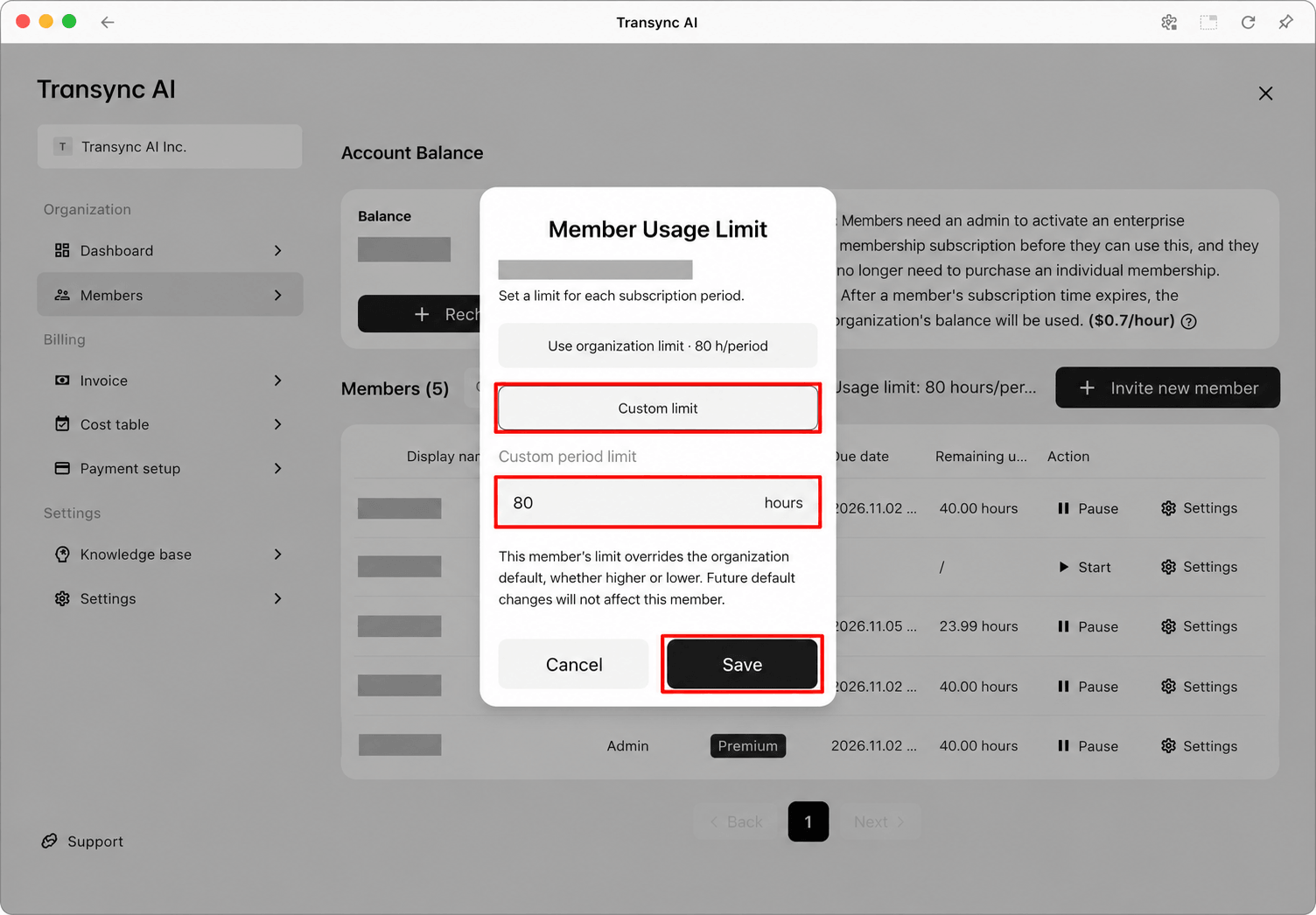
If you manage a team, the Enterprise workspace provides a separate place to manage members and billing. Follow the enterprise setup guide for invitations, subscriptions, and usage limits. For an individual conversation, begin with the relevant feature above and use its linked instructions to prepare your setup.
Questions about translation tools
How should I prepare for a technical meeting?
Begin with the terms people are likely to use: product names, abbreviations, project names, and specialist vocabulary. In AI Assistant, add the relevant terms and any preferred translations, then write a short Context description of the meeting. Review the selected model and the capabilities shown in the app before starting. Afterward, check the vocabulary list, including entries learned automatically, so you know what is available for your next conversation.
Should I choose subtitles or translated voice?
That depends on how you want to follow the conversation. Subtitles let you read translated text while listening to the speaker. Voice translation provides spoken output when that better fits the discussion. Compare the relevant feature pages and check language support for the output you need. If you are also using slides or another application, explore the floating subtitle tools to see whether their workflow fits your screen and device.
How do keywords, Context, and memory work together?
Keywords identify terms and preferred translations. Context explains your role, industry, or the topic of a particular discussion. Personalized memory provides saved background that you can review in the Personalization card and choose to add to context. Treat these as separate controls: a term you want translated consistently is different from a meeting brief, and both are different from background saved for future conversations. Use the AI Assistant guide when you need the detailed setup and deletion steps.
Which tools help after a meeting?
Explore meeting notes and speaker separation when you need to review the discussion. Check the transcript and speaker labels, especially for names, technical terms, and details you intend to share. Where a label needs correction, use the available rename or reassignment controls. Review important details before relying on them in follow-up work, and prepare any useful vocabulary for the next conversation.
How can an administrator manage team access?
Use an Enterprise workspace for member invitations, subscriptions, and centralized billing. Members can be invited before their subscriptions are started. Administrators can set an organization default usage limit or an individual member limit for each subscription period. A member’s custom limit takes priority over the default, whether it is higher or lower. The enterprise guide explains these controls with screenshots and shows where to restore the organization limit.