
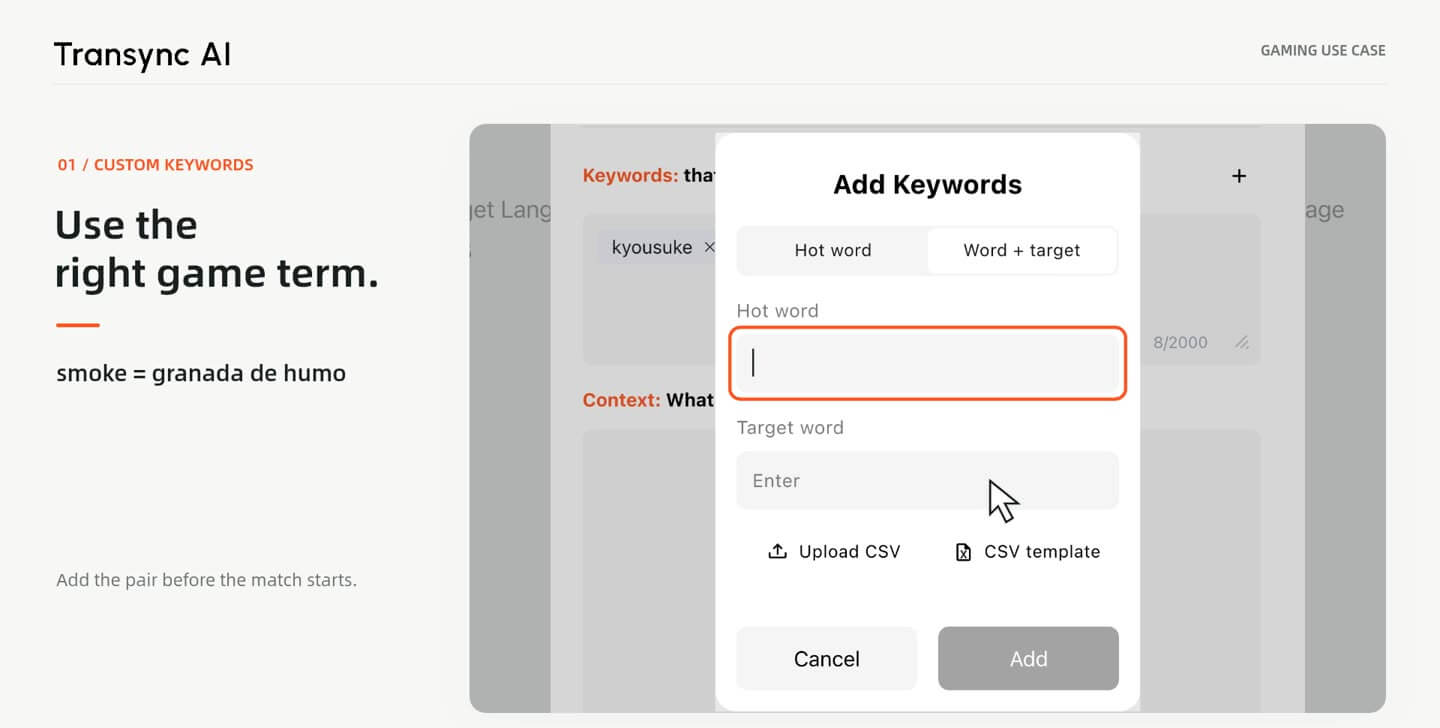
1. Add game vocabulary
Open AI Assistant. Add player names and game terms, including any preferred translations.
Follow fast gaming commentary in another language with real-time bilingual subtitles. Add game terms and player names, then keep translations in view with Picture in Picture on desktop or mobile.
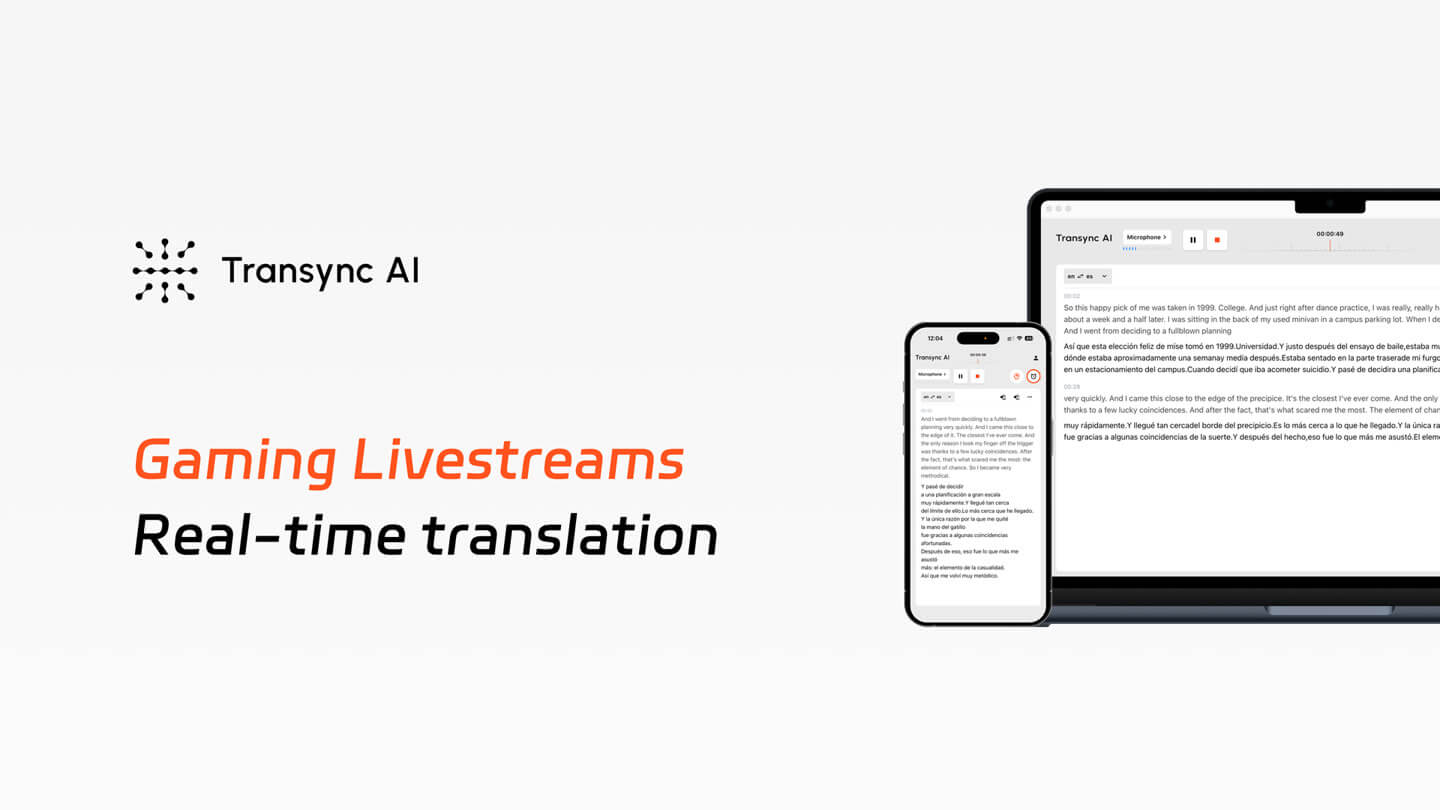
English → Spanish · Video walkthrough. Interface demonstrations and illustrative subtitles.
1. Commentary moves quickly
Casters react in real time. Pausing to look up a phrase means missing the next play.
2. Game terms and player names are easy to mishear
Names, map locations and shorthand need context. Add the terms you expect before the match starts.
3. Translation competes with the game window
A separate translation screen can break your focus. Floating subtitles keep the commentary visible beside the action.
Setup guide
Start with the desktop workflow shown in the video. The example translates English commentary into Spanish.
1. Add game vocabulary
Open AI Assistant. Add player names and game terms, including any preferred translations.
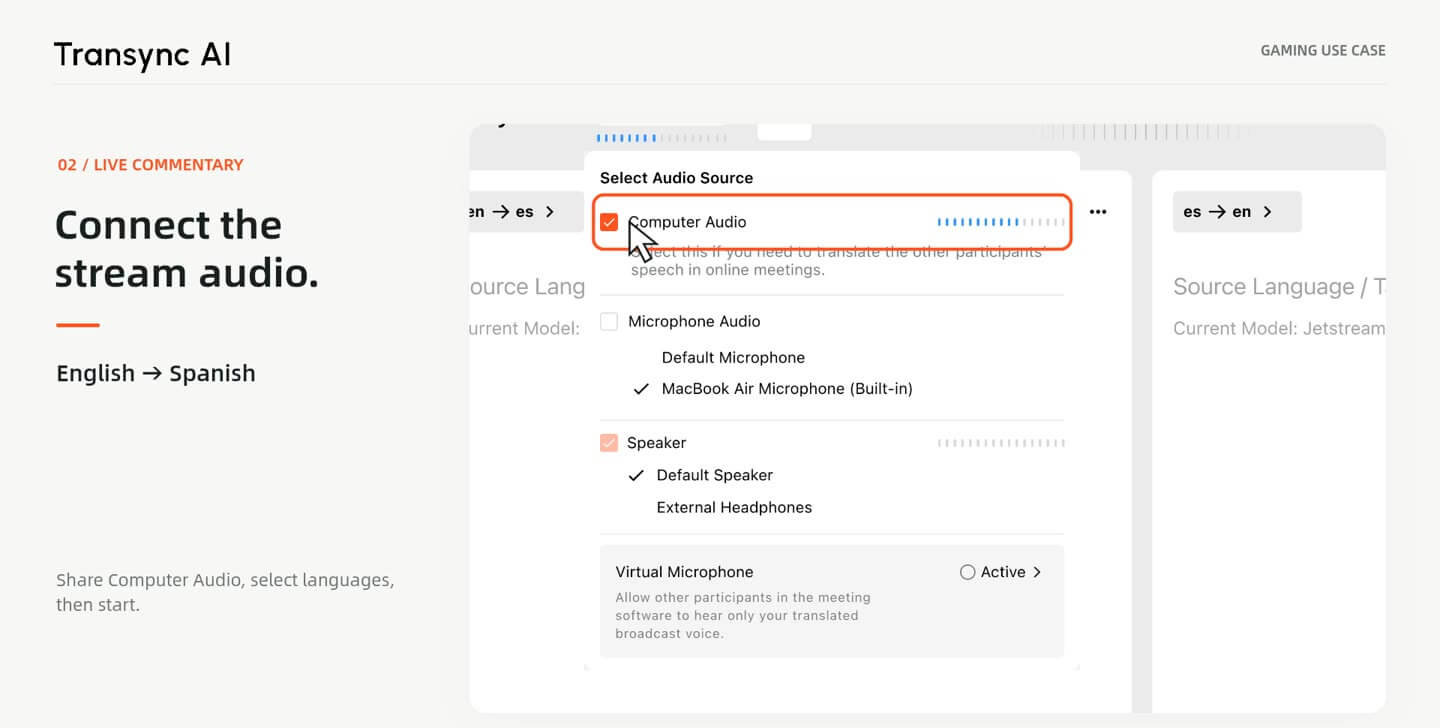
2. Share computer audio
Select the language pair, choose Computer Audio, and start translating the livestream.
3. Open Picture in Picture
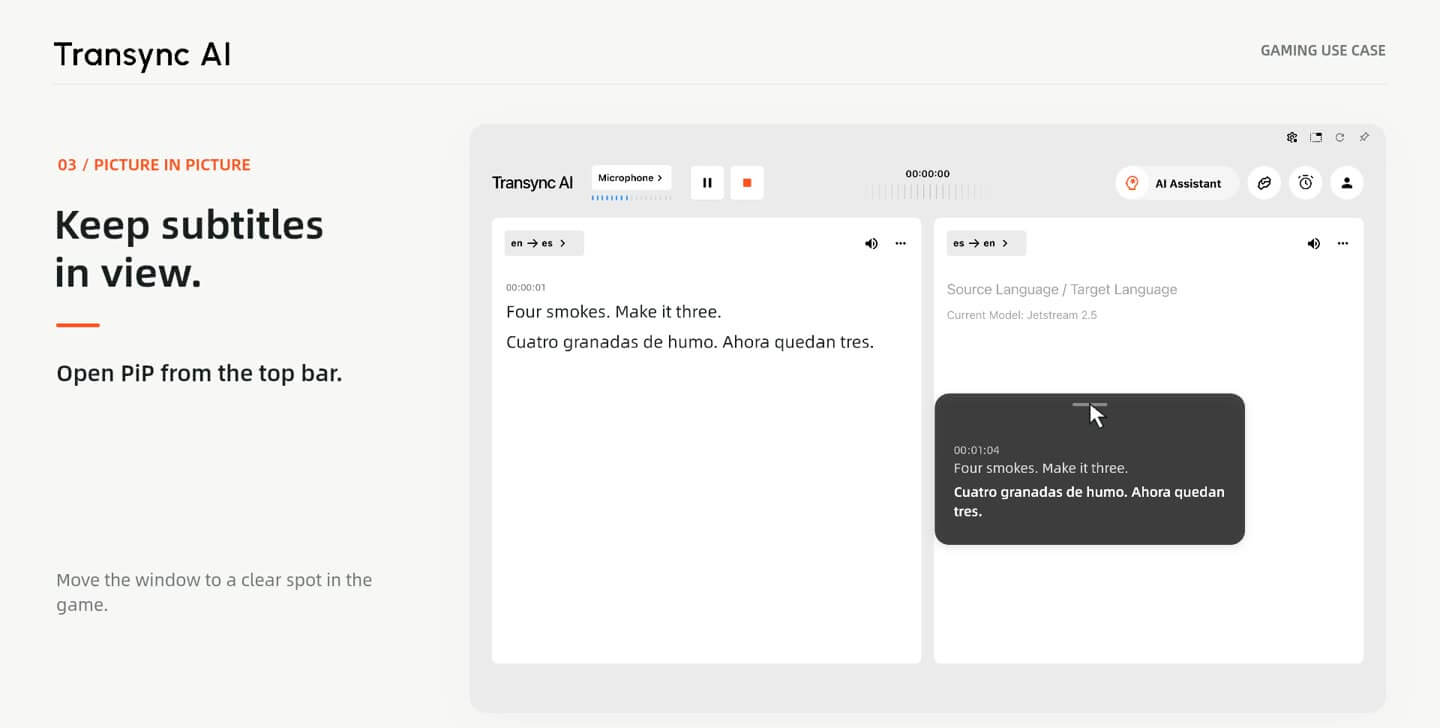
Open PiP from the top bar and move the floating subtitles to a clear part of the screen.
4. Follow the match
Return to the livestream and follow the original commentary alongside the translation.
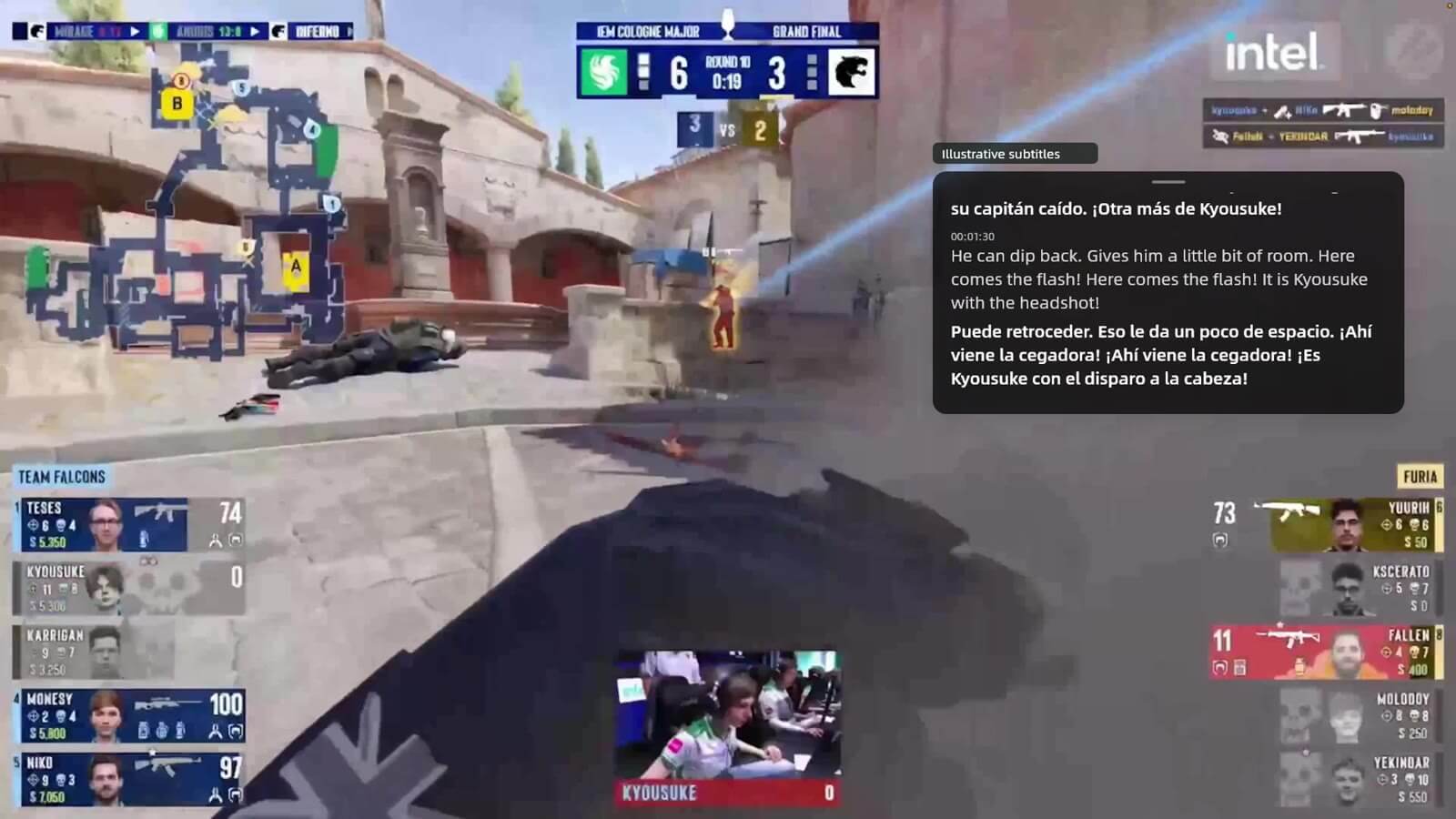
Keep the match full screen while a movable, resizable subtitle window stays above it. Follow the original commentary and translated text without repeatedly switching windows.
Use this workflow for esports tournaments, foreign-language caster streams, coaching reviews and game announcements.
Choose Internal phone audio in Transync AI, select your languages and start translating. Enable Picture in Picture, then return to the livestream.
The iPhone walkthrough shows translated subtitles alongside the match. Available audio options can vary by device and app.
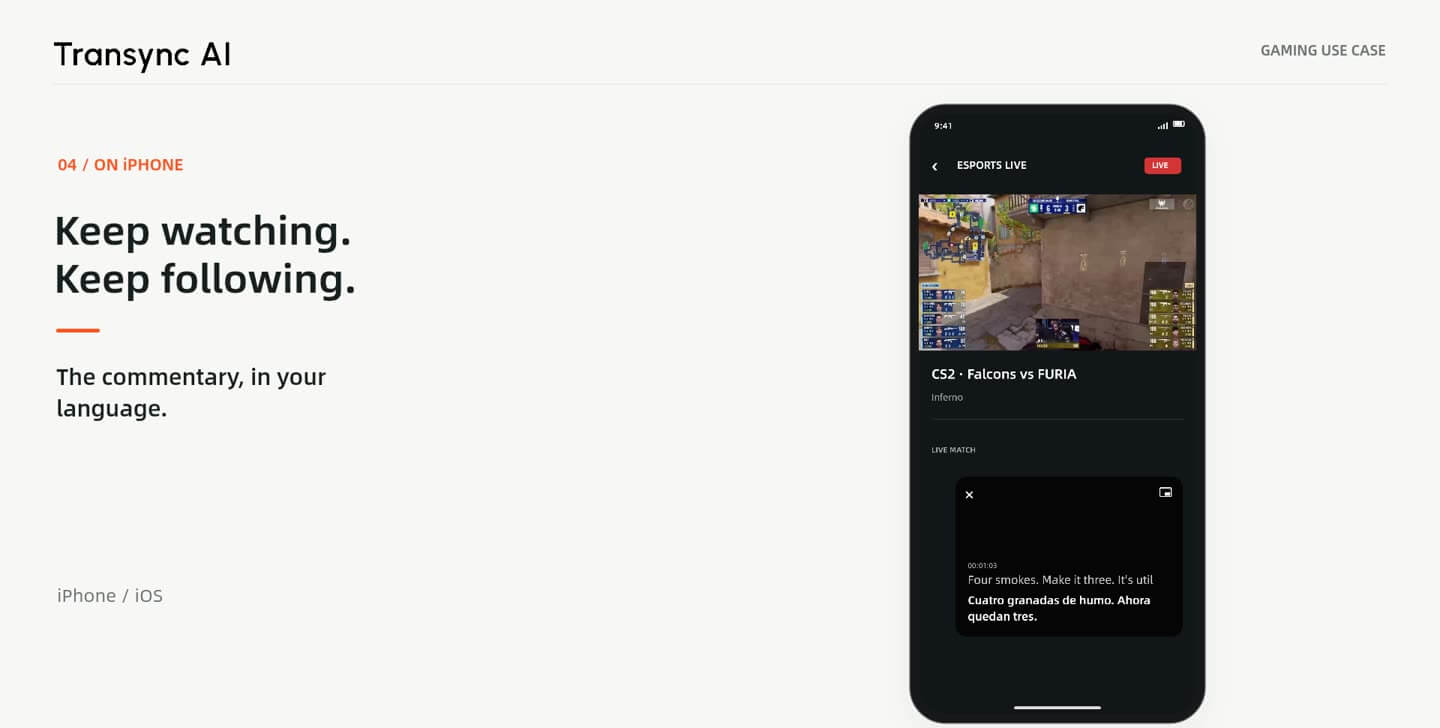
Transync AI listens to computer audio or supported internal phone audio. You do not need to download the livestream video or install a plug-in inside the streaming platform.
Tools
Use bilingual subtitles, game vocabulary and floating captions to follow live commentary.
Add names, teams, maps and preferred translations.
Keep bilingual subtitles above the game window.
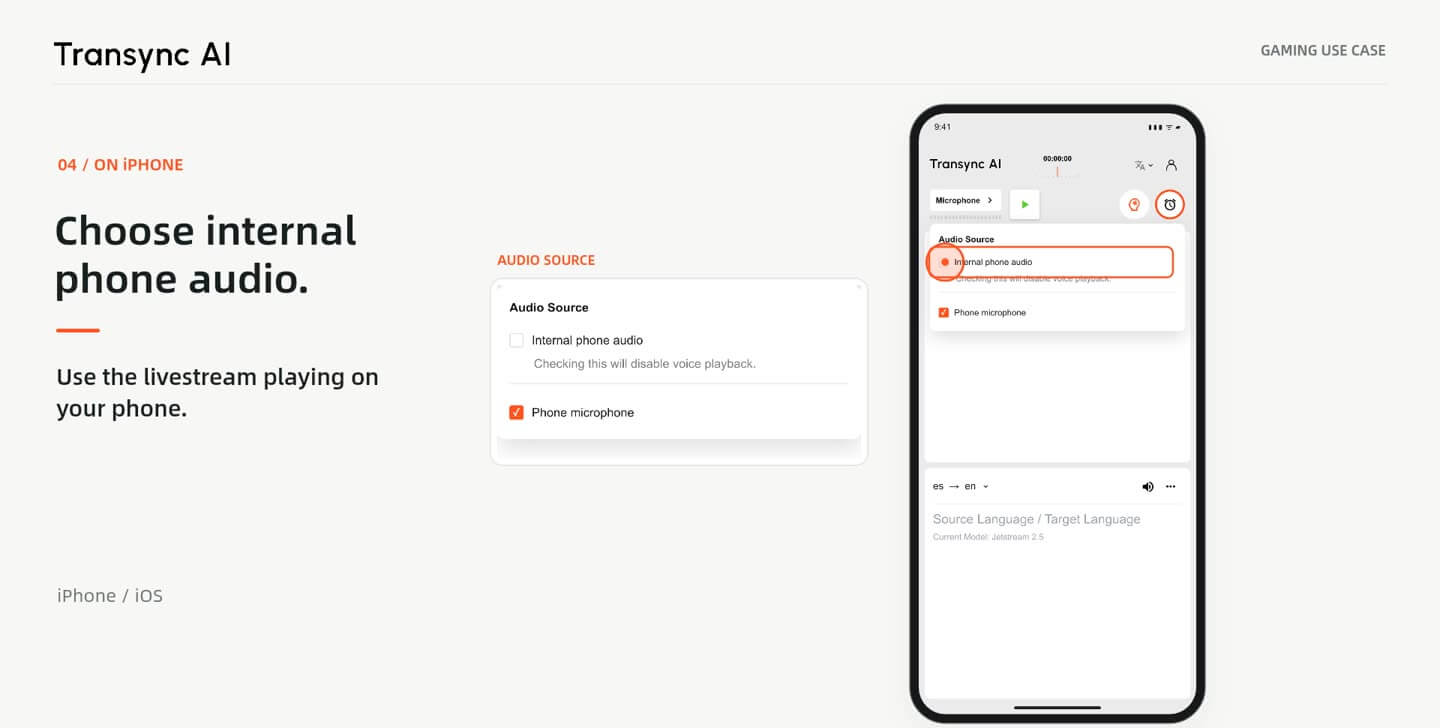
Use computer audio or supported internal phone audio.
Game-specific context. Prepare names and terminology before a match.
Subtitles that stay in view. Picture in Picture keeps the translation close to the action.
More language choices. Use English, Spanish and other supported languages.
A workflow across devices. Follow streams on desktop or supported mobile devices.
| Feature | Transync AI | Platform captions | Manual text translation |
|---|---|---|---|
| Live bilingual subtitles | Yes | Depends on platform | No |
| Player names and game terms | Custom keywords | Depends on platform | Enter manually |
| Floating subtitles | Picture in Picture | Depends on platform | Separate window |
| Audio source | Computer / supported phone audio | Content inside the platform | Pasted text |
Platform capabilities vary by app, language and account plan.
Try bilingual subtitles, custom game vocabulary and Picture in Picture with your next livestream. Register to receive 40 free minutes.
Quick answers
Short answers about live commentary, game vocabulary, Picture in Picture and mobile audio.
It converts live commentary into another language while the stream plays. Transync AI can display the original speech and translated text together.
No. Use computer audio on desktop or internal phone audio in supported mobile workflows while the livestream plays.
Yes. Add keywords in AI Assistant before the match. Include a preferred target-language translation when a term needs specific wording.
Use Picture in Picture to keep a movable subtitle window visible. Position it where it does not cover important game information.
The video shows the iPhone workflow: select Internal phone audio, start translating, enable Picture in Picture, and switch back to the livestream.
Select the language spoken by the commentators and your preferred translation language before starting. The walkthrough uses English to Spanish.
Transync AI supports 60+ languages. The walkthrough uses English to Spanish; see the supported languages page for available language pairs.