
1. Prepare the context
Add product vocabulary, preferred translations and the purpose of the meeting.
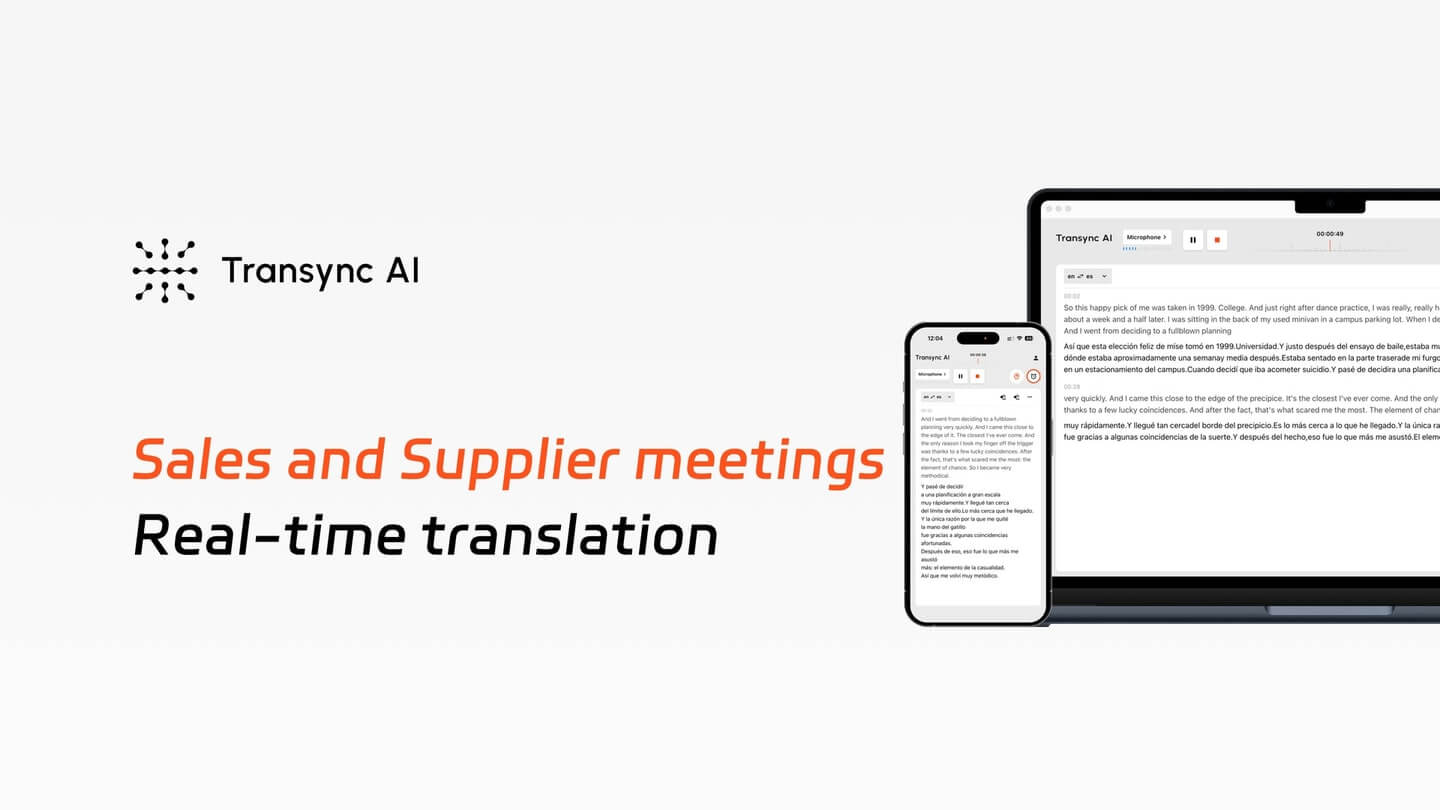
Discuss requirements, quantities and delivery timelines across languages. Use two-way translation for online sales and supplier meetings, switch to your iPhone for in-person conversations, and review the meeting record afterward.
Prepare the terms that matter
Add product names, abbreviations and meeting context before the call, so your translation has the right background.
Follow both sides of the conversation
Read the other person’s replies in your language and choose when your translated voice should play for them.
Leave with a useful record
Review the transcript and summary together, check quantities and dates, then export the notes for follow-up.
Setup guide · Online and in person
Prepare the context, connect the audio, discuss the details, then review the record.
1. Prepare the context
Add product vocabulary, preferred translations and the purpose of the meeting.
2. Connect the audio
Select Two way, choose your languages, and connect the meeting audio and microphone.
3. Discuss the details
Ask your questions, follow translated replies, and confirm important quantities and timelines.
4. Review and export
Check the transcript, generate a summary, and export the record for your next steps.
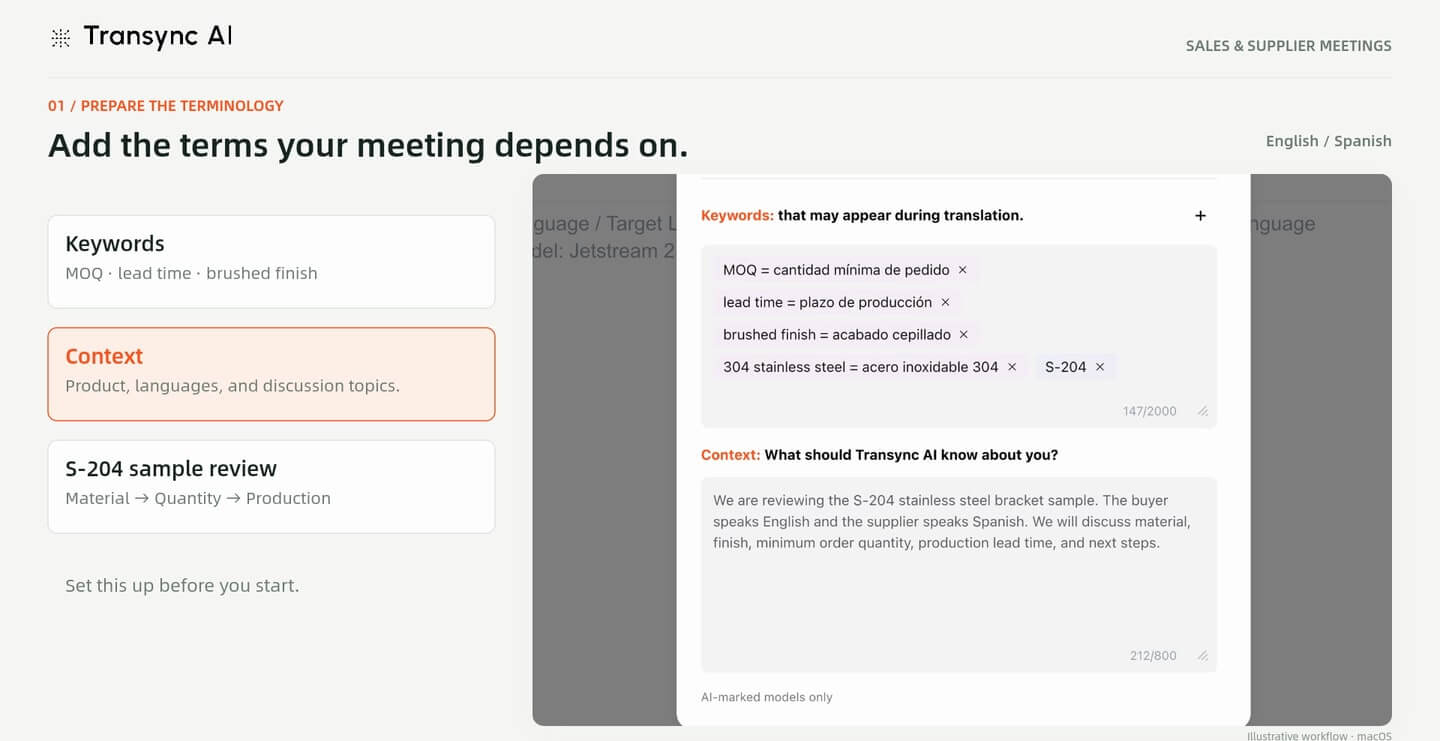
Before the call, open AI Assistant Keywords and Context. Add product names, specialist terms and any preferred translations, then describe what you plan to discuss.
The example prepares vocabulary for samples, minimum order quantity (MOQ) and production lead time. Context gives the translation background; it does not replace checking what both parties actually agree.
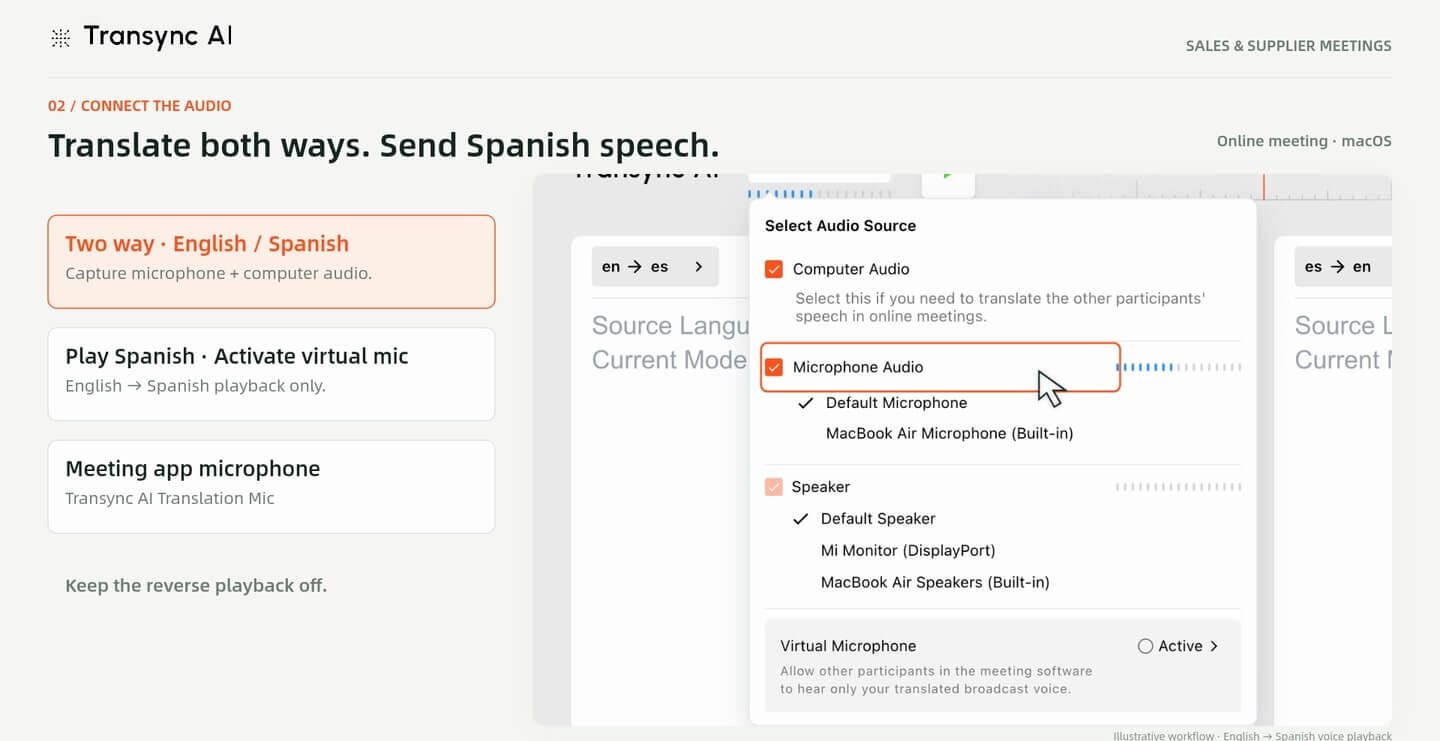
Choose Two way and your language pair. For the online macOS workflow shown here, select Computer Audio for the other participant and Microphone Audio for your own voice.
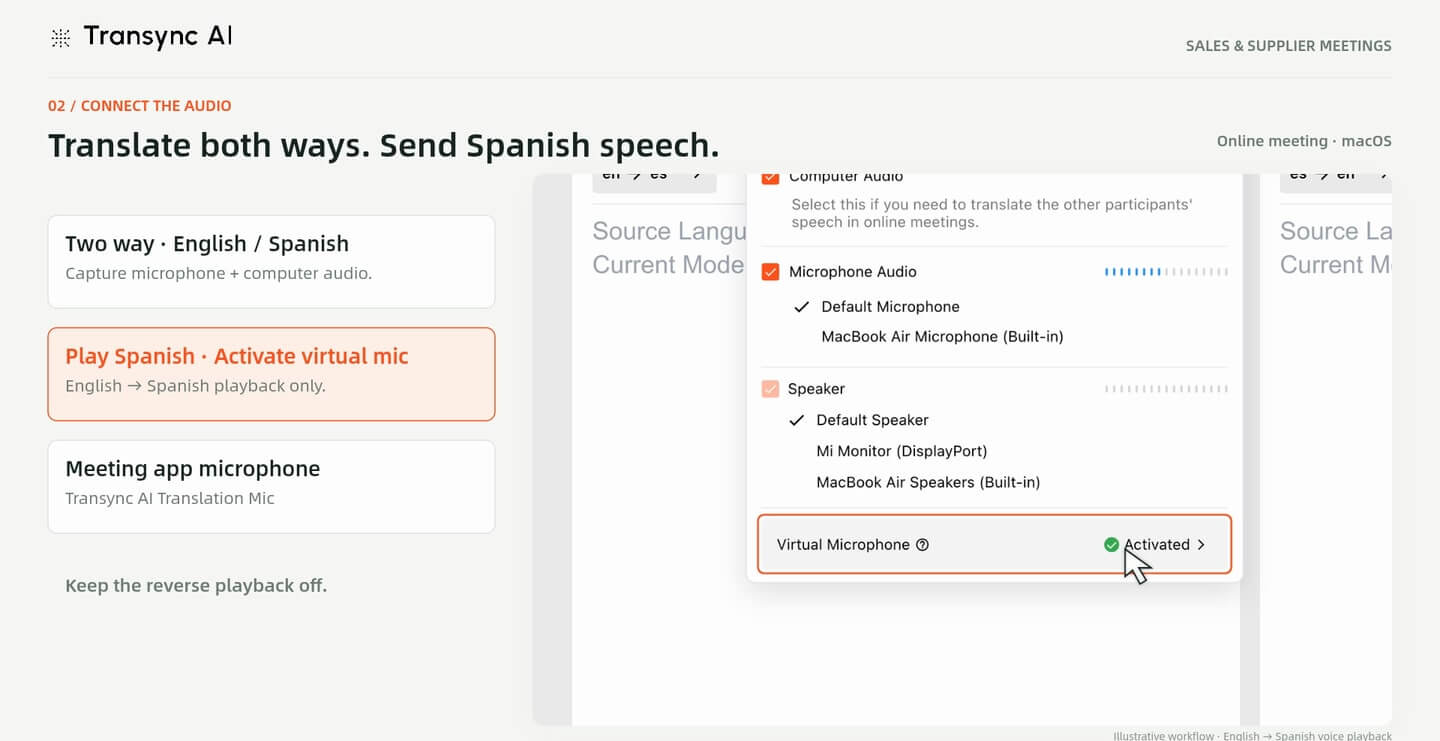
In this English–Spanish example, Spanish voice playback is on for the buyer’s translated speech. English voice playback is off, so the buyer can read the supplier’s translated replies without hearing an additional spoken version.
Activate Virtual Microphone when you want the meeting app to receive translated speech. Keep your actual physical microphone selected inside Transync AI to capture what you say.
Run a short test before the meeting. Confirm that the other participant hears the intended translated audio and that you can still follow their replies.
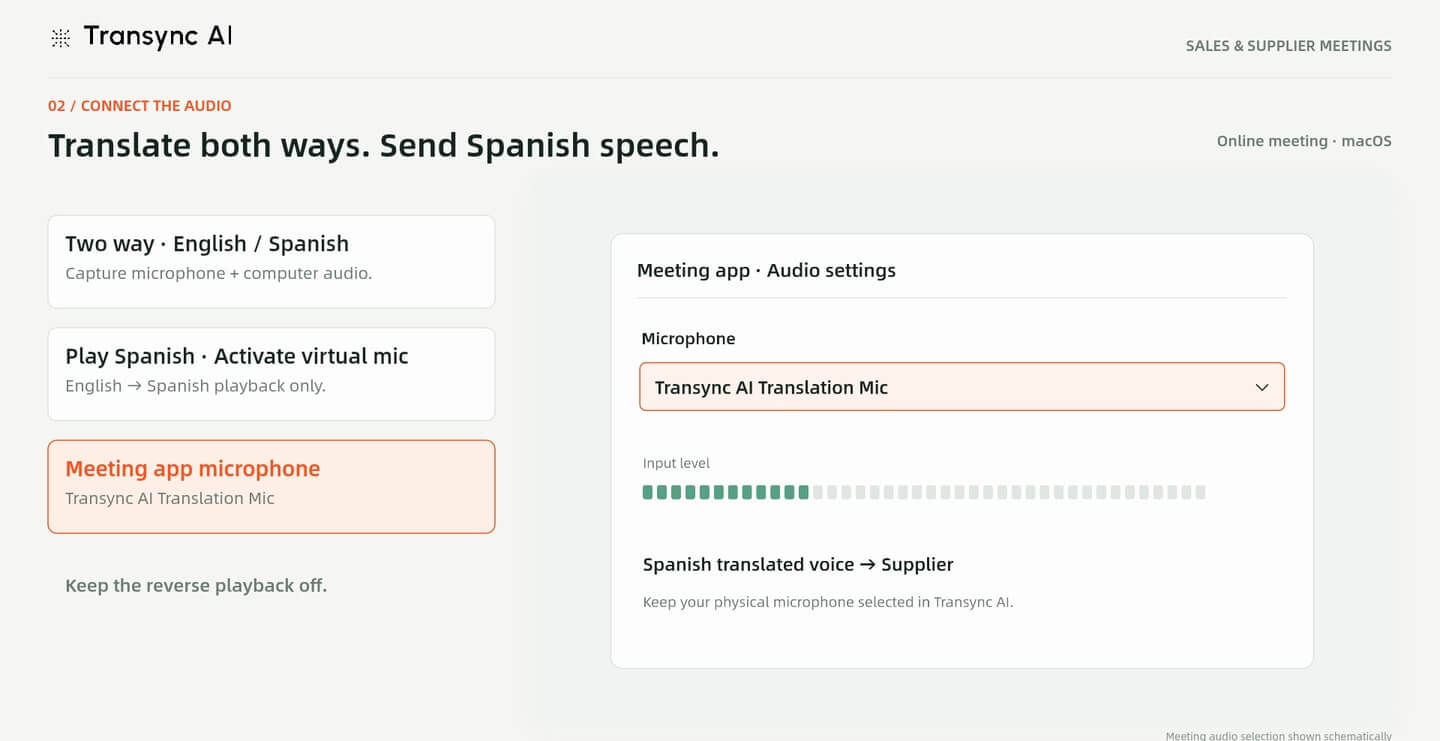
In your meeting app’s audio settings, select Transync AI Translation Mic as the microphone, then start translation in Transync AI.
The image uses a generic meeting-app picker to illustrate this step. The exact location and wording of audio controls depend on the meeting app. This walkthrough shows macOS; other operating systems may use a different setup.
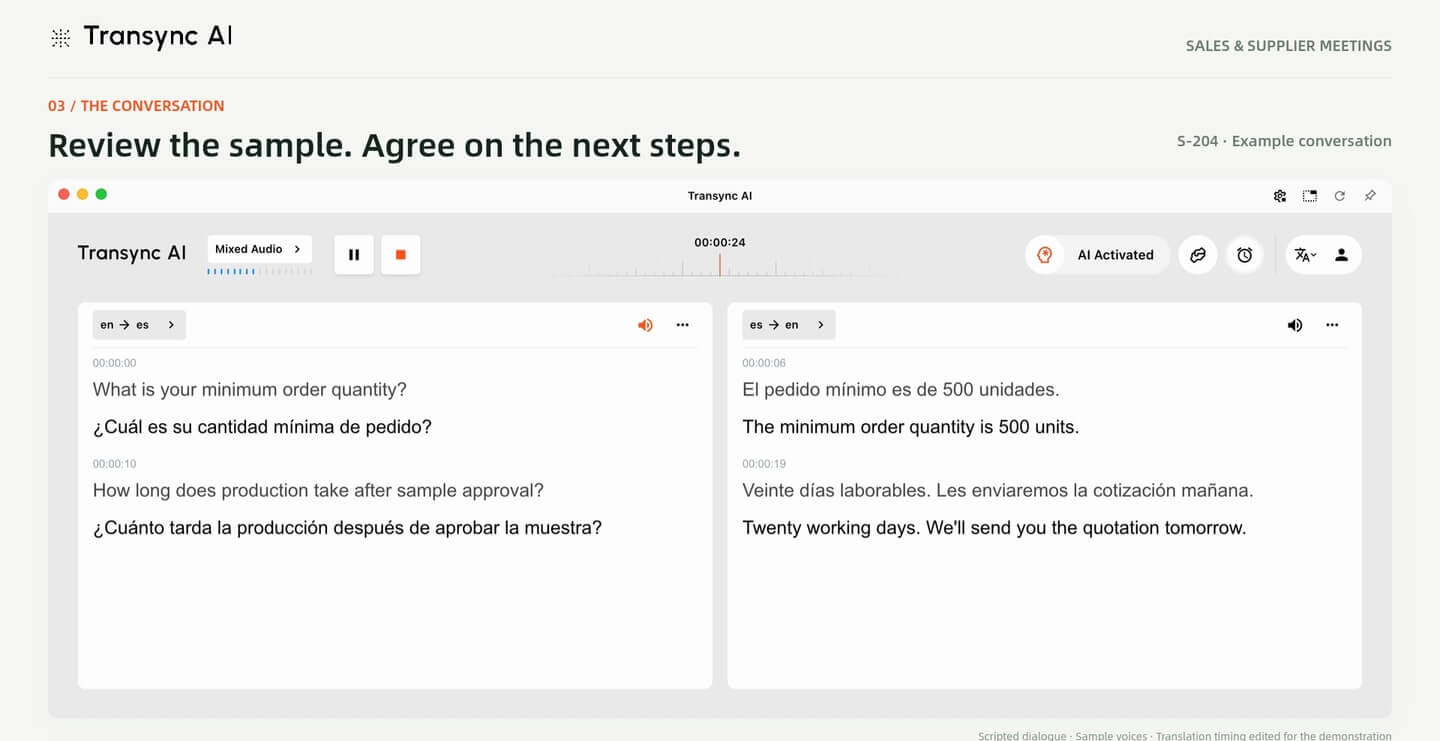
Use the conversation to clarify the details you need for a quotation or purchasing decision. In the scripted example, the buyer asks about minimum order quantity and production time after sample approval.
The supplier replies in Spanish while the buyer reads the English translation. Before relying on a figure, date or commitment, repeat it back and confirm it with the other person.
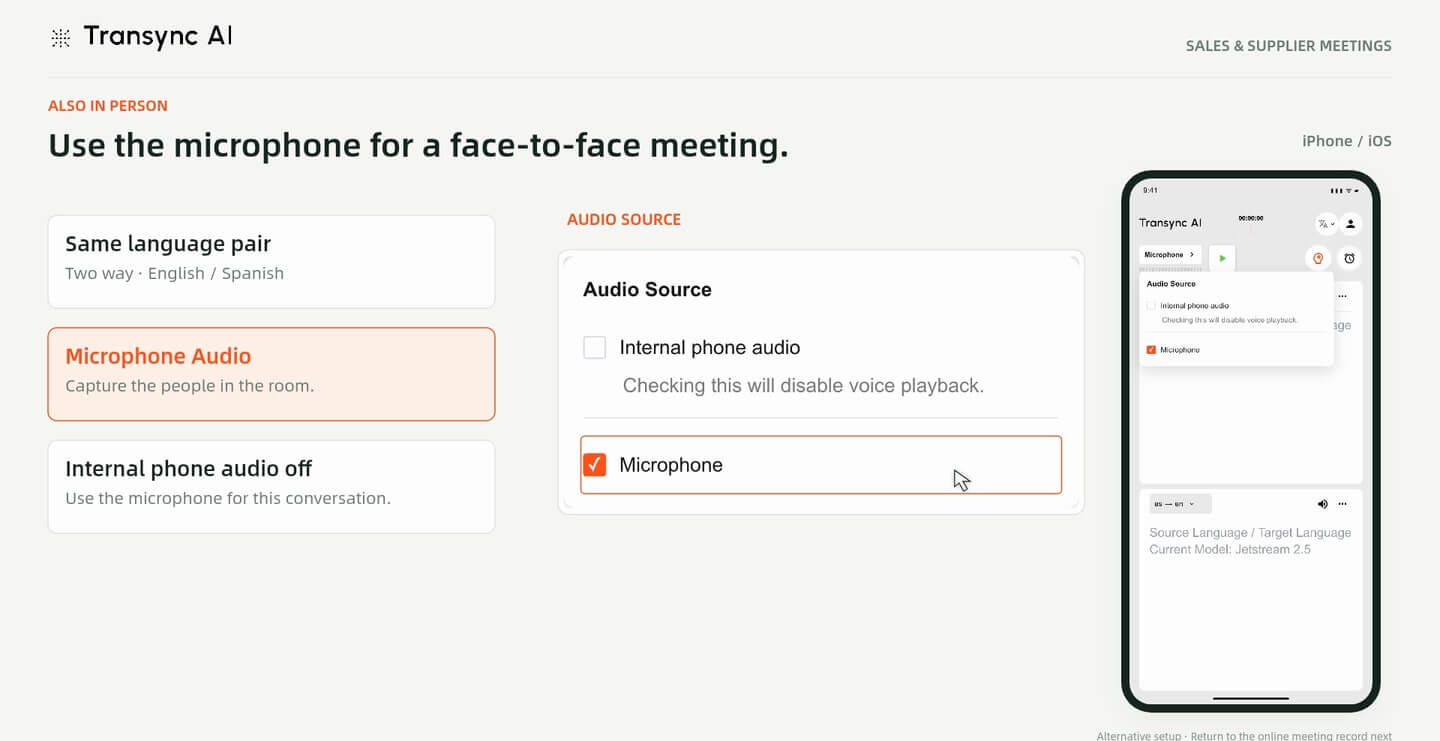
Meeting face to face? Choose Microphone on your iPhone to capture the people speaking in the room. The example keeps Internal phone audio off and uses the same two-way language pair.
Place the phone where both speakers can be heard, take turns and check that the microphone is capturing the conversation. See the in-person meeting translation guide for this scenario.
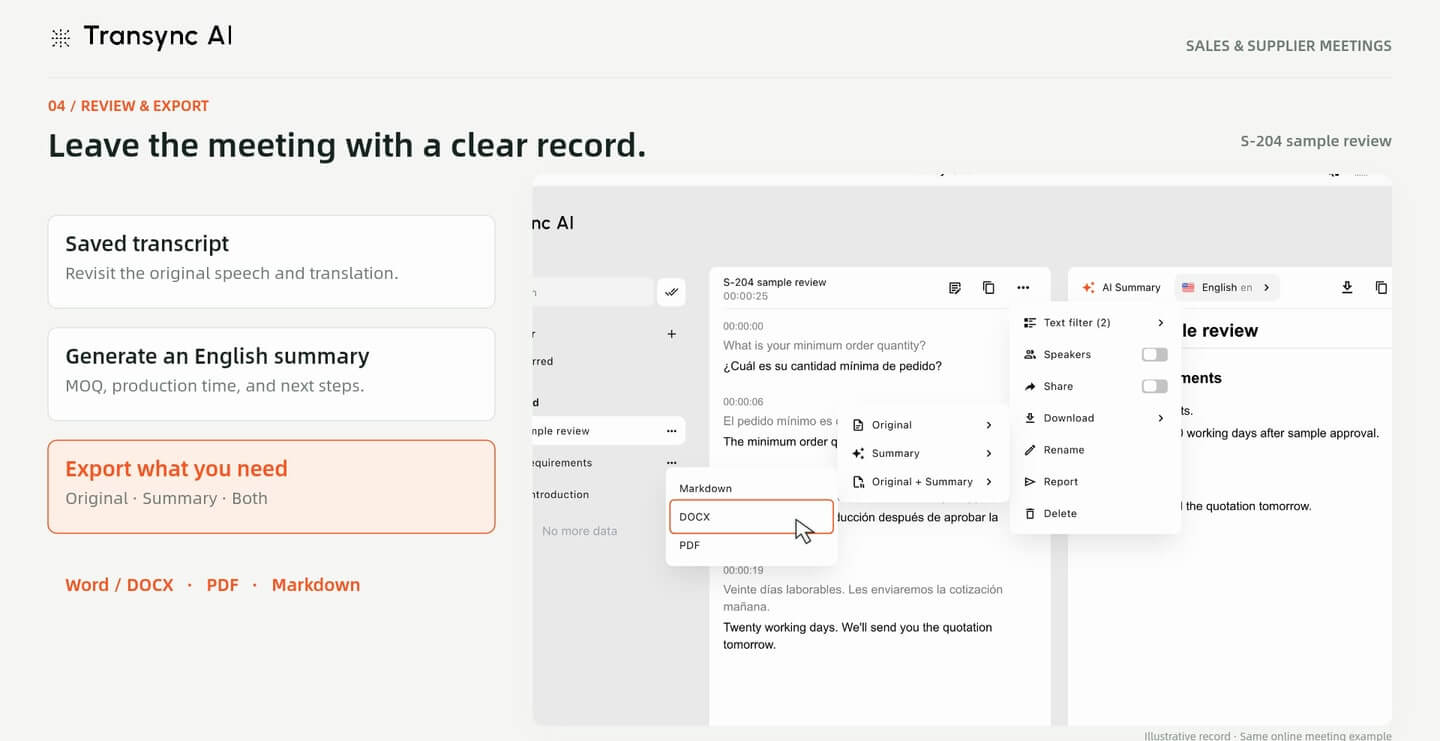
After the meeting, open the saved transcript and generate a summary in the language you need. Use AI meeting notes to review the discussion and prepare your follow-up.
The example summary records a 500-unit minimum order, 20 working days after sample approval, and a quotation expected the next day. These are scripted demonstration details, not supplier offers. Check the summary against the transcript and confirm commercial terms directly.
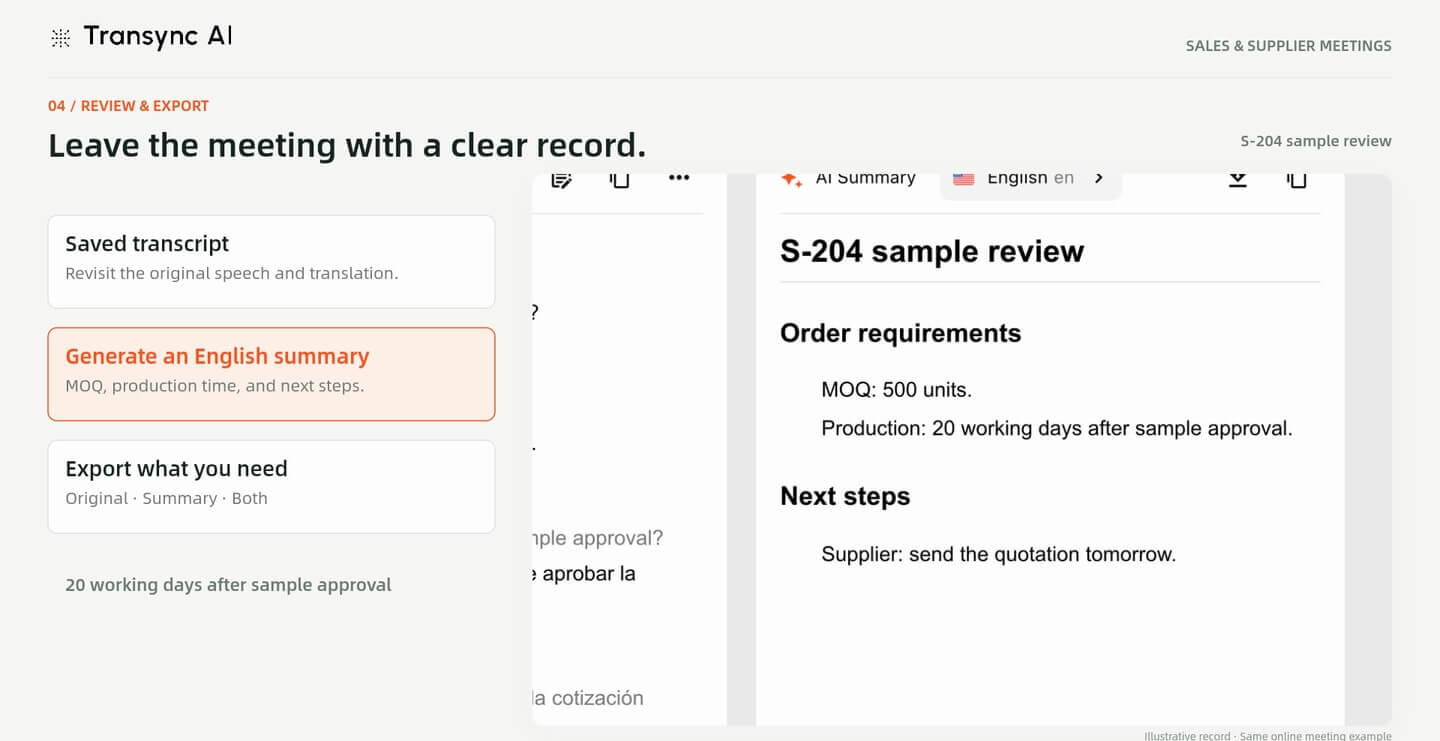
Choose Original, Summary or Original + Summary, then export to Markdown, Word (DOCX) or PDF.
Review the exported record before sharing it with colleagues or the supplier. Keep the agreed quantities, conditions and next steps clear, and correct any transcription or translation errors you find.
Screenshots are taken from the supplied V4 demonstration and cropped to remove the narration subtitles and playback progress bar. The video uses illustrative interfaces, a scripted conversation and sample voices; it is not a live customer-call recording or an accuracy/latency benchmark. The in-person segment is an alternative setup; the review segment returns to the online example.
Set up your languages and product terms, test the audio with the other participant, and keep a record you can review after the meeting.
Quick answers
Language setup, meeting audio, in-person use and follow-up notes.
Both scenarios appear in the guide. The online workflow uses macOS computer audio and a microphone. The in-person alternative uses the iPhone microphone to capture people in the room.
Select Two way and set your language pair before the conversation. The example uses English and Spanish. Check the current language options in your app for your own meeting.
For the macOS translated-voice workflow shown here, select Transync AI Translation Mic in the meeting app. Keep your physical microphone selected inside Transync AI, and test the audio before the call.
No. The example plays the buyer’s English speech in Spanish, while the buyer reads English translations of the supplier’s replies. Choose the voice-playback direction that fits your conversation.
Yes. Add Keywords, preferred translations and Context before the meeting. Include names and terminology that are useful to the discussion, and still verify important details with the other person.
The demonstrated export menu offers Original, Summary or Original + Summary in Markdown, Word (DOCX) or PDF. Review the record and any generated summary before sharing.
Yes. Transcription, translation and summaries can contain errors. Confirm quantities, prices, dates and other commitments directly with the other party before acting on them.
No. It uses illustrative screens, a scripted English–Spanish conversation and sample voices. The sequence explains a workflow; it does not establish real-world accuracy, latency or audio-routing performance.