
Hit enter to search or ESC to close
Close Search
Transync AI logo – official brand logo for Transync AI real-time translation service
  • Free Trial
Menu
  • Product
    • Translation
      • AI Real-Time TranslationTranslate conversations as they happen
      • AI Voice TranslatorListen to translations spoken aloud
      • Presentation ModeShare live subtitles on a larger screen
    • Meetings
      • AI Live Meeting TranslationFollow multilingual meetings in real time
      • AI Meeting NotesTurn conversations into clear meeting notes
      • AI Speaker SeparationKeep track of who said what
    • Tools & Coverage
      • AI Assistant: Keywords and ContextAdd keywords and context for better translations
      • Picture in Picture Floating SubtitlesKeep translated subtitles above other windows
      • Supported LanguagesExplore supported languages and language pairs
  • Use Cases
    • Zoom translationTranslate your Zoom meetings in real time
    • Microsoft Teams translationFollow multilingual conversations in Teams
    • Google Meet TranslationUnderstand every conversation on Google Meet
    • WhatsApp Translation voice callTranslate WhatsApp voice calls as you talk
    • In-Person Meeting TranslationCommunicate face to face across languages
    • Gaming Livestream TranslationFollow gaming livestreams in your language
    • Lecture TranslationFollow classes across languages and review the key points
    • Webinar TranslationFollow webinars and live events across languages
    • Gaming Commentary TranslationBroadcast translated commentary and bilingual captions
    • Sales & Supplier Meeting TranslationDiscuss requirements across languages and keep a clear record
  • Blog
  • Pricing
  • Enterprise
  • Contact
  • Support
    • User GuideGet started with clear, step-by-step guides
    • Video TutorialsExplore features with guided video walkthroughs
  • Download
  • Free Trial
  • Product
    • Translation
      • AI Real-Time TranslationTranslate conversations as they happen
      • AI Voice TranslatorListen to translations spoken aloud
      • Presentation ModeShare live subtitles on a larger screen
    • Meetings
      • AI Live Meeting TranslationFollow multilingual meetings in real time
      • AI Meeting NotesTurn conversations into clear meeting notes
      • AI Speaker SeparationKeep track of who said what
    • Tools & Coverage
      • AI Assistant: Keywords and ContextAdd keywords and context for better translations
      • Picture in Picture Floating SubtitlesKeep translated subtitles above other windows
      • Supported LanguagesExplore supported languages and language pairs
  • Use Cases
    • Zoom translationTranslate your Zoom meetings in real time
    • Microsoft Teams translationFollow multilingual conversations in Teams
    • Google Meet TranslationUnderstand every conversation on Google Meet
    • WhatsApp Translation voice callTranslate WhatsApp voice calls as you talk
    • In-Person Meeting TranslationCommunicate face to face across languages
    • Gaming Livestream TranslationFollow gaming livestreams in your language
    • Lecture TranslationFollow classes across languages and review the key points
    • Webinar TranslationFollow webinars and live events across languages
    • Gaming Commentary TranslationBroadcast translated commentary and bilingual captions
    • Sales & Supplier Meeting TranslationDiscuss requirements across languages and keep a clear record
  • Blog
  • Pricing
  • Enterprise
  • Contact
  • Support
    • User GuideGet started with clear, step-by-step guides
    • Video TutorialsExplore features with guided video walkthroughs
  • Download

hello@transyncai.com

Getting Started

4
  • Desktop Quickstart Guide
  • Mobile Quickstart Guide
  • Meeting Audio Setup Checklist
  • Contact Us

User Guide

15
  • How to Register Transync AI
  • How to Start Real-Time Translation
  • How to Choose a Translation Mode in Transync AI
  • How to Share Computer Audio
  • How to Use Voice Playback in Transync AI
  • How to Use the AI Assistant
  • How to Manage Personal Vocabulary
  • How to Manage Personalized Memory
  • How to Use Voice Clone
  • How to Use the Virtual Microphone on macOS
  • How to Set Up Virtual Microphone on Windows
  • How to Use Picture-in-Picture Mode
  • How to Access Meeting Transcripts and Summaries
  • How to Manage Translation Records
  • How to Recharge and Request a Refund

Presentation Mode

2
  • How to Use Presentation Mode in Transync AI
  • How to Join a Transync AI Presentation

Enterprise

1
  • Enterprise guide

Resources

3
  • Trust Center
  • Terms and Policy
  • Changelog
View Categories
  • Home
  • Docs
  • User Guide
  • How to Manage Personalized Memory

How to Manage Personalized Memory

4 min read

Personalized memory helps Transync AI retain useful background and preferences learned from your translation tasks. You can review the saved summary in the AI Assistant and choose whether to add it to translation context.

1. Open your personalized memory #

  1. Open Personal Center → AI Assistant. You can also open the AI Assistant from the translation screen.
  2. If you see Personal and Organization tabs, select Personal.
  3. Scroll to Personalization (Generated by AI), below the Context field.

You can also manage AI Personalization in the settings panel under Advanced settings. AI Keyword Learning is a separate switch.
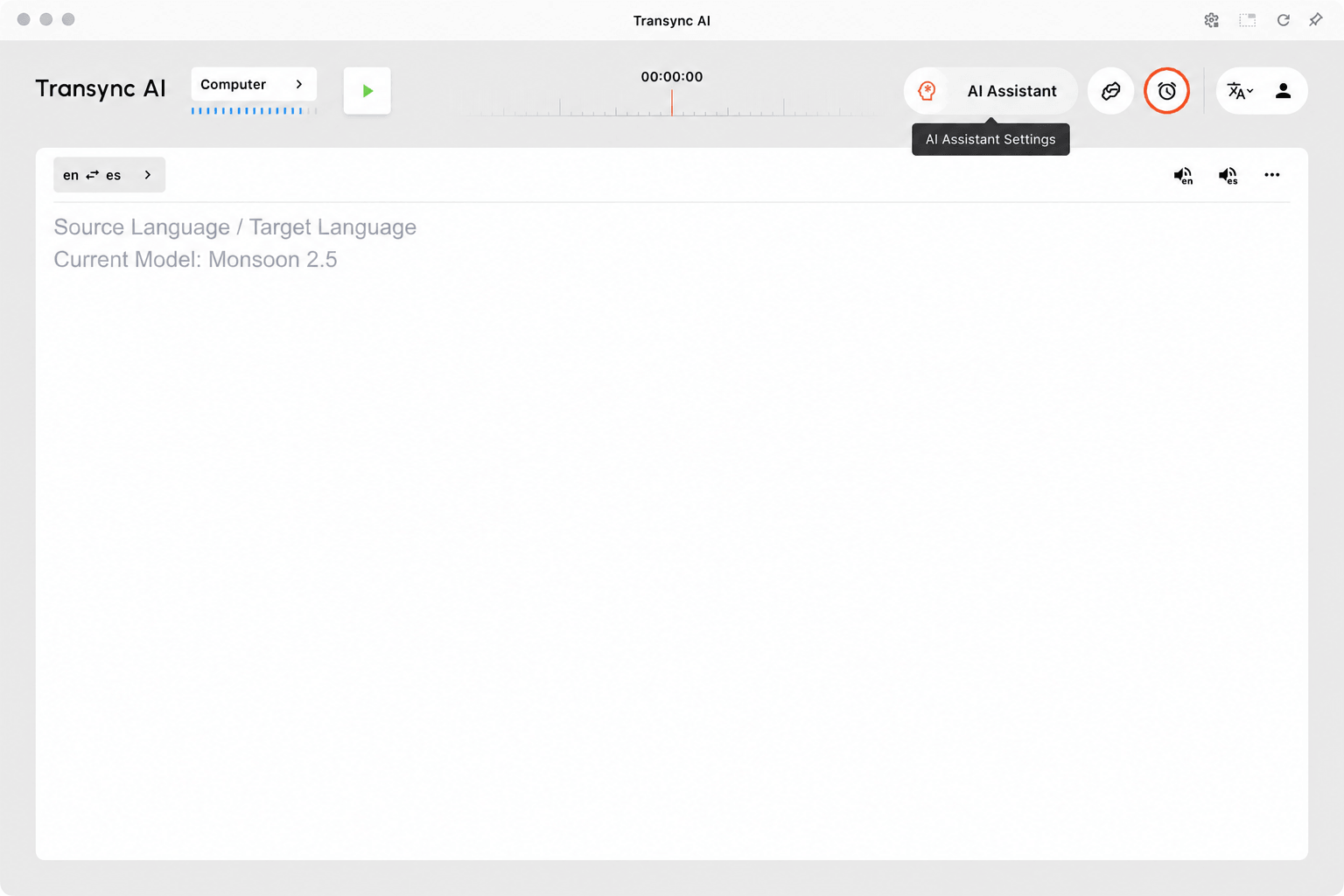
AI Assistant entry in the top navigation bar with the brain icon and AI Assistant Settings tooltip.
Click the brain icon in the top-right navigation bar to open AI Assistant. The label may show AI Assistant, Keywords, or Context.

2. Review your personalized memory #

Once a memory is available, the card displays a short summary. The card below summarizes an engineering discussion about infrastructure outages, Redis caching limits, performance, and scalability. Your card will reflect your own saved information.
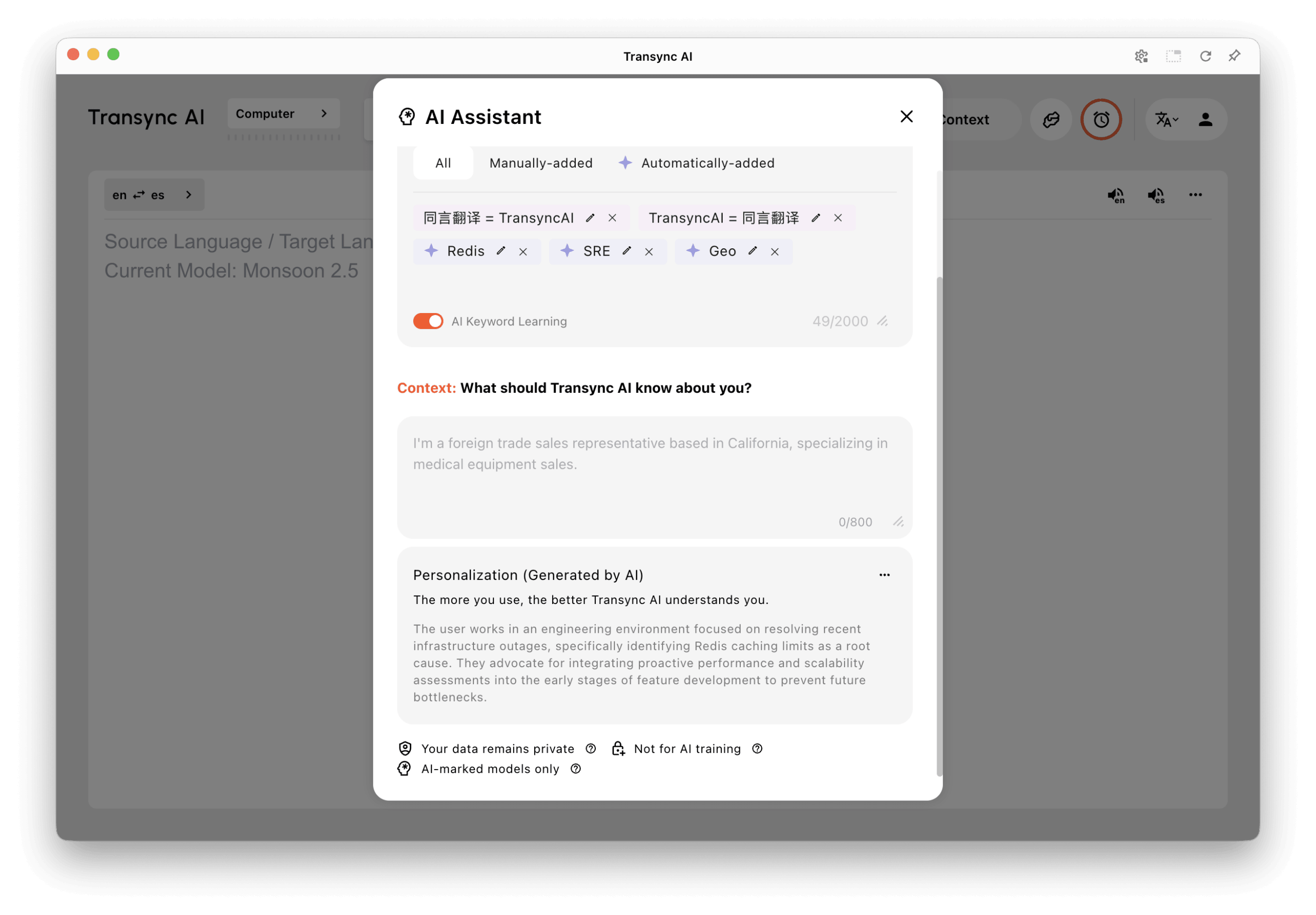
Saved personalized memory summarizing an engineering discussion about Redis caching limits, infrastructure outages, performance, and scalability.
The Personalization card summarizes saved background from an engineering discussion.

Click the saved summary to view its full details. If no saved memory is available yet, the card may show example descriptions instead. Examples are not saved memories.

3. Add personalized memory to context #

Open the three-dot menu on the card. It contains two separate controls:

  • AI Personalization controls learning and retaining personalized memory.
  • Add to Context controls whether saved memory is included as additional context for supported translation tasks. AI Personalization must be enabled to use this option.
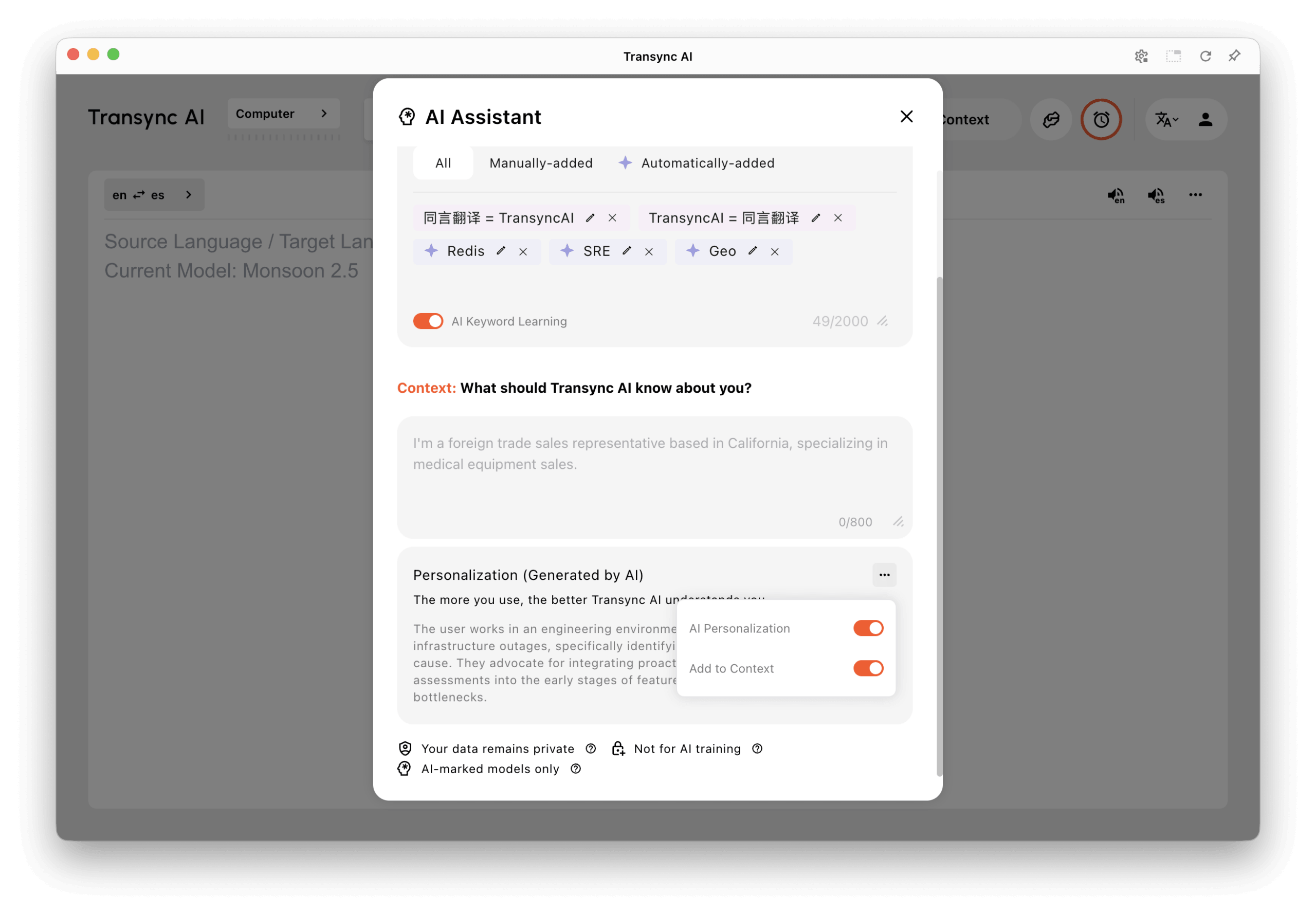
Personalization card menu with AI Personalization and Add to Context switched on.
Manage AI Personalization and Add to Context from the card’s three-dot menu.

Set these options before starting or resuming translation. Turning off Add to Context lets you stop using the memory as translation context without choosing the separate delete action. You can still enter meeting-specific instructions in the manual Context field.

4. Turn off personalization and delete saved memory #

  1. Open the card’s three-dot menu.
  2. Turn off AI Personalization.
  3. Read the confirmation, then choose Turn off and delete to proceed, or Cancel to keep your current settings.
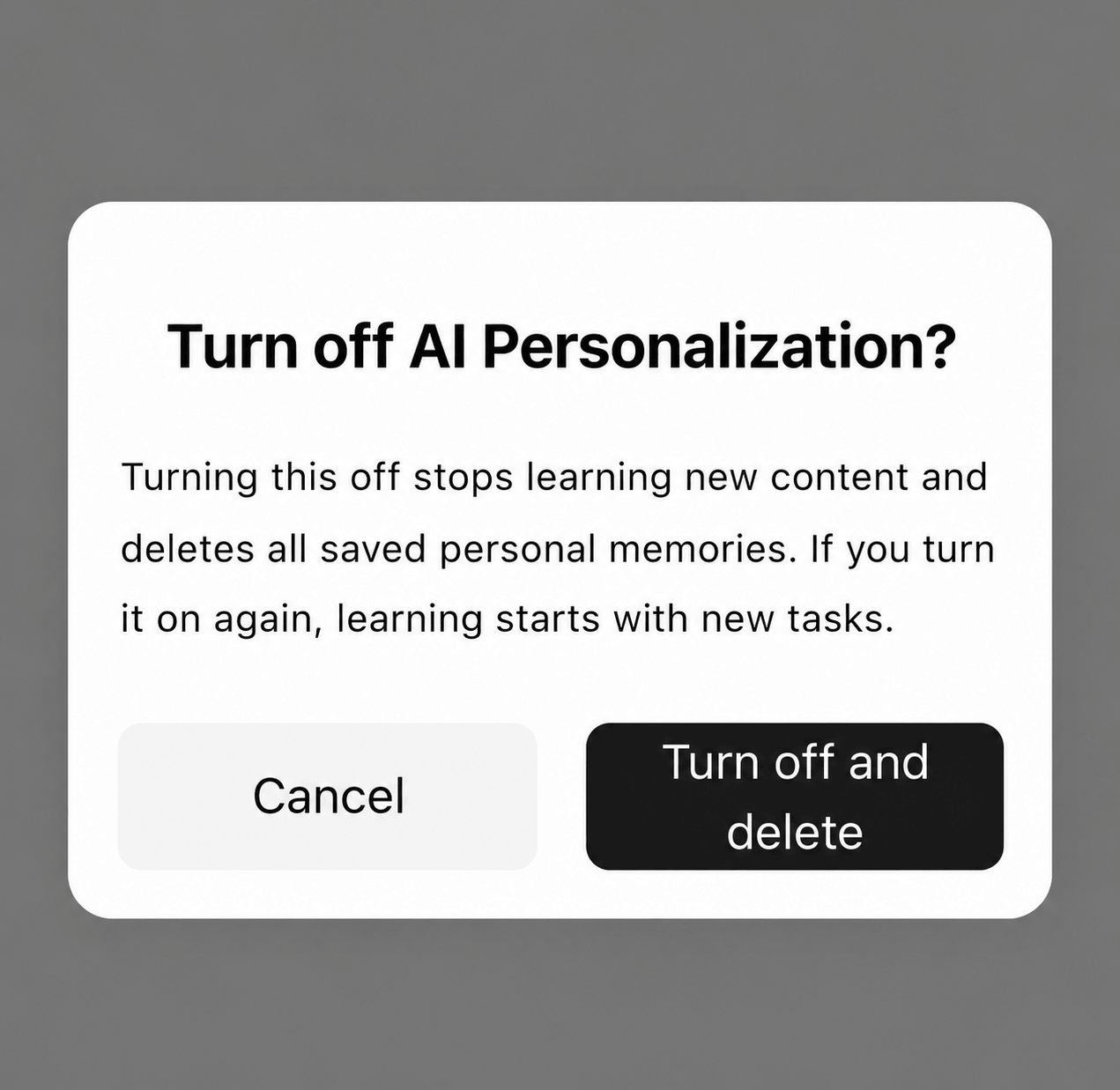
Confirmation for turning off personalized memory, with Cancel and Turn off and delete buttons.
Read the confirmation before choosing Turn off and delete. Choose Cancel to keep your current settings.

The confirmation states that this stops learning new content and deletes saved personal memories. Turning personalization on again starts learning from new tasks. Use Add to Context instead if you only want to stop including saved memory in translation context.

Before your next meeting: review the personalized memory summary and decide whether its background fits the conversation. For example, a saved engineering background may be useful for another infrastructure discussion. If the next meeting covers a different subject, turn off Add to Context and enter the relevant details in the manual Context field. This keeps the choice of background explicit for that task.

Keep vocabulary and background separate when preparing. Product names, abbreviations, and preferred translations belong in Keywords; your role, the meeting topic, and communication preferences belong in Context or personalized memory. A keyword such as Redis is a term, while a summary about engineering work describes broader background. Review both areas before starting or resuming translation, rather than assuming a newly learned term also changes the memory summary.

Using Transync AI in a browser? Open the Transync AI web app and sign in to access the AI Assistant.
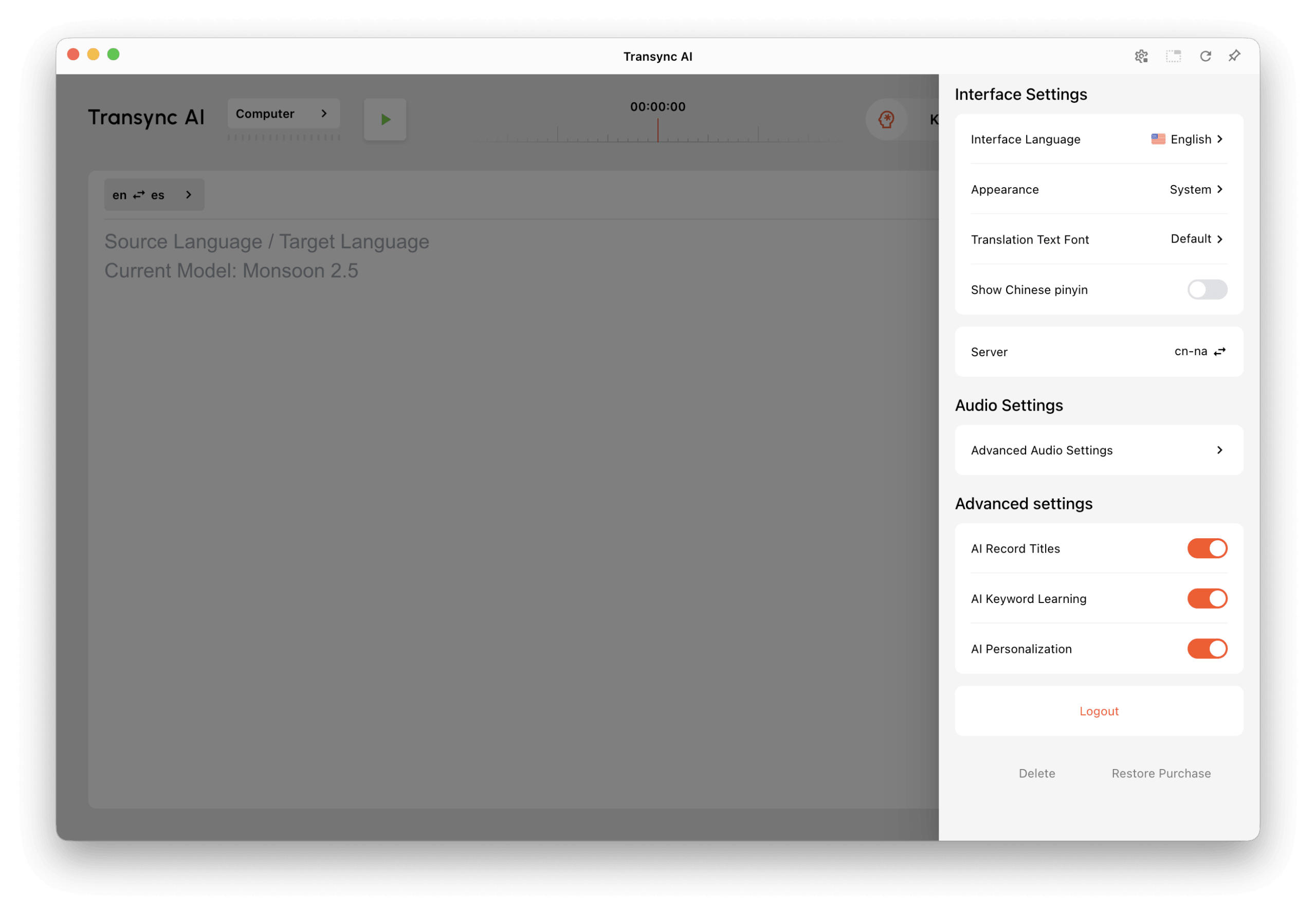
Advanced settings showing separate AI Keyword Learning and AI Personalization switches enabled.
AI Personalization is also available under Advanced settings. Read the confirmation before turning it off and deleting saved memory.

FAQs #

Can I type or edit individual memories? #

The memory card is generated by AI. The current interface lets you view the summary, manage its settings, and turn personalization off and delete it. To provide specific background yourself, use the manual Context field.

Is personalized memory the same as personal vocabulary? #

No. Memory summarizes background and preferences. Personal vocabulary contains individual terms and optional target translations, with a separate AI Keyword Learning switch in the Keywords area.

Why can’t I see a saved summary? #

Check that AI Personalization is on. An enabled card can still show examples when no saved memory is available. If the app reports that it could not load personalization settings, try again after your connection is restored. Use a model marked as supporting the AI Assistant when applying context.

Related guide: How to Use the AI Assistant.

Updated on October 10, 2026

Is this document helpful?

  • Happy
  • Sad

Share This Article :

  • Facebook
  • X
  • LinkedIn
  • Pinterest
How to Manage Personal VocabularyHow to Use Voice Clone
Table of Contents
  • 1. Open your personalized memory
  • 2. Review your personalized memory
  • 3. Add personalized memory to context
  • 4. Turn off personalization and delete saved memory
  • FAQs
    • Can I type or edit individual memories?
    • Is personalized memory the same as personal vocabulary?
    • Why can’t I see a saved summary?

RedNote Douyin Bilibili 知乎 YouTube TikTok LinkedIn

沪ICP备2025119728号

Contact:support@transyncai.com

Product

  • Tools
  • AI Real-time translation
  • AI Live Meeting translation
  • Presentation Mode
  • AI Meeting Notes
  • AI Speaker Separation
  • AI Voice Translator
  • AI Assistant
  • Picture in Picture Floating Subtitles
  • Supported languages
  • Translation Hours Calculator
  • Savings Calculator
  • 翻译小时计算器
  • 节省费用计算器
  • Use Cases
  • Zoom Translation
  • Teams Translation
  • Google Meet Translation
  • WhatsApp Translation
  • In-Person Meeting Translation

Pages

  • Pricing
  • Blog
  • Support
  • Video Tutorials
  • Download
  • Enterprise
  • Changelog
  • Free Trial

Resources

  • Transync AI Facts
  • Compare Transync AI
  • Transync AI Alternatives

Terms

  • Privacy
  • Terms of Service
  • Trust center

© 2026 Transync AI – Real-Time Translation.

English
简体中文 日本語 한국어 Русский Français Español Deutsch Italiano Čeština ไทย 繁體中文繁體中文 Português do Brasil العربية हिन्दी Bahasa Indonesia Tiếng Việt Türkçe Nederlands Polski Українська