Personalized memory helps Transync AI retain useful background and preferences learned from your translation tasks. You can review the saved summary in the AI Assistant, pause learning at any time without losing what is already saved, and choose whether to add personalized memory to translation context.
1. Open your personalized memory #
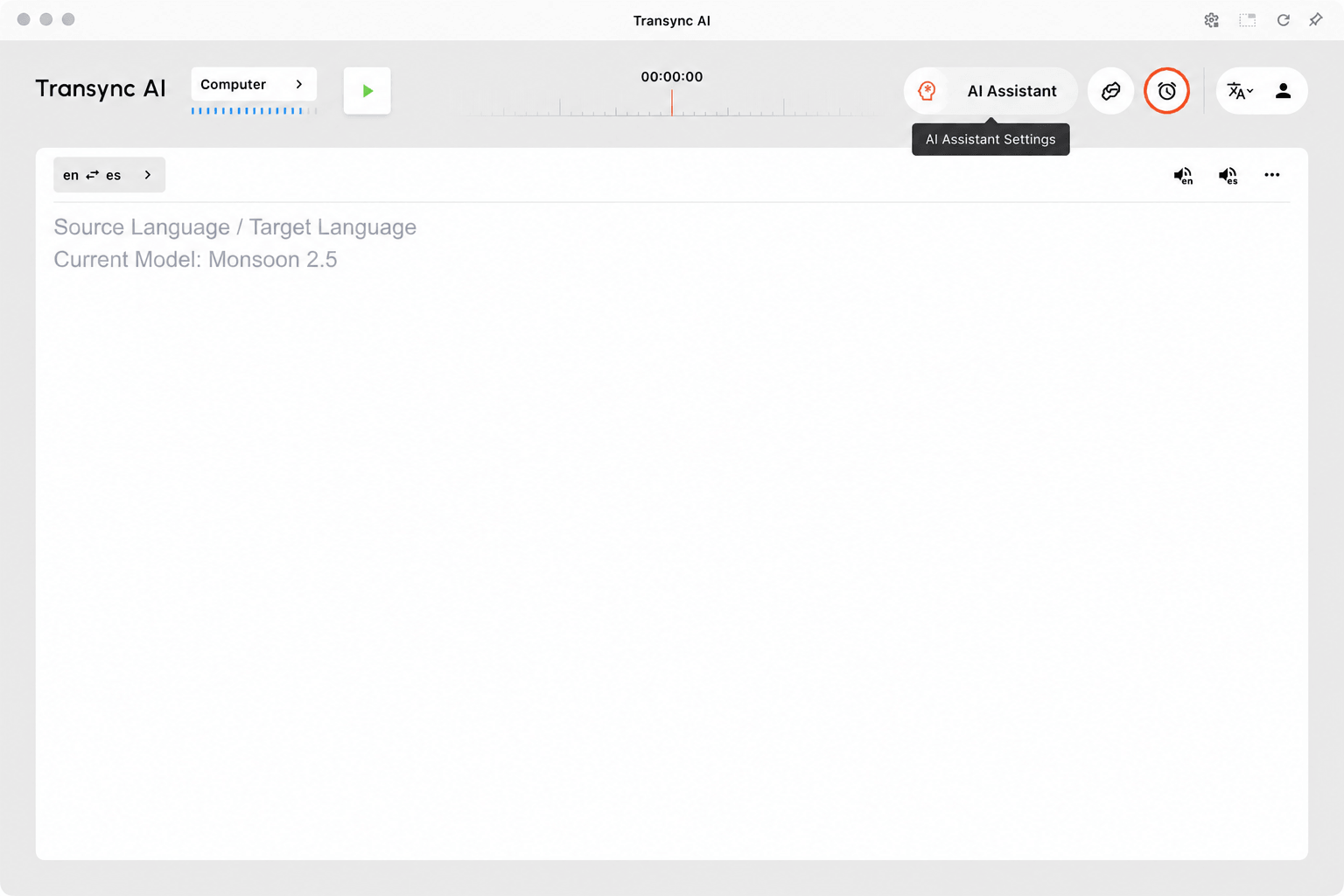
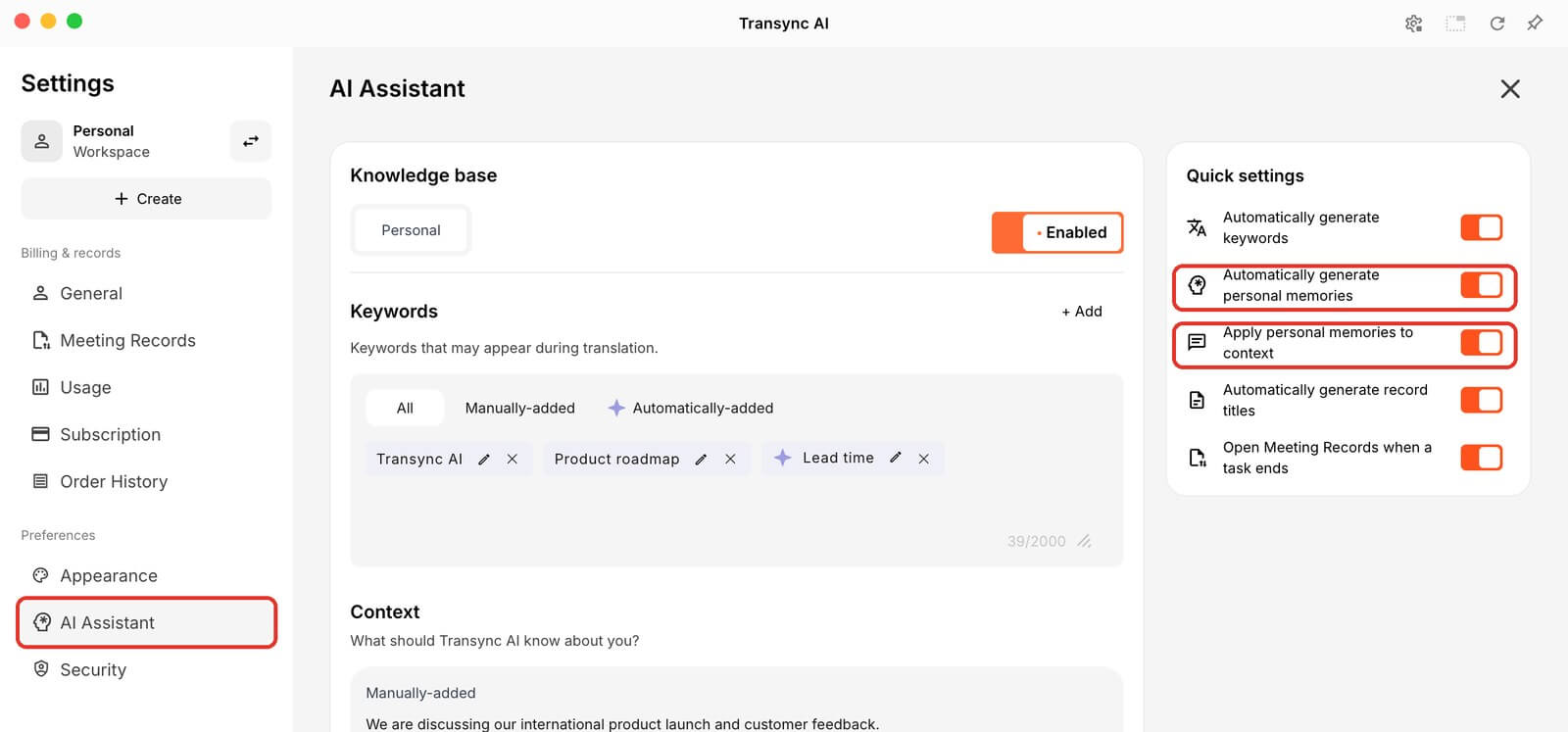
- Click the profile icon in the upper-right corner of the main screen to open Settings, then select AI Assistant. You can also open the AI Assistant from the translation screen.
- In Knowledge base, select Personal. The Organization tab appears only for organization members.
- Scroll to Personalization (Generated by AI), below the Context field.
2. Review your personalized memory #
Once a memory is available, the card displays a short summary of your background, such as the example below. Your card will reflect your own saved information.
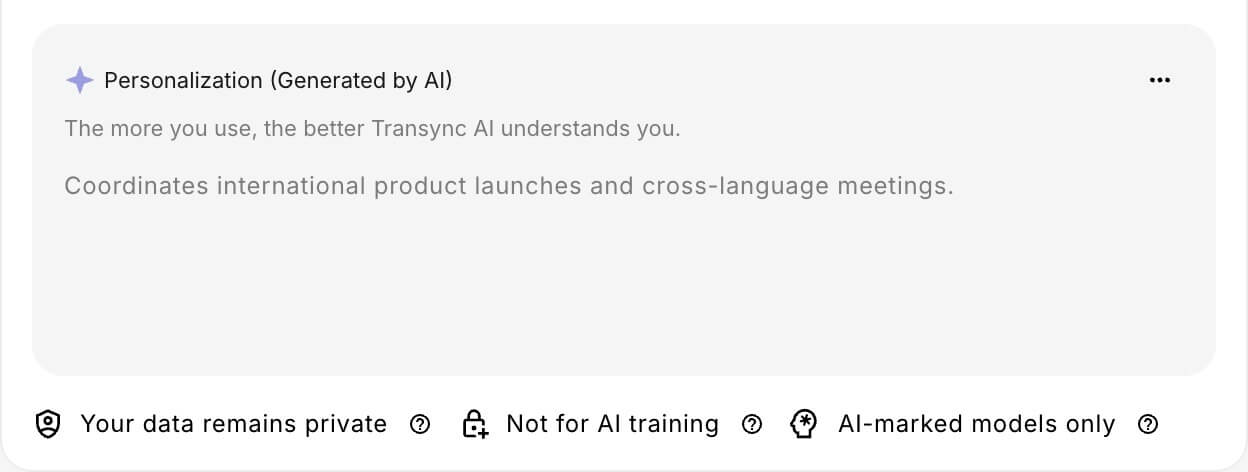
Click the saved summary to view its full details. If no saved memory is available yet, the card may show example descriptions instead. Examples are not saved memories.
3. Choose how personalized memory is generated and used #
Two independent options control personalized memory. You can set them in Settings → AI Assistant → Quick settings, or from the three-dot menu on the memory card:
- Automatically generate personal memories (AI Personalization in the card menu) lets Transync AI learn new background from your translation tasks.
- Apply personal memories to context (Add to Context in the card menu) decides whether saved memory is included as additional context for supported translation tasks. It works on its own, so you can keep using saved memory even while learning is paused.
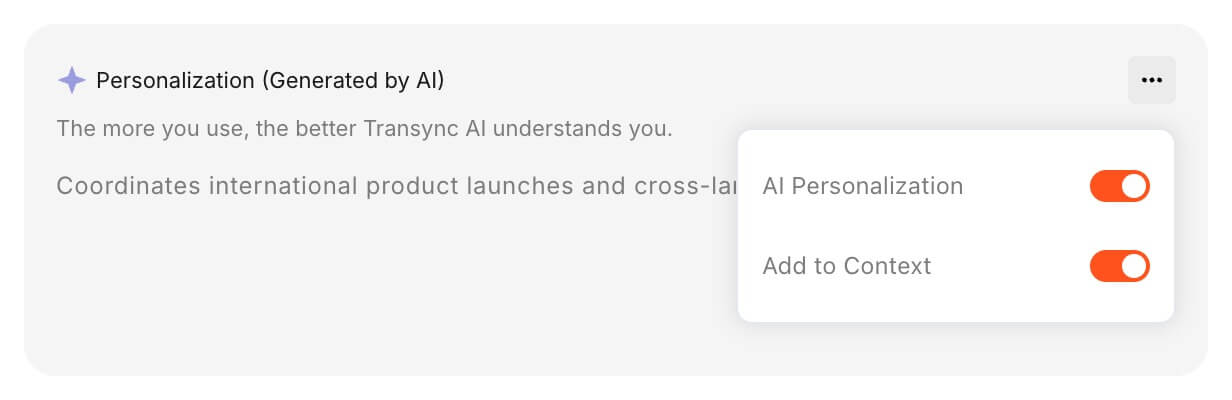
Set these options before starting or resuming translation. You can still enter meeting-specific instructions in the manual Context field.
4. Pause learning without losing your memories #
- Turn off Automatically generate personal memories in Quick settings, or turn off AI Personalization in the card’s three-dot menu.
- Transync AI stops learning from new tasks. Your saved personalized memory is not deleted and stays visible on the card.
- Turn the option back on at any time to continue learning from new tasks.
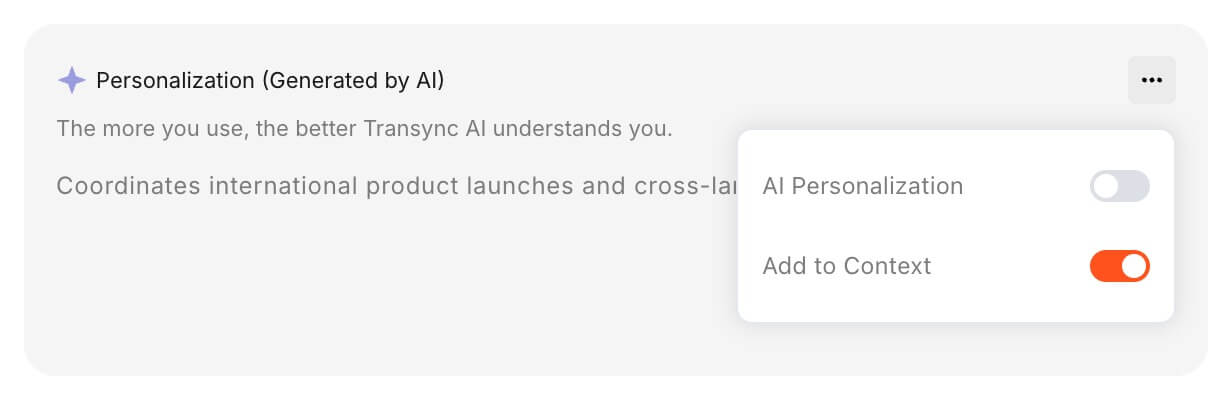
If you only want to stop using saved memory as translation context, turn off Apply personal memories to context (Add to Context) instead. The two options do not affect each other.
Before your next meeting: review the personalized memory summary and decide whether its background fits the conversation. For example, a saved engineering background may be useful for another infrastructure discussion. If the next meeting covers a different subject, turn off Add to Context and enter the relevant details in the manual Context field. This keeps the choice of background explicit for that task.
Keep vocabulary and background separate when preparing. Product names, abbreviations, and preferred translations belong in Keywords; your role, the meeting topic, and communication preferences belong in Context or personalized memory. A keyword such as Redis is a term, while a summary about engineering work describes broader background. Review both areas before starting or resuming translation, rather than assuming a newly learned term also changes the memory summary.
Using Transync AI in a browser? Open the Transync AI web app and sign in to access the AI Assistant.
FAQs #
Does turning off AI Personalization delete my memories? #
No. Turning off Automatically generate personal memories (AI Personalization) only pauses learning. Your saved personalized memory is kept, and Apply personal memories to context continues to work as you set it.
Can I type or edit individual memories? #
The memory card is generated by AI. The current interface lets you view the summary and manage its settings. To provide specific background yourself, use the manual Context field.
Is personalized memory the same as personal vocabulary? #
No. Memory summarizes background and preferences. Personal vocabulary contains individual terms and optional target translations, with its own Automatically generate keywords option. See How to Manage Personal Vocabulary.
Why can’t I see a saved summary? #
Check that Automatically generate personal memories is on and that you have completed a supported translation task. The card can show examples when no saved memory is available. If the app reports that it could not load personalization settings, try again after your connection is restored. Use a model marked as supporting the AI Assistant when applying context.
Related guide: How to Use the AI Assistant.


