
Transync AI lets you see every app and browser where your account is currently signed in. From Settings → Security, you can review your signed-in devices, log out a device you no longer use, log out all other devices at once, and set the maximum number of devices that can stay signed in at the same time.
This is useful when you switch to a new computer or phone, share a device temporarily, or want to make sure your account is only open where you expect it to be.
1. Open Security settings #
- Click the profile icon in the upper-right corner of the main screen to open Settings.
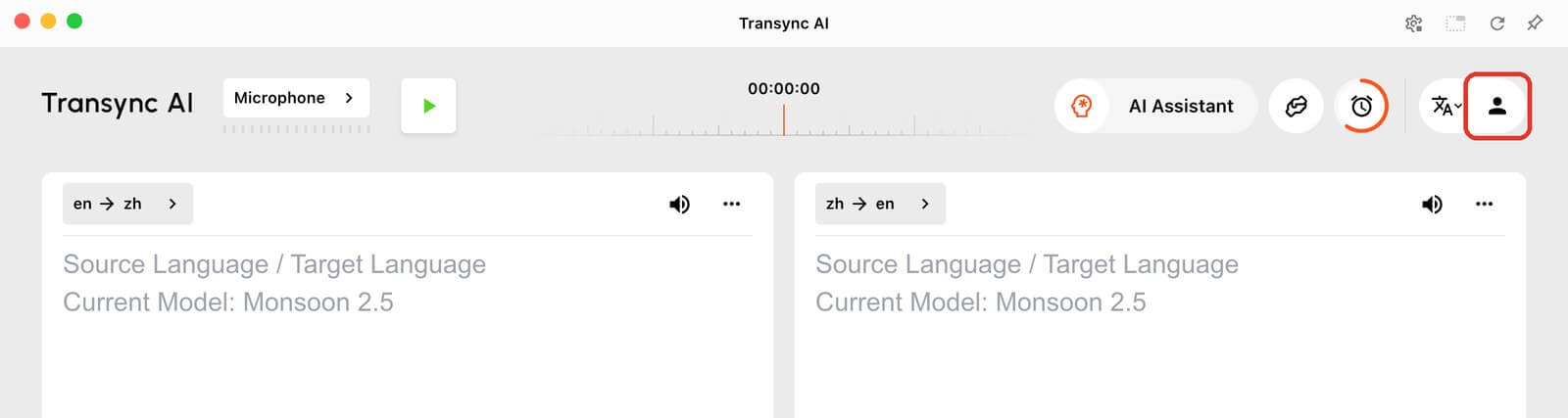
- In the left sidebar, under Preferences, select Security. On mobile, tap Security in the Settings list.
2. Review your signed-in devices #
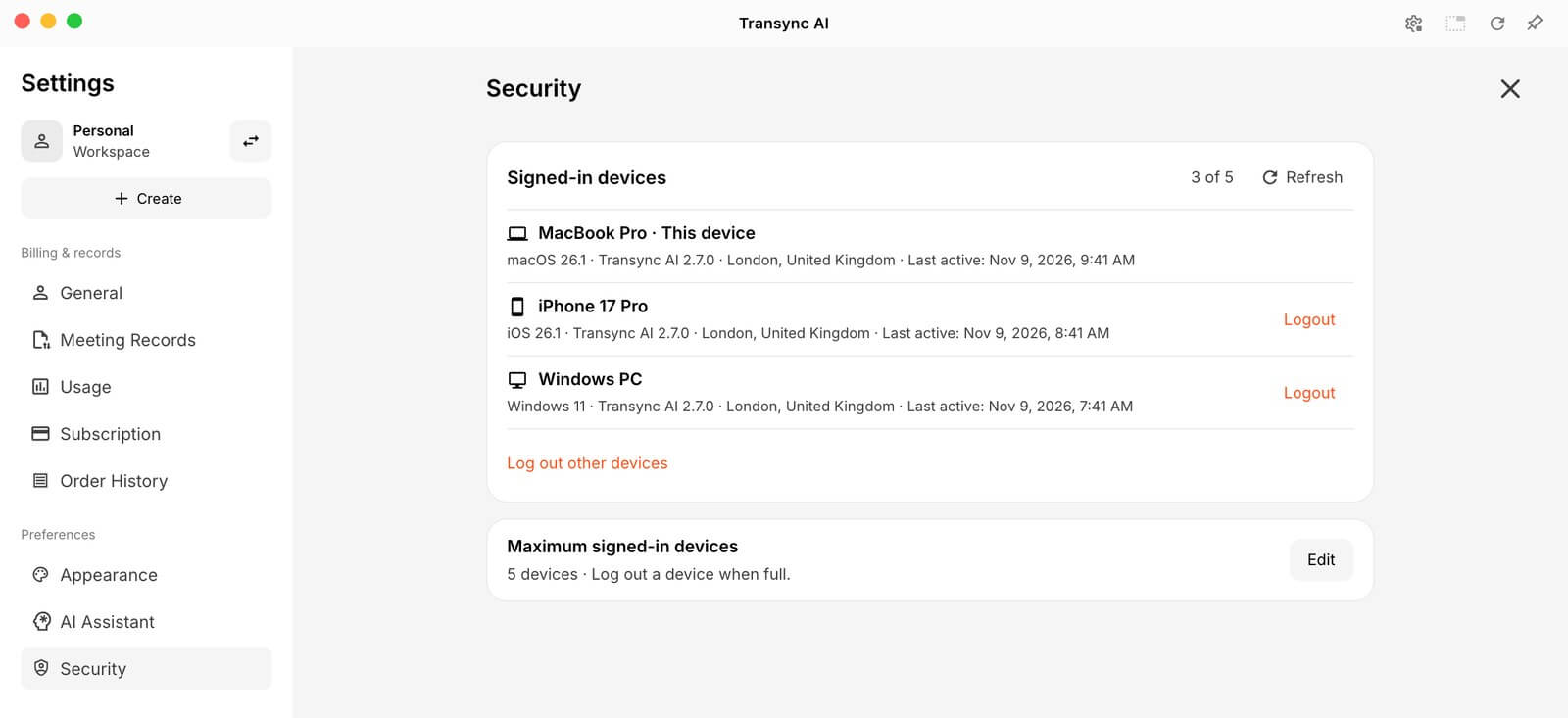
The Signed-in devices section lists every app and browser that is currently signed in to your account. For each device, you can see its name, location, and last activity. The device you are using right now is marked This device.
The counter next to the title, such as 3 of 5, shows how many devices are signed in compared with your current limit. Click Refresh to update the list, or Load more if you have more devices than are shown.
3. Log out a device or all other devices #
- To sign out a single device, click Logout next to it.
- To sign out everywhere except the device you are using, click Log out other devices, then click Logout in the confirmation window.
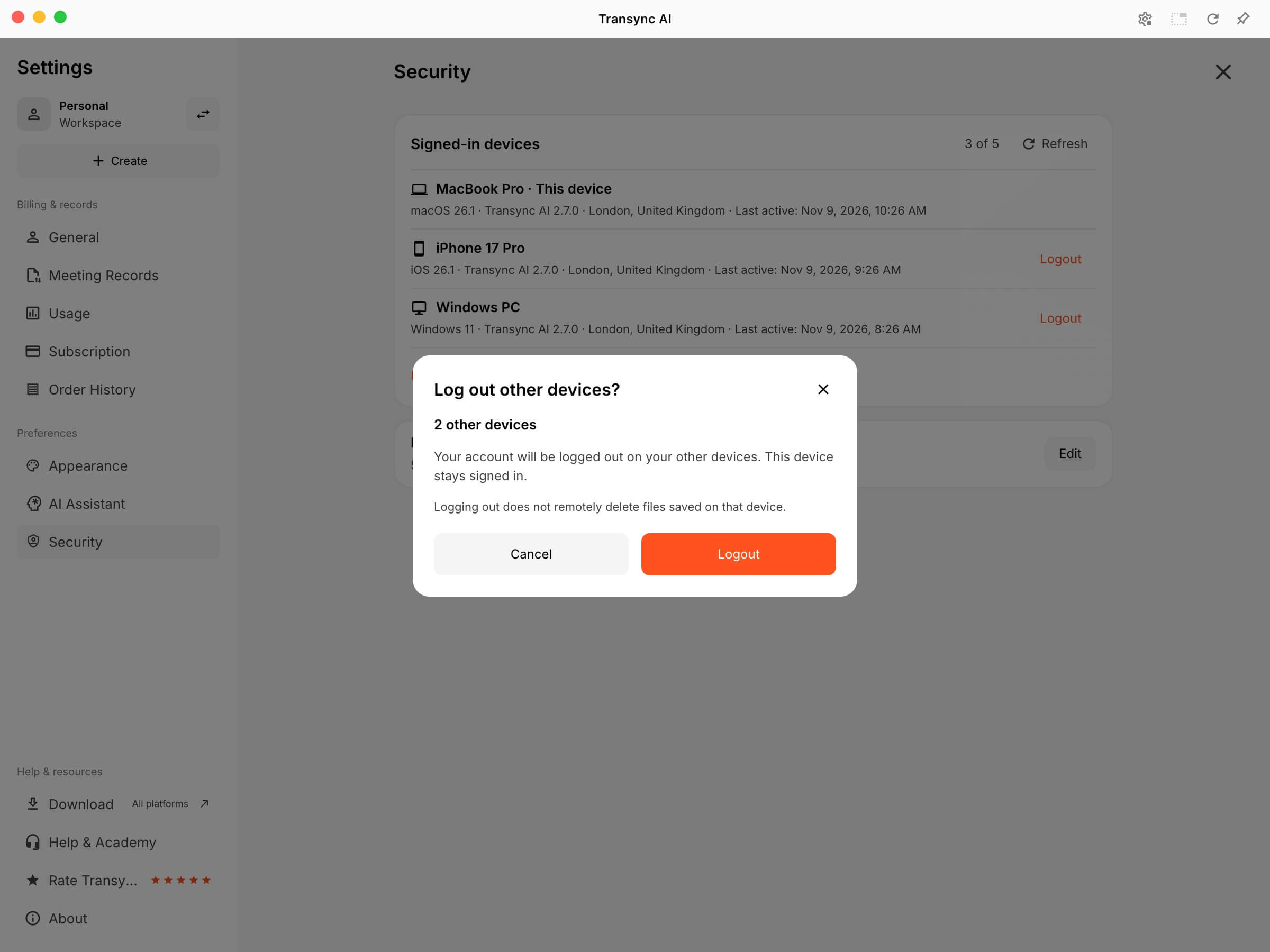
Logging out ends the session on that device. It does not remotely delete files that were saved on that device, such as exported transcripts. Your meeting records stay in your account and are available again when you sign in.
Some older sessions may appear as a legacy session. Devices that share the same legacy sign-in credentials cannot be logged out separately; use Log out other devices or sign out on the device itself.
4. Set the maximum number of signed-in devices #
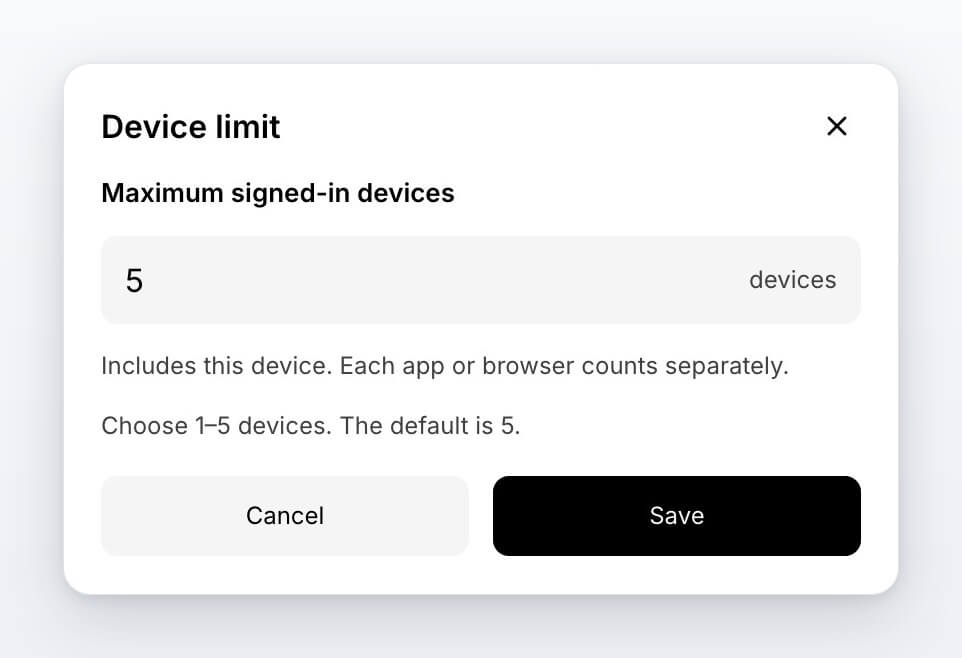
- Next to Maximum signed-in devices, click Edit.
- Enter a number from 1 to 5. The default is 5.
- Click Save.
The limit includes the device you are using, and each app or browser counts separately. For example, the desktop app and a browser window on the same computer count as two signed-in devices.
You cannot set the limit lower than the number of devices that are currently signed in. If you try, Transync AI tells you how many devices to log out first. Log out the extra devices, then save the new limit.
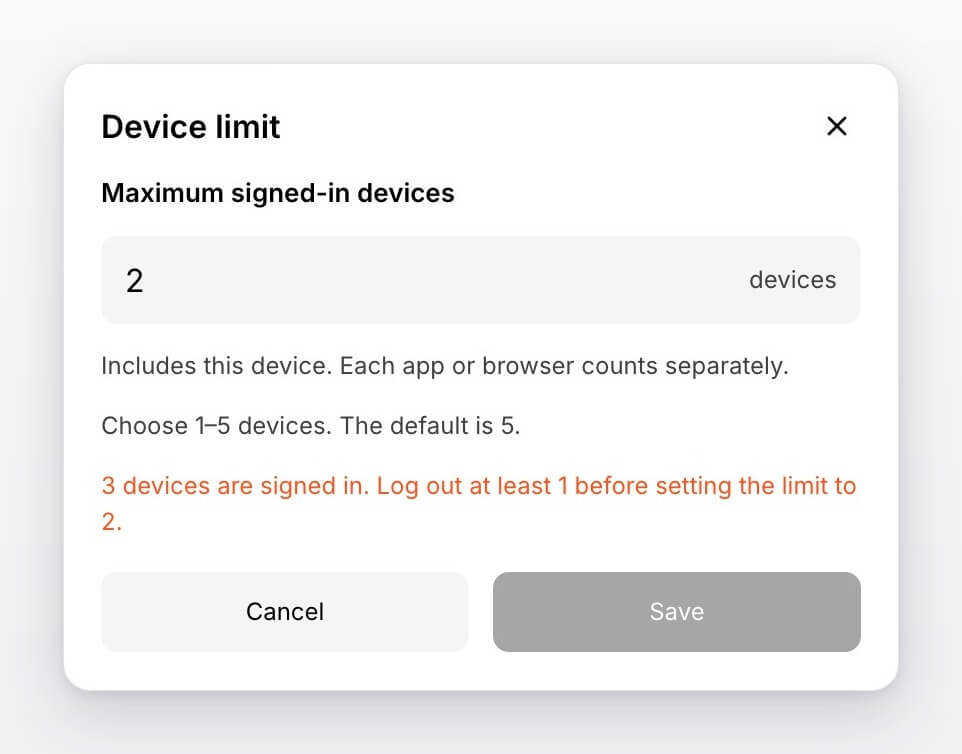
When you reach the limit, you must log out one of your signed-in devices before you can sign in on a new one.
Signed-in devices FAQ #
I see a device I don’t recognize. What should I do?
Click Logout next to it, or use Log out other devices. You can also lower the device limit so fewer signed-in devices are allowed. If you think someone else has access to your account, contact us.
Why can’t I sign in on a new device?
Your account may have reached its maximum number of signed-in devices. Sign in on a device you already use, open Settings → Security, and log out a device you no longer need.
The device list shows an error or a countdown.
If the list cannot load, click Retry. If you see a message such as “Try again in 30s”, wait for the countdown and try again.
For account sign-in and deletion, see How to Register Transync AI. To learn how Transync AI protects your data, visit the Trust Center.


