Руководство по Transync AI Enterprise: Организациям предоставляется возможность удобного управления пополнением баланса для многочисленных участников, а также получения выгоды от более выгодных тарифов за использование.
Для начала вам необходимо выполнить следующие шаги:
- Создайте учетную запись Transync AI.
- Создайте организацию в рамках этой учетной записи.
- Пригласите своих участников и настройте для них подписки.
Кроме того, через административную панель вы можете управлять своими счетами-фактурами, просматривать их и отслеживать использование сервиса участниками.
Видеоинструкция (на английском языке) #
Видеогид (zh) Blibili #
https://www.bilibili.com/video/BV1Qa6qB4EqD/?vd_source=6659a822683029e5435d68723f91fb4a
1. Создайте учетную запись Transync AI. #
- Откройте настольное, мобильное или веб-приложение Transync AI, или просто перейдите на сайт: https://app.transyncai.com
- Войдите в систему, используя свой адрес электронной почты или предпочитаемый вами способ входа.
- После завершения входа в систему вы по умолчанию будете перенаправлены в ваше личное рабочее пространство. Все ваши пополнения и карты с ограниченным сроком действия будут применены в этом личном рабочем пространстве.
2. Создайте бизнес-организацию. #
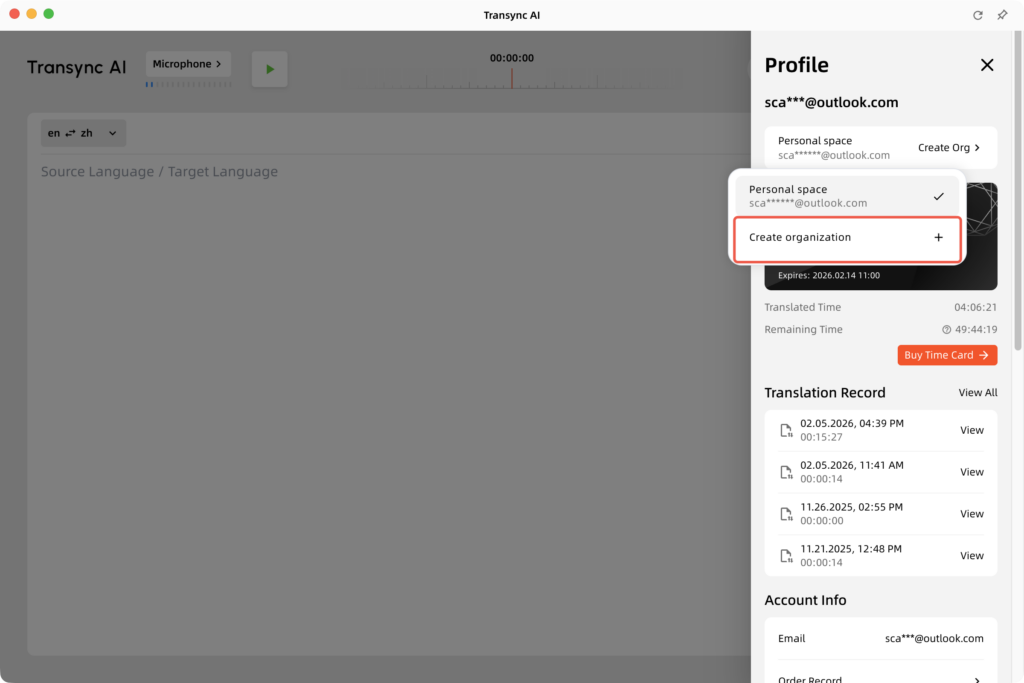
- Откройте Transync AI и нажмите на «Персональный центр» в правом верхнем углу.
- Нажмите, чтобы создать организацию.
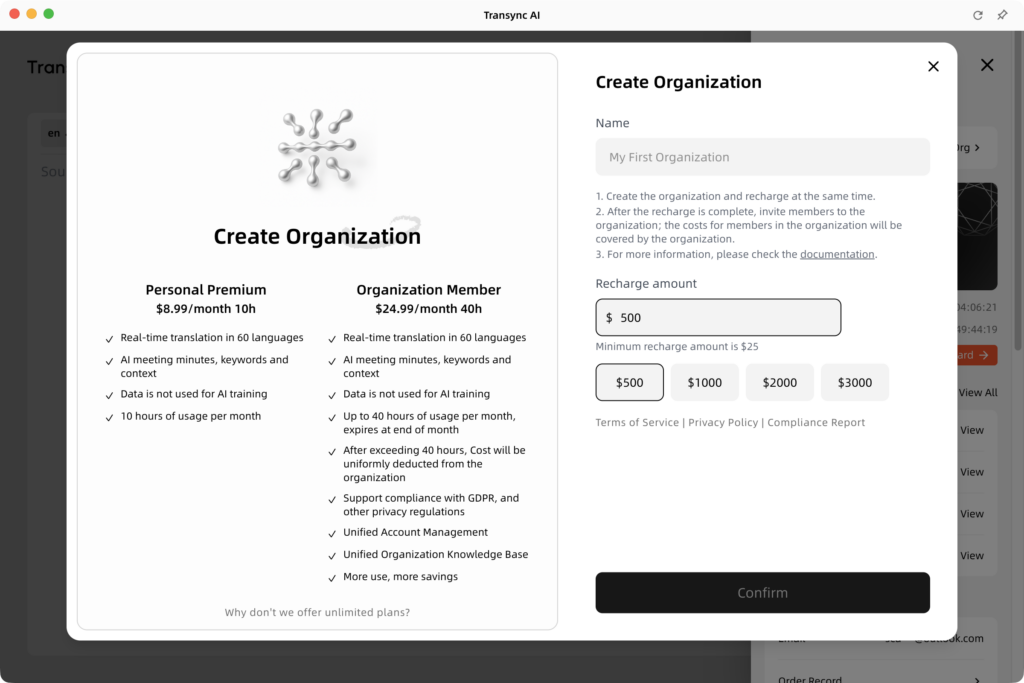
- В окне создания организации вы можете увидеть различия в преимуществах между корпоративным аккаунтом и личным премиум-аккаунтом. На этой странице, пожалуйста, введите: название вашей организации, сумму первоначального пополнения.
3. Пригласить участников вступить в организацию. #
3.1 Пригласить участников присоединиться #
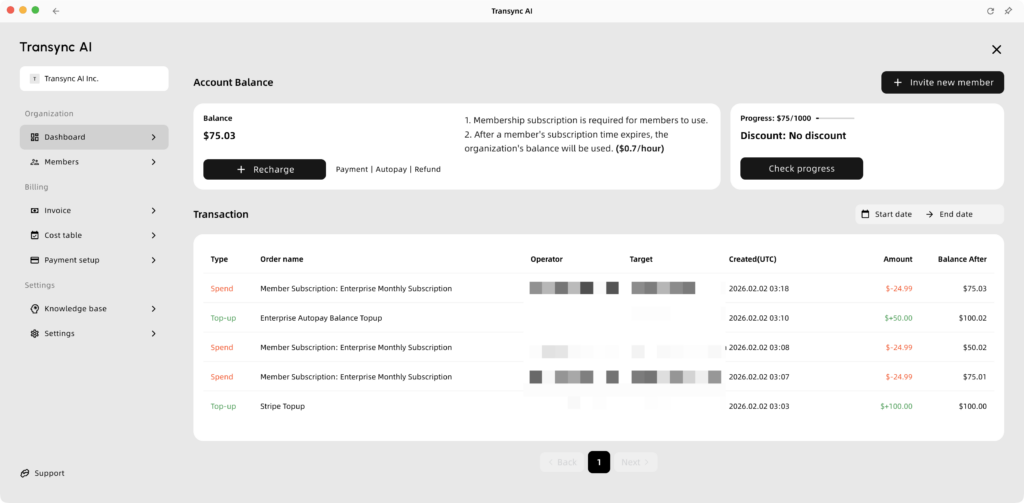
- После создания организации вы будете автоматически перенаправлены на страницу панели управления организации.
- На странице панели управления вы можете просмотреть баланс вашей организации и отслеживать прогресс получения скидок в зависимости от общей суммы расходов. Кроме того, вы можете отслеживать историю пополнения и использования средств по каждой транзакции, совершенной организацией.
- Если у организации достаточно средств на счету, нажмите кнопку “Пригласить нового участника” и введите адрес электронной почты участника.
- На странице подтверждения платежа вы можете увидеть количество приглашений для участников и сумму предстоящего списания средств.
- Нажатие кнопки «Подтвердить» автоматически отправит приглашение в организацию участникам.
3.2 Управление организационным балансом #
Организационные балансы служат двум основным целям:
- Подписка для членов организации
Баланс используется для активации подписок для участников вашей организации. Подробные тарифы на подписки для участников указаны в разделе «Корпоративные цены». Для участников с активными подписками убедитесь, что баланс организации остается достаточным для корректного списания средств в следующем расчетном цикле. - Покрытие превышения лимита использования
После того как участник израсходует все предоставленные часы за текущий месяц, любые дополнительные расходы на использование будут списаны непосредственно с баланса организации.

3.3 Скидка за достижение порога расходов. #
Скидка, рассчитываемая на основе потребления, действует в течение одного года. Как только расходы вашей организации достигнут определенного порога в течение этого года, скидка будет применяться ко всем последующим платежам. Это включает в себя:
- членские взносы организации
- Расходы на дополнительное время использования
В следующем году уровень скидки автоматически снизится на одну ступень. Однако, если вы достигли наивысшего уровня, в последующем году вы автоматически получите максимальную скидку в размере 10%.

4. Член организации вступает в организацию (с точки зрения члена организации) #
- Независимо от того, зарегистрированы ли они уже, приглашенный получит уведомление о приглашении на электронный адрес или SMS-сообщение, привязанное к его учетной записи.
- После входа в приложение Transync AI приглашенный пользователь получит всплывающее уведомление с просьбой подтвердить свое желание присоединиться к организации. Подтвердить можно сразу же через первоначальное всплывающее окно. Также можно нажать “Принять решение позже” и завершить процесс верификации в личном кабинете.
- После того как приглашенный примет приглашение, его рабочее пространство автоматически переключится на организацию. Следовательно, все последующие расходы для этих участников будут покрываться организацией.

5. Управление участниками (с точки зрения администратора). #
- Переключитесь в раздел «Участники». Здесь вы можете просмотреть баланс организации и управлять ее участниками.
- Здесь вы можете просмотреть следующие статусы участников:
- Здесь вы можете нажать “Добавить участника”, чтобы оформить подписку.
- Если вы хотите исключить члена организации, этот член не должен в данный момент находиться в активном членстве.
| Статус | Описание | Действия |
| Подписано | Участник имеет действующую подписку, и включено автоматическое продление. Если отображается конкретное количество оставшихся месяцев, это означает, что подписка будет автоматически продлена после истечения срока действия текущей подписки. Это обычно происходит, когда участник оформляет годовую подписку. | Отменить подписку |
| Приостановлено | Подписка активна до конца периода, но автоматическое продление отключено. | Резюме |
| Присоединился | Участник состоит в организации, но срок действия подписки истек. | Начало работы (немедленная оплата) |
| В ожидании | Приглашение отправлено, но пользователь его ещё не принял. | Повторная отправка / Отмена |
| Отклоненный | Пользователь отклонил приглашение присоединиться. | Повторно пригласить |

6. Управление выставлением счетов #
6.1 Счет-фактура #
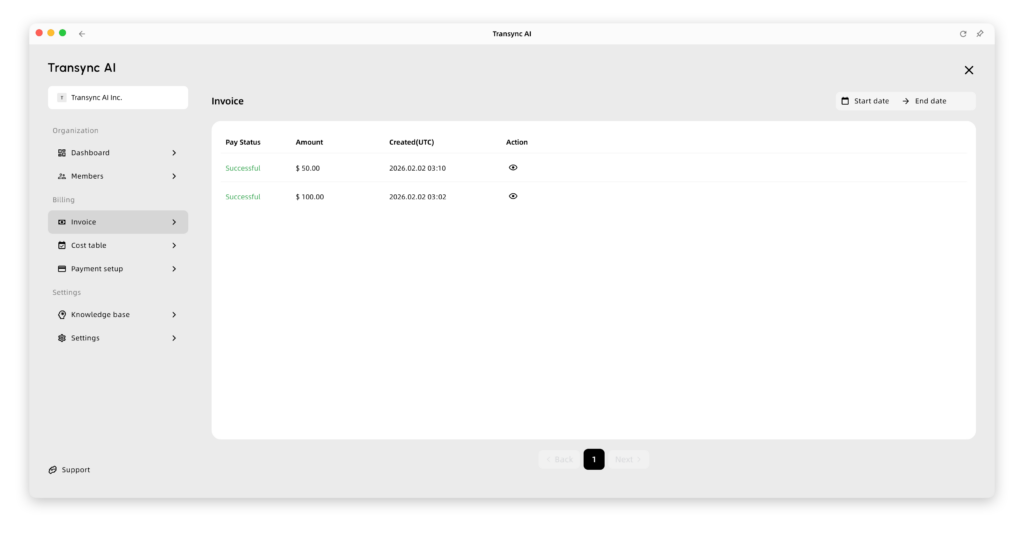
- Если вам нужен счет-фактура, вы можете перейти на вкладку “Счет-фактура” в разделе «Выставление счетов».
- Возможны два разных сценария:
- Если вы используете Stripe (платежи с помощью кредитных карт):
Мы автоматически отправим счет на ваш электронный адрес. Вы также можете просмотреть свои счета непосредственно в этом разделе. - Если вы пользуетесь Alipay:
Пожалуйста, нажмите здесь, чтобы связаться с нашей службой поддержки клиентов. Вам потребуется предоставить свои платежные данные, чтобы мы могли выставить вам счет.
- Если вы используете Stripe (платежи с помощью кредитных карт):
6.2 Таблица затрат #
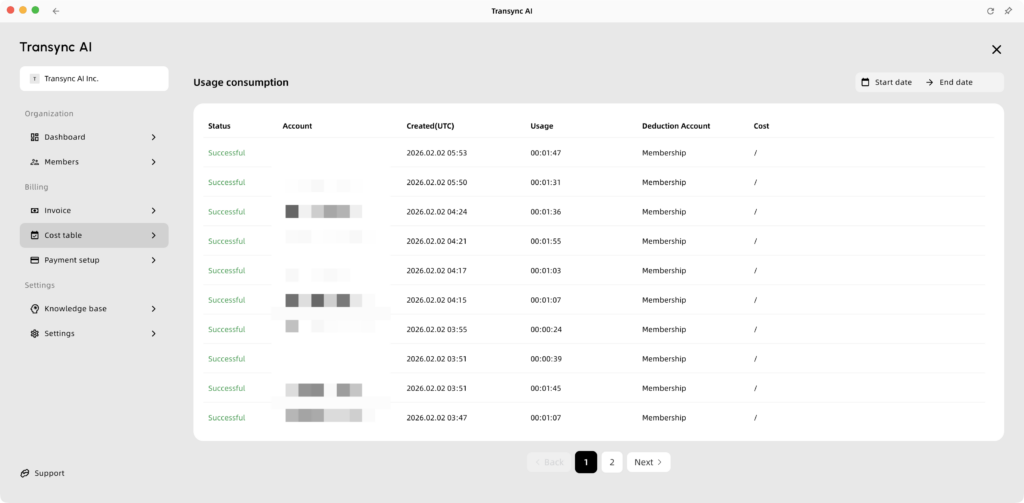
- Чтобы просмотреть таблицу затрат, нажмите “Выставление счетов”, а затем выберите “Таблица затрат”.”
- Здесь вы можете отслеживать время, затраченное каждым участником организации на выполнение каждой задачи перевода. Вы также можете увидеть, было ли это время списано с их индивидуального счета подписки или с баланса организации.
6.3 Настройка платежей #
- Чтобы настроить способ оплаты, перейдите в раздел «Настройка выставления счетов и платежей». Здесь вы можете выполнить следующие действия:
- Автоматическое пополнение счета: Вы можете привязать кредитную карту и настроить параметры автоматического пополнения. Например, вы можете установить систему на автоматическое пополнение определенной суммы всякий раз, когда ваш баланс опускается ниже определенного порога.
- Уведомления о балансе: Вы можете настроить оповещения о снижении баланса. Когда ваш баланс опустится ниже заданного значения, мы автоматически отправим электронное письмо на ваш почтовый ящик. Это гарантирует бесперебойную и стабильную работу всего бизнеса вашей организации.

7. Настройки #
7.1 База знаний #
- В базе знаний можно задать ключевые слова и контекст, которые будут автоматически применяться ко всем задачам перевода для всех сотрудников организации. Это обеспечивает очень удобный способ унифицированного управления контекстом и базой знаний.
- Члены организации также могут просматривать эту информацию в ИИ-помощнике, расположенном в верхней части каждой задачи перевода.

7.2 Настройки #
В общих настройках можно управлять следующими параметрами:
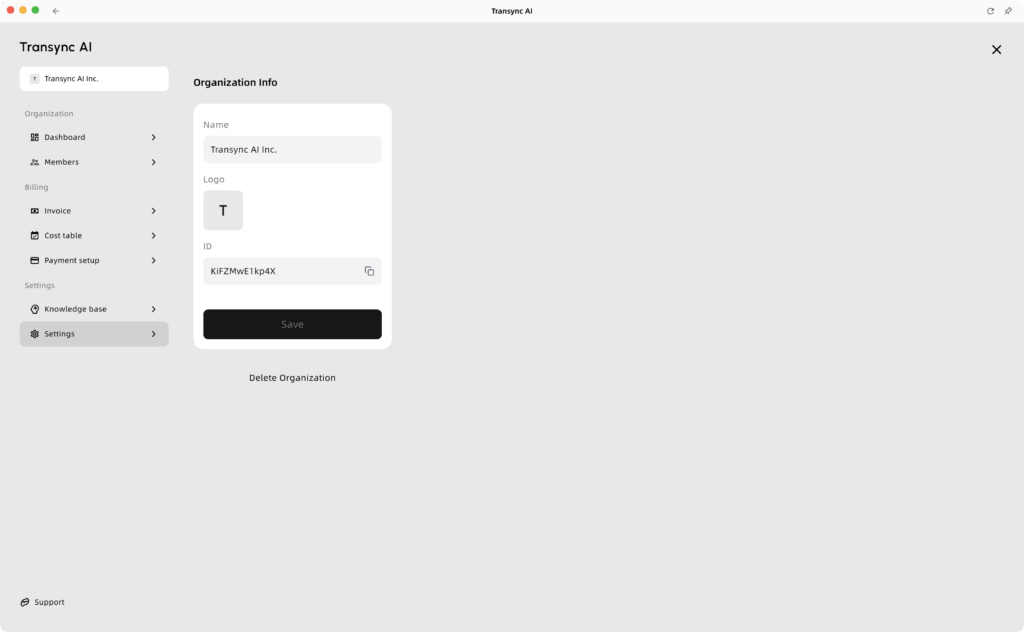
- Укажите название вашей организации
- Загрузите логотип организации.
- Покинуть организацию
- Удалить организацию