
Zoom AI transcription guide: learn how captions, transcripts, AI summaries, translated subtitles, and Transync AI support multilingual meetings.
Zoom AI transcription can turn a fast-moving meeting into a searchable written record. It can help teams review what was said, identify action items, revisit missed details, and create meeting summaries without relying entirely on handwritten notes.
But the workflow becomes confusing when users expect one feature to do everything.
Live captions are not always the same as a retained transcript. A transcript is not the same as an AI summary. A summary is not a complete record. Transcription also does not automatically mean that every participant receives a translation in their preferred language.
These distinctions matter even more in international meetings.
If an English speaker, a Japanese supplier, and a Spanish-speaking customer join the same call, recording the English words is only one part of the problem. Participants may also need real-time translation, bilingual subtitles, translated voice output, technical terminology support, and useful notes after the meeting.
This guide explains how Zoom AI transcription works, where it is most useful, why common transcription workflows fail, and how tools such as Transync AI can add a multilingual communication layer.
Quick Answer: What Is Zoom AI Transcription?
Zoom AI transcription is the use of speech recognition and AI features to convert meeting audio into written text.
Within the broader Zoom workflow, users may encounter several related but different features:
| Feature | Main purpose |
|---|---|
| Automated captions | Show readable speech-to-text captions during a live meeting |
| Meeting transcripts | Retain speech-to-text content as a meeting record |
| AI Companion Meeting Summary | Generate a summary and next steps from the meeting |
| Smart Recording | Organize a cloud recording into chapters, highlights, and action items |
| Translated captions | Convert the speaking language into captions in another language |
| Voice translator | Turn translated captions into spoken audio in supported workflows |
The important point is that these features solve different problems.
Someone who wants to follow the meeting live needs captions. Someone who needs a permanent record needs a transcript. Someone who needs a concise review may prefer an AI summary. Someone attending a meeting in another language needs translation in addition to transcription.
Captions vs. Transcripts vs. AI Summaries
The terms are often used interchangeably, but they should not be.
Captions are for live readability
Automated captions display speech as text during the meeting. They help participants follow the speaker in real time and can improve accessibility when audio is difficult to hear.
Captions are designed to be read as the conversation happens.
Transcripts are for retention
A meeting transcript preserves speech-to-text content so it can be reviewed later.
This is the better option when teams need to:
- Search for a statement
- Review a decision
- Check a name or number
- Create documentation
- Revisit a missed section
- Use meeting content in another workflow
AI summaries are condensed interpretations
An AI meeting summary is not a word-for-word transcript. It selects and organizes information into a shorter form.
A summary may include:
- Main discussion points
- Decisions
- Next steps
- Action items
- Questions
- Follow-up topics
Summaries save time, but they should not replace the transcript when exact wording matters.
Important Zoom update for 2026
Zoom now separates live captions more clearly from retained meeting transcripts.
Starting May 18, 2026, closed captions can no longer be saved or downloaded directly. Captions remain available for live readability, including limited scroll-back during the meeting. Users who need to retain speech-to-text data should enable Meeting transcripts.
This makes it important to configure the correct feature before the meeting begins.
When Is Zoom AI Transcription Enough?
Zoom’s native transcription workflow may be enough when:
- Everyone understands the meeting language
- The main goal is to create a written record
- Participants only need same-language captions
- The team wants a summary and action items
- The meeting stays inside an established Zoom workflow
- Technical terminology is limited
- Exact translation is not required
For example, an English-speaking product team may use Zoom AI transcription to capture a weekly status meeting. The transcript provides detail, while the AI summary highlights decisions and assigned tasks.
The workflow becomes more complicated when participants do not share a language.
When Is Transcription Not Enough?
Transcription records speech in written form. Translation changes the language.
These are separate processes.
Consider a meeting in which a Japanese supplier speaks Japanese and an American buyer speaks English.
A Japanese transcript helps someone who reads Japanese. It does not automatically help the English-speaking participant understand the conversation.
The meeting may require:
- Speech recognition
- Transcription
- Translation
- Bilingual subtitles
- Translated voice output
- A post-meeting summary
A multilingual meeting tool must handle the entire chain quickly enough for the participants to continue talking.
Fix 1: Set the Correct Speaking Language
Speech recognition depends heavily on the selected language.
If the meeting is being conducted in Spanish but the caption language is set to English, the transcription system may attempt to interpret Spanish sounds as English words. The result can be inaccurate or unreadable.
Before the meeting:
- Confirm the primary speaking language
- Check whether participants will switch languages
- Set the correct caption language
- Inform speakers that transcription is active
- Test the microphone with a short sentence
- Check names, numbers, and technical vocabulary
This step is particularly important for Zoom AI Companion because the accuracy of summaries depends on the quality of the underlying transcript.
A weak transcript creates a weak summary.
Fix 2: Enable Transcripts, Not Only Live Captions
A common mistake is assuming that visible captions will automatically become a permanent transcript.
Under Zoom’s updated 2026 workflow, captions and retained transcripts are separate.
If the meeting record matters, confirm that:
- Meeting transcripts are enabled by the administrator
- The host has permission to retain the transcript
- Participants understand how meeting content will be stored
- The transcript can be accessed after the meeting
- Retention settings meet company policy
- Sensitive information is handled appropriately
Zoom users can access retained AI Companion transcripts through the Zoom web portal under Recordings and Transcripts, depending on account settings and permissions.
For a general overview, refer to Zoom’s official documentation on meeting transcripts for AI Companion.
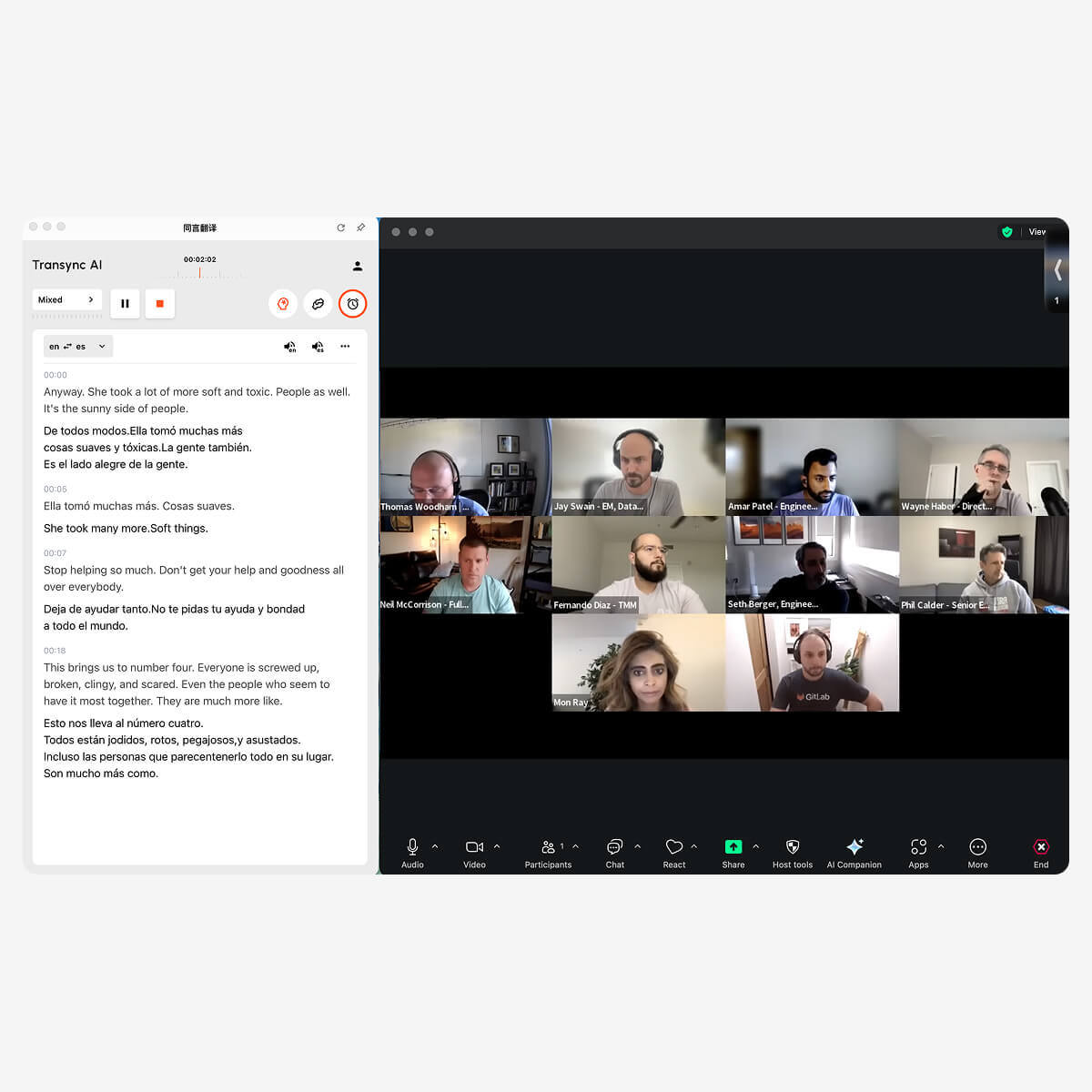
Transync AI enables Zoom hosts to provide real-time translated captions for all participants during live meetings.
Fix 3: Treat the AI Summary as a Draft
AI summaries are useful because most people do not want to read an entire transcript after every meeting.
However, a summary is an interpretation of the meeting. It may compress or omit details.
Review the summary carefully when the meeting includes:
- Contract terms
- Prices
- Percentages
- Delivery dates
- Product model numbers
- Medical or legal information
- Technical requirements
- Customer commitments
- Assigned responsibilities
A practical post-meeting workflow is:
- Read the AI summary.
- Compare important claims with the transcript.
- Correct names, numbers, and terminology.
- Confirm decisions with the relevant participants.
- Share the approved summary.
- Store the transcript according to company policy.
This takes longer than accepting the summary without review, but it reduces the risk of distributing incorrect information.
Fix 4: Prepare Names and Technical Terms
General speech recognition systems often struggle with words that are rare outside a specific company or industry.
Examples include:
- Product names
- Employee names
- Client names
- Acronyms
- Scientific terminology
- Software features
- Model numbers
- Regional brand names
Consider the sentence:
John from the APAC team will review the photovoltaic inverter specifications for Model X300.
A transcription tool may incorrectly capture “APAC,” “photovoltaic inverter,” or “X300.” If the transcript is wrong, the summary and translation may also be wrong.
Transync AI provides keywords and contextual background settings for this reason.
Users can add terms such as:
- Transync AI = 同言翻译
- photovoltaic inverter
- semiconductor packaging
- Model X300
- APAC
- John Smith
- supply chain optimization
- neural network
They can also describe the meeting:
This is a technical supplier meeting about renewable energy equipment, production schedules, quality inspection, regional compliance, and inverter specifications.
This context helps the translation system choose meanings that fit the discussion.
Learn more from AI Assistant Keywords Context.
 Fix 5: Add Real-Time Translation for Multilingual Meetings
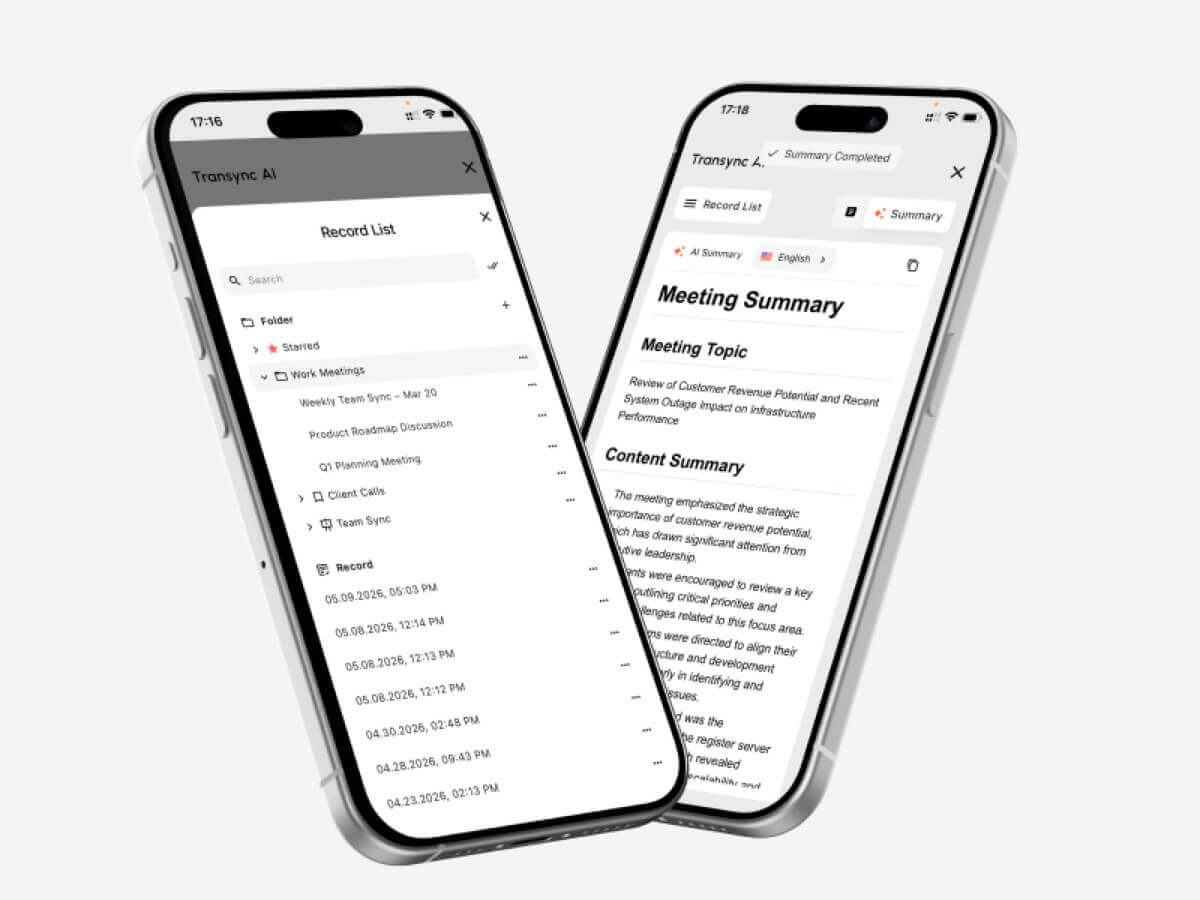 Fix 5: Add Real-Time Translation for Multilingual Meetings
A transcript is most useful after the meeting. Multilingual participants need help during the meeting.
Transync AI can run alongside Zoom to provide:
- Two-way real-time translation
- Original and translated subtitles
- Automatic distinction between selected languages
- AI voice broadcast
- Voice preview
- Voice cloning
- Keywords and context
- AI meeting notes
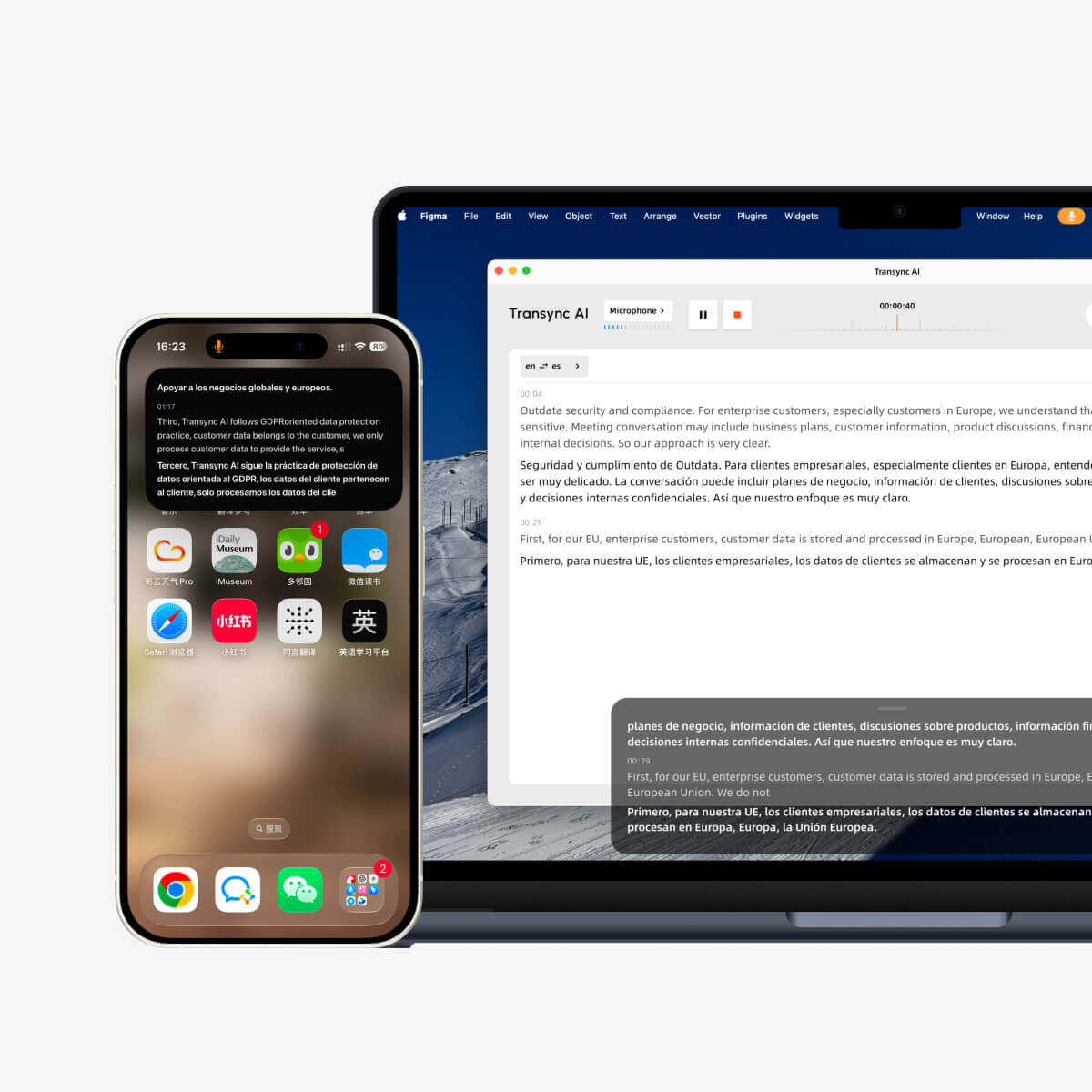
- Picture-in-Picture captions
Transync AI supports 60 languages and more than 1,000 language pairs, including English, Spanish, Chinese, Japanese, Korean, Cantonese, French, German, Italian, and Russian.
This allows two participants to speak in their preferred languages rather than relying on one person to conduct the entire meeting in a second language.
Explore the available options on the Transync AI supported languages page.
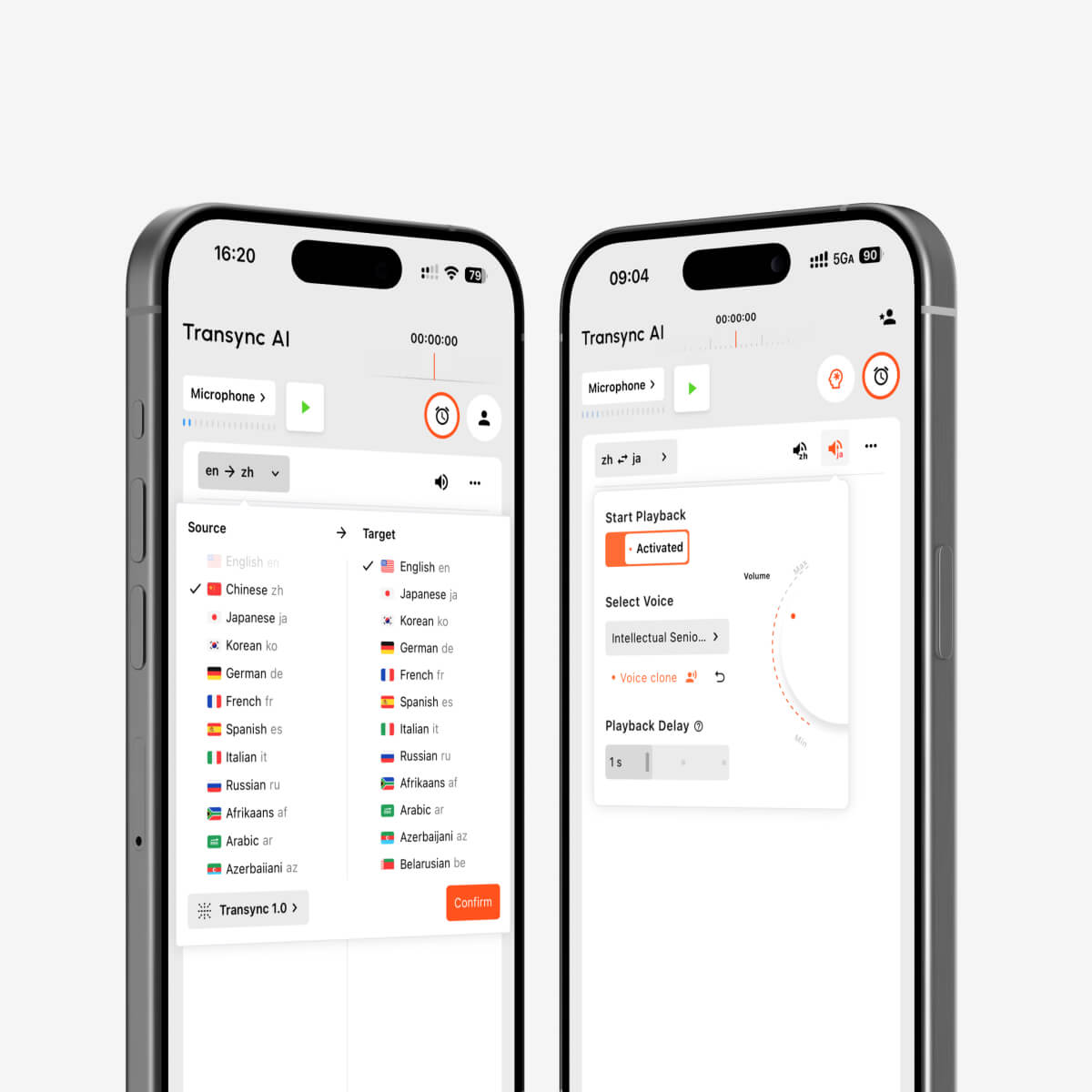
AI voice playback and voice cloning for multilingual real-time interpretation
Fix 6: Keep Translated Captions Visible While Working
Meeting participants rarely spend the entire call looking at the speaker grid.
They may need to:
- Present slides
- Demonstrate software
- Review a document
- Check a spreadsheet
- Open a product page
- Take notes
- Answer chat messages
- Switch browser tabs
If translated captions disappear behind another application, participants lose access to the conversation.
Transync AI provides Picture-in-Picture floating subtitles on supported Mac, Windows, and iOS workflows. The compact caption window can remain above other applications.
This is especially useful for:
- Product demonstrations
- International webinars
- Online lectures
- Software training
- Sales presentations
- Supplier meetings
- Technical workshops
Learn more from Picture-in-Picture Floating Subtitles.
Zoom AI Transcription vs. Transync AI
Zoom and Transync AI overlap in some areas, but they are not identical products.
| Requirement | Zoom native workflow | Transync AI |
| Live same-language captions | Available through automated captions | Available as part of bilingual translation |
| Retained meeting transcript | Available when Meeting transcripts are enabled | Translation records can be reviewed and exported |
| AI meeting summary | Available through AI Companion | AI-generated meeting notes |
| Translated captions | Available through supported Zoom settings and plans | Real-time translation in 60 languages |
| Two-way language switching | Depends on meeting feature and configuration | Automatically distinguishes selected languages |
| Translated voice | Available in supported Zoom voice translator workflows | AI voice broadcast with multiple voices |
| Voice cloning | Not the main transcription workflow | Supported |
| Keywords and meeting context | Limited compared with a dedicated translation workflow | Users can define keywords and contextual background |
| Floating bilingual captions | Zoom captions remain in the meeting interface | Picture-in-Picture window can stay above other apps |
| Meeting platforms | Deepest integration inside Zoom Workplace | Standalone tool for Zoom, Teams, and Google Meet |
| Offline use | Cloud features require connectivity | Offline mode is not available |
The right option depends on the problem.
If everyone speaks the same language and the team mainly needs a transcript and summary, Zoom’s native tools may be sufficient.
If participants need to understand and answer in different languages, a dedicated real-time translation workflow may be more suitable.
Zoom AI Transcription and Translated Captions Are Not the Same
Zoom translated captions can convert a meeting’s speaking language into captions in another language.
That is helpful for participants who can read the translated language. However, translated captions still differ from a full multilingual workflow.
Teams may also need:
- Two-way translation
- Translated voice playback
- Terminology customization
- Cross-application floating captions
- Context-aware handling of brand names
- AI notes based on a multilingual conversation
A participant may also prefer listening instead of reading. In that case, translated voice becomes important.
Zoom has introduced voice translation capabilities in supported meeting workflows, while Transync AI provides AI voice broadcast as part of its real-time translation system.
Availability, licenses, languages, and admin settings should be checked before an important meeting.
How to Use Transync AI with Zoom
Transync AI operates as standalone software rather than a Zoom plugin.
Step 1: Select the languages
Choose the two languages used in the meeting.
For example:
- English ↔ Spanish
- English ↔ Japanese
- Chinese ↔ English
- Korean ↔ English
- French ↔ German
Step 2: Add terminology
Enter names, brands, product models, abbreviations, and technical terms.
Step 3: Add meeting context
Describe the industry, participants, and topic.
Step 4: Start Zoom
Join the meeting as usual.
Step 5: Start Transync AI
Begin the real-time translation task and confirm that the correct audio source is selected.
Step 6: Enable bilingual or floating captions
Keep the Transync AI window visible or activate Picture-in-Picture subtitles.
Step 7: Configure voice output when needed
Translated audio can be connected to Zoom through supported system-audio or virtual-microphone workflows.
Step 8: Review the meeting notes
After the call, check the AI-generated notes, names, numbers, technical terms, decisions, and action items.
See AI Live Meeting Translation for Zoom, Teams, and Google Meet for more information.
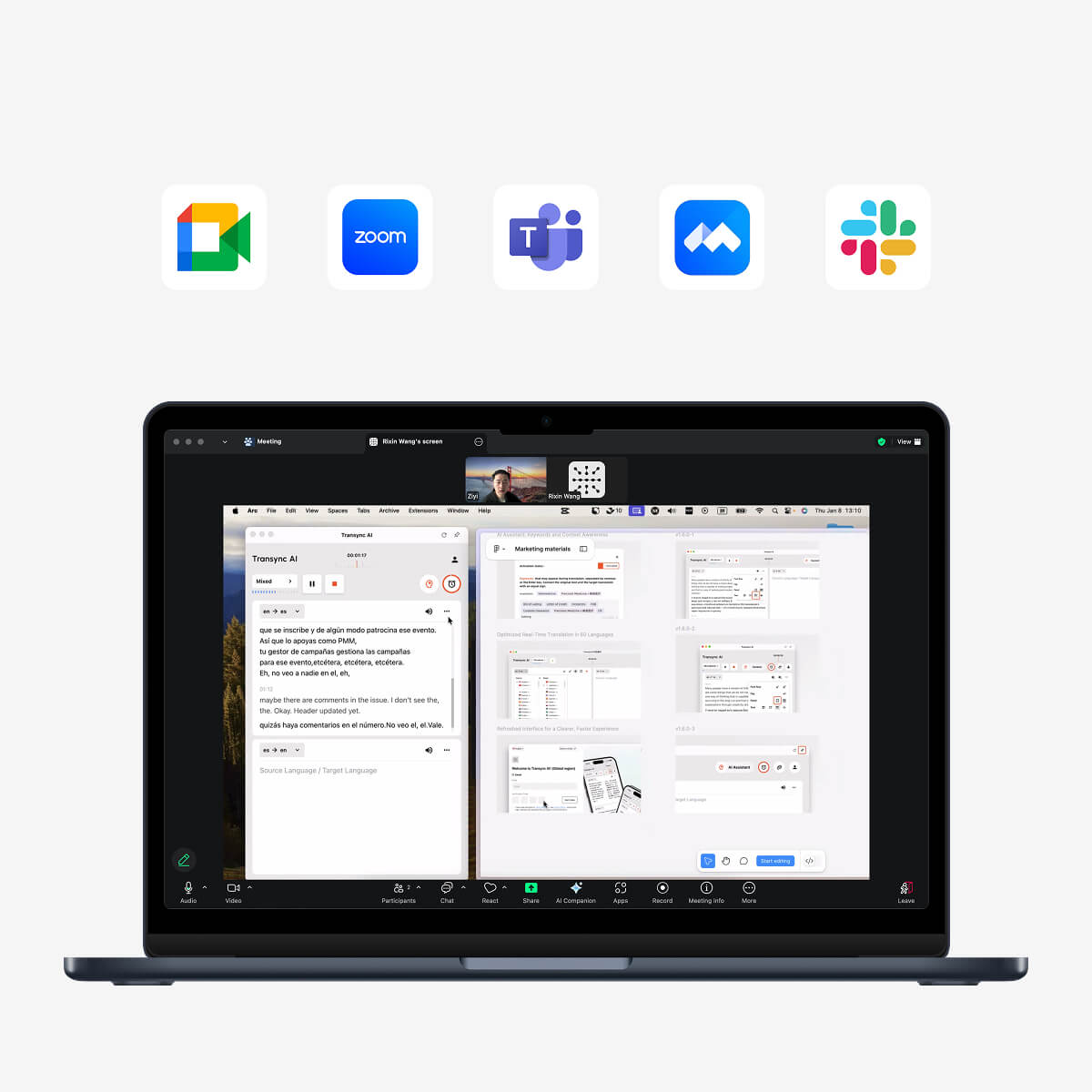
Compatible with major online meeting platforms for seamless real-time translation
A Practical Zoom Transcription Test
Before relying on transcription for an important meeting, run a 15-minute test.
Test environment
Record:
- Test date
- Zoom version
- Transcription or caption feature used
- Computer and operating system
- Microphone
- Network type
- Meeting language
- Number of speakers
Test script
Include:
- A short introduction
- Two speaker names
- A product name
- A technical explanation
- A model number
- A price
- A percentage
- A delivery date
- A correction
- A final action item
Example:
We can deliver 1,250 Model X300 units by October 18—sorry, October 28—if the updated specification is approved this Friday.
Evaluation table
| Metric | What to check |
| Speech recognition | Did Zoom capture the original words correctly? |
| Speaker labels | Were statements assigned to the correct person? |
| Numbers | Were dates, quantities, and prices accurate? |
| Terminology | Were product names and acronyms recognized? |
| Punctuation | Was the transcript easy to read? |
| Summary | Did AI Companion preserve the important points? |
| Action items | Were responsibilities assigned correctly? |
| Translation | Could multilingual participants understand the meeting live? |
| Retention | Was the transcript available after the meeting? |
Common Zoom AI Transcription Problems
Incorrect caption language
The system may interpret speech using the wrong language model.
Poor microphone quality
Distant microphones, echo, and background noise reduce recognition accuracy.
Overlapping speakers
When several people speak at once, words may be lost or assigned incorrectly.
Names and abbreviations
Uncommon terms may be transcribed as similar-sounding ordinary words.
Missing context
The system may capture the words but misunderstand their importance in the summary.
Incomplete transcript retention
Users may assume that captions will be saved without enabling Meeting transcripts.
Overreliance on the summary
Important details may be compressed or omitted.
Confusing transcription with translation
A correct Spanish transcript does not help someone who only reads Japanese.
Privacy and Consent Considerations
Meeting transcription creates a record of what participants say.
Before enabling it:
- Notify participants
- Follow local recording and privacy laws
- Review organization policies
- Limit access to authorized users
- Decide how long transcripts should be retained
- Avoid unnecessary sensitive information
- Confirm whether meeting summaries can be shared
- Check which administrators can access meeting assets
Zoom administrators can control whether users may retain transcripts generated through AI Companion features.
Transync AI states that user data is not used for AI training. Organizations should still review the full privacy and compliance documentation before processing confidential meetings.
When Should You Use a Human Note-Taker or Interpreter?
AI transcription is useful, but it should not be treated as an infallible record.
Use human review or professional support when the meeting involves:
- Legal testimony
- Medical decisions
- Contract negotiation
- Regulatory compliance
- Employee disputes
- Financial commitments
- Safety instructions
- Immigration matters
- Government proceedings
- Public statements where exact wording matters
AI can reduce manual work. It does not transfer responsibility for checking important information.
FAQ: Zoom AI Transcription
What is Zoom AI transcription?
Zoom AI transcription converts meeting speech into written text. It may be used for live captions, retained meeting transcripts, AI summaries, or smart recordings depending on the enabled features.
Are Zoom captions and transcripts the same?
No. Captions are designed for live readability. Transcripts are designed to retain speech-to-text content after the meeting.
Can Zoom captions still be downloaded?
Starting May 18, 2026, Zoom no longer allows users to save or download closed captions directly. Meeting transcripts should be enabled when speech-to-text retention is required.
Does Zoom AI Companion create meeting summaries?
Yes. Meeting Summary with AI Companion can generate a structured summary and next steps based on the meeting conversation.
Can Zoom AI transcription translate languages?
Transcription and translation are different. Zoom offers translated captions in supported workflows, but users must enable the correct settings and languages.
Can Transync AI translate a Zoom meeting?
Yes. Transync AI can run alongside Zoom to provide real-time bilingual subtitles, AI voice broadcast, keywords and context, and AI meeting notes.
Does Transync AI require a Zoom plugin?
No. Transync AI is standalone software rather than a Zoom plugin.
Can participants hear translated speech?
Transync AI supports translated voice broadcast. System-audio or virtual-microphone configuration may be needed to send translated audio into the Zoom meeting.
Which languages does Transync AI support?
Transync AI supports 60 languages and more than 1,000 language pairs, including English, Spanish, Chinese, Japanese, Korean, Cantonese, French, German, Italian, and Russian.
Does Transync AI work offline?
No. Transync AI requires an internet connection and does not currently support offline translation.
Final Thoughts: Build the Right Workflow Around Zoom AI Transcription
Zoom AI transcription is valuable when teams need live captions, a searchable record, AI summaries, or more organized cloud recordings.
But transcription is only one layer of meeting understanding.
A complete workflow may also require:
- Correct language settings
- Retained transcripts
- Human review
- Real-time translation
- Bilingual subtitles
- Translated voice
- Terminology controls
- Post-meeting notes
- Appropriate privacy settings
For monolingual meetings, Zoom’s native transcription and AI Companion features may already provide the necessary workflow.
For multilingual meetings, Transync AI adds two-way translation, bilingual display, AI voice broadcast, voice cloning, keywords and context, meeting notes, and floating subtitles across Zoom, Microsoft Teams, and Google Meet.
The right question is not simply, “Can the meeting be transcribed?”
It is:
Can every participant understand the meeting while it is happening—and still find the important information afterward?
To get started, visit Transync AI, explore the real-time translation tool, or download the application for your preferred device.
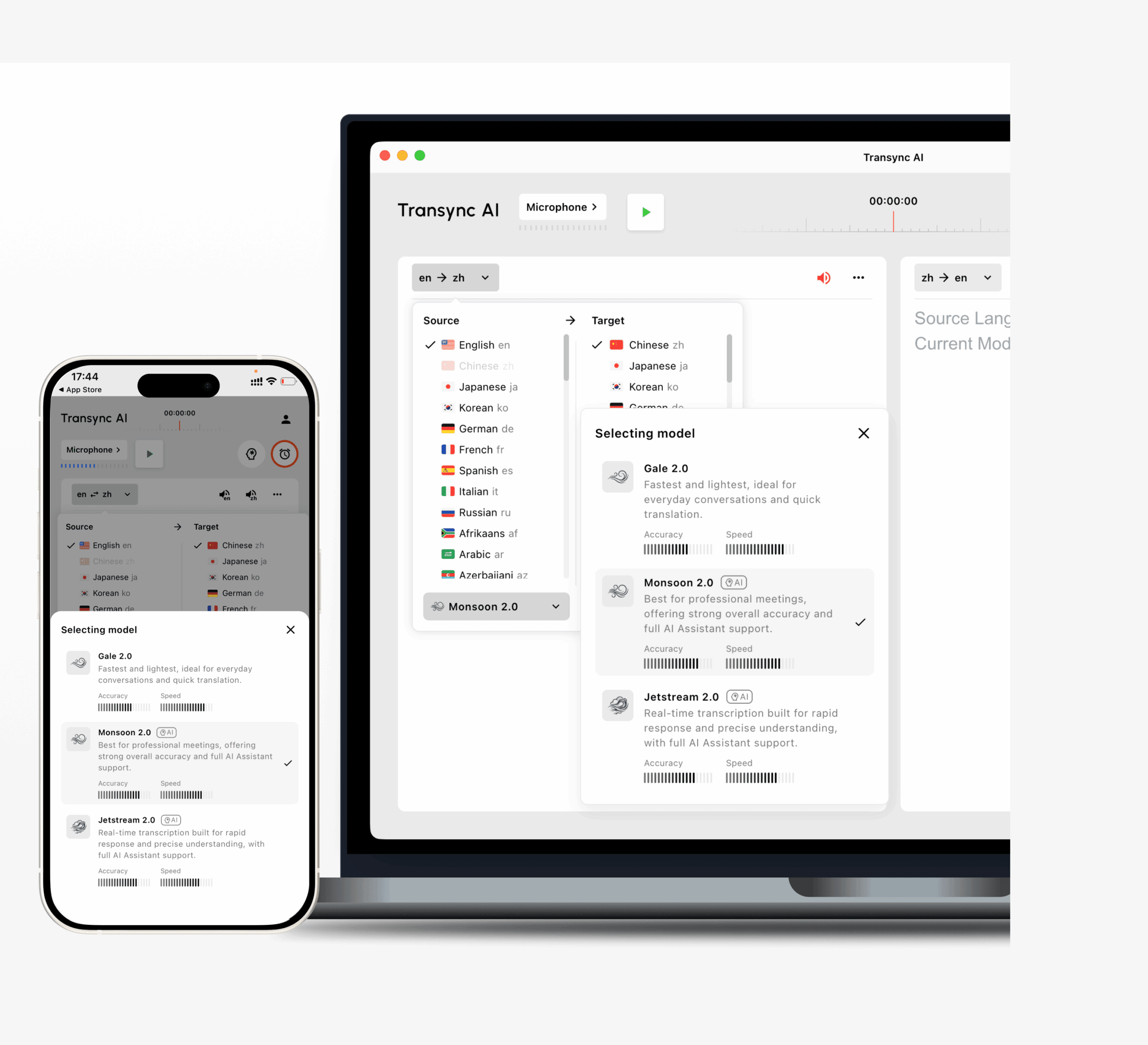 🤖
🤖