
LiveCaptions Translator adds translation APIs to Windows captions. Learn 7 critical facts about setup, privacy, cost, accuracy, and alternatives.
Typing “live caption translator” into search can produce browser extensions, accessibility tools, and meeting assistants. The exact search livecaptions translator, however, usually points to a specific open-source Windows application. Before downloading it, you need to know which parts run on your computer, which parts may use an online service, and whether a personal subtitle overlay is enough for your real task.
LiveCaptions Translator connects the caption text generated by Microsoft Windows Live Captions to a translation API. It can show the source and translation in a customizable overlay, retain a local history, and let technically confident users choose among online and self-hosted translation engines. It does not need a Copilot+ PC because the open-source app supplies its own translation layer.
That description also reveals its boundary. The tool is not a complete meeting service, a mobile app, or a managed interpretation platform. It is a configurable desktop bridge. For one Windows user who wants translated subtitles over a video, stream, game, lecture, or call, that may be exactly the attraction. For a multilingual team that needs translated voice, shared access, meeting notes, and cross-device use, a meeting-first product such as Transync AI is a different category of solution.
The Short Verdict
Scegliere LiveCaptions Translator if you use Windows 11, enjoy configuring software, want a system-level caption overlay, and value control over the translation provider. Choose Transync AI if you want a ready-to-use workflow for multilingual meetings across web, desktop, and mobile, with bilingual subtitles, translated voice, terminology preparation, and records after the conversation.
Neither route is universally better. The right choice depends on whether you want to assemble a flexible personal translation stack or subscribe to a maintained communication workflow.
LiveCaptions Translator and Transync AI at a Glance
| Decision point | LiveCaptions Translator | Transync AI |
|---|---|---|
| Product model | Open-source Windows utility that connects Windows Live Captions to a selected translation engine | Managed real-time translation app for meetings, calls, presentations, and in-person conversations |
| Dispositivi supportati | Windows 11, version 22H2 or later | Web, Windows, macOS, iOS e Android |
| Riconoscimento vocale | Windows Live Captions performs the source transcription on device | Recognition and translation are provided through the Transync AI service |
| Translation choices | Multiple online and self-hosted engines, including Ollama, OpenAI-compatible APIs, OpenRouter, Google Translate, DeepL, Youdao, Baidu, MTranServer, and LibreTranslate | Integrated Transync AI models and supported language workflows |
| Display | Customizable transparent overlay with recent caption history | Side-by-side bilingual subtitles and Picture-in-Picture floating captions |
| Voce tradotta | Not a core output; designed around text subtitles | AI voice playback, voice styles, and voice-clone options |
| Meeting follow-up | Local caption history, search, and CSV export | Translation records and AI meeting notes |
| Accesso del pubblico | Primarily the person using the Windows PC | Presentation Mode can let viewers join by link, QR code, or Room ID and choose an enabled language |
| Administration | User manages installation, updates, API keys, providers, and local data | Personal and enterprise plans; organization billing and account management are available |
| Public price model | App is free and open source; API, model, compute, and setup costs vary | Free 40-minute starting allowance; Personal Premium is 8.99/month for 10 hours; Enterprise is 24.99/month per seat for up to 40 hours |
| Migliore vestibilità | Technical Windows user who wants a personal, configurable subtitle overlay | Individuals and teams that want a cross-platform meeting translation workflow |
| Principale limitazione | Windows-only and assembled from separate recognition and translation layers | Requires an internet connection and is not a general text, image, or document translator |
Product details and public pricing were checked on September 24, 2026. Projects, providers, and plans can change, so verify the linked official pages before deployment.
Fact 1: LiveCaptions Translator Is a Pipeline, Not One AI
The most important fact about LiveCaptions Translator is its architecture. It does not listen to audio, recognize speech, translate meaning, and display subtitles as one indivisible model. Instead, it connects several stages:
PC audio or microphone → Windows Live Captions → caption text → selected translation engine → overlay and history
This distinction makes troubleshooting much easier. If the source caption mishears a product name, number, or negation, changing the translation prompt will not recover the missing meaning. If the source line is correct but the target line is poor, the translation engine, prompt, target language, or context handling becomes the likely cause. If both lines are correct but arrive late, system load, translation frequency, network latency, or provider response time may be responsible.
The project documentation recommends LLM-based translation for incomplete sentences and context. That is a reasonable design choice for live speech, where captions revise as a speaker continues. It is not a guarantee of accuracy. An LLM may produce a smoother sentence while quietly changing a name or fact, so the source line should remain visible during important conversations.
This layered design is the project’s core appeal: users can change one translation component without replacing the Windows recognition layer. It is also the reason setup and quality assurance remain the user’s responsibility.
Fact 2: The Installation Has Four Real Prerequisites
The project’s quick-start language makes installation sound simple, but a reliable setup has four separate requirements.
1. A compatible Windows version
The app depends on Live Captions, which is available in Windows 11, version 22H2 and later. The repository recommends version 8 or later of the required runtime. Users who do not have it can choose the larger “with runtime” release build.
2. A downloaded speech-recognition language
The first time native Live Captions starts, Windows asks for consent to process voice data on the device and prompts the user to download language files. Download the language actually being spoken, not merely the language you want to read.
3. The correct native-caption position
The project instructions tell users to set Live Captions to Position → Overlaid on screen before hiding the native window. Skipping this step can cause display problems. You must also change the source caption language inside native Live Captions; changing only the translator’s target language is not enough.
4. A deliberate input choice
For video or call audio, native captions monitor the configured system output. For in-person speech, enable “Include microphone audio.” Microsoft notes that when other device audio is being captioned, overlapping microphone speech may not also appear. This matters in a two-way meeting: a simple desktop caption feed is not automatically a clean multi-speaker capture system.
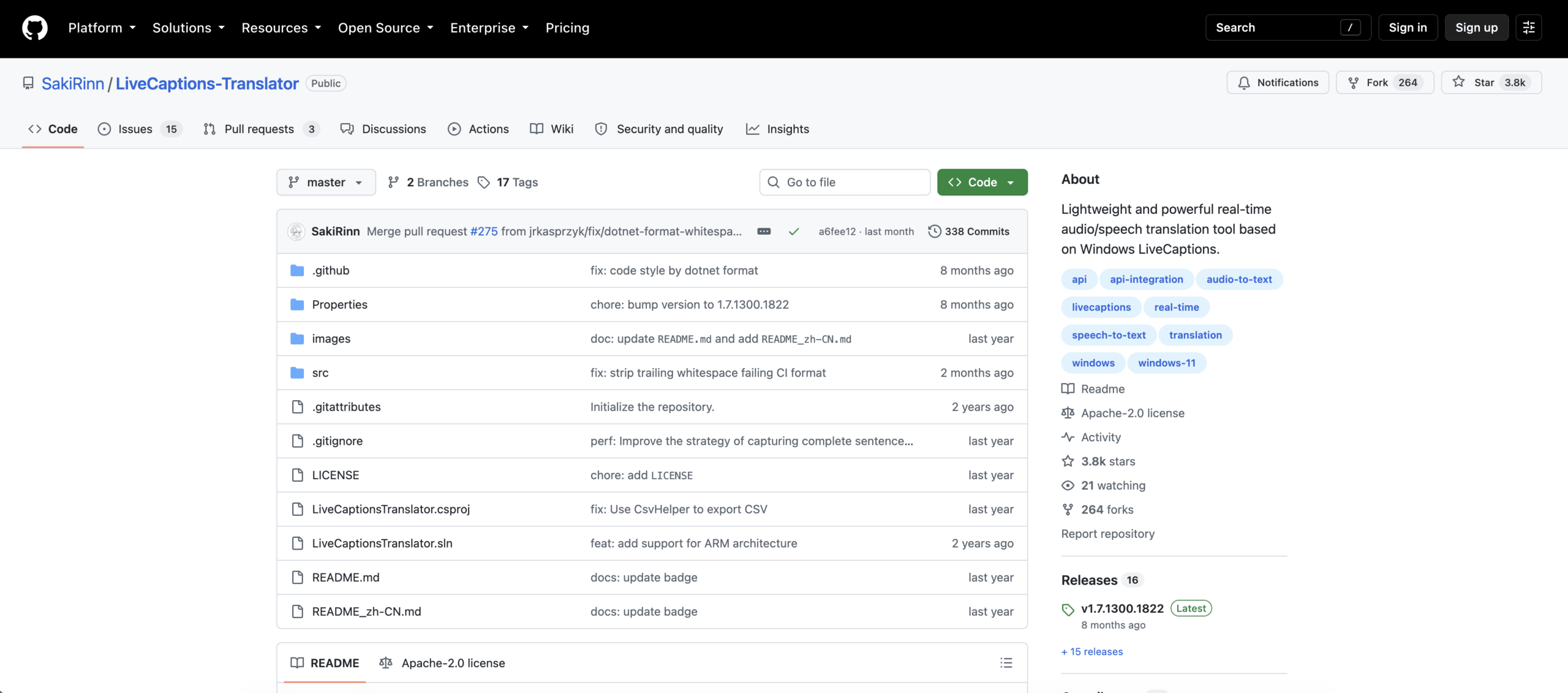
The latest listed project release is v1.7.1300.1822. Its release notes describe improved overlay display, highlighting of the sentence being translated, source/translation swapping, subtitle outlines, auto-expansion, fewer repeated translations, and more target languages. The maintainers also warn that the major update may contain undiscovered bugs and that the settings file may need reconfiguration. Back up settings and test before replacing a working installation.
Explore LiveCaptions Translator
Fact 3: “On-Device Captions” Does Not Mean “All Local”
Privacy claims become confusing because LiveCaptions Translator joins two different systems. According to Microsoft, native Live Captions generates captions from detected speech on the device; audio, voice data, and generated captions are not sent to Microsoft, and native captions are not stored by that feature.
The next stage is separate. After Windows produces text, the translator may send that caption text to the online translation provider selected by the user. A self-hosted engine can reduce that external transfer, but only if the chosen configuration really stays on infrastructure the user controls. API logs, model-hosting settings, prompts, diagnostic data, and network routes still need review.
The app also keeps its own history database. Its documentation describes searching records, exporting CSV files, clearing history, and accessing the database file with external tools. That is useful, but it means the open-source layer can retain text even though native Live Captions itself does not.
Use this three-question privacy test before processing confidential speech:
- Where is audio recognized?
- Where is caption text translated?
- Where are source text, translated text, prompts, keys, logs, and exports retained?
The honest privacy answer for the app therefore depends on the selected provider and configuration. “Speech recognition is local” is accurate for the native caption stage; “the whole translation workflow is local” is not automatically accurate.
Fact 4: Free Software Can Still Have a Real Cost
LiveCaptions Translator is published as open-source software under the Apache-2.0 license. There is no subscription price for the application itself. That does not make every working configuration free.
An online translation or LLM provider may charge by characters, tokens, requests, or usage tier. A self-hosted model consumes hardware, electricity, setup time, and maintenance effort. Someone must also protect API keys, monitor failed requests, install updates, retest settings, and investigate changes in provider behavior.
Calculate total cost with this simple model:
application price + translation usage + local compute + setup time + maintenance + failure risk
This is where a managed service becomes easier to budget. Transync AI currently lists a 0 plan with 40 minutes after sign-up, Personal Premium at 8.99 per month with 10 hours, and Enterprise at $24.99 per month per seat with up to 40 hours. Those prices buy a defined product workflow rather than an API-building kit. Multilingual presentation usage is metered differently, so event organizers should still check the current pricing page before forecasting usage.
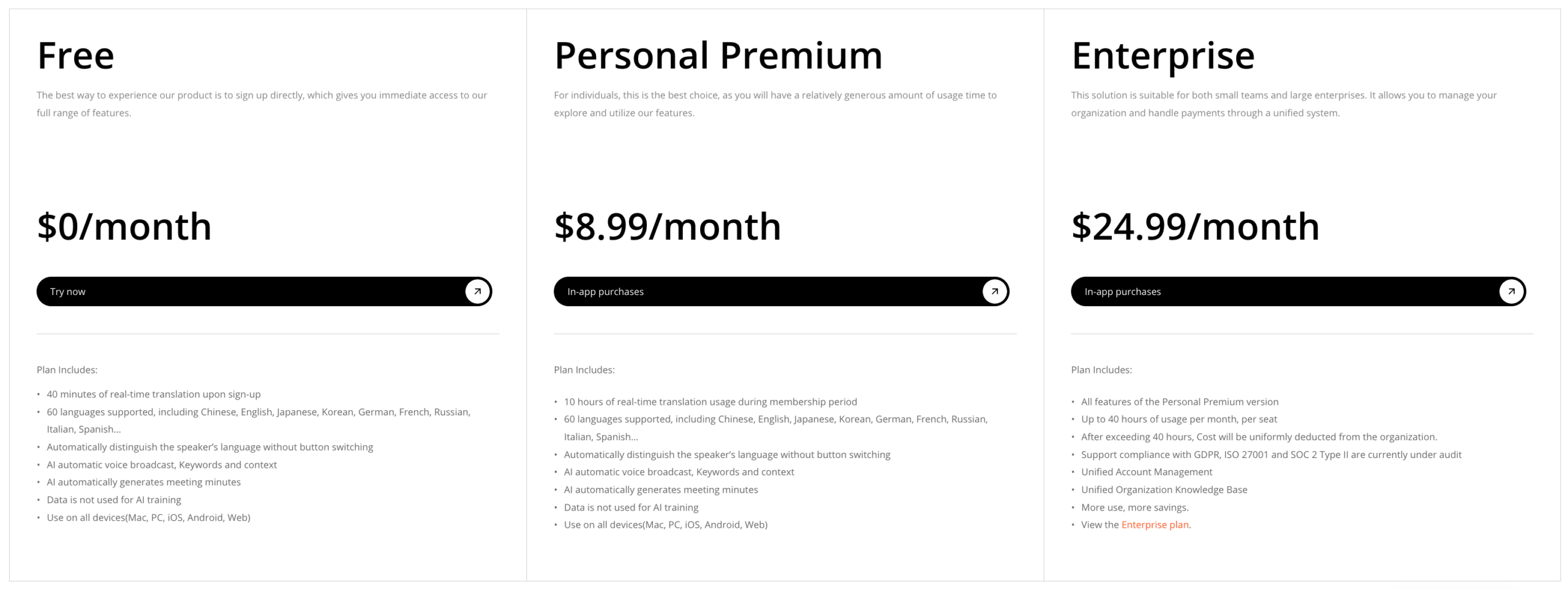 The price comparison is not “free versus paid.” It is “assemble and operate the stack” versus “pay for a maintained workflow.” A hobbyist may prefer control; a sales team may value predictable onboarding and support.
Fact 5: The Overlay Is Stronger Than the Collaboration Layer
The transparent overlay is one of the most useful parts of LiveCaptions Translator. Users can keep subtitles above another application, adjust background and text appearance, change transparency, and control how many recent sentences appear. The current release also reduces visual jumping by allowing translation to sit above the source and by highlighting the sentence being translated.
That design suits personal viewing. A single person can follow a foreign-language livestream, online class, recorded video, game, or call without depending on the media site to provide translated subtitles. Searchable history and CSV export help when the user wants to revisit lines later.
But a personal overlay is not the same as a shared multilingual room. It does not inherently give participants individual language selectors, send translated audio back into a meeting, assign organization roles, produce structured meeting notes, or offer an audience join flow. Those needs belong to a collaboration product or managed event service.
Transync AI uses a Picture-in-Picture subtitle window for a similar “keep captions visible” need, but it connects that view to a broader traduzione di riunioni in diretta workflow. Its Traduttore vocale AI can speak translated output, while Appunti della riunione di intelligenza artificiale turn the completed conversation into a follow-up record.
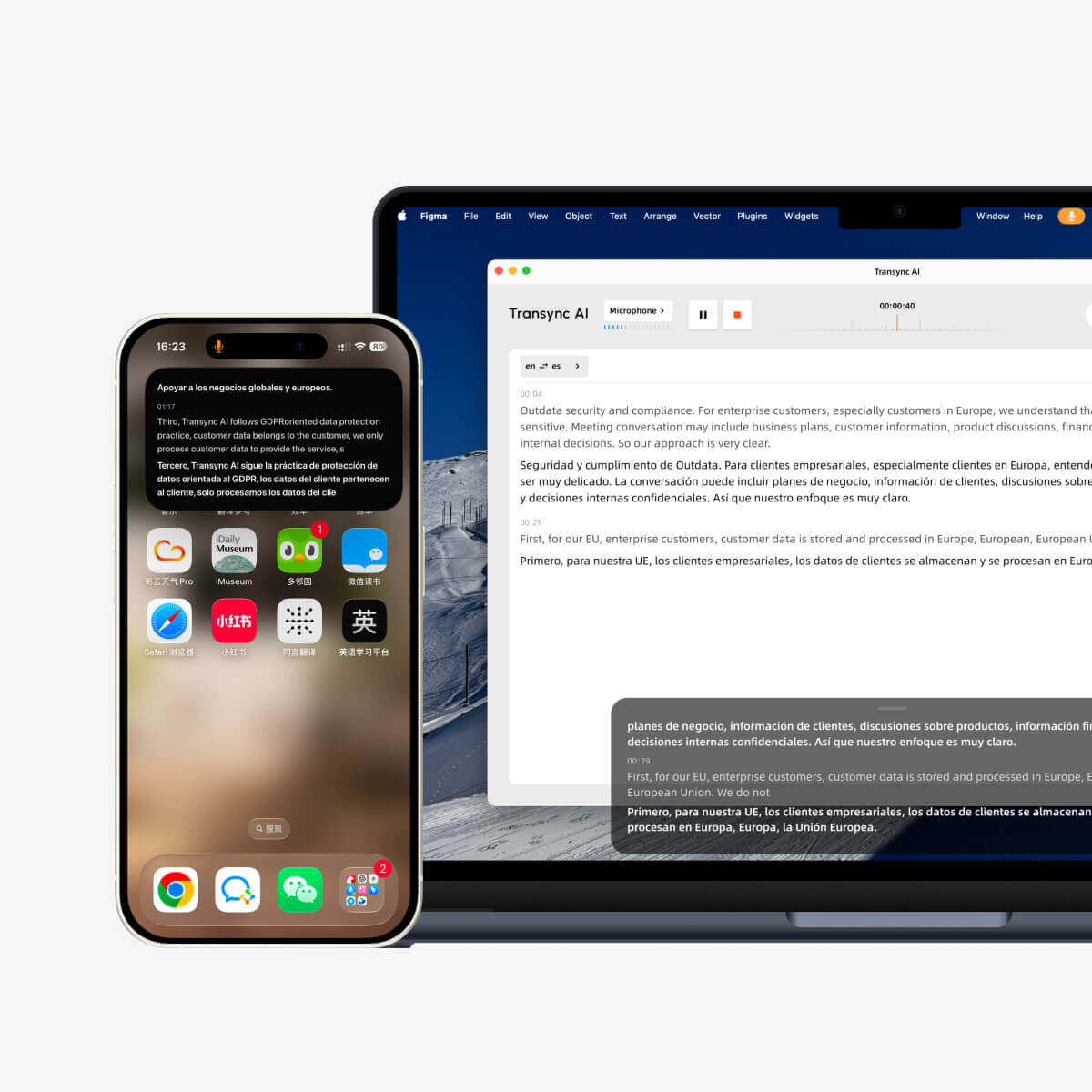
Sottotitoli fluttuanti in tempo reale su dispositivi desktop e mobili.
For lectures, training, town halls, or presentations, Modalità di presentazione lets a host enable up to 10 target languages. Viewers can join by link, QR code, or Room ID, then choose one of the enabled languages for translated subtitles and optional voice playback. That is a fundamentally different job from placing subtitles over one Windows desktop.
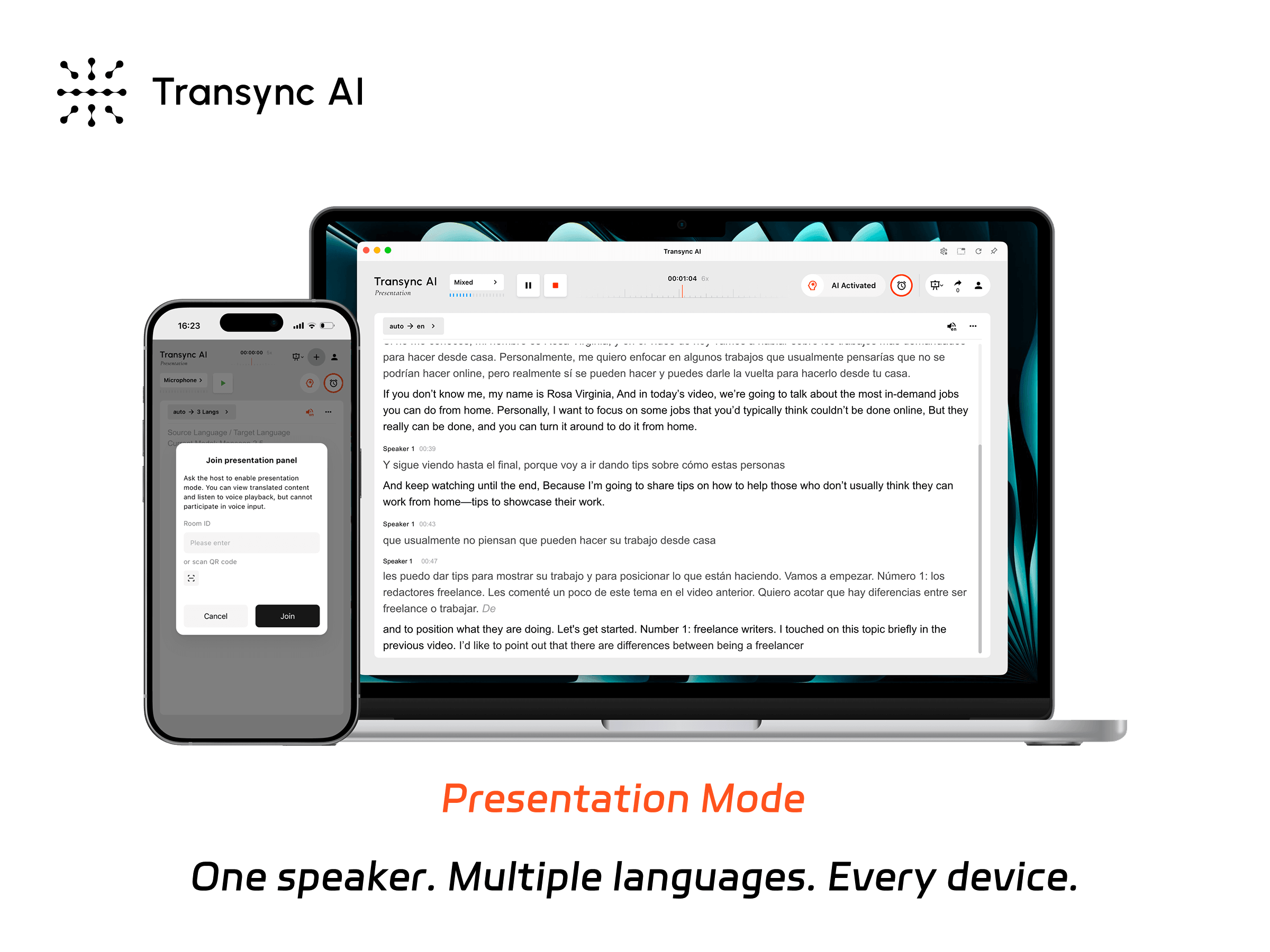
La modalità presentazione consente a un presentatore di condividere la traduzione simultanea con i membri del pubblico sui loro dispositivi.
Prova Transync AI gratuitamente
Fact 6: Accuracy Must Be Measured at Two Layers
A polished target sentence can hide a bad source caption. Test LiveCaptions Translator by scoring recognition and translation separately.
Use a 90-second script containing:
- Three names, including one uncommon surname.
- A product name and two industry terms.
- A decimal, a currency amount, and a date.
- A negation such as “do not renew.”
- A correction such as “Tuesday—sorry, Thursday.”
- One long sentence and one interruption.
First, compare the spoken audio with the Windows source captions. Mark every substitution, omission, and wrong boundary. Then compare the correct intended meaning with the translated line. Finally, note the time from speech to stable translation rather than the time to the first partial word.
| Test layer | What to inspect | Typical failure | Useful response |
|---|---|---|---|
| Registrazione audio | Correct output device or microphone, volume, overlap, noise | Missing speaker or dropped words | Fix routing, use a closer microphone, reduce background processing |
| Riconoscimento della fonte | Names, numbers, negations, punctuation | Fluent but factually wrong source line | Improve audio and select the correct recognition language |
| Segmentation | Where incomplete phrases become sentences | Translation repeatedly rewrites or loses context | Adjust translation frequency and test a context-aware engine |
| Traduzione | Meaning, terminology, tone, target grammar | Literal, invented, or inconsistent wording | Compare engines and prompts using the same script |
| Display | Stability, readability, line retention | Text jumps or disappears too quickly | Tune overlay layout, font, sentence count, and window size |
| History | Correct source-target pairing and export | Revised lines create confusing records | Inspect the database/CSV before relying on it as evidence |
Run this test with the exact accent, language pair, room, headset, and application used in real work. A demonstration with clean studio audio says little about performance during an overloaded laptop call.
Fact 7: The Best Choice Depends on Who Owns the Workflow
The decision becomes clearer when you identify the operator.
Scegliere LiveCaptions Translator when one technically capable Windows user owns the installation, can evaluate providers, accepts open-source maintenance, wants a configurable desktop overlay, and primarily needs to read translated text personally.
Scegliere Transync AI when an individual or team wants cross-platform onboarding, bilingual subtitles, translated voice, Parole chiave e contesto for prepared terminology, synchronized records, or a presentation audience that can join without configuring a translation API.
Evaluate another category entirely when a high-stakes legal, medical, accessibility, or diplomatic event requires certified human interpreters, contractual service levels, dedicated event production, or formal accommodation. Neither an open-source overlay nor a self-serve AI meeting app should be treated as an automatic replacement for professional judgment.
A 15-Minute LiveCaptions Translator Pilot
Do not make the first production meeting your first test. Use this short pilot instead.
Minutes 1–3: verify native captions
Press the Windows shortcut for Live Captions, select the spoken language, and play a known audio clip. Confirm that the source text is accurate before opening the translation layer.
Minutes 4–6: verify position and input
Set the native caption position to overlaid on screen. Test system audio, then enable microphone inclusion and test speech. If one source suppresses the other during overlap, record that limitation.
Minutes 7–9: compare translation engines
Use the same 90-second script with two available providers or configurations. Record stable latency, factual errors, terminology consistency, and any cost-generating usage.
Minutes 10–12: test the overlay
Move the subtitle window over a video, a presentation, and a full-screen application. Adjust text size, opacity, source-target order, and recent sentence count. Confirm that important controls remain visible.
Minutes 13–15: inspect retention and failure
Export history, locate the local record, clear a test session, disconnect the network, and restart the app. Confirm which parts still work, how failures appear, and whether settings survive an update or restart.
This pilot turns the project from an appealing screenshot into an evidence-based choice.
LiveCaptions Translator FAQ
Is LiveCaptions Translator an official Microsoft product?
NO. LiveCaptions Translator is an independent open-source project that uses caption text generated by Microsoft Windows Live Captions. Its releases, support, and development are maintained through the project repository, not through Microsoft product support.
Does LiveCaptions Translator require a Copilot+ PC?
No. The project documentation explicitly says it does not require a Copilot+ PC. It uses native Windows speech recognition and adds a separately selected translation API. This differs from the translation built directly into Live Captions on eligible Copilot+ PCs.
Is LiveCaptions Translator completely offline?
Not by default. Native caption generation can run on device after the required language files are installed, but the translation stage may send text to an online provider. A self-hosted engine can create a more local workflow, depending on its actual configuration.
Does LiveCaptions Translator save transcripts?
The app records source and translated content in its own history database and supports search, CSV export, and clearing. Native Windows Live Captions separately states that its generated captions are not stored by the native feature.
Can LiveCaptions Translator translate microphone speech?
Yes, when “Include microphone audio” is enabled in native Live Captions. However, Microsoft notes that microphone speech may not be captioned while other device audio is actively being captioned, so test overlapping conversation before relying on it for meetings.
Is LiveCaptions Translator better than Transync AI?
LiveCaptions Translator is stronger for a technical Windows user who wants provider choice, local history, and a customizable personal overlay. Transync AI is stronger for a cross-platform meeting workflow with integrated translated voice, terminology, notes, and presentation audience access. “Better” depends on which job must be completed.
Is LiveCaptions Translator safe to install?
It is an open-source project, but open source is not a universal security guarantee. Download only from the official release page, review the repository and issues, inspect the selected provider’s data terms, protect API keys, keep a recoverable settings backup, and test the executable under your organization’s software policy before using confidential content.
Decisione finale
LiveCaptions Translator is a clever bridge: it extends efficient on-device Windows captions with a choice of translation engines and a readable desktop overlay. Its flexibility is real, but so are the responsibilities that come with installation, provider selection, privacy review, and ongoing testing.
For a technical user translating content on one Windows PC, that trade can be excellent. For a team that needs conversations to move across devices, speak translations aloud, prepare terminology, create meeting notes, or distribute multiple languages to an audience, Transync AI provides the more complete communication workflow.
The safest decision is not based on a feature checklist alone. Run the same speech script through both options, measure the full path from audio to usable output, inspect where data travels, and choose the workflow your actual operator can maintain.
Se desideri un'esperienza di nuova generazione, Transync AI apre la strada alla traduzione in tempo reale basata sull'intelligenza artificiale, che mantiene le conversazioni fluide e naturali. Puoi provalo gratis Ora.