
Voice Playback lets Transync AI read translated text aloud in your selected target language. This is useful when you want other people to hear the translation, not just read subtitles on screen.
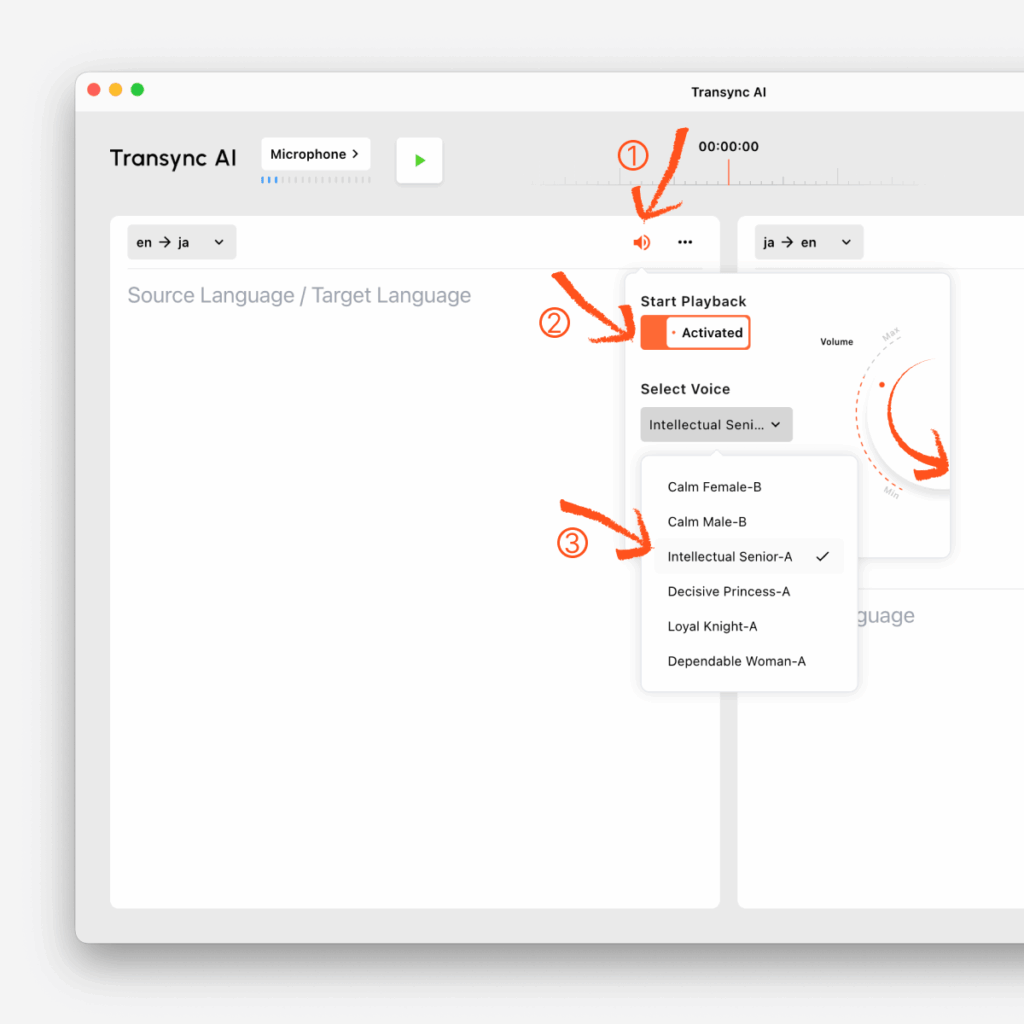
For example, if your meeting is in English and you want Japanese playback, you can turn on voice playback on the en → ja side and choose the voice you prefer. You can enable voice broadcast for the language you want announced and select a preferred voice tone.
Before using voice playback, make sure Transync AI can capture your meeting audio correctly. If you have not set that up yet, follow this guide: How to Share Computer Audio
1. Turn On Voice Playback #
In the target language panel, enable Voice Playback.
For example:
- If you want Japanese audio output, turn it on under en → ja
- Then select the voice you want to use
2. Select a Voice #
Under Select Voice, choose the voice style that best fits your use case.
You can use different voices depending on:
- meeting tone
- audience preference
- clarity and listening comfort
3. Adjust Volume #
Use the volume control to adjust how loud the playback sounds.
In many cases, other participants can hear the playback directly through your computer speakers. The current documentation notes that, generally, using computer speakers is enough for others in the meeting to hear the language broadcast.
4. When You Also Need to Share Playback into the Meeting #
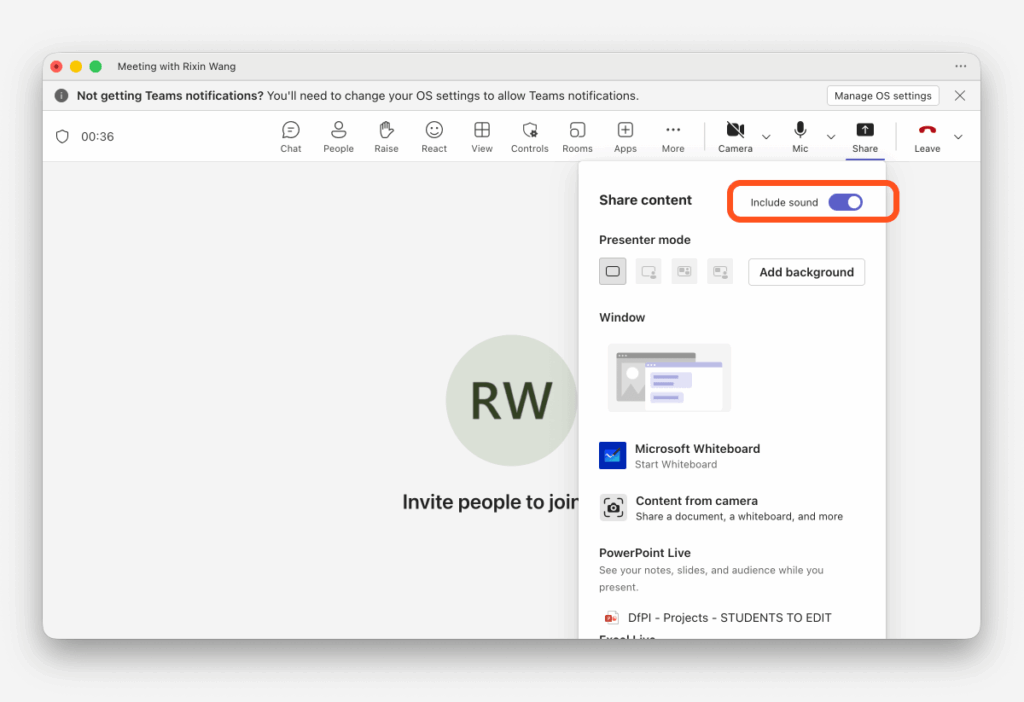
If you are wearing headphones, or other people in the meeting cannot hear the voice playback, you may need to share both your screen and computer audio inside the meeting platform. Teams uses “Include Computer Sound,” Zoom uses “Share Sound,” and Google Meet uses “Present Now → A Tab” with tab audio enabled.
5. Playback Delay #
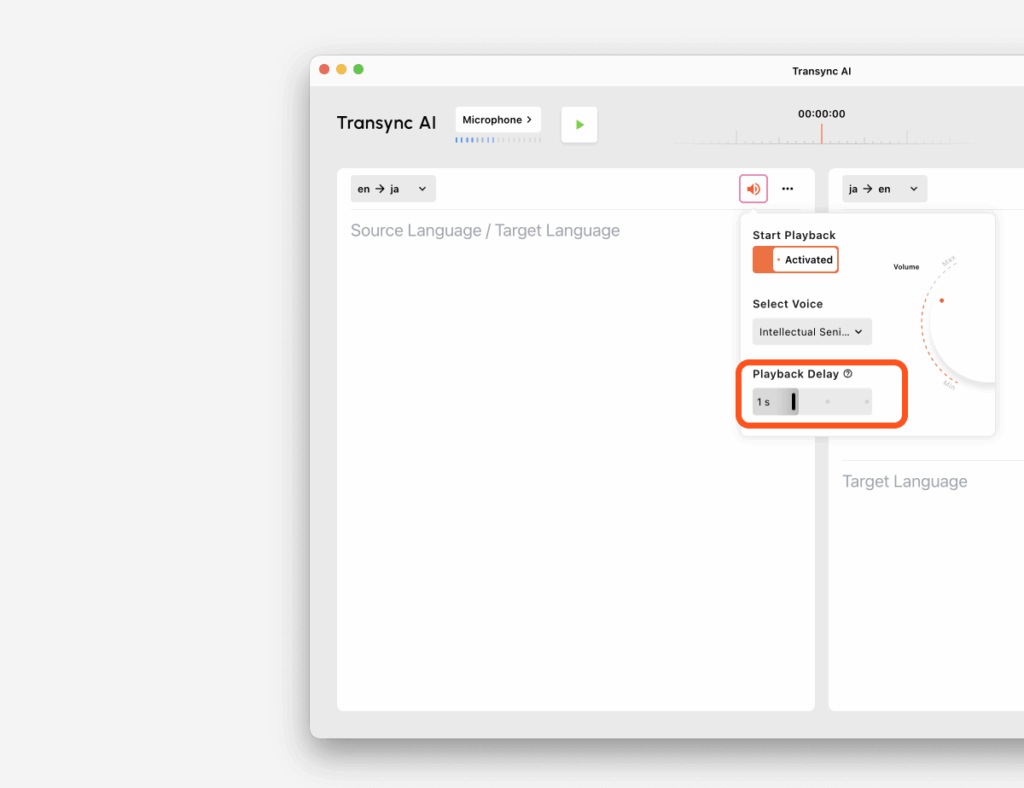
Playback Delay controls how long Transync AI waits during a pause before it starts reading the translated result aloud.
This is useful because in real conversations, speakers often pause briefly between phrases. A small delay can prevent playback from starting too early and interrupting the natural flow.
How it works #
- Instant: playback starts immediately after translation is ready
- 1s / 2s / 3s: Transync AI waits for that amount of silence before starting playback again
Example: when Playback Delay is set to 1s #
If the speaker pauses, and the pause is less than 1 second, Voice Playback will not start yet.
It will keep waiting because Transync AI assumes the speaker is continuing the same utterance.
Only when the speaking pause becomes longer than 1 second will playback begin.
In simple terms:
- pause under 1s → do not start playback
- pause over 1s → start playback
This helps avoid fragmented audio and makes the broadcast sound more complete and natural.
6. Recommended Settings #
Use Instant when: #
- you want the fastest possible playback
- short response speed matters more than natural phrasing
Use 1s when: #
- you want a balance between speed and smoother playback
- speakers tend to pause briefly mid-sentence
Use 2s–3s when: #
- speakers talk in longer chunks
- you want playback to wait for more complete sentence groups
- you want to reduce overly frequent interruptions
7. Avoid Echo #
If both sides are using playback at the same time, echo or repeated sound may happen. We recommend enabling voice broadcasting on only one side if echo occurs.
Tips #
- Use speakers if you want everyone nearby to hear the translated audio
- Use screen share + audio share if people in the online meeting need to hear the playback
- Start with 1s playback delay for most meeting scenarios
- If playback feels too broken, increase the delay
- If playback feels too slow, switch to Instant or reduce the delay


