
Learn how google live caption works on Android and Chrome, where translation is available, and when a cross-platform meeting translator fits better.
Google Live Caption can turn speech from media and calls into readable text, but its name is often used for several different features. On-device captions, translated captions in a browser, meeting captions, and translated speech are related experiences—not one universal switch.
That distinction matters. A person watching a podcast has a different need from a multilingual team holding a client call. This field guide maps the feature across Android, Google Chrome, and Google Meet, then compares it with Transync AI when users need cross-platform meeting translation, spoken output, terminology preparation, notes, or multilingual audience access.
The quick answer: Google Live Caption is excellent for accessibility and personal comprehension on supported devices. Translation support depends on the device and related Live Translate settings. Google Meet offers separate live captions, translated captions, and Speech Translation features. Transync AI is the better fit when the job is a reusable multilingual meeting workflow rather than captioning one device or one meeting platform.
First, Identify Which Feature You Mean
| Feature | Where It Runs | Primary Output | Translation? | Best Use |
|---|---|---|---|---|
| Google Live Caption on Android | Pixel and selected Android phones | On-device captions for media and calls | Requires Live Translate on supported Pixel devices | Personal accessibility and media comprehension |
| Live Caption in Chrome | Chrome on supported computers | Caption bubble for browser audio | Live Translate can translate captions | Videos, podcasts, streams, browser calls, and other browser audio |
| Live captions in Google Meet | Inside a Meet meeting | Same-language captions visible to the individual user | No; translated captions are a separate setting | Following speech inside a Meet call |
| Translated captions in Google Meet | Eligible Workspace editions | Text translated into the chosen language | Yes | Multilingual caption reading inside Meet |
| Speech Translation in Google Meet | Eligible plans and supported devices | Translated voice in a voice resembling the speaker | Yes, for supported English language pairs | Spoken communication inside Meet |
| Transync AI live translation | Web, desktop, and mobile workflows alongside meeting apps | Bilingual text, translated voice, and records | Yes | Cross-platform meetings and presentations |
If a support article or settings screen says “caption,” do not assume it also says “translate.” If it says “translated captions,” do not assume participants will hear translated speech.
Fact 1: Google Live Caption Is Primarily an Accessibility Feature
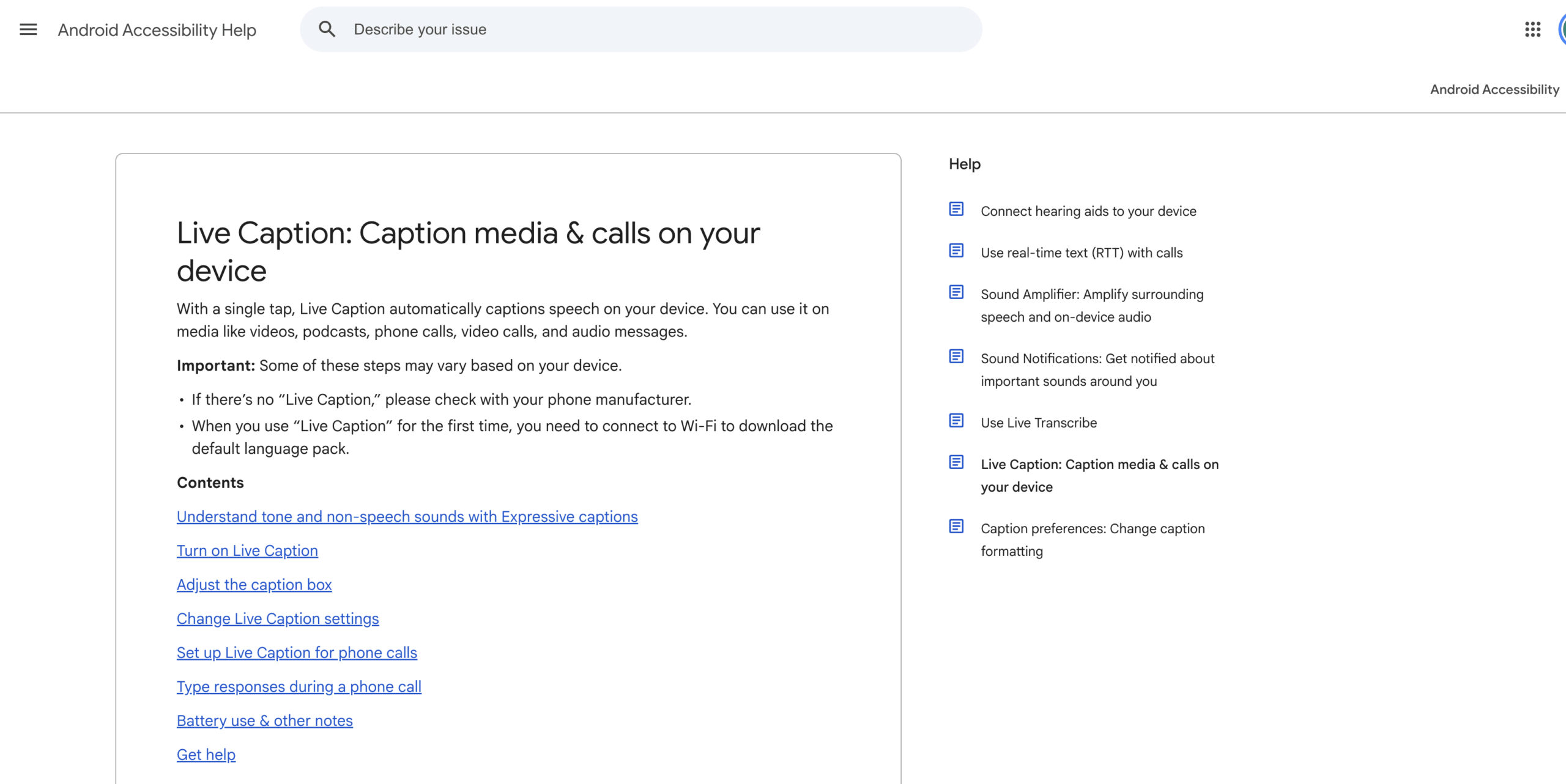
On supported Android devices, Google Live Caption automatically captions speech playing on the device. Current official help lists media such as videos, podcasts, phone calls, video calls, and audio messages. The caption box can be moved, expanded, resized, and customized.
The feature is valuable even when translation is not involved. Someone can follow a noisy video without sound, read a podcast, understand unclear phone audio, or use captions as an accessibility aid.
Current device support varies. Official help lists English-only support on older Pixel generations, more languages on later phones, and an expanded group of languages on Pixel 6 and later plus selected devices running newer Android versions. If the Live Caption control does not appear, the phone manufacturer, model, operating-system version, or region may not support it.
Google Live Caption should therefore be judged first on accessibility: Does it recognize the language, keep up with clear speech, remain readable, and work in the media or calling app you actually use?
Fact 2: Captioning and Translation Are Separate Layers
Basic Google Live Caption turns speech into text in a caption language. To translate captions on supported phones, users need Live Translate enabled. Current official documentation says this translation option is available on Pixel 6 and later devices.
That creates a two-layer process:
- The phone recognizes speech and creates captions.
- Live Translate converts those captions into the preferred language.
The distinction explains why a user may see captions but no translated result. A downloaded caption language, a selected preferred language, and Live Translate availability all affect the outcome.
Call features create another boundary. Google Live Caption can let some users type a response during a call and have the device read it aloud, but official help explicitly says this function does not translate; it supports conversation in the current language.
The phrase google live caption is often used online as shorthand for “anything that translates speech on a Pixel phone.” A more accurate question is: “Do I need same-language captions, translated text, or translated voice?”
Fact 3: Android Live Caption Can Work Without the Internet
For basic caption generation on supported phones, audio and captions are processed locally. Official help says they are not stored, do not leave the device, and do not require mobile data or an internet connection.
This is an important privacy and reliability advantage for personal media. It also means Google Live Caption can remain useful when connectivity is weak.
Several limits still apply:
- The first use requires Wi-Fi to download the default language pack.
- Supported languages depend on the device generation and operating system.
- Some media and calling apps may not provide usable captions.
- Clear speech and low background noise produce better results.
- Music is not supported as ordinary spoken caption content.
- The feature consumes additional battery and turns off in battery-saver mode.
- Call captioning is not intended for calls involving more than one other person.
Offline captioning also does not mean every translation capability is offline. Google Live Caption translation depends on the separate Live Translate feature and supported device-language combinations. Test the exact setup before travel or an important appointment.
Fact 4: Chrome Has Its Own Live Caption and Live Translate Controls
On supported computers, Google Chrome can caption audio from videos, podcasts, games, livestreams, video calls, and other browser media. The captions appear in a movable bubble, and users can add caption languages and customize presentation.
The privacy behavior changes when translation is enabled. Current official help says ordinary Live Caption audio and captions are processed locally and are not stored or sent away. When Live Translate is turned on, captions can be sent to Google for translation.
Current documentation lists a defined set of source caption languages and says translated captions can be produced in more than 100 target languages available in the “Translate captions to” menu. Users should check the real language picker because source-language caption support and target-language translation support are not identical lists.
Google Live Caption in a browser is useful when the source audio already plays inside Google Chrome. It is not automatically a meeting-management system: it does not by itself provide prepared terminology, translated voice routing for every participant, a structured meeting record, or independent language channels for an event audience.
 Fact 5: Google Meet Captions Are a Different Product Workflow
 Fact 5: Google Meet Captions Are a Different Product Workflow
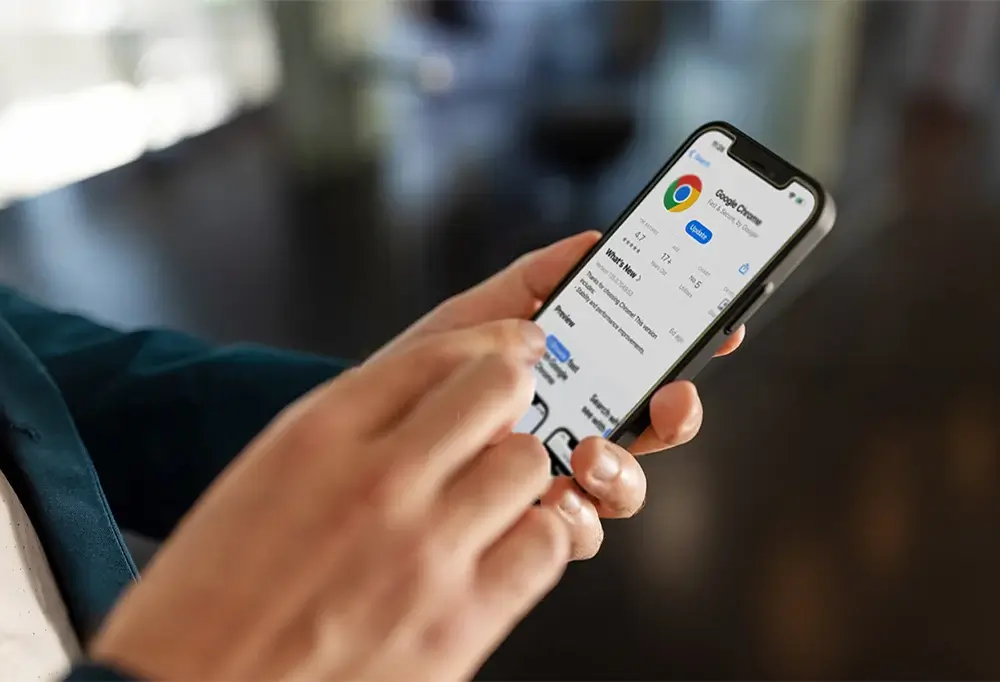
Inside Google Meet, ordinary live captions show subtitles as participants speak. A user’s captions are enabled for that user, and translated captions require a separate setting.
Eligible Google Workspace editions can use translated captions. Current official help lists Business Standard, Business Plus, Enterprise Standard, Enterprise Plus, and Google AI Pro for Education, while noting that feature rollout may affect availability. Users select the meeting language, turn on translated captions, and choose a preferred target language.
Translated captions are text, not translated voice. Users can scroll back through previous translated captions only for the part of the conversation during which they were present and had captions turned on.
Google Meet also has a separate Speech Translation feature. Current official documentation says it provides near-real-time translated speech in a voice resembling the speaker between English and French, German, Hindi, Italian, Portuguese, or Spanish. Availability is limited to specified consumer and Google Workspace plans, translations are delayed by a few seconds for completeness, and the feature has a 90-minute limit per meeting.
Speech Translation currently supports one language pair for the meeting at a time. It is not available in livestreams or recordings, and participants must allow their voice to be translated. Official help also warns that grammar, intelligibility, accent, noun gender, voice style, connectivity, device, region, and eligibility can affect the experience.
Calling all of these features google live caption makes troubleshooting harder. Use the precise name—Live Caption, translated captions, or Speech Translation—when checking eligibility and behavior.
Fact 6: Transync AI Solves a Broader Meeting Workflow
Transync AI is not a replacement for the on-device accessibility purpose of Google Live Caption. It addresses a broader business problem: helping people understand, answer, and retain information across multilingual meetings.
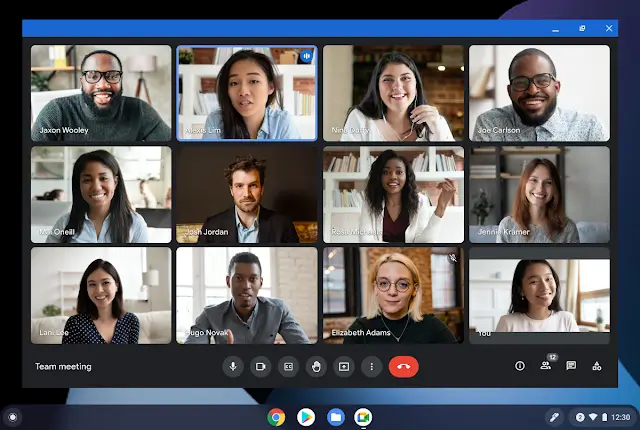
Its real-time translation currently supports 60 languages. The live meeting translation workflow can work alongside multiple meeting environments instead of being limited to one native conferencing platform.
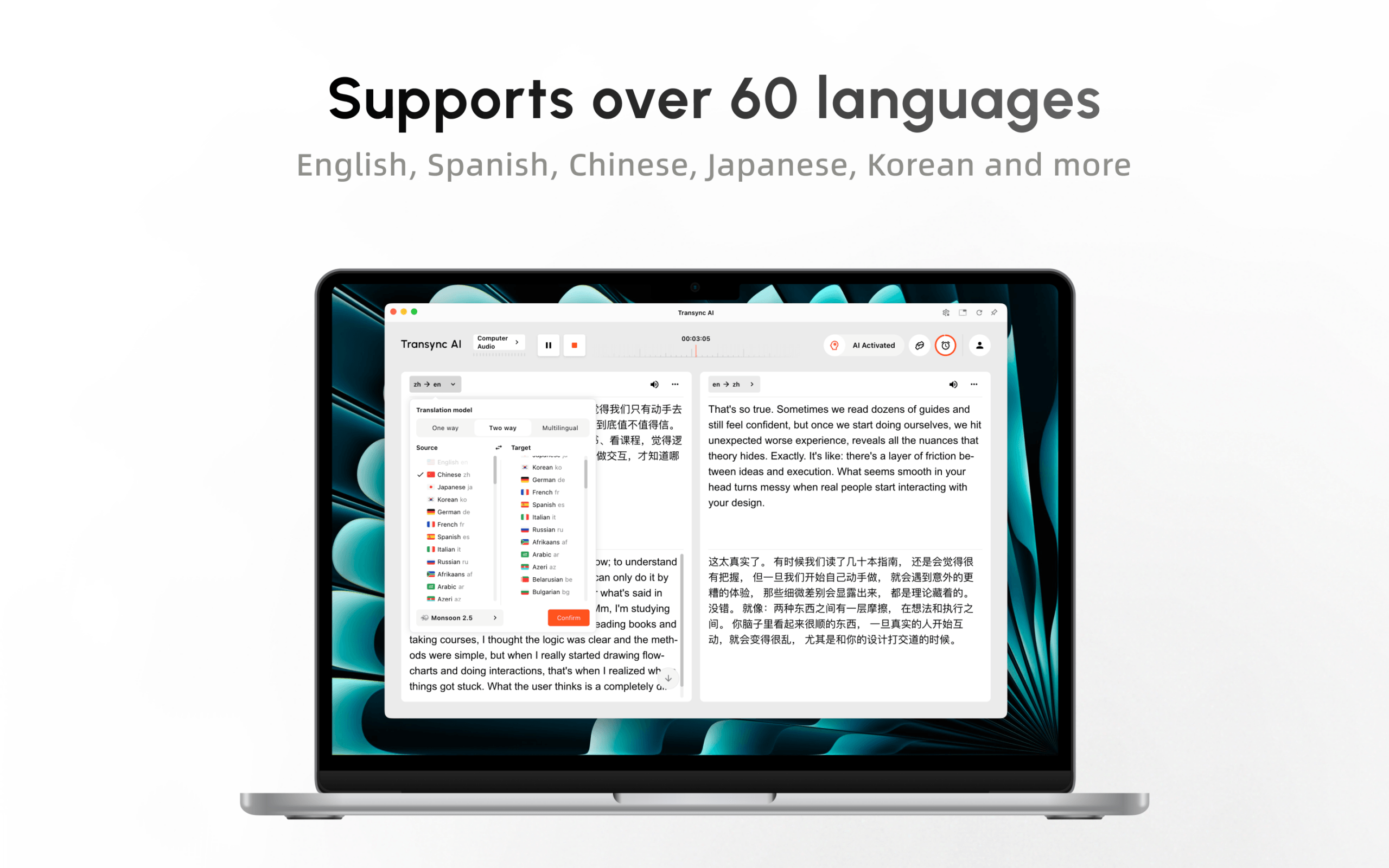
During a call, Transync AI provides bilingual subtitles and an AI voice translator for spoken output. Picture-in-Picture subtitles can remain visible over supported applications.
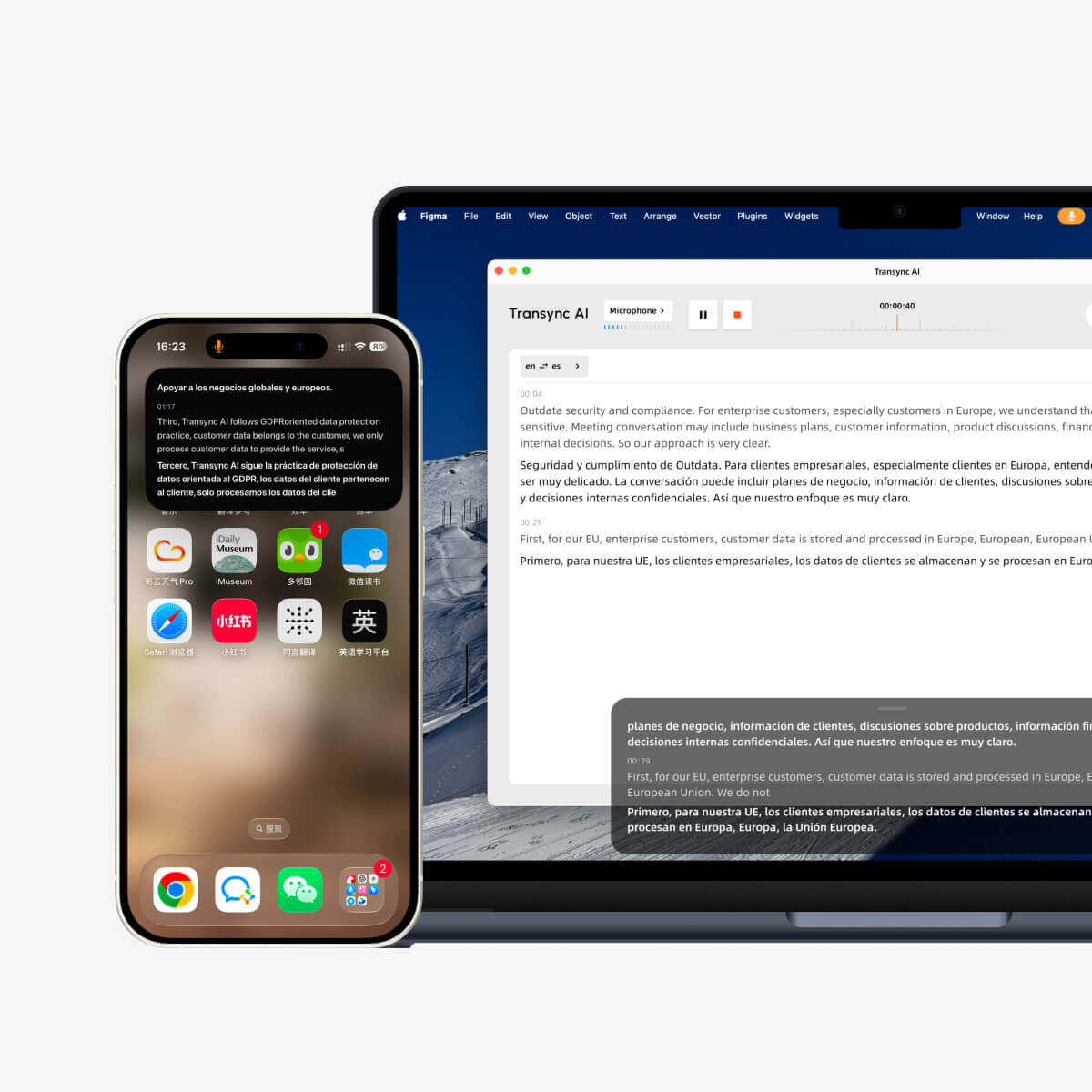
Real-time floating subtitles across desktop and mobile devices
Before the meeting, users can add participant names, technical vocabulary, and background through keywords and context. Afterward, AI meeting notes can provide a transcript and structured summary.
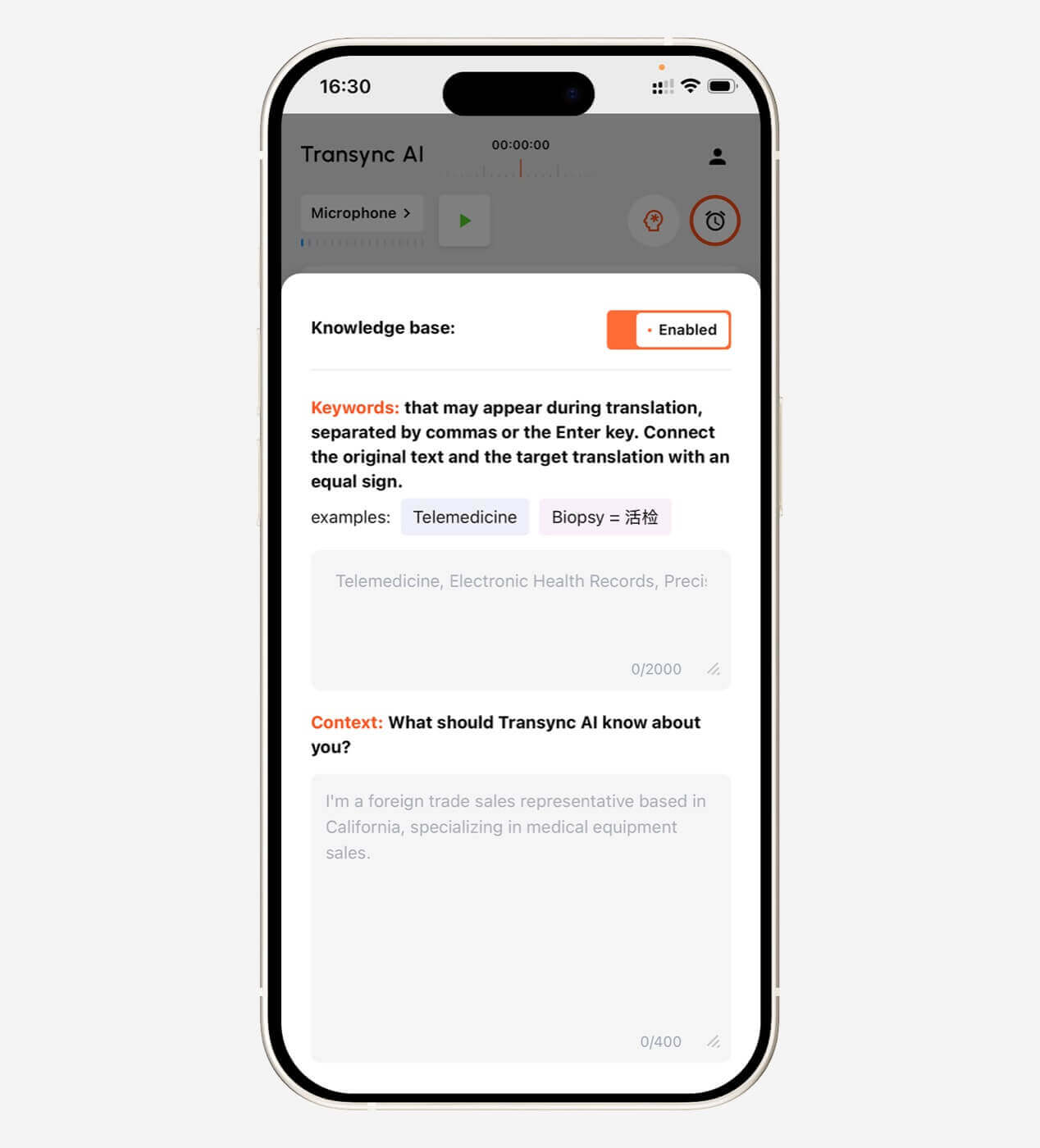
This makes Transync AI useful for recurring client calls, supplier discussions, interviews, classes, demonstrations, and global team meetings. It is not an offline caption engine, camera translator, or document-layout editor. Microphone input, computer audio, headphones, network quality, and remote delivery should be tested before a consequential call.
If the requirement is “caption the podcast playing on my phone,” Google Live Caption is the direct fit. If it is “translate a meeting, speak the result, preserve terminology, and review the decisions later,” Transync AI covers more of the workflow.
Fact 7: Presentation Translation Needs an Audience Model
A keynote, class, webinar, or town hall is not simply a large phone call. One host speaks while audience members need different languages on separate devices.
In beta Presentation Mode, a Transync AI host can enable up to 10 target languages. Attendees join from their phones or computers using a QR code, shareable link, or Room ID. No software installation is required, but audience members must register or sign in to a Transync AI account.
Each attendee chooses an enabled language and can read translated text or listen to voice playback when available. Audience members cannot send voice input into the host’s translation task. The host decides whether to share the transcript and AI-generated notes afterward.
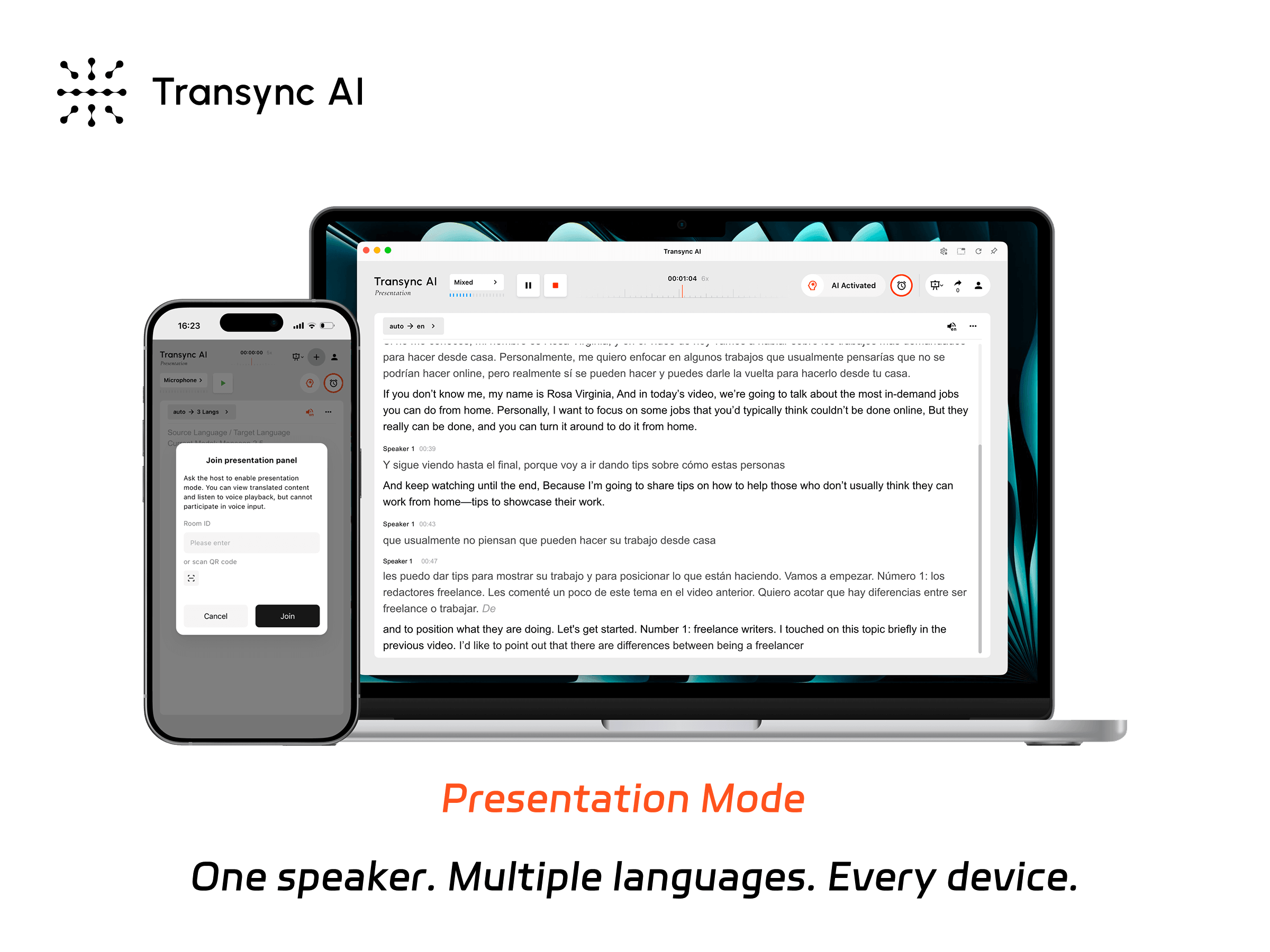
Presentation Mode lets one host share live translation with audience members on their own devices.
Google Live Caption remains a personal device-level caption tool; it does not create this host-and-audience workflow. Google Meet translated captions serve participants inside a meeting, while Transync AI Presentation Mode distributes a language-selectable experience to audience devices in the room or remotely.
For a real event, test registration, QR visibility, Wi-Fi, headphones, target-language switching, accessibility, late arrival, and the host’s audio. The first minute of audience access is part of translation quality.
Google Live Caption vs Transync AI
| Capability | Google Live Caption | Chrome Live Caption / Translate | Google Meet Features | Transync AI |
|---|---|---|---|---|
| Primary purpose | Personal accessibility for device media and calls | Browser audio captions and optional translation | Captions, translated captions, and speech translation inside Meet | Cross-platform multilingual meetings and presentations |
| Same-language captions | Yes, on supported devices/languages | Yes | Yes | Bilingual source and target text |
| Caption translation | Requires Live Translate on supported Pixel devices | Yes, when Live Translate is enabled | Translated captions on eligible plans | Core real-time translation workflow |
| Translated voice | Not the basic Live Caption function | Caption-focused | Separate Speech Translation with eligible plans and language limits | Voice playback in supported languages |
| Meeting-platform scope | Device and app dependent | Audio playing in Chrome | Google Meet only | Works alongside multiple meeting platforms |
| Terminology preparation | No meeting glossary workflow | No meeting glossary workflow | Limited compared with dedicated context preparation | Keywords and context |
| Notes afterward | No | No meeting-note workflow | Separate transcript and note features depend on plan | Transcript and AI meeting notes |
| Audience language choice | Personal device setting | Personal browser setting | Participant-selected captions within Meet | Presentation Mode audience panel |
| Offline use | Basic captions can work on device | Local captioning; translation behavior differs | Online meeting required | Online workflow |
| Best fit | Accessibility and personal media | Browser-based media comprehension | Teams committed to the Meet ecosystem | Cross-platform meetings, voice, records, and presentations |
The correct comparison is not “Which one has better captions?” It is “Whose audio is being processed, where must the result appear, does anyone need translated voice, and what must remain afterward?”
A 10-Minute Google Live Caption Setup Check
On an Android phone
- Search Settings for Live Caption or open it through the volume controls.
- Confirm that the required caption language can be downloaded.
- Play a clear spoken video and inspect the source captions.
- If translation is required, confirm that Live Translate is available and enabled.
- Select the preferred translation language.
- Test the actual media or calling app.
- Turn on airplane mode to verify which functions remain available.
- Check battery behavior and caption readability.
In Chrome
- Open Settings, then Accessibility.
- Turn on Live Caption and add the source caption language.
- Play browser audio and locate the movable caption bubble.
- Turn on Live Translate only if translated captions are required.
- Choose the target language and verify the privacy implications of sending captions for translation.
- Test the actual video, stream, game, or browser call.
In Google Meet
- Decide whether the user needs live captions, translated captions, or Speech Translation.
- Confirm the host’s plan, administrator setting, region, device, and language pair.
- Ask every relevant participant to verify their settings.
- Test delay, correction, and the participant’s ability to respond.
- Confirm whether transcripts or notes are required and who may access them.
This setup check prevents a common failure: expecting Google Live Caption behavior from an entirely separate Google Meet feature.
Accuracy: Test the Source Before the Translation
Create a short script containing:
- Two personal names and one company name.
- A date, time, price, percentage, and model number.
- One sentence containing “not” or “unless.”
- A correction: “The deadline is Tuesday—sorry, Thursday morning.”
- Five specialist terms.
- One interruption and one speaker change.
First inspect the source caption. Then inspect the translated caption or voice. If Google Live Caption misrecognizes the source, the translation layer may accurately translate the wrong words.
Score factual meaning before grammar or voice naturalness. The listener must receive the correct person, action, condition, amount, and deadline. A fluent mistake is still a mistake.
Privacy: Local Captioning Is Not the Same as Cloud Translation
Privacy statements should be matched to the exact feature:
| Workflow | Current Official Description | Question to Ask |
|---|---|---|
| Android Live Caption | Audio and captions processed locally, not stored or sent to Google | Is translation also enabled, and does its processing differ? |
| Chrome Live Caption | Local processing for ordinary caption generation | Is Live Translate sending captions for translation? |
| Google Meet Speech Translation | No audio saved and voice not used for model training | What account, organization, consent, and retention rules also apply? |
| Transync AI live translation | Live audio deleted after processing; text may be retained for translation or notes and can be deleted | Which records are enabled, who can access them, and when will they be deleted? |
For confidential work, review the current product documentation, plan, organizational agreement, regional processing, access controls, deletion, administrator settings, and applicable law. A feature being “on-device” in one mode does not make every related feature on-device.
Cost and Eligibility
Basic Google Live Caption is a device capability, but access depends on supported hardware and software. Google Meet translated captions and Speech Translation depend on eligible plans, administrator settings, devices, regions, and supported language combinations.
Current Transync AI pricing lists 40 free minutes after registration, Personal Premium at 8.99 per month with 10 hours, and Enterprise at 24.99 per month per seat with up to 40 hours. Multilingual and Presentation Mode usage can be calculated differently, so check current pricing and usage rules for the intended scenario.
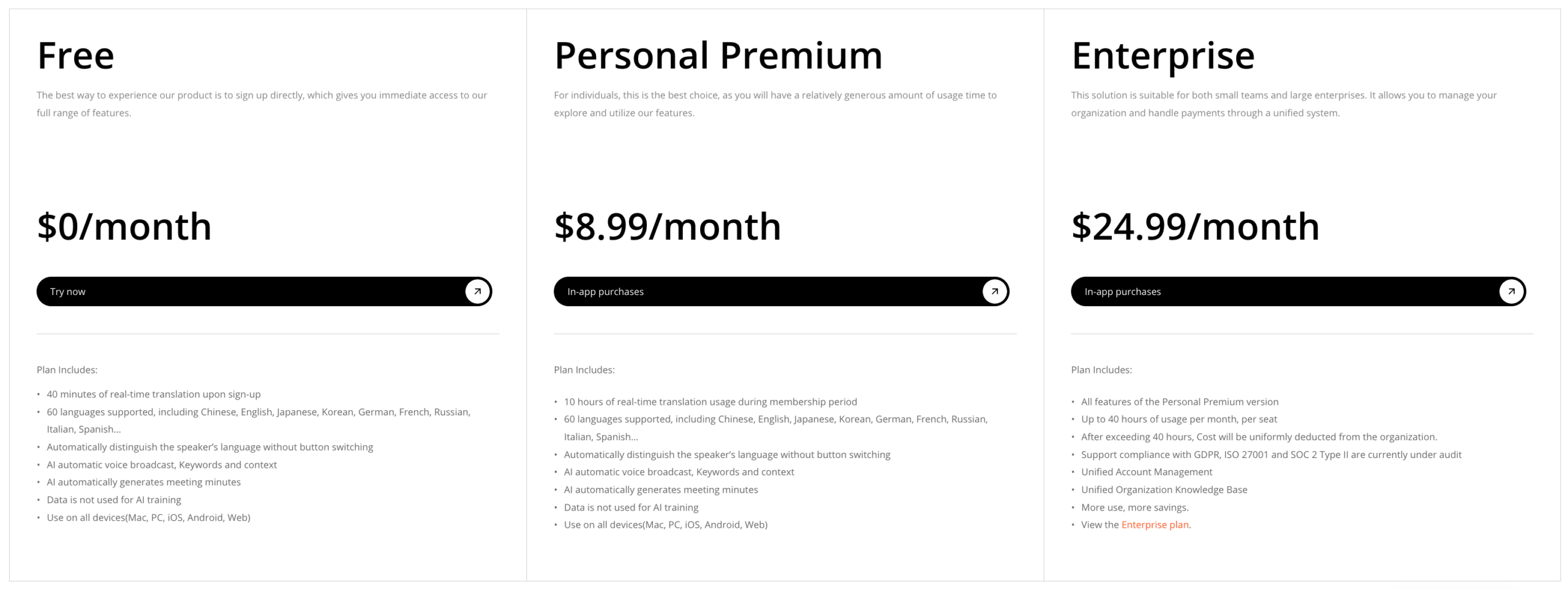 Compare total workflow cost rather than sticker price. Include device requirements, meeting subscriptions, staff setup, translation time, review, support, failed sessions, notes, and cross-platform use.
Which Feature Should You Choose?
Choose Google Live Caption when:
- You need personal captions for media or supported calls.
- On-device processing and offline captioning matter.
- Same-language accessibility is the primary goal.
- The required phone, language, and application are supported.
Choose Google Chrome Live Caption and Live Translate when:
- Audio already plays in the browser.
- You want a movable caption bubble.
- Supported source caption languages cover the content.
- Sending captions for cloud translation is acceptable when translation is enabled.
Choose Google Meet captions or translation when:
- Everyone works inside that meeting platform.
- The required Workspace edition and admin settings are available.
- Translated text or the supported Speech Translation language pair matches the meeting.
- The platform-specific limits are acceptable.
Choose Transync AI when:
- Meetings occur across different platforms.
- Participants need bilingual captions plus translated voice.
- Names and technical terms should be prepared in advance.
- A transcript and AI notes are needed afterward.
- A host needs to distribute multiple audience languages through Presentation Mode.
Use a qualified human interpreter when legal, medical, regulatory, immigration, financial, or safety consequences require professional accountability.
Frequently Asked Questions
Is google live caption the same as translation?
No. Basic Google Live Caption converts speech into captions. Caption translation requires Live Translate on supported devices. Inside Google Meet, translated captions and Speech Translation are separate features.
Does google live caption work offline?
Basic Google Live Caption on supported Android phones processes captions on the device and does not require an internet connection after the necessary language pack is downloaded. Translation availability has additional device and language requirements.
Can google live caption translate phone calls?
On supported Pixel devices, Live Translate can translate captions from certain media and calls. Availability varies. The “type responses during calls” accessibility function itself does not translate and works only in the current language.
Does google live caption work in Google Chrome?
Google Chrome has its own Live Caption feature for browser audio. It can also offer Live Translate, which sends captions for translation. The controls and language support differ from the Android feature.
Is google live caption available in Google Meet?
Google Meet has its own live captions, translated captions, transcripts, and Speech Translation. These should not be treated as the same device-level feature, even though users may describe all of them with the same phrase.
What is the best alternative for multilingual meetings?
Transync AI is a strong alternative when teams need cross-platform bilingual captions, translated voice, prepared terminology, Picture-in-Picture subtitles, and notes rather than a personal caption overlay.
Can google live caption support a multilingual event audience?
It captions content on an individual’s supported device. For one host distributing several target languages to audience devices, Transync AI Presentation Mode provides a purpose-built link, QR code, and Room ID workflow.
The Bottom Line
Google Live Caption is a valuable accessibility feature, especially for on-device media and calls. Its local processing and offline caption capability make it meaningfully different from cloud meeting translation.
The confusion begins when the same name is used for Google Chrome Live Caption, Pixel Live Translate, Google Meet captions, translated captions, and Speech Translation. Each has its own device, language, plan, privacy, and delivery rules.
Choose Google Live Caption for personal captioning. Choose the relevant Google Meet feature when the entire workflow lives inside Meet. Choose Transync AI when multilingual communication needs to cross meeting platforms, include translated voice, use prepared terminology, create notes, or reach an audience in several languages.
The best result comes from naming the required output precisely: same-language captions, translated text, translated voice, a meeting record, or multilingual audience access.
If you want a next-generation experience, Transync AI leads the way with real-time, AI-powered translation that keeps conversations flowing naturally. You can try it free now.