
A chrome translator extension can improve web reading and replies. Avoid 4 mistakes involving original text, input boxes, site access, and live audio.
Google Chrome already translates webpages and selected text. A Chrome translator extension becomes useful when it adds something you actually need: a bilingual reading layout, convenient vocabulary lookup, or translation inside a writing field. Start with that missing capability, not the length of an extension’s feature list.
The harder question is what happens after the translation appears. Can you recover the original? Has your outgoing message actually changed? Which websites can the extension access? And does the tool translate readable text, existing captions, or speech itself?
Those differences matter more than having another translation icon. The four mistakes below focus on reading and writing in a desktop browser, followed by the point where a meeting-focused tool becomes more appropriate.
1 Adding a Chrome Translator Extension Before Trying the Browser
If you only need to understand an ordinary foreign-language webpage, try the browser first. The built-in translation instructions cover both whole pages and selected passages.
For a page, use the translation control beside the address bar or the page’s right-click menu. For a passage, highlight the text, right-click, and choose the selection-translation option. Set the target language you want to read. If page translation fails, refresh the page before assuming another installation is necessary.
A Chrome translator extension should earn its place by improving that workflow. Perhaps you want a smaller lookup bubble, a personal vocabulary list, or a reading view that keeps source and translation together. Those are concrete reasons to add a tool. “I need to translate this page” alone may not be.
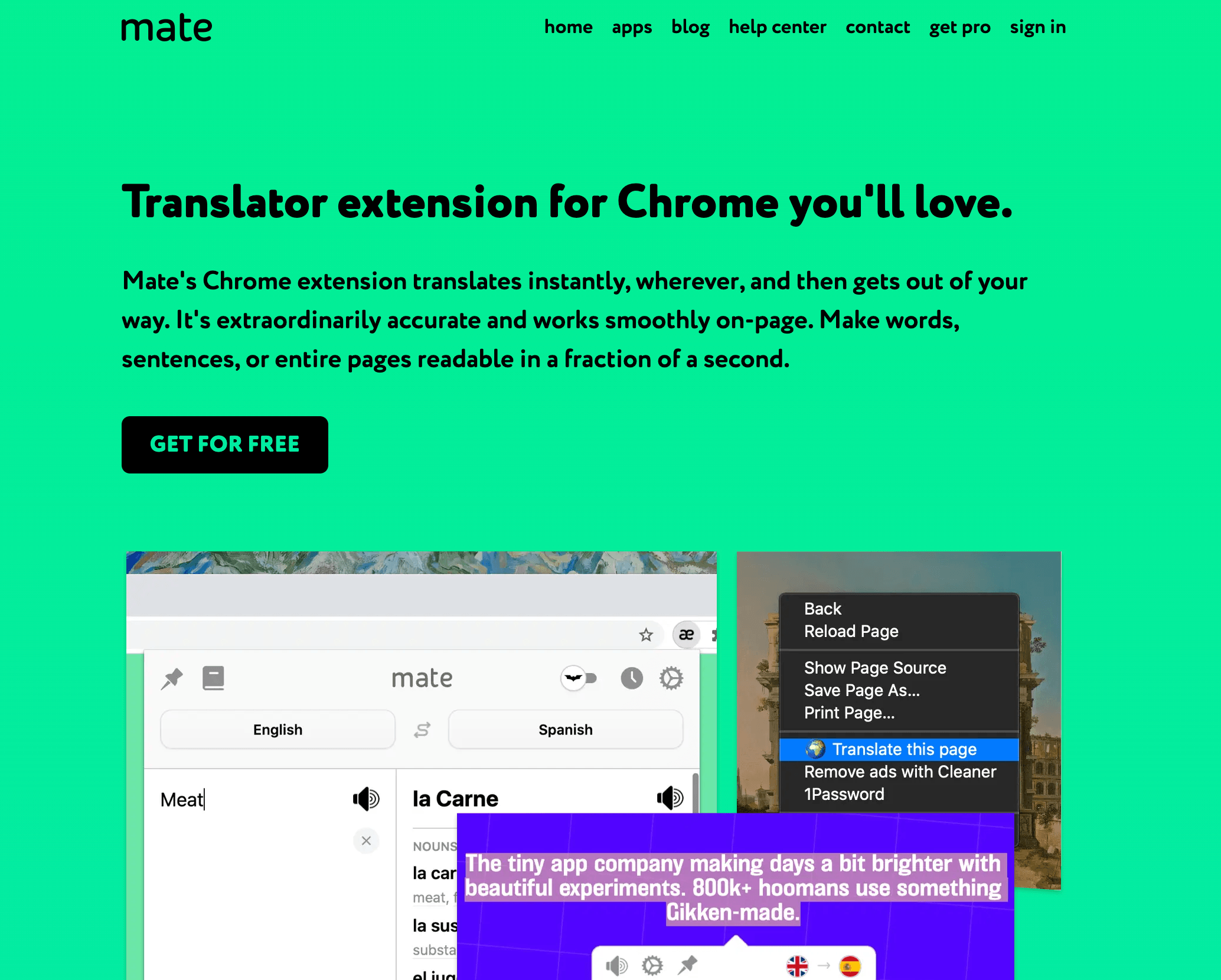
Mate Translate for Looking Up a Passage Without Leaving the Page
Mate Translate supports on-page translation of selected words and passages. Its selected-text guide describes a floating button, a keyboard shortcut, double-click lookup, and a context-menu option. The result can include pronunciation playback and saving to a Phrasebook.
This suits a reader who understands most of an article but needs help with particular expressions. Select enough surrounding text to make the meaning clear rather than translating an ambiguous word in isolation.
For this Chrome translator extension, check the current free and Pro distinction: local vocabulary storage and basic lookup differ from paid features such as cross-device synchronization and phonetic transcription. Do not assume that every feature shown across the product’s mobile and desktop apps belongs to the browser extension’s free tier.
2 Hiding the Original Before You Finish Reading
A translated page can feel easier to read while making verification harder. You may no longer know which original phrase produced a doubtful sentence, or whether a quoted passage came from the publisher or the translation layer.
Before relying on a Chrome translator extension, find the control that restores the source or displays it beside the translation. A bilingual layout is especially useful when reading technical explanations, comparing terminology, or collecting quotations.
Treat the translation as an aid to understanding, not as a newly authored version of the website. When sharing a passage, retain the page link and the original wording, then identify the translated text separately. Another person opening the same link may not see your translation settings or display mode.
The same principle applies to navigation. If a translated button or option is unclear, inspect the original before taking an important action. A readable label does not establish that you have understood every consequence of the operation behind it.
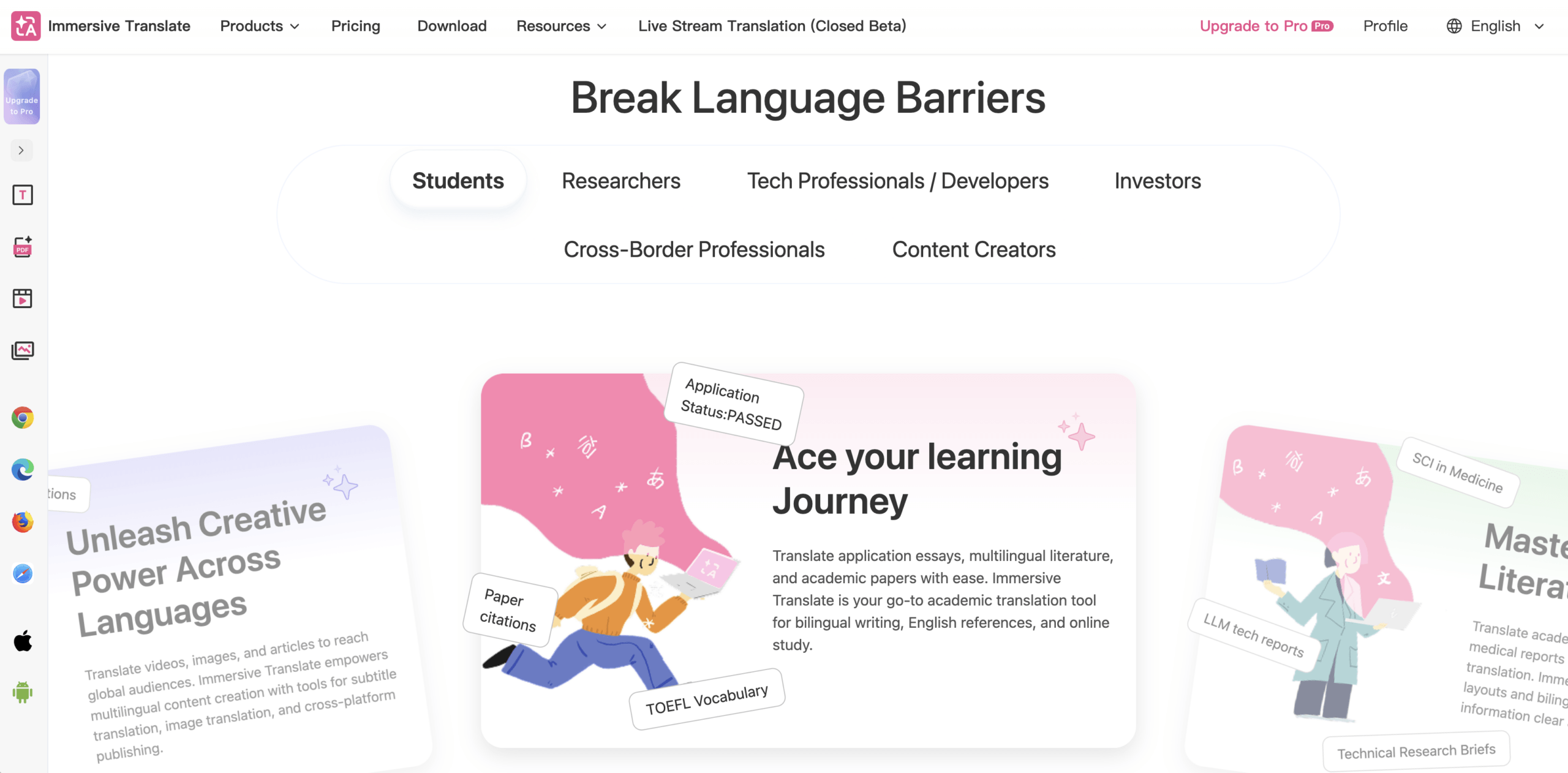
Immersive Translate for Reading Two Languages Together
Immersive Translate emphasizes bilingual webpage reading. Its official introduction describes translating the main content area while retaining the source, alongside paragraph-hover and input-box features.
That makes it a useful Chrome translator extension candidate for longer articles where you want to move repeatedly between the original and translation. Check what its current reading mode includes: translating the main article is not necessarily the same as translating every menu, embedded element, or document on the page.
Keeping two versions visible helps you notice a possible discrepancy. It does not prove that the translation is accurate, and it cannot replace a qualified review when the wording has consequential implications.
3 Confusing a Translated Page With a Translated Reply
Reading translation and writing translation work in opposite directions. One helps you understand incoming content; the other changes what you are about to send.
Do not assume that a Chrome translator extension has translated your email simply because the surrounding website appears in your language. Check the actual text inside the message field. If the product offers writing assistance, confirm how you trigger it and whether it previews, inserts, or replaces the draft.
For example, you might read a translated customer question, write a reply in your own language, and expect the recipient to receive their language. That last step requires an explicit translation of the outgoing draft. Translating the inbox interface does not complete it.
Immersive Translate documents input-box translation as a separate feature. Test it in the editor you actually use rather than assuming every rich-text field behaves identically.
Use an unsent sample to check three actions: preview the target text, insert it into the intended field, and undo the change. Then inspect the final message before sending. Names, links, attachments, formatting, and the distinction between a question and a commitment still need your attention.
A good Chrome translator extension should fit the way you compose messages. A convenient reading popup is not automatically a reliable writing workflow, and a writing feature should not become an unattended send button.
4 Giving Every Website the Same Access
Translation extensions may need to read webpage text and modify its display. That explains why site-access requests can be relevant, but it does not mean every website needs the same access.
In the extension-management panel, open the extension’s details and review its site scope. Chrome supports activation when you select the extension, access on specified sites, or access across sites, as described in its extension-management guide. Use the narrowest scope that still supports your intended workflow; some automatic features may stop working when you restrict access.
Site access and data handling answer different questions. The first controls where the extension can operate. The second concerns where translation content is processed, what is retained, and which service providers receive it.
For example, the privacy policy for Immersive Translate states that webpage translation content is sent to the selected translation engine. A translation interface inside your browser is therefore not evidence that processing stays on your device.
Before using a Chrome translator extension with internal documents or customer drafts, follow your organization’s approval process. Check the policy for the exact function you plan to use, not just a short store description. A public article, a confidential writing field, and an uploaded document can involve different data flows.
Compare the Workflow Rather Than the Download Count
The right Chrome translator extension depends on what is missing from your current browser experience. This comparison separates reading tools from live communication instead of declaring one universal winner.
| Tool or route | Useful starting task | What it adds | Important boundary |
|---|---|---|---|
| Chrome built-in translation | Read an ordinary webpage or selected passage | Translation without an extra add-on | Does not establish that an outgoing draft or meeting audio has been translated |
| Mate Translate | Look up words and passages while browsing | On-page lookup, pronunciation playback, and vocabulary collection | Features and limits differ by platform and plan |
| Immersive Translate | Read an article with source and translation together | Bilingual reading, paragraph lookup, and a separate input-box feature | Coverage, selected engine, permissions, and mode affect behavior |
| Transync AI | Participate in a multilingual meeting or follow a presentation | Live bilingual captions, translated voice, terminology context, and records | It is a standalone live-speech workflow, not a webpage or writing extension |
These products do not have identical inputs. The table describes useful routes, not exclusive capabilities or results from a translation-accuracy test.
Where a Chrome Translator Extension Is Not the Whole Answer
A webpage translator may read text already present in the page. A subtitle tool may translate a caption track. A speech tool needs a way to receive the actual audio. Do not infer one capability from another.
Some extensions offer video speech recognition or specialized meeting modes. Immersive Translate, for example, has broader video capabilities, while its documented meeting-subtitle workflow asks users to enable the platform’s own captions first. Check the specific mode rather than assuming every browser translation feature listens continuously.
Transync AI When the Conversation Goes Beyond the Page
Transync AI provides live meeting translation from configured speech input, with bilingual captions and translated voice playback. It is not a Chrome translator extension and does not replace the reading and writing tools above.
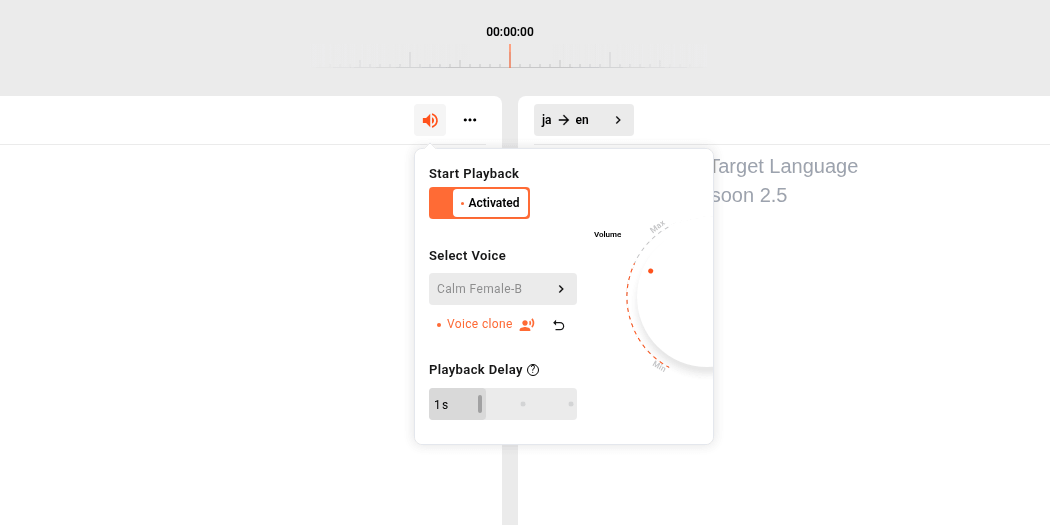
It becomes relevant when you need to follow a live discussion rather than translate the page around it. Prepare names and specialist vocabulary through Keywords and Context in a supported model. Test the microphone, incoming meeting audio, and delivery of translated playback to the intended listener. An internet connection is required.
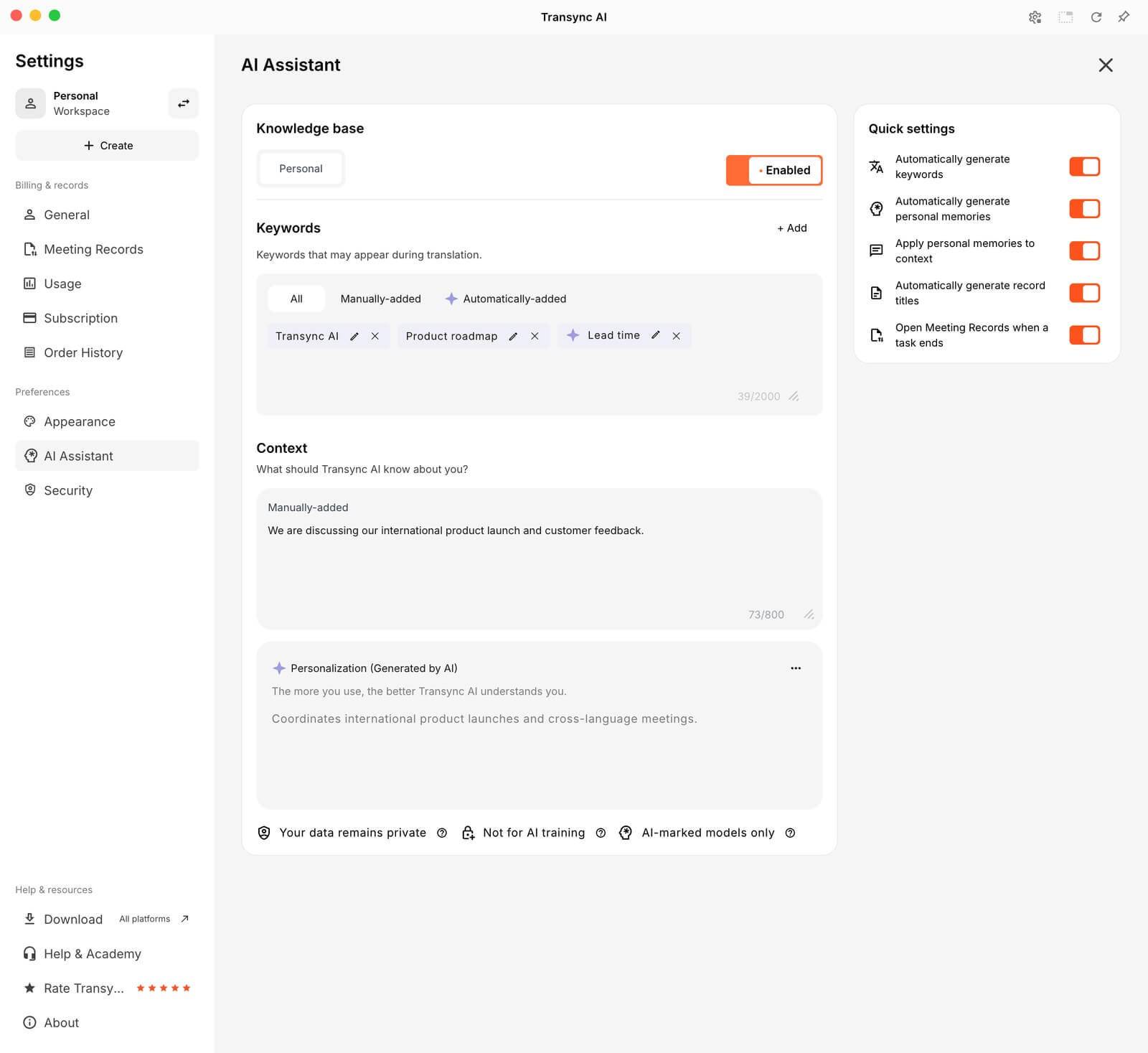
After the call, the AI meeting notes workflow allows saved source or translated text to be corrected before generating a summary. For a presentation, Presentation Mode, currently in beta, lets attendees join by link, QR code, or Room ID and choose a host-enabled language. They can read and listen when playback is available and enabled, but cannot send voice into the host’s task.
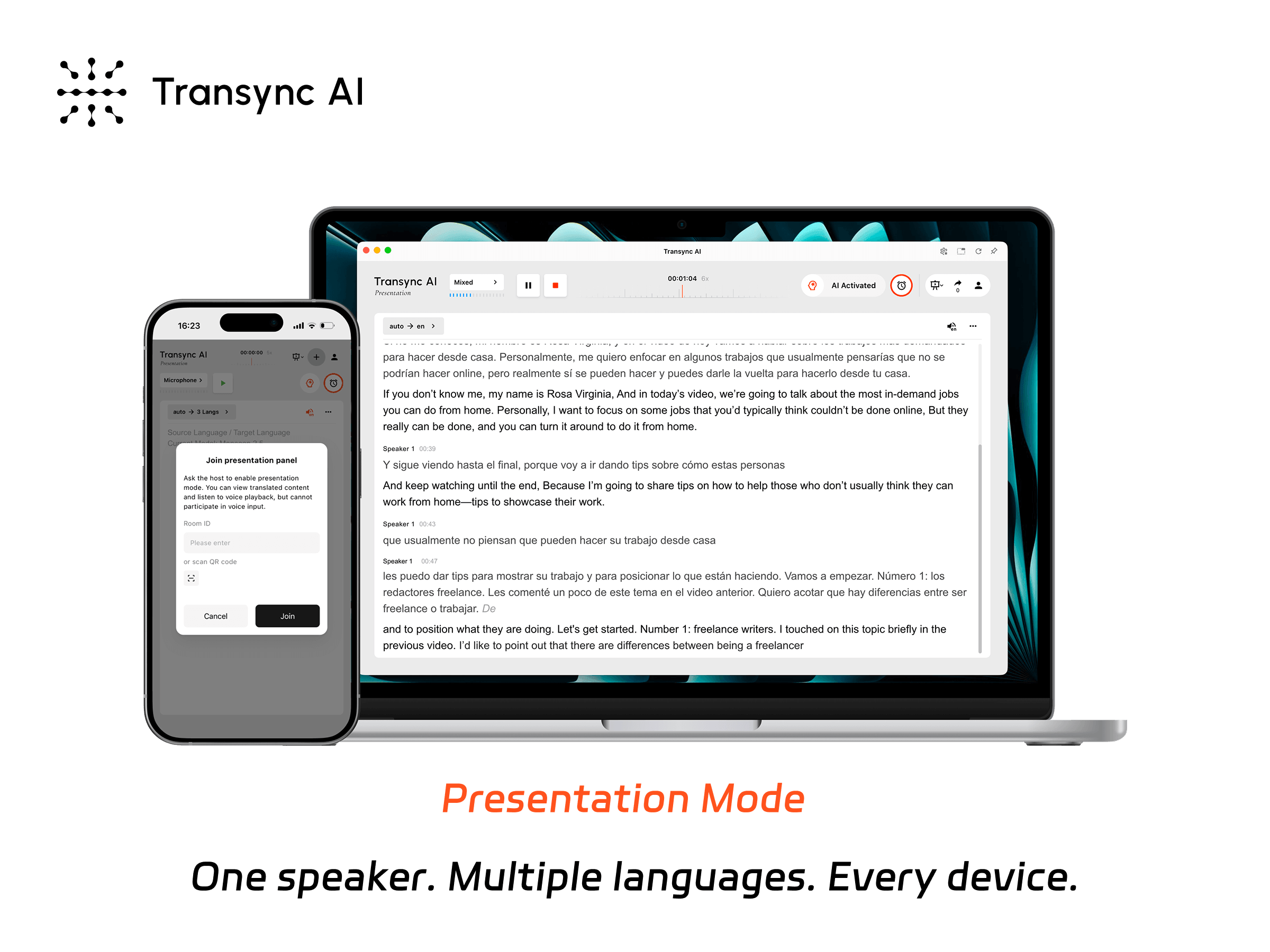
Presentation Mode lets one host share live translation with audience members on their own devices.
Install Only After a Small Reading and Reply Check
Follow the vendor’s official link to the Chrome Web Store, verify the listed publisher and privacy-policy link, and review the installation permissions. A work or school browser may require administrator approval.
Before trusting a new Chrome translator extension, try one public article and one unsent sample reply. Confirm that you can recover the original article, translate the passage you intended, preview the outgoing message, and reverse an unwanted edit. Check a second page with a different layout before enabling automatic translation across your daily sites.
If something fails, identify the failing feature. A missing selection popup, an untranslated image, and a writing field that refuses replacement are not necessarily the same problem. Broader permissions should not be the automatic first response to every failure.
Questions Before You Keep the Extension
Does a Chrome Translator Extension Work on Mobile
Standard desktop extensions do not run in mobile Chrome. The official compatibility guidance says extensions are for computers, even when a phone displays desktop mode. A vendor’s mobile app or another browser’s extension support is a separate product route.
Does Incognito Make Translation Confidential
No. Extensions are disabled in incognito by default. Enabling one there does not establish local processing or prevent a translation provider from receiving content. The browser’s incognito guidance explains that this mode limits what is saved on the device; websites and services may still collect information. Review the extension and provider policies separately.
Why Does Selection Translation Fail on an Image
A selection feature needs selectable text. Text drawn inside an image or a scanned page may require an image-recognition or document feature. For example, Mate Translate explicitly distinguishes selectable webpage text from text inside images. Check whether your tool supports that input before changing language or site-access settings.
Keep the Capability You Need and the Control You Expect
A Chrome translator extension is worthwhile when it improves a specific part of browsing: looking up a phrase, comparing two languages, or preparing a reply you can inspect before sending.
Try the built-in option first, keep the original recoverable, test writing separately from reading, and review site access alongside data handling. When the task becomes a live conversation, choose a speech workflow deliberately. The best setup is the one that helps you understand and respond without losing control of the source or the message you send.