
Use speech to text to draft a clear email, choose how much cleanup to allow, fix small errors, and separate dictation from meeting translation.
Speech to text turns spoken language into written text. To use it for writing, open an unsent email or a private draft, place the cursor where the words should go, activate your chosen dictation tool, and speak the message. Stop capture before reviewing and sending. Some products also clean up or rewrite the recognized text, so choose that behavior deliberately.
You do not need to deliver a perfect speech. You do need to distinguish three things: thinking aloud, dictating the words you want the reader to see, and asking software to edit existing text.
Let’s work through one email. A colleague needs an update on a landing-page project. The layout is ready, but the mobile screenshots are still missing. You want to ask when the colleague can send them.
Start speech to text in a draft field
First, decide where the text should land. Use the email body, a document, or a scratchpad—not a search box or a chat with the wrong recipient. If you are still working out the message, a private draft gives you room to change your mind.
Click the intended field and check the cursor before activating dictation. Use the shortcut or microphone control your product provides; the same keys and commands do not work everywhere.
Begin with one short paragraph. Stop capture, inspect where the text appeared, and continue when the insertion point is correct. This is especially useful when switching between a subject field and the message body.
For speech to text writing, a successful first attempt means you have editable words in the intended place. It does not mean the email is ready to send. Keep sending as a separate, deliberate action.
Speak the message rather than instructions about the message
Here is a constructed example of thinking aloud:
Okay, tell Priya the landing page layout is ready. Um, we’re still missing the mobile screenshots. Ask if she can send them Tuesday—actually, we haven’t agreed a date. Ask when she can send them. And thank her.
This contains the ingredients of an email, but also drafting instructions and a discarded deadline. A speech to text tool may retain, remove, or reinterpret parts of that speech depending on its features and settings.
Before dictating into the email, organize the thought into three short blocks: the update, the missing item, and the question. Then say the recipient-facing message:
Hi Priya. The landing page layout is ready. We still need the mobile screenshots. Could you let me know when you can send them? Thanks.
An intended email layout would be:
Hi Priya,
The landing page layout is ready. We still need the mobile screenshots. Could you let me know when you can send them?
Thanks.
These are illustrative writing examples, not recordings or measured outputs from a particular product. The punctuation and paragraph breaks show the intended presentation, not universal spoken commands.
The useful change happened before recognition: you replaced “tell Priya” and “ask her” with words addressed to Priya. You also removed Tuesday because no date had been agreed. Cleaner speech to text writing starts with that choice, not with hoping the software will make it for you.
Decide how much cleanup you want
Speech recognition and writing assistance can appear in the same interface, but they are different operations. Recognition estimates the words spoken. Cleanup may remove fillers or fix grammar. More extensive editing may rephrase the message.
For a personal email draft, some cleanup can be convenient. For a quotation or a record of another person’s words, rewriting creates a different kind of document. Choose the behavior for the task rather than assuming the neatest output is always the most appropriate.
In the example, removing “um” is different from turning “when can you send them?” into “please send them Tuesday.” The first removes a hesitation; the second changes the request.
When a speech to text product offers formatting or cleanup controls, try them with a short, non-sensitive draft. Read what changes. A setting labelled “raw” or “no cleanup” still does not guarantee error-free recognition.
Stop capture before repairing a sentence
Once the draft appears, correct the smallest useful span. If a name is wrong, fix the name. If a question is unclear, replace that question. You do not need to dictate the entire email again whenever one sentence needs work.
For example, if the draft still says:
Could you send the screenshots Tuesday?
Replace that sentence with:
Could you let me know when you can send the screenshots?
That is an editorial correction based on the intended message—not proof that any product generated the first version.
Keep editing commands separate from ordinary dictation. Saying “delete that” may enter those words as text unless the selected product and mode support the command. If you use a dedicated voice-editing mode, learn its supported actions first. Otherwise, stop dictation and correct the text with the keyboard or another input method.
Before sending, read the draft from the recipient’s perspective. Is the layout merely ready, or have you accidentally claimed the whole project is finished? Is the missing item clear? Are you asking about availability or imposing a deadline?
Speech to text reduces typing; the writer still chooses what the message says.
Compare speech to text tools for the writing stage
Intentional dictation, transcription of an existing recording, and multilingual conversation are related but different tasks. The products below illustrate those routes; the table is not an accuracy ranking or a complete feature inventory.
| Product | Selected workflow | Where the useful text appears | Boundary for this email task |
|---|---|---|---|
| Wispr Flow | Dictate into an application’s text field | Completed text is inserted after desktop dictation stops | Review cleanup and the insertion point before sending |
| MacWhisper | Transcribe an existing recording on a Mac | A transcript you can edit, copy, or export | A transcript of a voice memo is not automatically a finished email |
| Transync AI | Follow a live conversation across languages | Original and translated text during the session, with saved meeting records | Not a system-wide email dictation tool or general recording-upload editor |
Wispr Flow for dictating the email
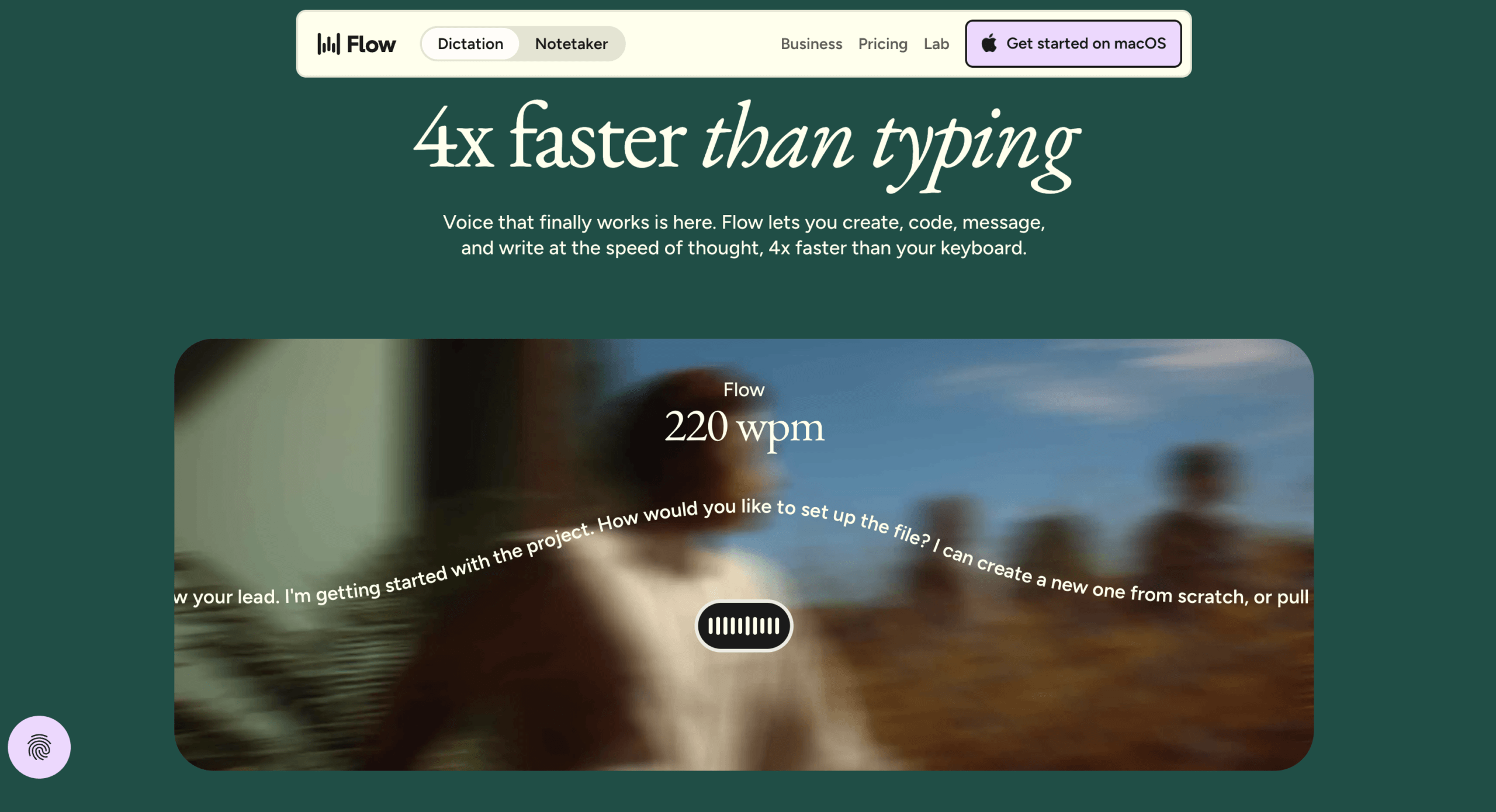
Wispr Flow describes a dictation workflow in which you place the cursor in a text field, use the configured desktop shortcut, speak, and stop. It inserts the completed text after capture ends rather than displaying a desktop word-by-word transcript. Transcription requires an internet connection.
Its desktop Auto Cleanup controls, currently marked Beta under Style → Auto cleanup, offer Geen, Light, En Medium. None retains fillers and false starts; Light removes fillers and fixes grammar; Medium may also rephrase for clarity and conciseness.
Choose the amount of editing you want, then inspect the inserted email. Do not treat a cleaner sentence as confirmation that a date, request, or project status stayed unchanged.
MacWhisper when the starting point is a recording
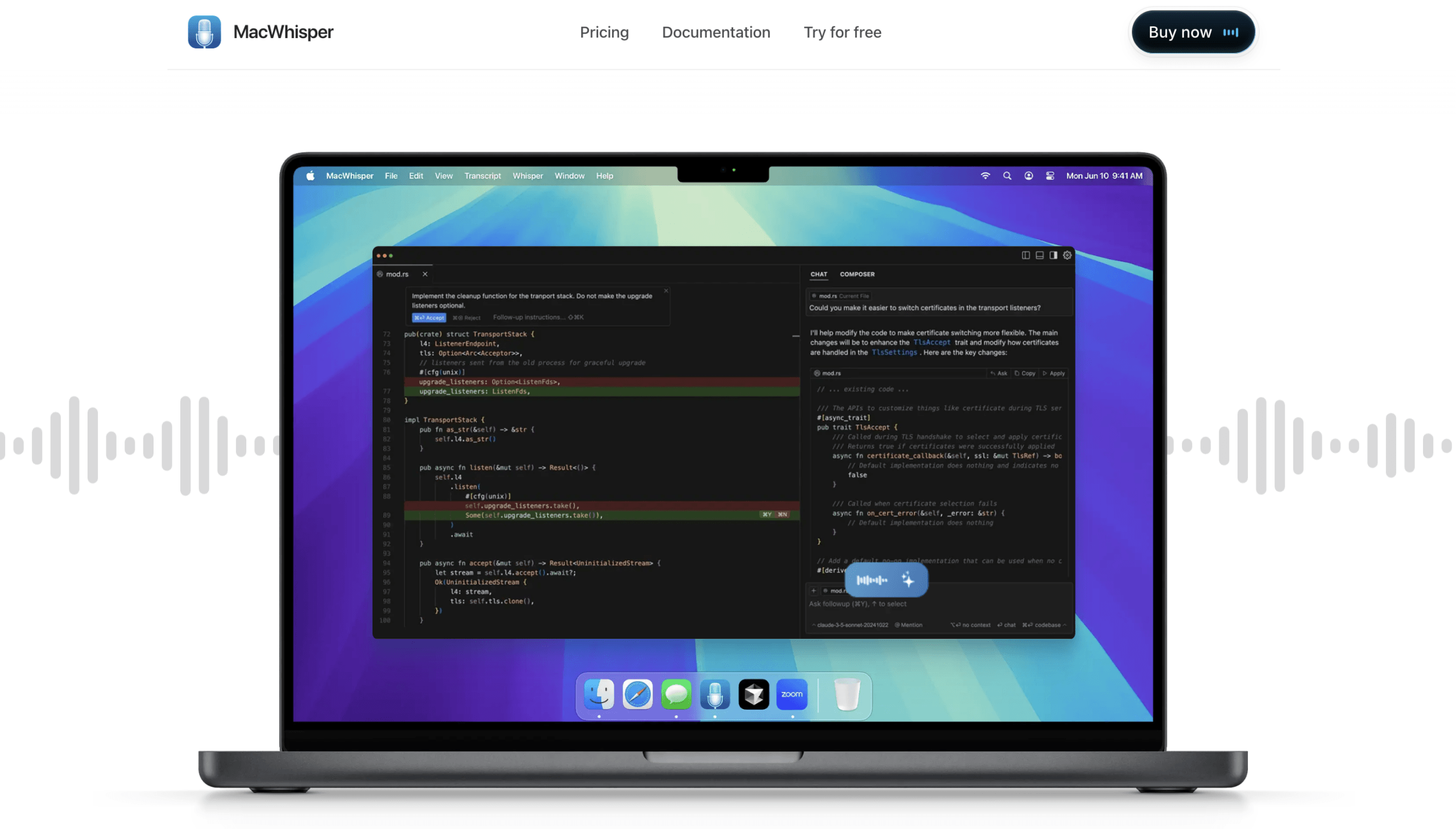
MacWhisper offers a file-transcription route: drag an existing audio or video file into the Mac app, transcribe it, and inspect the result in its editor. You can then copy or export the text and compose the email from the relevant material.
This is useful when the idea already exists as a voice memo. Keep the original transcript distinct from the outgoing message; personal reminders such as “ask Priya” still need to become recipient-facing language.
Local models support on-device processing, but do not assume every workflow stays local. Its separate cloud transcription feature uses configured external providers. Check the selected model and any connected AI features before processing confidential recordings.
Transync AI when the update comes from a multilingual call
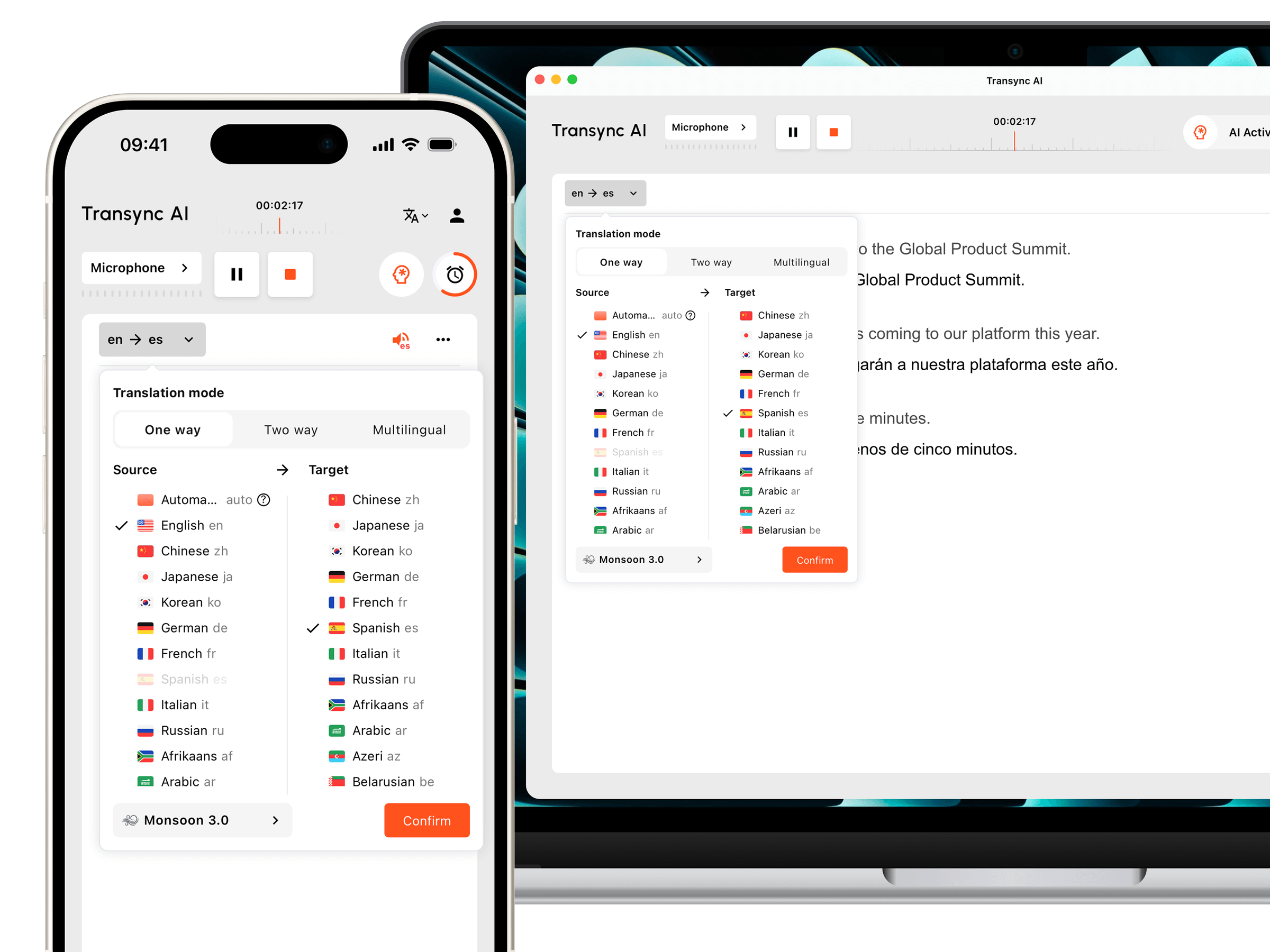
Transync AI is relevant before drafting when colleagues need to understand one another across languages. Its live vergadering vertaling combines recognized speech with translated text so participants can follow the discussion. Select the required languages and test microphone and incoming meeting-audio capture.
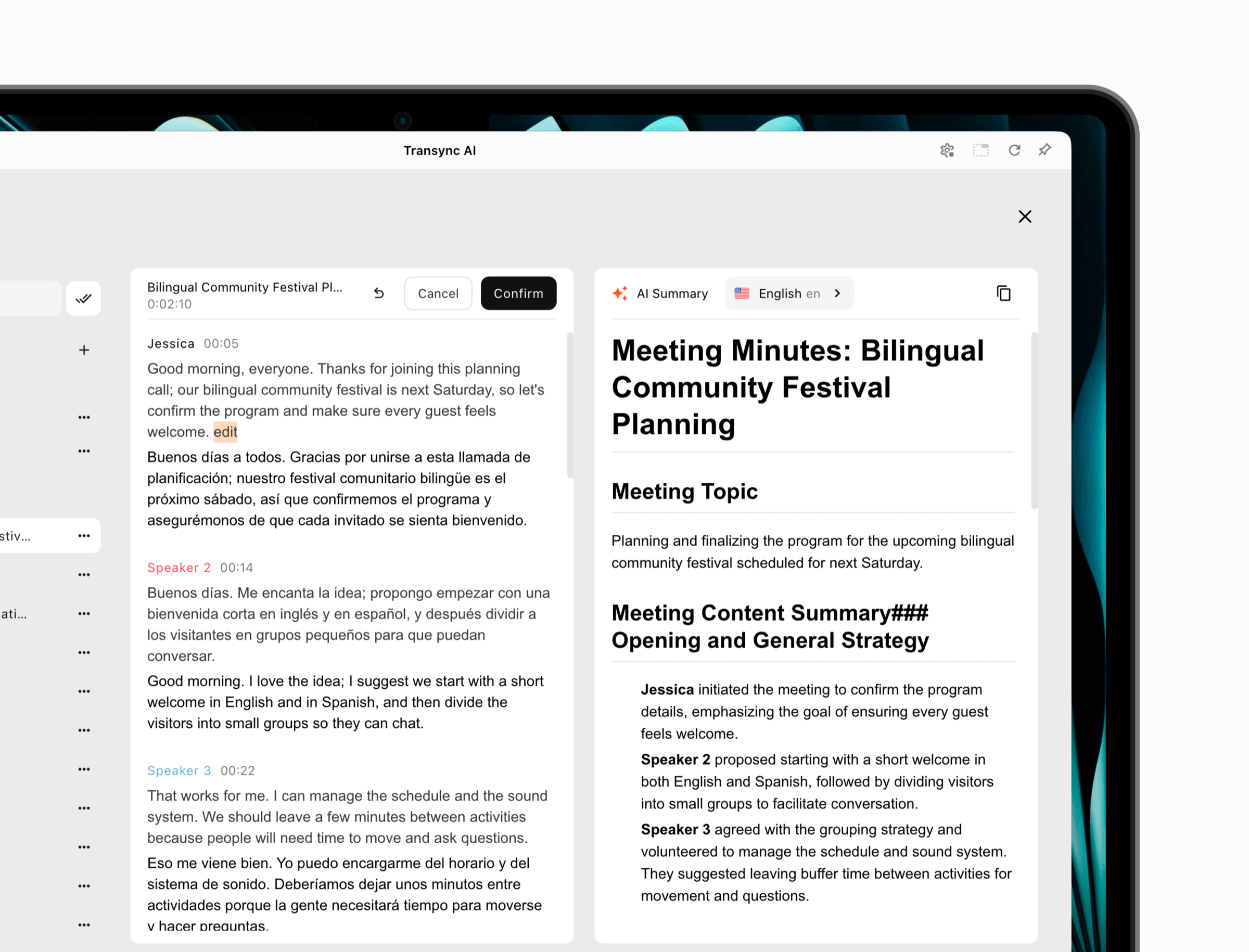 Na de sessie, de transcript and summary workflow lets you review original and translated text, copy it, or download meeting material. AI-vergadernotities can help organize the discussion, but check the relevant statements before turning them into an outgoing update.
For speech to text writing, keep the handoff explicit: understand the multilingual conversation, review what was said, then compose the email separately. Transync AI does not serve as the cursor-based dictation tool in this example. A saved discussion and a message you author have different purposes.
Questions about speech to text for drafting
Do I need to say every punctuation mark
Not necessarily. Some products infer punctuation, while others support spoken punctuation commands. Check the selected language and mode. Use a short draft to learn the behavior rather than assuming “new paragraph” or “question mark” works identically in every app.
Is dictation the same as transcription
Dictation is a way to compose text by speaking. Transcription represents speech from a live or recorded source. The same recognition technology can support both, but an email draft may deliberately omit your planning remarks while a transcript serves a different purpose.
Can speech to text send an email automatically
Text entry and sending are separate actions. Do not assume dictation includes a safe send command. For this workflow, stop capture, review the recipient and message, and send deliberately using the email application’s normal control.
Use your voice for the draft and your judgment for the message
A useful speech to text workflow does not require a perfect monologue. Choose the destination, speak a short message, allow only the cleanup you want, and repair the parts that need attention.
For the landing-page email, the result should stay simple: the layout is ready, the screenshots are missing, and Priya is being asked when she can send them. Once those points are clear, the draft has done its job—without turning an unfinished thought into an unintended commitment.