
Find the right live subtitles google extension route for videos and meetings. Compare Chrome captions, Meet tools, specialist extensions, and Transync AI.
If you searched for a live subtitles google extension, do not install the first add-on that promises real-time captions. The feature you need may already be built into the browser—and the wrong extension may request access to meetings or page content without solving your actual problem.
The quickest answer is this: Google Chrome has built-in Live Caption and Live Translate controls on supported computers. You do not need a Chrome extension simply to caption audio playing in a browser tab. Extensions become useful when you want dual subtitles for language learning, a translated meeting overlay with saved notes, or functions that the built-in caption bubble does not provide.
A separate product such as Transync AI makes more sense when the job extends beyond one browser: multilingual meetings across platforms, bilingual source-and-translation text, audible translated speech, prepared terminology, records, or one-to-many presentation access. It is standalone software, not a Chrome extension.
This guide treats the live subtitles google extension query as a routing problem. Locate the audio first, decide whether you need captions or translation, and identify what must happen after the speech ends. Those three choices lead to five reliable routes.
The 20-Second Live Subtitles Google Extension Router
| Your actual task | Best starting route | Installation | What you receive | Main limitation |
|---|---|---|---|---|
| Caption almost any audio playing in Chrome | Chrome Live Caption | No extension; enable a browser setting | Movable same-language caption bubble | It is not a meeting record or collaboration tool |
| Translate browser audio into readable subtitles | Chrome Live Translate | No extension; enable Live Caption and Live Translate | Translated caption bubble | Source caption languages and target translation languages are different lists |
| Follow captions inside a Google Meet call | Native Google Meet captions or translated captions | No extension | Participant-controlled captions inside Meet | Translation depends on account, plan, admin, and language availability |
| Study a video with two subtitle tracks | Language Reactor or Immersive Translate | Chrome extension | Original plus translated subtitles and learning/video controls | Site, subtitle source, plan, and browser support vary |
| Translate and save a Google Meet conversation | JotMe extension | Chrome extension and account | Live translated overlay, transcript, and AI notes | The extension is tied to Meet and reads its caption channel |
| Translate meetings beyond one browser ecosystem | Transync AI | Web, desktop, or mobile app | Bilingual captions, translated voice, context, and notes | Online workflow; audio setup should be tested |
The table prevents the most common live subtitles google extension mistake: treating captions, translated captions, translated voice, video learning, and meeting notes as the same output. They are different jobs with different permissions and failure points.
Route 1: Is a Live Subtitles Google Extension Necessary?
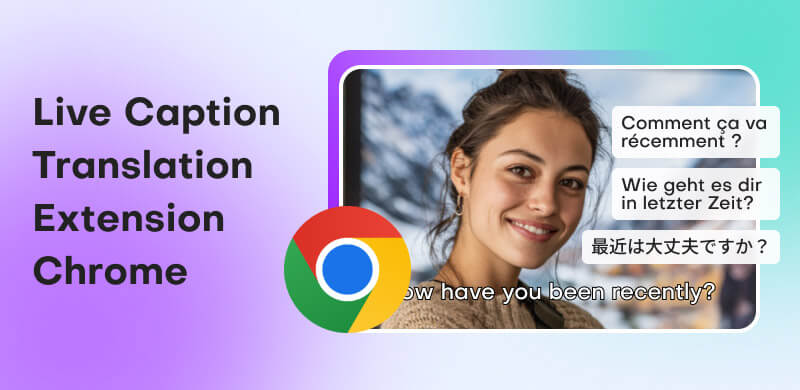
For ordinary browser audio, the best live subtitles google extension may be no extension at all. Open Google Chrome, go to Settings, choose Accessibility, and enable Live Caption. The browser downloads a recognition language pack and displays speech from videos, podcasts, games, livestreams, browser calls, and other tab audio in a movable caption bubble.
According to the current official help page, basic Live Caption audio and captions are processed locally, are not stored, and do not leave the device. That makes the built-in route attractive for personal accessibility and private listening. It also removes a layer of extension permissions and account setup.
To translate the result, turn on Live Translate and select a target language. This changes the data path: Google Chrome explains that captions can be sent to Google for translation. The current source-caption list includes languages such as English, Japanese, Korean, Spanish, Portuguese, Simplified Chinese, and Traditional Chinese, while the target menu contains more than 100 languages. A target language appearing in the translation menu does not prove that every spoken source language can be captioned.
How to turn it on
- Open Google Chrome on a supported computer.
- Select the three-dot menu, then Settings and Accessibility.
- Turn on Live Caption.
- Add the language being spoken and set it as the preferred caption language.
- Play a clear audio sample and find the caption bubble.
- Turn on Live Translate only when you need another language.
- Choose the target language and repeat the test.
If the bubble never appears, increase the tab’s audio volume, confirm that the language pack finished downloading, restart the browser, and test a second site. Autoplaying video may need audible volume before captions activate.
Choose this live subtitles google extension route when one viewer needs temporary captions for audio already playing in the browser. Choose another route when you need speaker names, a downloadable transcript, company terminology, translated voice, audience distribution, or platform-independent meetings.
Route 2: Is a Live Subtitles Google Extension Needed for Meet?
Some users type live subtitles google extension when they actually want captions in Google Meet. The meeting platform already provides live captions, and eligible plans provide translated captions. Start with native controls before granting a third-party extension access to meeting content.
Ordinary captions convert meeting speech into text. Translated captions add a target-language layer, but availability depends on the host’s account, the organization’s edition, administrator settings, rollout status, and the selected languages. Each participant manages their own caption view; turning captions on for yourself does not necessarily create a shared transcript for everyone.
Google Meet also offers Speech Translation on eligible plans. That is translated audio rather than ordinary subtitles. Current official documentation lists translation between English and French, German, Hindi, Italian, Portuguese, or Spanish, with a few seconds of delay for completeness and a 90-minute limit per meeting. It is not available in livestreams or recordings, and supported device, region, age, account, and participant-consent conditions apply.
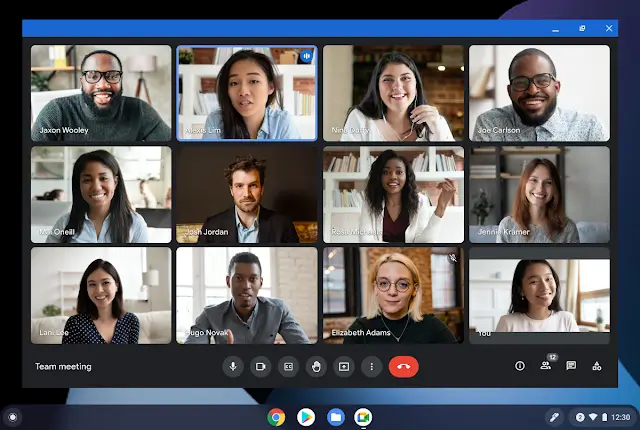
The native route is best when the entire conversation stays in Google Meet, the available language pair meets the need, and nobody requires a separate extension-generated record. It reduces installation friction and keeps the feature under the organization’s existing meeting administration.
Look beyond native controls when the team needs translations on other meeting platforms, terminology preparation, persistent bilingual evidence, or a notes workflow. A live subtitles google extension cannot be judged only by what appears during the call; what gets stored, shared, and reviewed afterward is part of the product.
Route 3: Which Live Subtitles Google Extension Fits Video?
Built-in captions prioritize accessibility. Language-learning and video-translation extensions add a different interface: two subtitle tracks, word lookup, playback control, subtitle export, or compatibility with particular media sites. Two specialist products illustrate why the source material matters.
Language Reactor for deliberate study
Language Reactor is designed for learning from films, series, and online video. Its official Chrome Web Store listing describes dual-language subtitles, a pop-up dictionary, and precise playback controls. The extension runs in desktop Google Chrome and centers on supported video-learning workflows rather than arbitrary live business meetings.
Its help material distinguishes human and machine translations: human subtitles can handle expressions more naturally, while machine output may reveal literal structure but contain errors. That is an educational trade-off, not simply a quality ranking. A learner may value replay, auto-pause, word lookup, and the original line more than low-latency speech recognition.
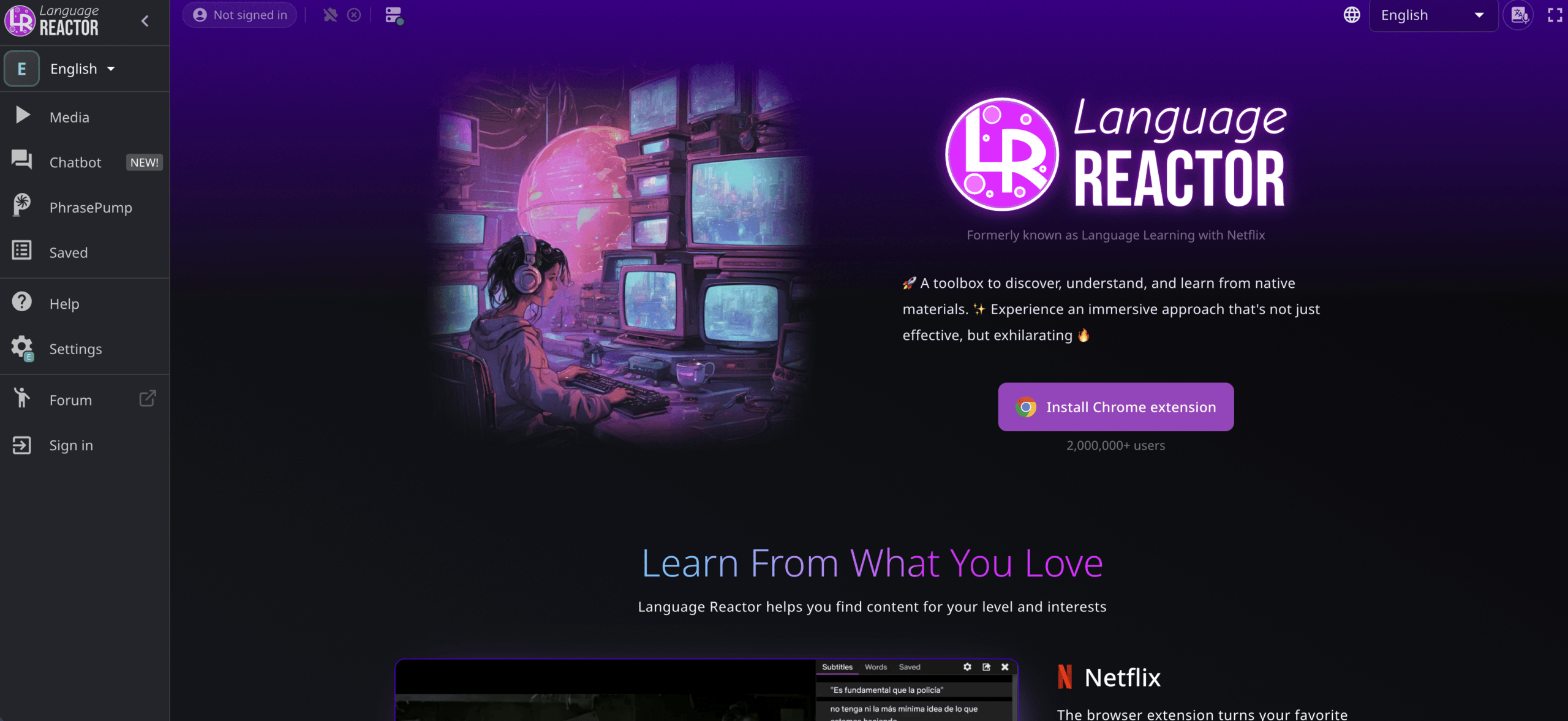
Choose Language Reactor when “live” means following a supported video as it plays and studying the language line by line. Do not assume that a video-learning overlay will capture an unscripted meeting, name speakers, route translated voice, or preserve a formal meeting record.
Immersive Translate for wider video coverage
Immersive Translate positions its extension as a bilingual video-subtitle layer across more than 60 video platforms. Its current materials describe original-and-translated subtitles, webpage translation, subtitle-file translation, and browser extension availability across several browser ecosystems.
This route suits viewers who move between online courses, international video sites, interviews, and recorded presentations. The exact experience can still depend on whether a site provides subtitles, whether speech recognition is needed, which translation service is selected, and which functions belong to a paid plan.
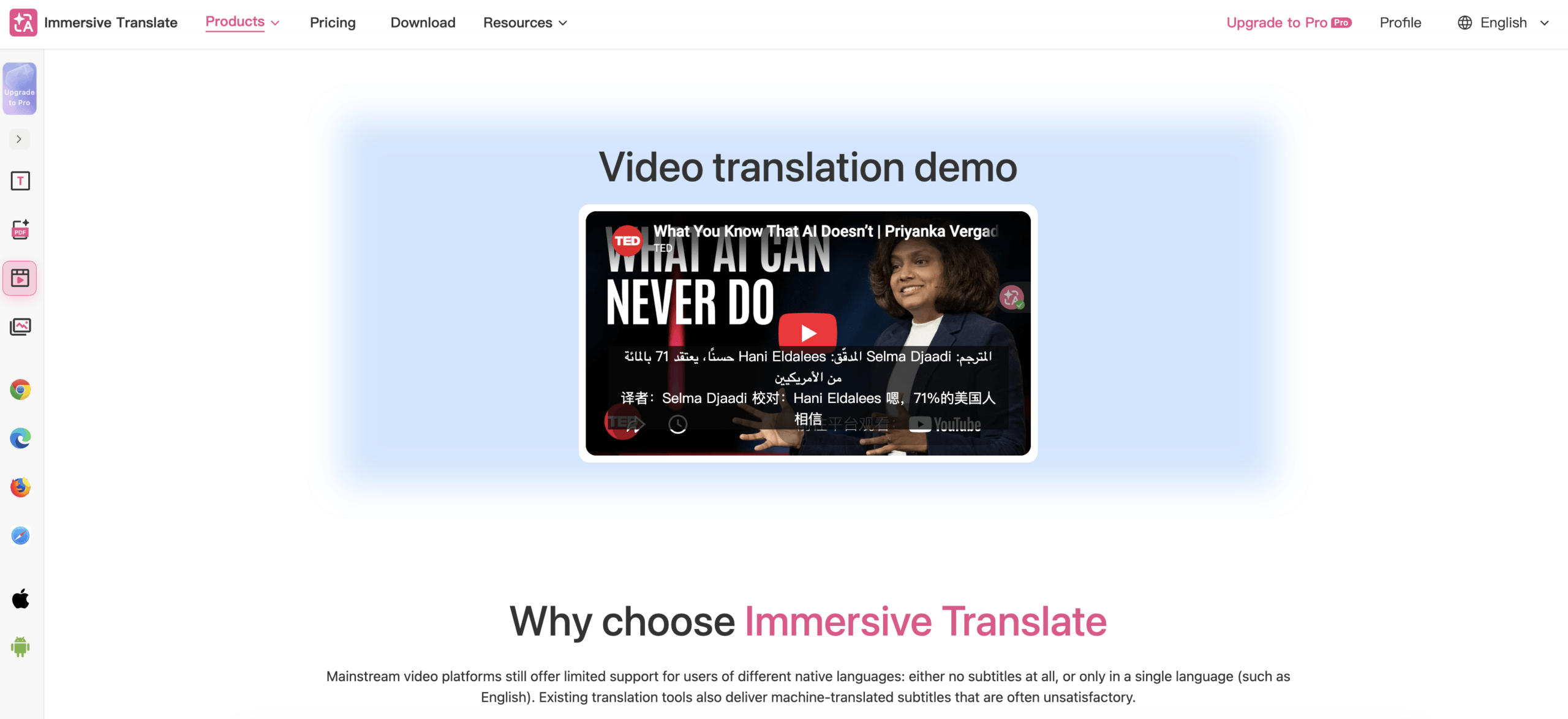
Choose Immersive Translate when broad web-video coverage and bilingual viewing matter more than meeting administration. Before using it with confidential content, inspect the requested site permissions, selected translation provider, data policy, account settings, and whether text leaves the browser.
The video route answers a narrower live subtitles google extension intent than business translation. It improves how one viewer consumes content; it does not automatically create a two-way multilingual conversation.
Route 4: Which Live Subtitles Google Extension Saves Meetings?
Native captions can disappear with the meeting. If the real requirement is a translated overlay plus transcript and notes, a meeting-specific extension becomes more relevant.
JotMe offers a Chrome extension that places live transcription and translated captions over a Google Meet call and produces AI notes afterward. Its current documentation says the extension reads the caption channel already created by the meeting platform. It does not record the microphone or system audio in this extension workflow; those broader audio workflows belong to its desktop application.
This dependency creates a precise troubleshooting rule. If the JotMe overlay is empty, first check that native Google Meet captions are on. The extension cannot translate caption text that the meeting has not produced. Also confirm that the spoken and target languages are not identical and that the translation allowance has not run out.
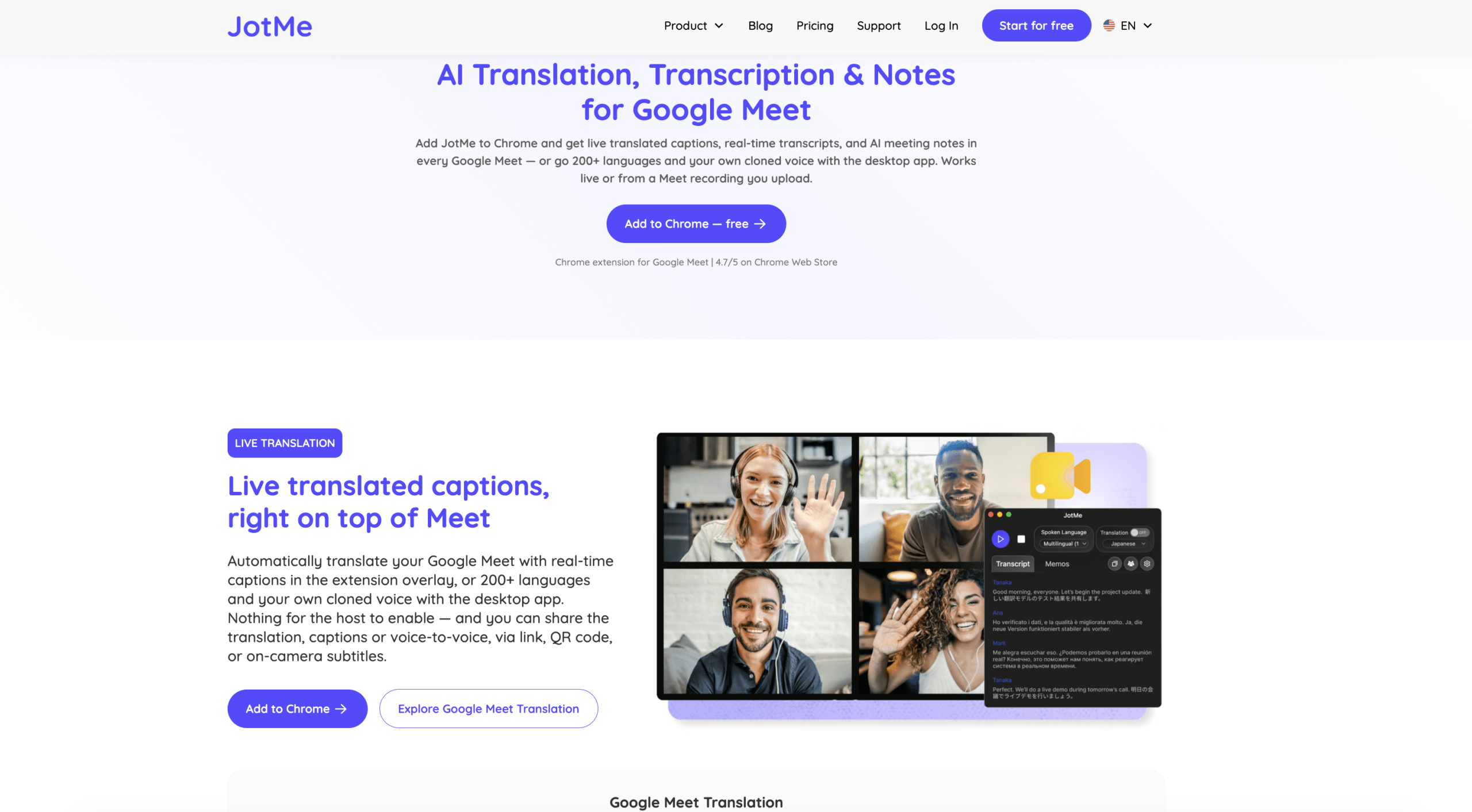
The extension is a sensible live subtitles google extension candidate for individuals who work mainly in Google Meet and need searchable follow-up. It is the wrong browser tool for a desktop meeting on another platform, an in-person conversation, or direct capture of system audio. JotMe directs those scenarios to its desktop application.
Meeting data requires more scrutiny than entertainment subtitles. The Chrome Web Store listing says the extension processes live meeting captions and tells users to obtain participant consent. Before deployment, review permissions, privacy terms, storage, deletion, account ownership, transcript sharing, and company approval. “No bot joins” does not mean “no meeting data is processed.”
Route 5: When Should a Live Subtitles Google Extension Be Replaced?
A browser extension is attractive because it feels small. The limitation is the same: it inherits the browser, site, page structure, caption channel, and permissions of that workflow. International teams often need the translation to follow the person rather than one tab.
Transync AI is a standalone meeting companion for web, desktop, and mobile use. Its live meeting translation workflow can run alongside multiple calling environments instead of depending on one Google Meet caption channel. It also supports in-person conversations when the device receives the correct audio.
The working view shows original speech and translation together. An AI voice translator can play spoken translations, while Keywords and Context lets users prepare names, product terms, acronyms, and background before a call. Picture-in-Picture subtitles can keep the bilingual view above supported applications.
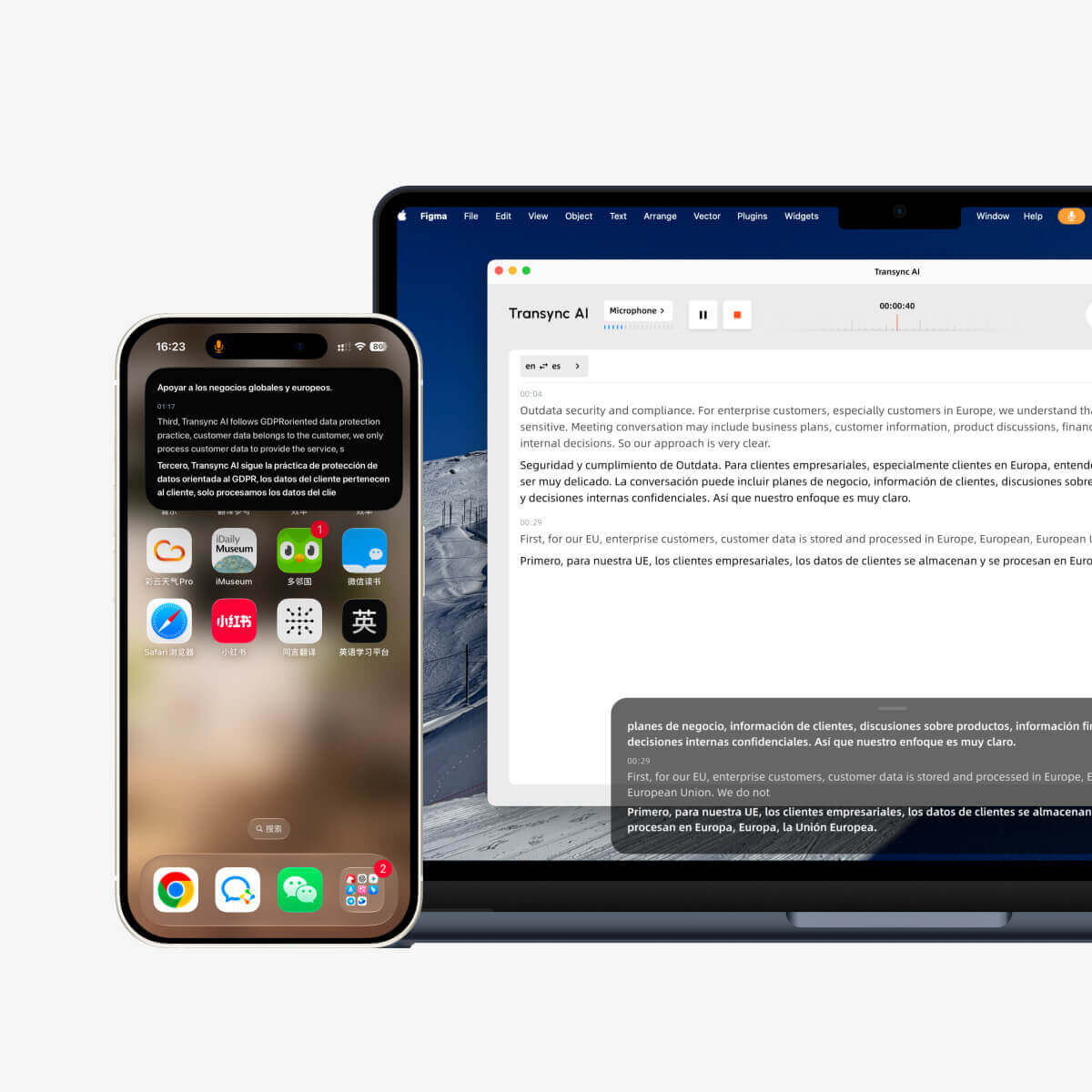
After the call, AI meeting notes can convert the conversation into a record and structured summary. For a lecture, webinar, training session, or town hall, Presentation Mode allows a host to enable up to 10 target languages. Audience members join by link, QR code, or Room ID and choose an enabled language for translated subtitles and optional voice playback.
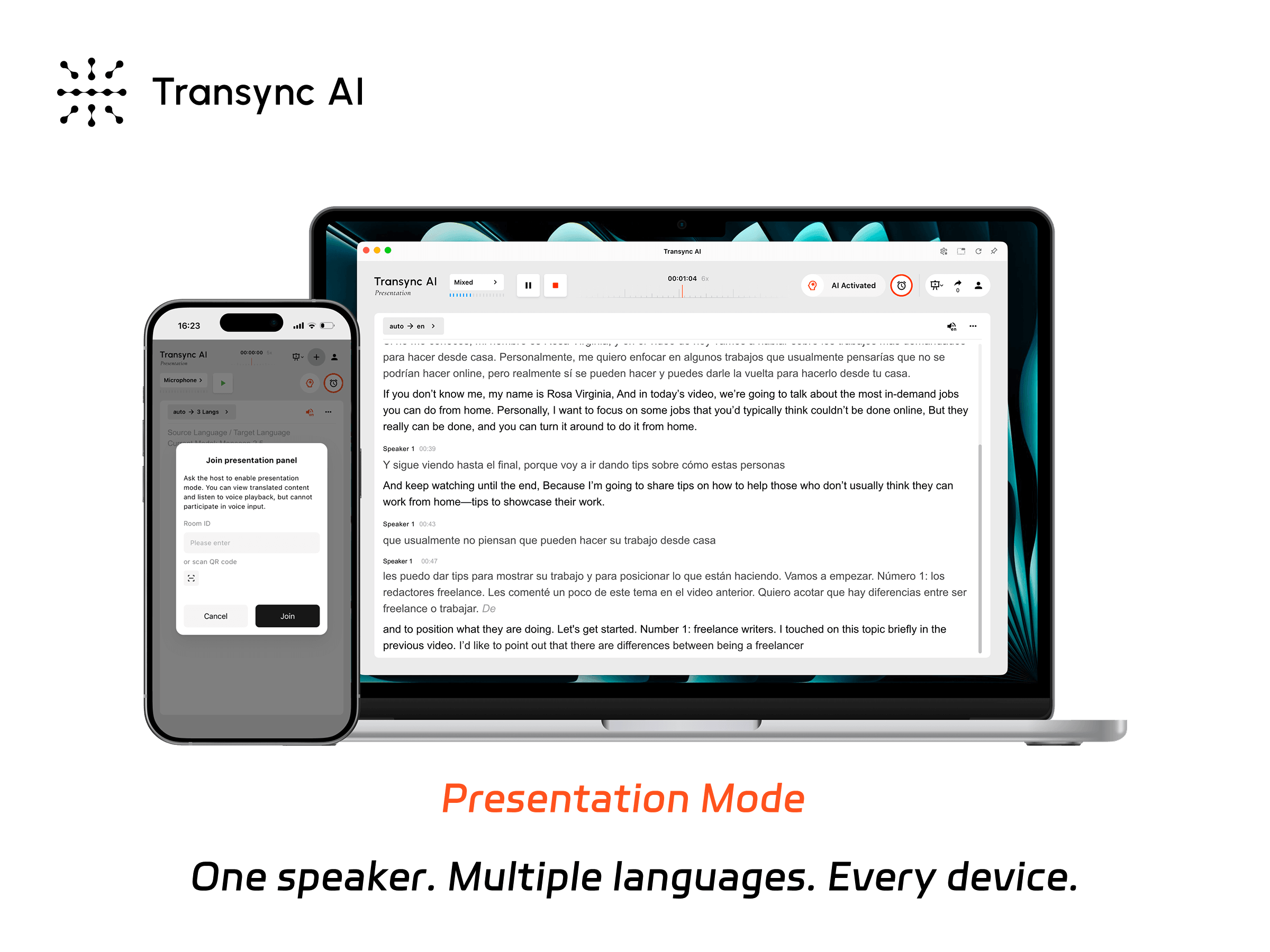
Presentation Mode lets one host share live translation with audience members on their own devices.
Transync AI is not the right answer when the user only wants free same-language captions for one browser video. It also does not offer offline translation, image recognition, or a general text-and-document translator. Audio routing, microphone selection, headphones, network quality, and remote voice delivery should be tested before an important meeting.
Choose this live subtitles google extension alternative when the requirement includes several meeting platforms, translated voice, terminology, records, or audience delivery. The change is not “extension A versus extension B”; it is moving from a page overlay to a complete communication workflow.
A Fair Live Subtitles Google Extension Comparison
| Product or route | Best for | Source input | Translation output | Saved record | Coverage | Account or plan note |
|---|---|---|---|---|---|---|
| Chrome Live Caption / Live Translate | Personal browser accessibility and comprehension | Audio playing in Chrome | Same-language or translated caption bubble | No meeting-record workflow | Broad browser audio | Built in; no extension required |
| Google Meet native captions | Captions inside a Meet call | Meet participant speech | Live or translated captions; separate Speech Translation on eligible plans | Separate transcription features depend on plan/workflow | Google Meet only | Eligibility and admin controls vary |
| Language Reactor | Language study with video | Supported video subtitles/content | Dual subtitles, lookup, and learning controls | Learning tools rather than meeting notes | Desktop Chrome; supported video sites | Some translation functions may be paid |
| Immersive Translate | Bilingual viewing across many video sites | Existing subtitles or supported video workflows | Original plus translated subtitles | Subtitle-file features, not meeting governance | 60+ video platforms claimed | Translation provider and plan affect behavior |
| JotMe Chrome extension | Translated Meet overlay, transcript, and notes | Google Meet caption channel | Translated captions and follow-up notes | Yes | Extension workflow is Meet-specific | Account and translation allowance apply |
| Transync AI | Cross-platform multilingual meetings and presentations | Microphone or configured meeting/system audio | Bilingual captions and translated voice | Translation history and AI notes | Web, desktop, mobile, meetings, and in-person use | 40-minute starting allowance; paid plans available |
The comparison shows why a single “best extension” verdict would be misleading. The best live subtitles google extension route depends first on the source: browser media, native meeting captions, supplied video subtitles, live meeting captions, or general device audio.
What Should You Check Before Installing an Extension?
Browser extensions can read or change information on permitted sites. That may be reasonable for a subtitle overlay, but the permission should match the task. Use this checklist before adding any live subtitles tool:
- Publisher: Does the store identify the developer and link to a real website and privacy policy?
- Site access: Does the extension run only on the intended meeting or video domain, or request access to every page?
- Input: Does it read existing captions, capture tab audio, use the microphone, or upload subtitle files?
- Processing: Is recognition local, sent to the extension vendor, or sent directly to a chosen third-party model?
- Retention: Are captions temporary, saved as transcripts, included in notes, or retained in diagnostic logs?
- Training: Does the policy permit meeting text or audio to improve models?
- Sharing: Can a user accidentally publish or share a transcript outside the meeting?
- Deletion: Does removing the extension also delete the account and stored records? Usually it does not.
- Consent: Have participants been told when their speech or captions are processed and saved?
- Administration: Can an organization approve, block, update, or remove the extension centrally?
The privacy answer for live subtitles google extension searches changes with the mode. Built-in Google Chrome Live Caption is described as local. Turning on Live Translate sends captions to Google for translation. A meeting extension may read or retain conversation text. A standalone translator may process audio and save text records. Read the policy for the exact function, not merely the product homepage.
A 12-Minute Test Before Your Real Meeting
Minutes 1–2: verify the input
Play audio in the intended tab or join a test meeting. Confirm whether the product listens to tab audio, reads native captions, uses the microphone, or captures system audio. If the input is wrong, no language setting will fix the output.
Minutes 3–4: separate recognition from translation
Display the source-language captions first. Read a name, number, deadline, negation, and specialist term. Only after the source is correct should you judge the translated line. A fluent translation of an incorrect source caption is still incorrect.
Minutes 5–6: stress the timing
Use a natural speaking rate, a short interruption, a correction, and two speakers. Record how quickly text appears, whether captions revise themselves, and whether old lines remain readable long enough.
Minutes 7–8: change the interface
Enter full screen, switch tabs, share a screen, resize the browser, and move the caption bubble. Confirm that the subtitles remain visible without hiding controls or presentation content.
Minutes 9–10: inspect the record
End the session. Check whether a transcript, translated transcript, note, audio file, or usage log exists. Try to delete it and verify what “delete” covers.
Minutes 11–12: test failure
Disconnect the network briefly, mute the audio source, exhaust a test allowance if practical, and restart the browser. A trustworthy live subtitles google extension should make failure visible rather than silently showing stale or incomplete text.
Save the results in a small scorecard. Test the exact language pair, accent, device, browser build, meeting platform, and account plan that will be used in production.
Live Subtitles Google Extension Problems and Fast Fixes
| Symptom | Most likely cause | First fix |
|---|---|---|
| No Chrome caption bubble | Live Caption is off, language pack is missing, or tab audio is silent | Enable Live Caption, add the spoken language, and raise tab volume |
| Captions appear but do not translate | Live Translate is off or no target language is selected | Enable Live Translate and choose “Translate to” language |
| Translation is fluent but facts are wrong | Source recognition misheard the speech | Inspect source captions; improve audio and add terminology where supported |
| Meet extension shows nothing | Native Meet captions are off or unavailable | Turn on Meet CC and confirm the spoken language |
| Extension works on one site only | Host permissions or supported-site design | Review extension site access and official compatibility list |
| Video has only one subtitle line | Dual-subtitle mode is off or the second track is unavailable | Enable bilingual mode and check subtitle availability |
| Captions vanish outside the browser | Extension is tied to a tab or page | Use a floating system-level or standalone meeting workflow |
| Translation stops mid-meeting | Plan allowance expired or connection failed | Check usage, account, and status before restarting |
| Remote participant cannot hear translation | Tool provides text only or audio is not routed to the call | Choose translated voice and test system/virtual microphone routing |
| Transcript remains after uninstall | Browser removal did not delete the cloud account | Delete stored records and account separately under the vendor’s policy |
This troubleshooting table is more useful than repeatedly reinstalling a live subtitles google extension. It begins with the layer that failed: input, recognition, translation, display, delivery, or retention.
When Should You Avoid a Browser Extension?
Avoid relying on an extension alone when:
- Company policy prohibits unapproved browser add-ons.
- The conversation contains legal, medical, financial, or highly confidential information that has not passed a privacy and security review.
- The meeting moves between desktop applications, browser tabs, and in-person discussion.
- Several participants need different target languages.
- The other side needs to hear translated speech, not only read your screen.
- Terminology preparation and bilingual verification are essential.
- The organization needs predictable transcript ownership, deletion, audit logs, or administrator control.
- A high-stakes event needs managed interpretation, accessibility support, or a human interpreter.
An extension can be the lightest solution for one person. It becomes fragile when the translation must serve an entire communication process.
Live Subtitles Google Extension FAQ
Is there an official live subtitles google extension from Google?
You generally do not need one for browser audio. Live Caption and Live Translate are built into supported desktop versions of Google Chrome. Enable them under Settings and Accessibility. Google Meet also has native caption features inside meetings.
How do I get live translated subtitles in Google Chrome?
Turn on Live Caption, add the language being spoken, then enable Live Translate and select a target language. Basic captions are described as locally processed; translated captions can be sent to Google for translation.
Which live subtitles google extension is best for videos?
Choose Language Reactor for deliberate language study with supported video content and playback tools. Consider Immersive Translate for bilingual subtitles across a wider range of video sites. Test the actual site, subtitle source, language, and plan.
Which extension is best for Google Meet translation?
Try native translated captions first if your account supports them. JotMe is a relevant extension when an individual needs a translated overlay, transcript, and AI notes. Its extension reads the Google Meet caption channel, so native captions must work.
Can a Chrome extension provide translated voice?
Some extensions may offer audio-related features, but many subtitle extensions are text-first. Transync AI provides translated voice as part of a broader live meeting workflow. Native Google Meet Speech Translation also provides translated audio for eligible plans and selected language pairs.
Can a live subtitles google extension work offline?
Built-in Google Chrome Live Caption processes ordinary caption audio locally after required language resources are available. Translation, cloud speech recognition, account features, saved notes, and many extensions require connectivity. Verify the exact mode rather than assuming the whole product is offline.
Are live subtitle extensions safe for confidential meetings?
Safety depends on permissions, input, processing, retention, sharing, and organizational controls. Review the store disclosure and full privacy policy, obtain participant consent where required, and complete the employer’s approval process. Removing an extension does not necessarily delete stored transcripts or the associated account.
When is Transync AI better than an extension?
Choose Transync AI when live translation must work across meeting environments or in-person conversations and users need bilingual subtitles, translated voice, terminology preparation, AI notes, or audience access. Choose built-in captions when one viewer simply needs temporary subtitles for browser media.
Final Live Subtitles Google Extension Decision
Start with the smallest route that completes the job.
Use built-in Google Chrome Live Caption for personal browser audio. Add Live Translate when readable translation is required and its data path is acceptable. Stay with native Google Meet captions when the meeting platform and eligible plan already provide the necessary language. Choose Language Reactor or Immersive Translate for video-centered bilingual viewing. Use JotMe when a Meet-specific extension should turn captions into translated transcripts and notes.
Move to Transync AI when the workflow crosses platforms or requires more than a caption bubble: original-and-translated text, audible translations, terminology, records, or multilingual presentation delivery.
The most reliable answer to live subtitles google extension is therefore not a single download. It is a five-route decision based on where the audio originates, who needs the result, whether translation must be heard, and what information should remain after the session.
If you want a next-generation experience, Transync AI leads the way with real-time, AI-powered translation that keeps conversations flowing naturally. You can try it free now.