

Searching for korean translate? Turn Korean screenshots into readable English in five steps, check the original text, and ask a clear follow-up question.
If you searched for korean translate because you cannot read a screenshot, start with an image translation tool. Select Korean as the source and English as the target, import the image, and check the recognized Korean before relying on the English. If the text is already selectable, copy it directly instead of photographing it again.
The difficult part is not always finding another translator. It is getting the right words out of the picture and keeping small conditions attached to the instructions they qualify.
Imagine a café notice with these three lines:
포장 주문만 받습니다.
키오스크에서 주문해 주세요.
현금으로는 결제할 수 없습니다.
A natural English rendering is:
We accept takeout orders only.
Please order at the kiosk.
You cannot pay in cash.
This illustrative notice is not a real venue policy or a captured translation result. The task is to understand how to order, then ask what the notice does not answer.
A Korean translate workflow in 5 steps
1 Check whether you need an image tool
Try selecting the Korean text first. An email, webpage, or digital document may let you copy the original Hangul directly into a text translator. That avoids introducing an extra text-recognition step.
If selection only moves the picture, use an image workflow. A screenshot, scanned menu, or photographed sign contains visible writing that software must recognize before translating. This recognition stage is often called OCR, or optical character recognition.
For a “korean translate” search, choose the image route only when you cannot retrieve the original text.
2 Keep the instruction and its conditions together
Use the clearest available image. For a physical sign, face it as squarely as possible, avoid glare, and make sure the smallest relevant line is readable. For a screenshot, use the original capture rather than a compressed preview forwarded through several chats.
Crop out unrelated material, but do not crop away a heading, footnote, or condition. In the café example, translating only the large word 주문 tells you the notice concerns ordering. It does not tell you that orders are takeout only or that cash payment is not accepted.
Keep a full view and a closer crop if necessary. The full view preserves the relationship between the lines; the crop gives recognition software a clearer view of the letters. Remove unrelated personal details before uploading a private screenshot.
3 Import the picture with Korean as the source
Papago documents both camera and saved-image routes in its mobile image translation instructions. Choose Korean → English, open Image translation, and use Gallery for an existing screenshot. Select the relevant text area for recognition and translation. For a physical sign, use the camera route to capture the writing first.
 On desktop, its image translation instructions require sign-in. Select Image, set the language pair, and upload the screenshot. The right-hand text panel shows the original and translated text; its Copy control can copy either version.
This is the practical image route behind many “korean translate” searches. Keep Korean → English selected while reading the notice. You will reverse that direction only when composing your own question.
4 Check the recognized words before polishing the English
Compare the displayed Korean with the picture. Look for a missing line, a cut-off ending, or text taken from the wrong area. If you cannot read Hangul well enough to verify a suspicious section, recapture it or ask someone to check it rather than guessing the missing characters.
In the example, 포장 refers to takeout in the food-service context. The important restriction is 만: “only.” The National Institute of Korean Language explains 만 as a limiting particle. “We accept takeout orders” loses something important if the original says takeout orders only.
The kiosk line tells you where to place the order. The cash line rules out cash payment. Read them together, but do not expand them into “all foreign cards accepted.” The notice does not provide that answer.
A useful Korean translate result should preserve these instructions and restrictions, not simply produce three fluent English sentences. If one engine omits “only,” check whether the recognized Korean still contains 만. A recognition problem needs a better source image or corrected source text; an English wording change alone will not repair it.
5 Switch direction to ask the missing question
Suppose you understand the notice but need to know whether your card will work. Change the source to English and the target to Korean, then enter a specific question:
Can I pay with a card issued abroad?
One natural Korean version is:
해외에서 발급받은 카드로 결제할 수 있나요?
Show the Korean question to a staff member and allow them to answer. This is a new question, not information extracted from the sign. If their answer is spoken, you now need a conversation workflow rather than another screenshot translation.
That direction change matters in any Korean translate task: reading Korean into English and producing Korean for someone else are opposite operations.
Compare Korean translate tools by the input
These are workflow choices, not an accuracy ranking.
| Tool or route | Use it for this task | Input and useful output | Main check |
|---|---|---|---|
| Papago | Read a Korean screenshot or photographed sign | Image → recognized Korean and English translation | Compare recognition with the original picture |
| DeepL | Translate Korean text after it has been extracted and reviewed | Korean text → an English draft | Preserve restrictions and surrounding context |
| Transync AI | Ask a spoken follow-up and understand the answer | Live Korean and English speech → bilingual captions and optional translated playback | Check audio capture and who can hear the output |
| Qualified language professional | Review consequential or unclear material | Original image or conversation plus context → reviewed meaning | Resolve ambiguity before acting |
Papago for the picture itself
Papago is a direct starting point when your source is an image. Its desktop workflow also provides a bridge to text review: copy the recognized Korean from the panel, check it, and keep it beside the English.
You do not need to run every sign through several products. If the source is clear and the translation answers an ordinary question, use it. If a critical detail is missing, return to the picture before searching for another Korean translate tool.
DeepL for the extracted Korean text
DeepL provides a Korean to English text translation route. Paste the reviewed Korean passage, including related lines, rather than a fragment separated from its conditions.
This gives you another English rendering to inspect. Agreement between two translations does not independently verify the source if both received the same misrecognized Korean. Keep the original image available and compare the meaning of the restriction, the ordering instruction, and the payment statement.
Use the text route here; an image-to-text extraction step and a text-translation step are different jobs.

Transync AI for the spoken follow-up
Transync AI supports the next part of the exchange: live speech. Its Korean translation page covers translation into Korean, while its English translation page covers Korean speech translated into English.
Select Korean and English, confirm the microphone captures the intended speaker, and follow the real-time bilingual translation. For the card question, keep the exchange short and let the staff member finish before responding.
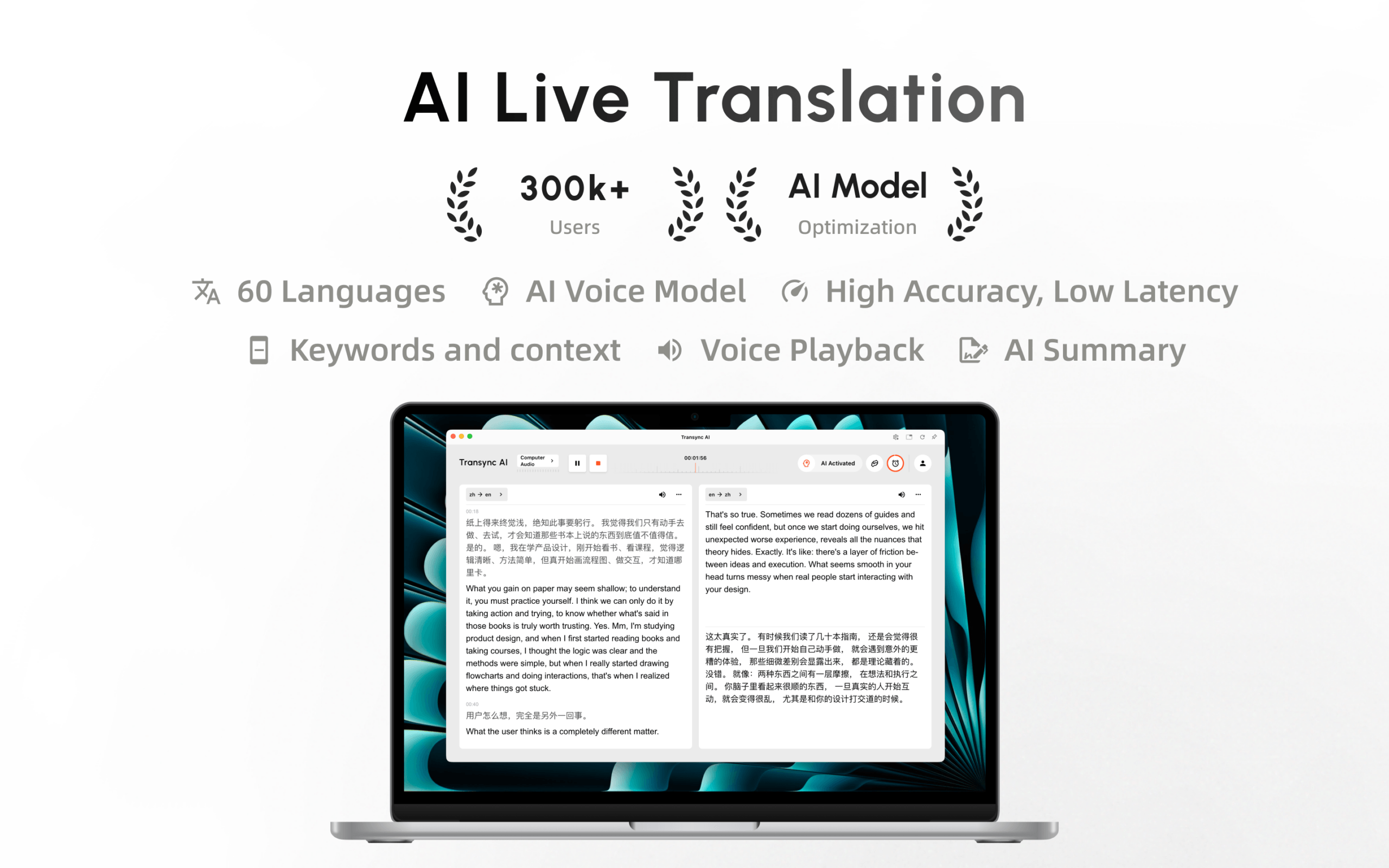
Transync AI is now available on the Mac App Store. Download it easily, receive automatic updates, and start real-time translation on Mac.
You can enable translated voice playback when the other person needs to hear your question. For a nearby conversation, check that the device speaker is audible without overwhelming the microphone. For an online discussion, follow the meeting audio setup and confirm the remote listener receives the translation.
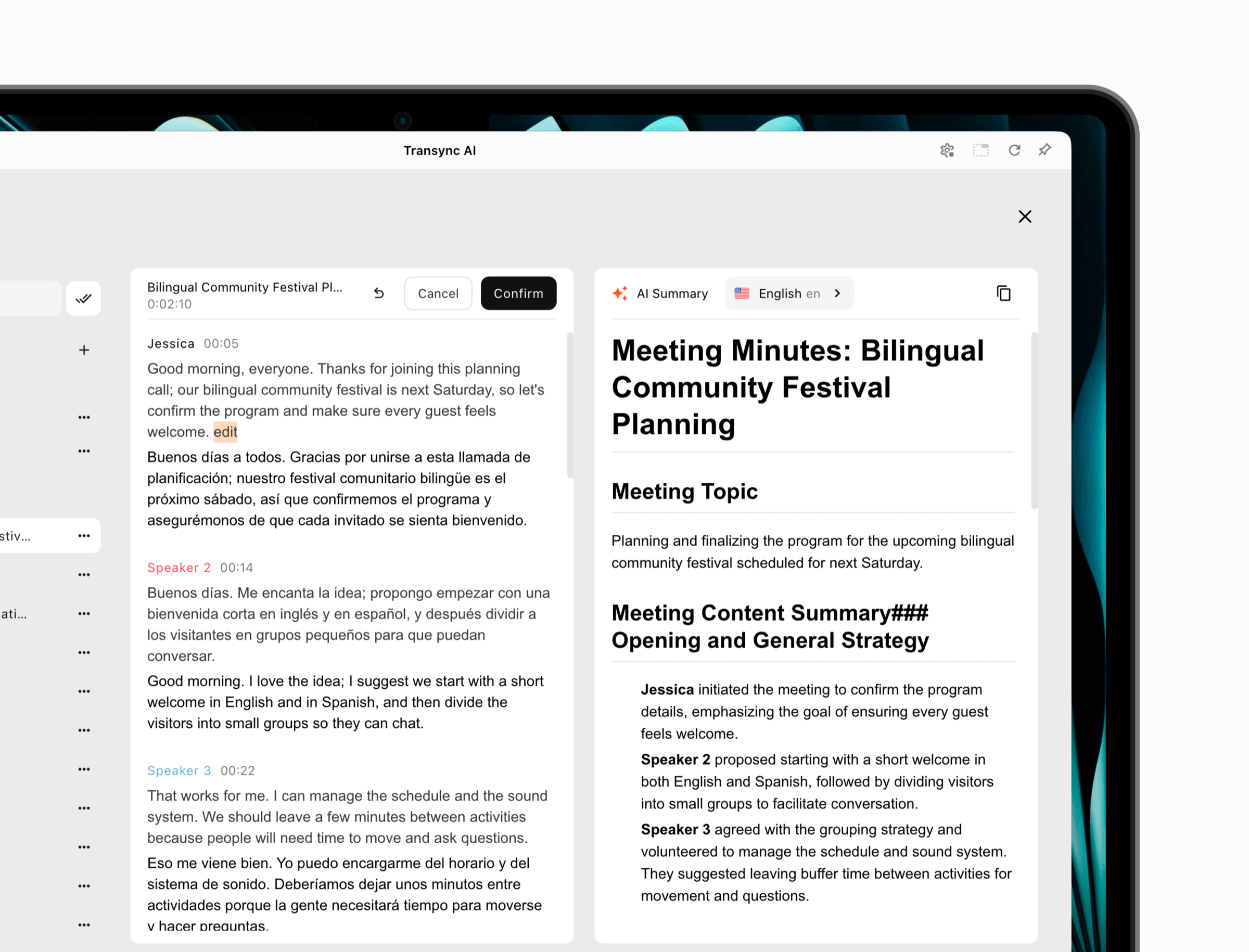 Transync AI is not the screenshot-reading tool in this workflow. Its role is to help the conversation continue when the answer is spoken and both people need a chance to respond.
Korean translate questions worth asking
Can I translate a screenshot without typing Korean
Yes. Use a supported image translator and import the screenshot. On mobile, Papago documents a Gallery route; its desktop image tool can display and copy recognized source text. You still need a readable image, and doubtful recognition should be checked before you act on the English.
Why do two English translations look different
Different wording can express the same meaning. “Takeout orders only” and “We only accept takeout orders” can communicate the same restriction in this example. Compare what the reader is allowed or asked to do, not just whether both versions use identical words.
Should I use romanized Korean instead of Hangul
Keep the Hangul from the original whenever possible. Replacing it with a phonetic spelling adds another interpretation step and makes comparison with the picture harder. If you need pronunciation, use supported audio playback separately rather than treating romanization as an English translation.
Which Korean translate route works for a live conversation
Choose a tool that accepts live speech in both directions and delivers captions or audio the participants can actually use. A screenshot translator cannot listen to a staff member’s answer simply because it recognizes Korean writing. Transync AI provides the live-speech route described above.
Keep the picture until the question is answered
The best response to a Korean translate search starts with the material in front of you. Copy selectable text, recognize text in a clear image, and preserve the conditions that change the instruction.
For this café notice, that means keeping “takeout only,” the kiosk instruction, and the cash restriction intact. Then reverse direction to ask about your card, using live translation if needed. The goal is not just readable English; it is knowing what to do next without inventing an answer.