
User Guide
AI Assistant
AI Assistant Keywords Context
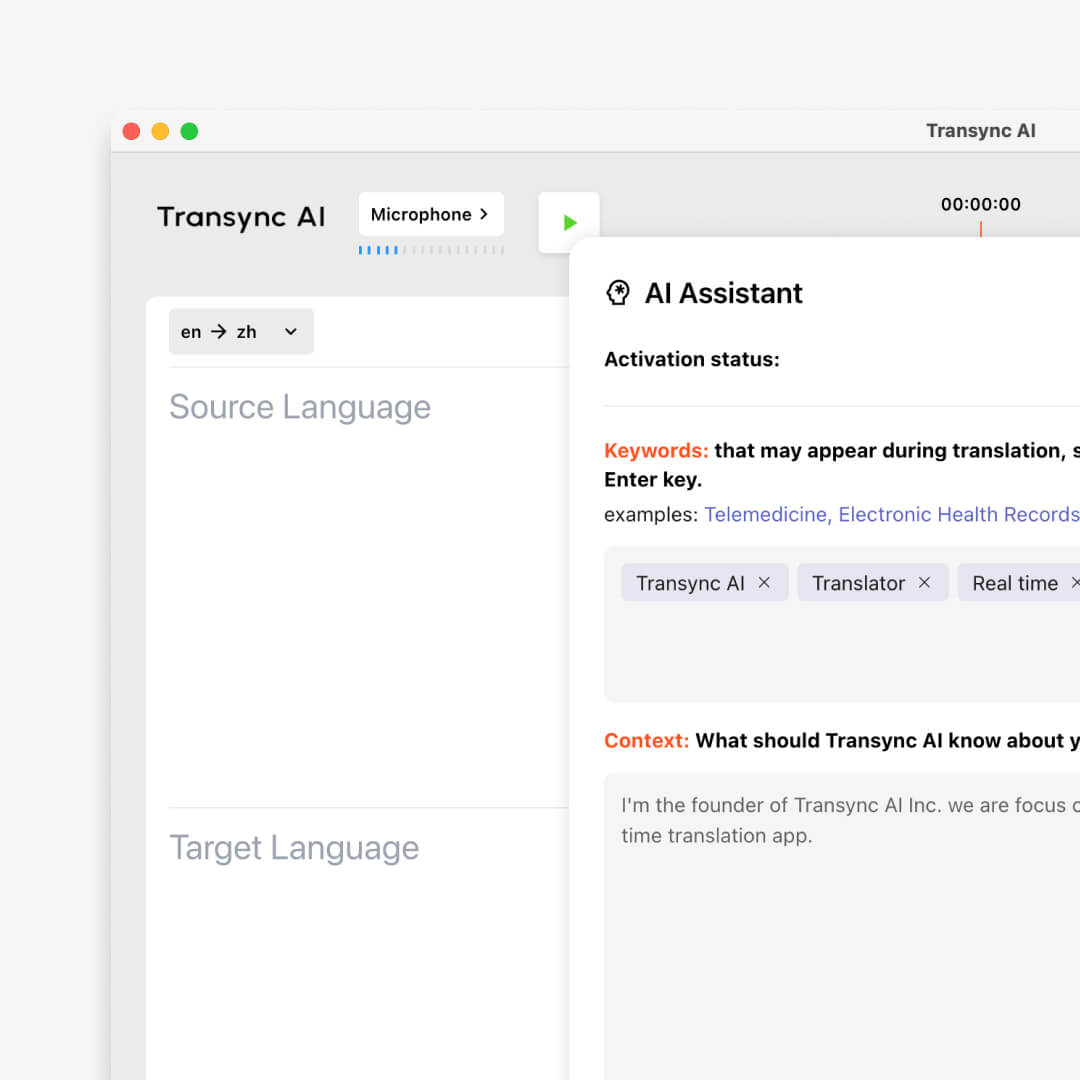
Define important keywords such as industry terms, brand names, or personal names, and provide contextual background like your profession, industry, or meeting topic to improve translation accuracy. You can check the more detailed documentation.
The Most Intelligent AI Translation Assistant for Meetings
Set keywords and context to boost translation accuracy to over 95%. Perfect for academic conferences, business negotiations, and professional video translations, the Transync AI Assistant delivers fluent, context-aware translations that truly understand your message.
How can I use Transync AI keywords and context?
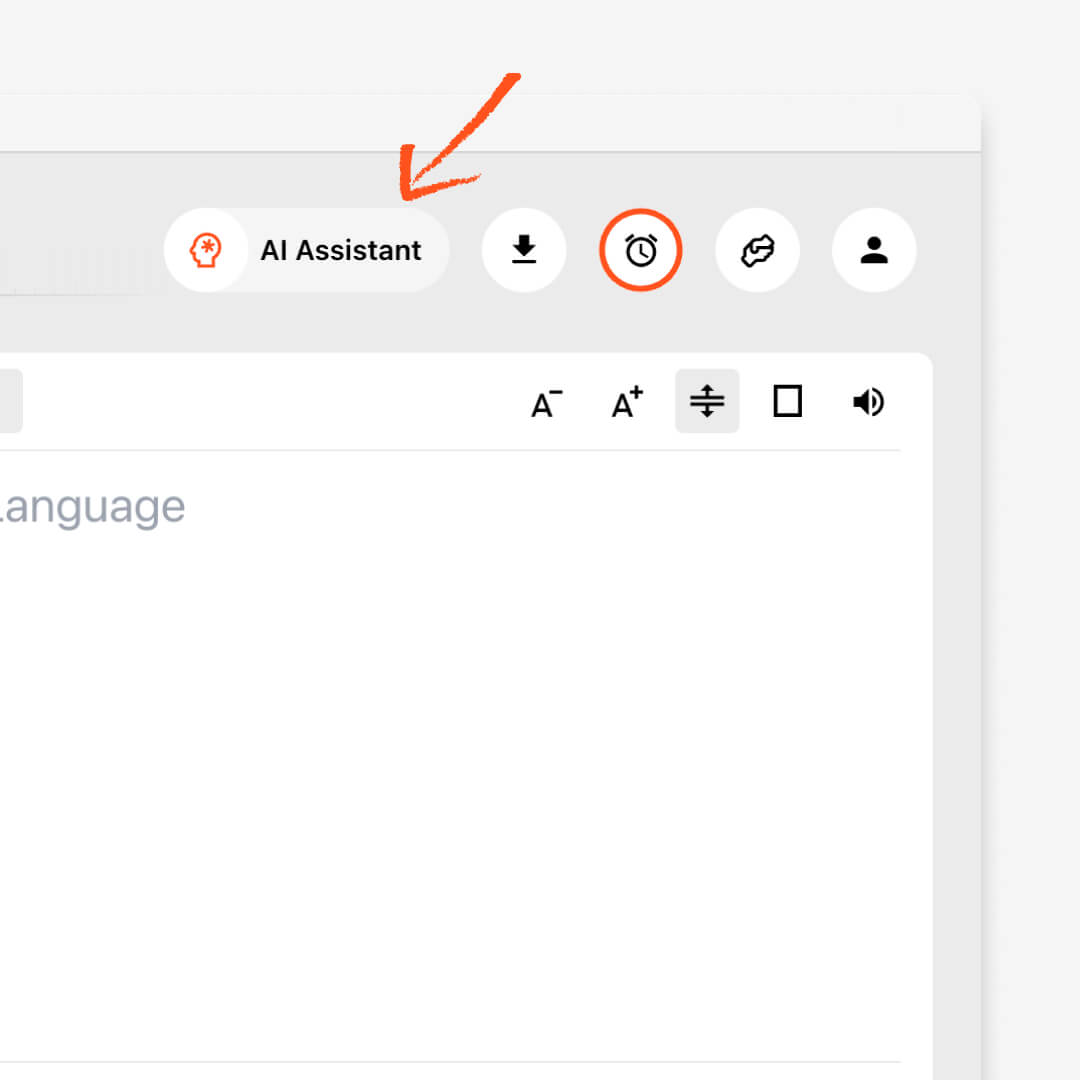
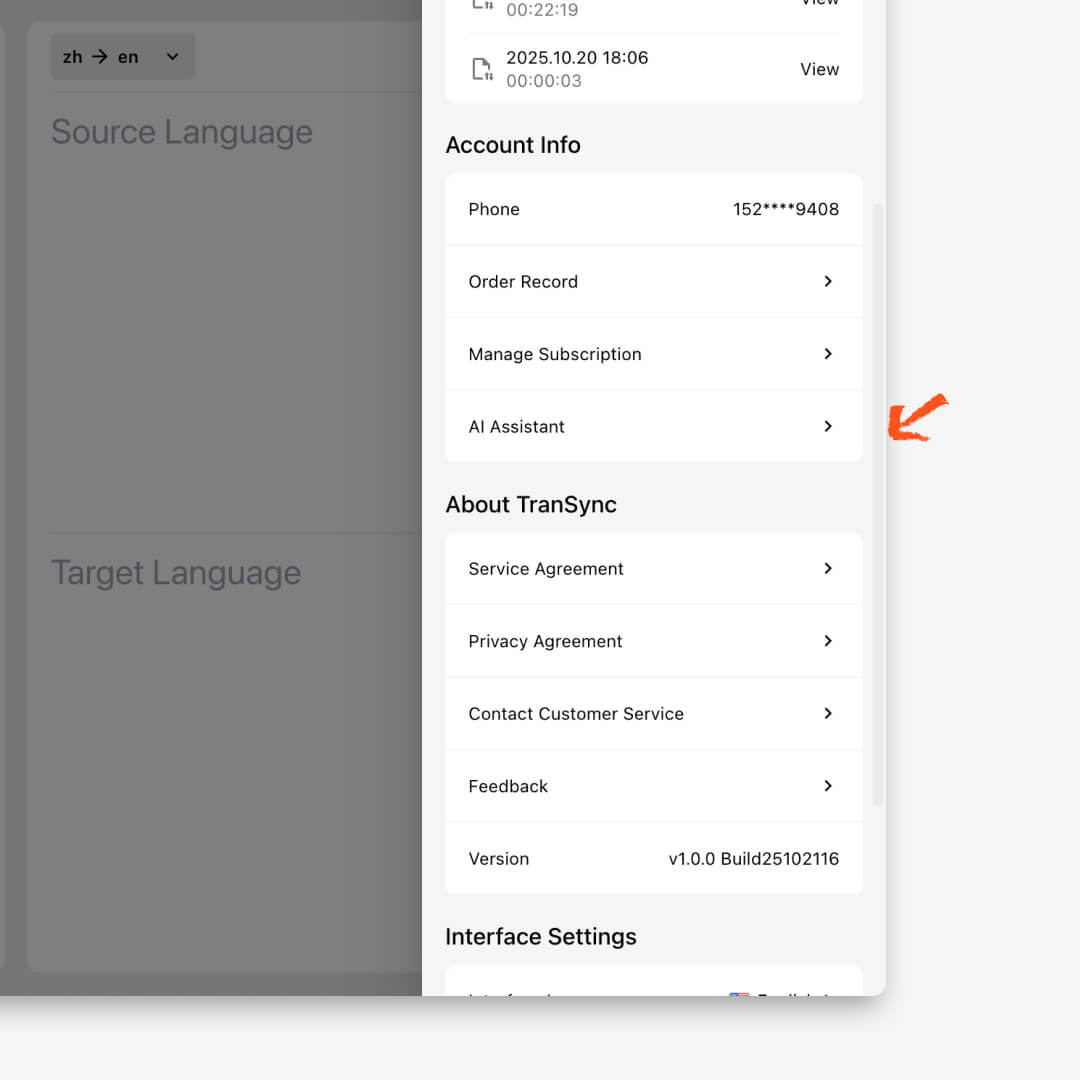
1. Open the AI Assistant
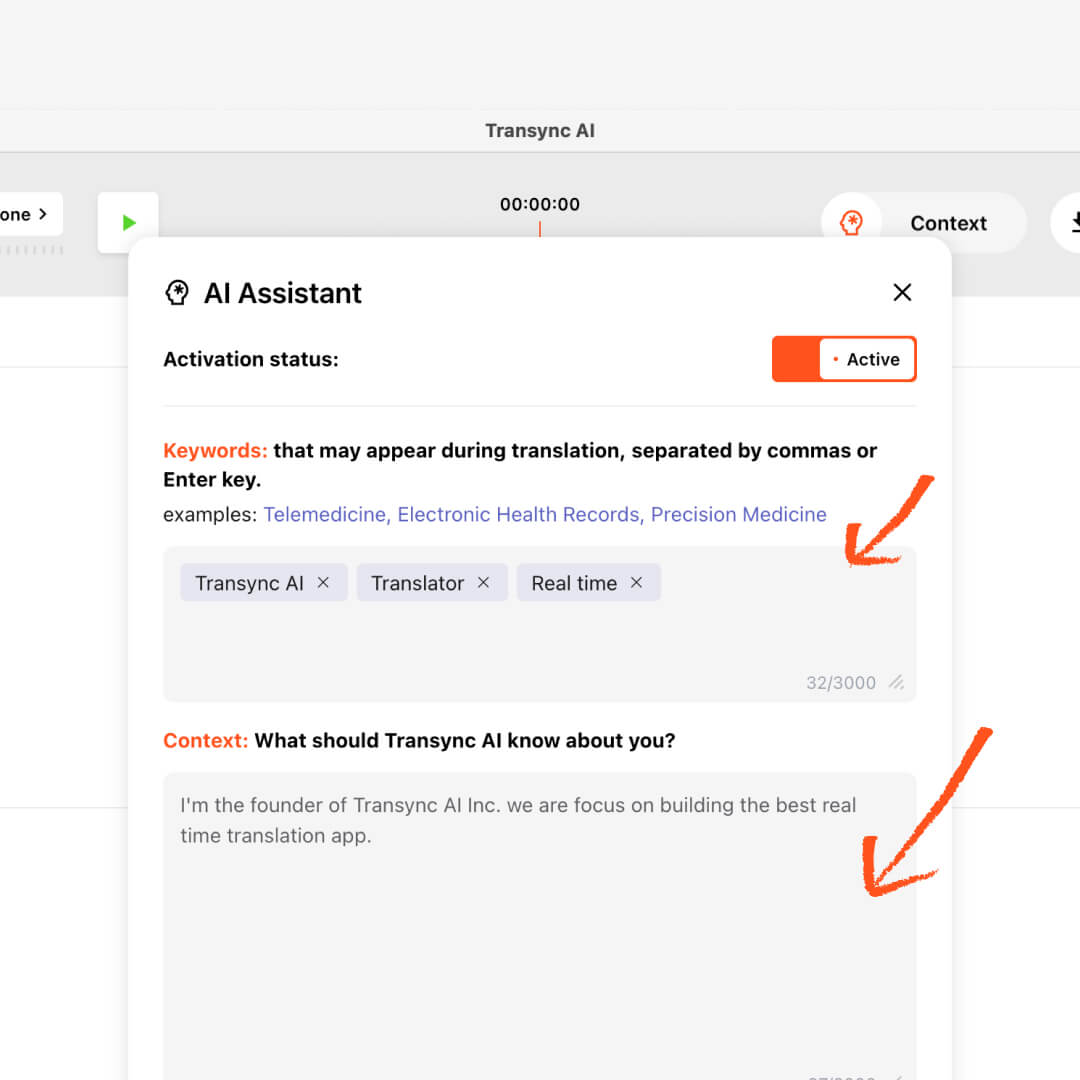
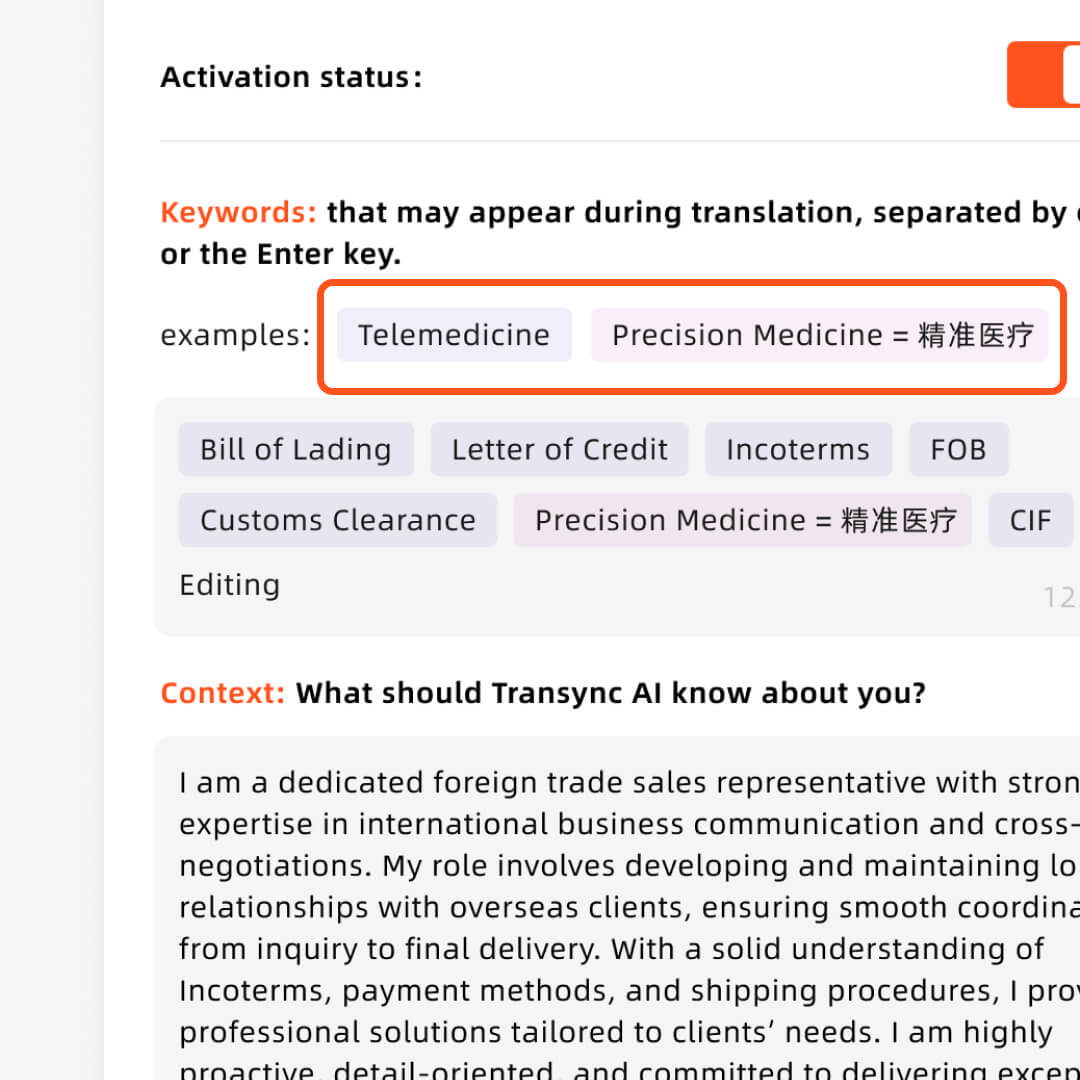
2. Add Keywords and Context
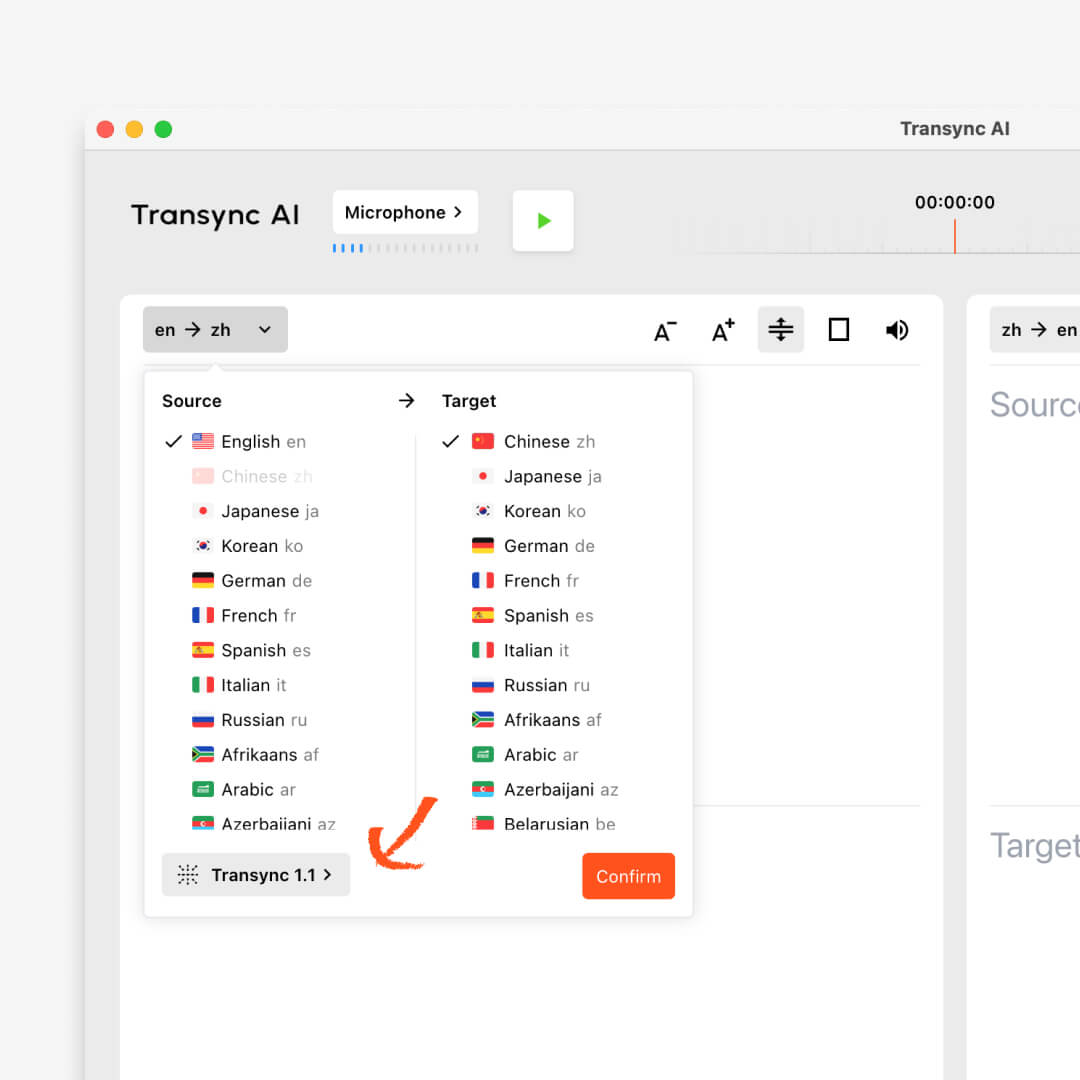
4. Select Transync Model 1.1
4.Access AI Assistant Anytime
Setting Keywords
Separate each keyword with a comma or press Enter. Words that need to be identified and translated are connected with an equal sign. Keep them short and precise to help the AI assistant translate properly (e.g., “AI translation, Transync AI = 同言翻译, semiconductor, John Smith, marketing campaign”).
Setting Context
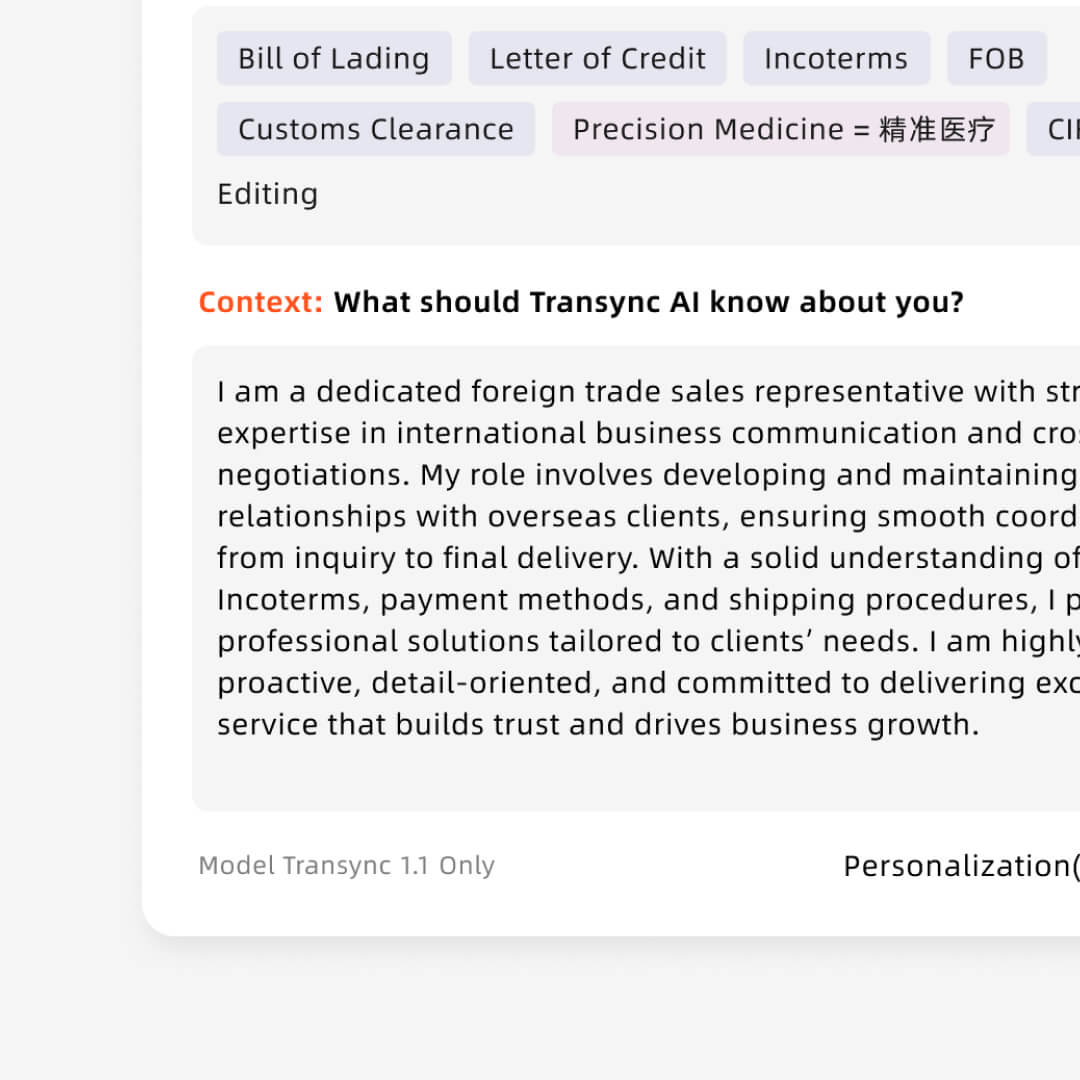
Describe relevant background such as your profession, industry, meeting topic and any context. This helps the AI assistant adapt translations to the right tone and terminology (e.g., “I work as a product manager in the renewable energy industry; this meeting is about photovoltaic system design and implementation.”).
FAQs
How do I open the Transync AI Assistant?
Click the AI Assistant icon in the upper-right corner of your Transync AI interface. This opens the assistant panel where you can enter keywords and context to start interacting intelligently.
How do I set the keywords?
In the input field, type the keywords related to your task or topic — such as the meeting theme, industry terms, or video subject. Keywords help the AI better understand your focus and deliver more precise translations or responses.
How do I add context?
In the Context section, describe the background or scenario of your task — for example, “academic conference speech translation” or “cross-border business dialogue.” Context allows the AI to adapt tone, audience level, and purpose for more natural results.
How do I make sure Transync Model 1.1 is selected?
Before you start, check the language pair selection dropdown menu and ensure Transync Model 1.1 is selected. This latest version is optimized for real-time translation, contextual comprehension, and enhanced accuracy.
How can I find the AI Assistant again?
You can always access it from Profile → AI Assistant, where you can review past prompts, refine your context, or continue using the assistant anytime. All this content is synchronized with the account in the cloud.
Experience a Smarter Way to Translate, Transync AI.
Let Transync AI Assistant understand your keywords and context to deliver translations that are accurate, natural, and professional. You can check the more detailed documentation.