Live language translator guide for 2026: compare captions, voice output, meeting support, latency, context, pricing, and real-world use cases.
A live language translator is easy to understand in a product demo.
One person speaks clearly. The room is quiet. The sentence is short. The translation appears, and everything seems effortless.
Real communication is rarely that controlled.
During an international meeting, speakers interrupt each other, change direction halfway through a sentence, use product names, mention prices, speak with accents, and expect an answer immediately. At a trade show, background noise may make speech recognition difficult. In a classroom, a lecturer may speak continuously for 40 minutes without pausing for translation.
The value of a live translator is therefore not measured only by whether it can translate one sentence correctly.
It should also answer a more practical question:
Can people continue communicating while the translation is happening?
This field guide explains how live language translation works, which features matter in different environments, how to prepare before a multilingual conversation, and when a dedicated tool such as Transync AI may be more suitable than a basic text or travel translator.
Quick Answer: What Is a Live Language Translator?
A live language translator listens to spoken language and translates it while the speaker is still communicating.
Depending on the product, the result may appear as:
- Translated subtitles
- Side-by-side bilingual text
- Spoken AI voice output
- A two-way conversation interface
- A live transcript
- A meeting summary
- Action items and notes
A modern live translator may also provide:
- Automatic distinction between two selected languages
- Terminology and keyword settings
- Context prompts
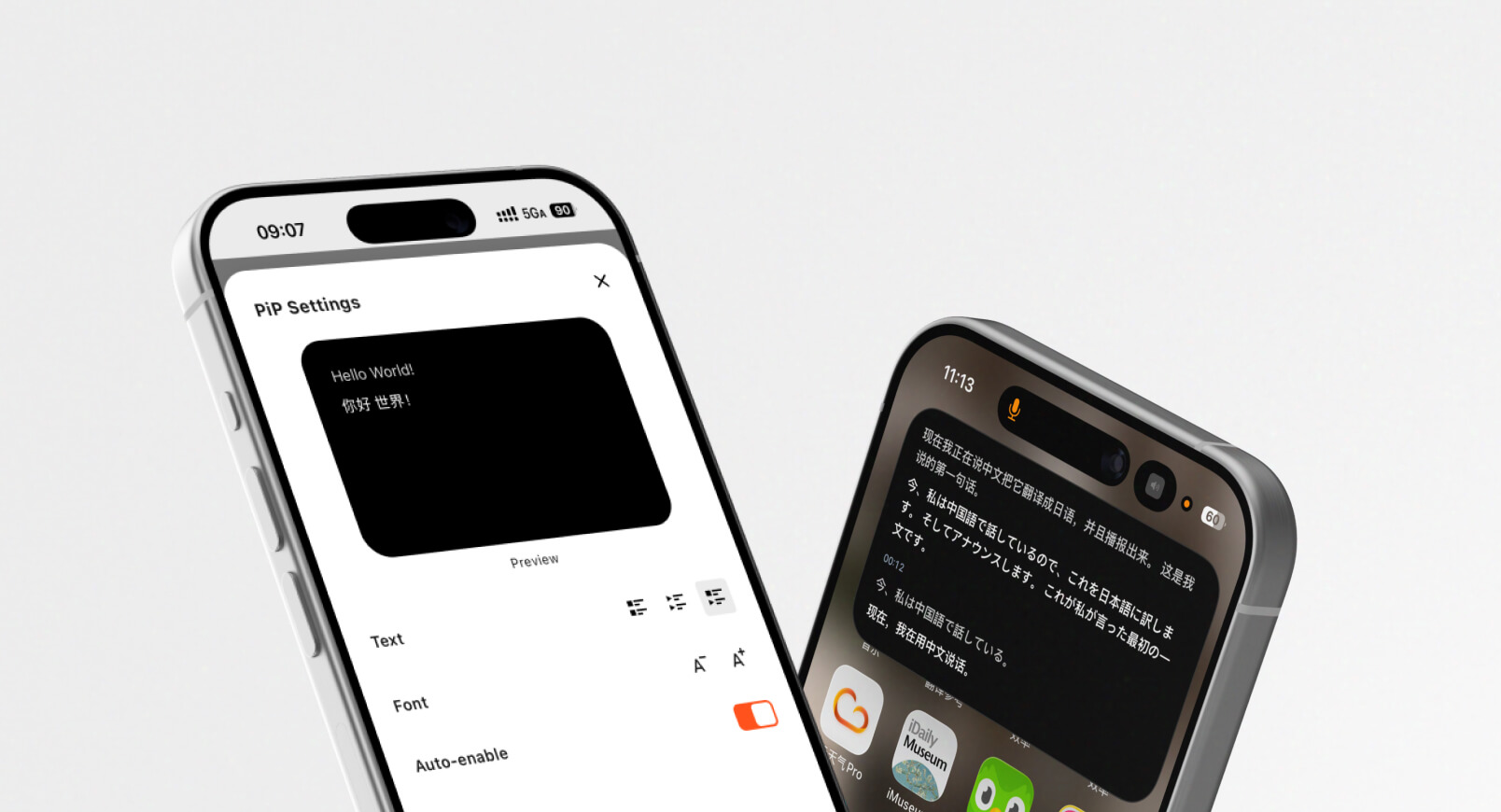
- Floating subtitles
- Voice selection
- Voice cloning
- Support for Zoom, Microsoft Teams, and Google Meet
- Translation records after the session
Live translation is different from ordinary text translation because the system must process incomplete and rapidly changing language.
It must balance speed and context.
If it waits too long, the listener falls behind. If it translates too early, the sentence may be misunderstood before the speaker finishes.
How Does Live Language Translation Work?
Most live translation systems process speech through several stages.
| Stage | What happens |
|---|---|
| Audio capture | The microphone or system audio captures the speaker |
| Speech recognition | Spoken language is converted into text |
| Language identification | The system determines which selected language is being spoken |
| Translation | The recognized text is translated into the target language |
| Subtitle output | The original and translated text appear on screen |
| Voice generation | An AI voice may read the translation aloud |
| Post-session processing | The transcript may be summarized into notes or action items |
Each stage can introduce delay or error.
For example:
- A weak microphone can affect speech recognition.
- Incorrect recognition can produce an incorrect translation.
- Missing context can cause the wrong technical meaning.
- Voice generation can add extra latency.
- A poor transcript can lead to an inaccurate meeting summary.
This is why live translation should be evaluated as a complete workflow rather than a single translation engine.
Where Is a Live Language Translator Most Useful?
The same tool may behave very differently depending on the environment.
Online meetings
A multilingual online meeting may require:
- Two-way speech translation
- Bilingual captions
- Translated voice output
- Technical terminology
- Meeting summaries
- Compatibility with existing meeting software
The translation should remain visible while participants open documents, review slides, or demonstrate software.
Face-to-face conversations
For an in-person conversation, the priorities are different:
- Fast language switching
- Clear mobile display
- Speaker volume
- Easy turn-taking
- Portable microphone capture
- Minimal setup
This is useful for travel, campus visits, exhibitions, offices, customer service, and informal business meetings.
Lectures and classes
Educational settings usually involve longer periods of one-way speech.
Important features include:
- Stable long-session captions
- Readable subtitles
- Technical vocabulary support
- Floating captions
- Meeting or lecture notes
- Easy review after class
Trade shows and exhibitions
Exhibition halls introduce difficult audio conditions:
- Crowd noise
- Music
- Echo
- Several nearby conversations
- Speakers moving around
- Unfamiliar product terminology
A translation tool should be tested in noise rather than only in a quiet office.
Customer and supplier calls
These conversations often contain:
- Order numbers
- Product models
- Delivery dates
- Prices
- Quantities
- Account information
- Technical specifications
Translated subtitles are especially useful because users can visually check important details.
Presentations and webinars
Presentation translation needs to remain visible without covering the content being presented.
Picture-in-Picture subtitles can help participants view slides and translations at the same time.
Live Language Translator Scenario Map
| Scenario | Main translation challenge | Priority features |
| Two-person conversation | Fast turn-taking | Two-way language detection and low latency |
| Online business meeting | Speech, terminology, and follow-up | Captions, voice output, context, meeting notes |
| University lecture | Long continuous speech | Stable subtitles and summaries |
| Product demonstration | Translation must not cover the interface | Floating subtitles |
| Supplier call | Models, dates, prices, and technical terms | Keywords, bilingual text, transcript review |
| Trade show | Noise and short conversations | Strong audio capture and fast output |
| Webinar | One speaker and many listeners | Long-session stability and readable captions |
| Legal or medical discussion | High consequence of errors | Professional human interpreter |
A Field Checklist Before You Start
Live translation performance improves when the session is prepared properly.
1. Confirm the exact language pair
Do not select a broad label without checking the actual language or regional variety.
For example:
- Chinese may mean Mandarin or Cantonese.
- Spanish vocabulary may vary between Spain and Latin America.
- Portuguese may differ between Brazil and Portugal.
- French accents and vocabulary vary across regions.
Test the actual speakers whenever possible.
2. Identify the conversation type
Ask whether the session is:
- One person speaking continuously
- Two people taking turns
- A group discussion
- A presentation
- A customer call
- A technical meeting
- A hybrid or online event
A tool optimized for lectures may not perform equally well in rapid two-way discussion.
3. Prepare important terminology
Create a list of:
- Personal names
- Company names
- Product names
- Model numbers
- Abbreviations
- Industry terms
- Regional place names
- Preferred translations
For example:
- Transync AI = 同言翻译
- photovoltaic inverter
- Model X300
- APAC
- John Smith
- semiconductor packaging
- supply chain optimization
- neural network
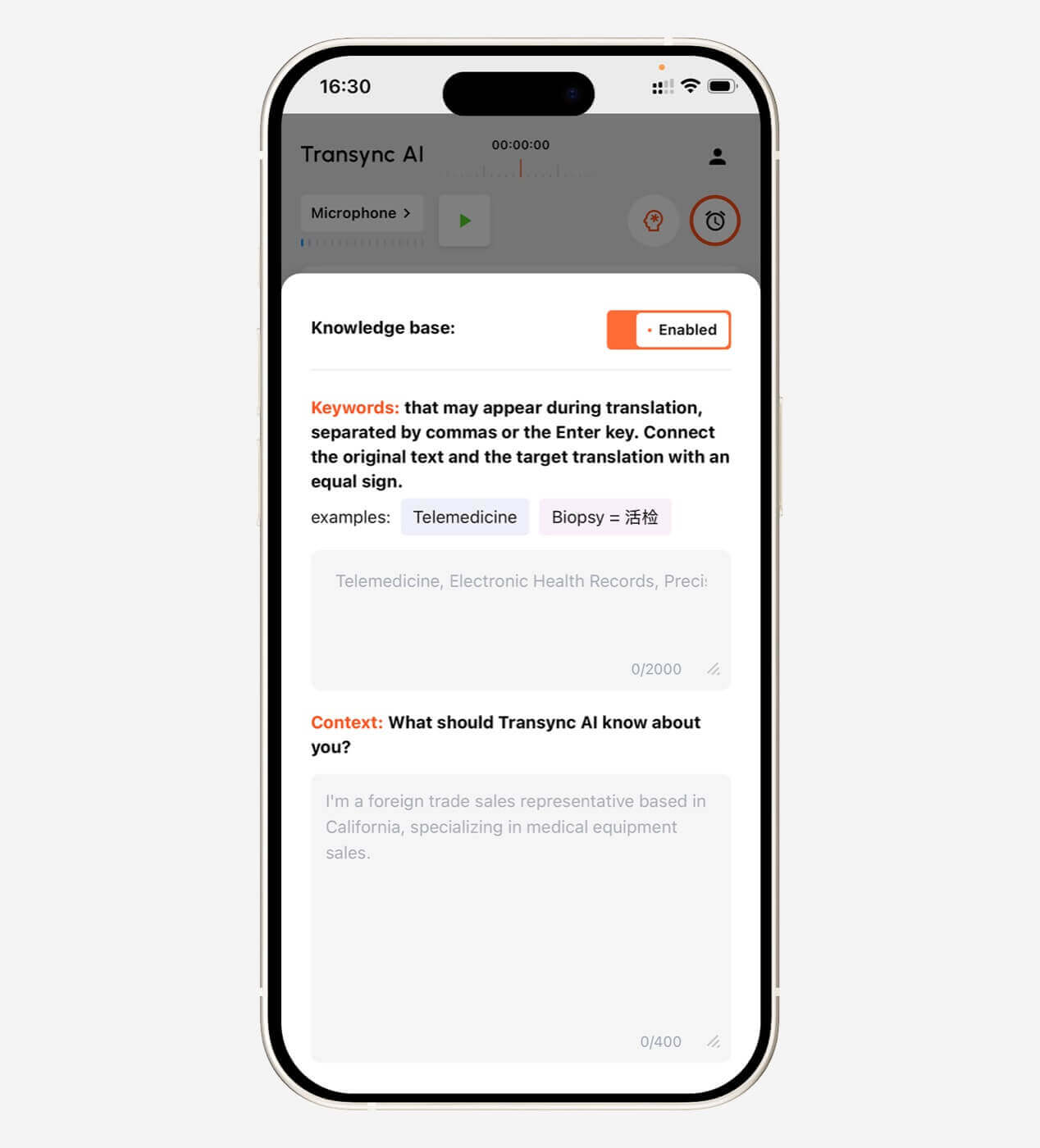
4. Add contextual background
A word may have several correct translations.
The word “model,” for example, may refer to:
- An AI model
- A product model
- A business model
- A statistical model
- A physical prototype
Providing context helps the system choose the intended meaning.
Example:
This is a supplier meeting about renewable energy equipment, photovoltaic inverter specifications, production schedules, quality inspection, and regional compliance.
Transync AI allows users to define keywords and contextual background before starting a translation task.
More information is available on the AI Assistant Keywords Context page.
 5. Test the audio source
 5. Test the audio source
Confirm whether the tool needs to capture:
- The device microphone
- System audio
- Meeting audio
- A Bluetooth headset
- An external microphone
- A virtual microphone
A tool cannot translate audio it cannot capture clearly.
6. Decide whether subtitles or voice output are better
Translated voice is not always the best option.
Choose subtitles when:
- Numbers and names must be checked
- The meeting moves quickly
- Several people may speak
- Voice playback would interrupt the next speaker
- Participants want to compare the original and translation
Choose voice output when:
- Participants cannot watch a screen
- The translation needs to be heard aloud
- One participant reads slowly
- The conversation is mostly turn-based
- A presentation needs spoken translation
Many professional workflows use both.
Live Language Translator Test: Use Real Conversation, Not a Demo Script
A short promotional sentence cannot reveal how a tool performs in real communication.
Run a 15- to 20-minute test.
Record the test conditions
Write down:
- Test date
- Application version
- Device
- Operating system
- Internet connection
- Microphone
- Meeting platform
- Language pair
- Number of speakers
- Audio environment
Use a realistic test script
Include:
- A short introduction
- A person’s name
- A company name
- Five technical terms
- A product model
- A price
- A percentage
- A date
- A correction
- A sentence interruption
- Mixed-language speech
- A final decision
Example:
We can ship 1,250 Model X300 units by October 18—sorry, October 28—if the APAC engineering team approves the revised specification this Friday.
This sentence tests:
- Numbers
- Dates
- Corrections
- Product names
- Abbreviations
- Technical context
- Sentence continuity
Live Translation Evaluation Scorecard
| Metric | What to evaluate |
| Speech recognition | Did the tool capture the original words correctly? |
| Translation meaning | Was the speaker’s intention preserved? |
| Latency | Did the result arrive before the topic changed? |
| Two-way flow | Could both participants respond naturally? |
| Terminology | Were names and technical terms consistent? |
| Subtitle quality | Were captions readable and stable? |
| Voice quality | Was the translated audio clear and natural? |
| Noise handling | Did performance remain usable outside a quiet room? |
| Long-session stability | Did the tool remain consistent over time? |
| Post-session notes | Were the transcript and summary useful afterward? |
Test both translation directions.
English-to-Japanese performance may differ from Japanese-to-English performance. The same applies to Chinese-English, Spanish-English, and other pairs.
What Is Acceptable Translation Latency?
Live translation latency is usually measured from the end of a spoken phrase to the appearance or playback of the translated result.
| Approximate delay | Practical experience |
| Under 2 seconds | Strong for active conversation |
| 2–4 seconds | Usually practical for meetings and classes |
| 4–6 seconds | Better for lectures and slower presentations |
| More than 6 seconds | May interrupt conversational rhythm |
These ranges are only practical guidelines.
Actual results vary by:
- Sentence length
- Language pair
- Model
- Network quality
- Microphone
- Background noise
- Voice-generation settings
- Device performance
Subtitle output is normally faster than translated voice because voice generation adds another processing stage.
How Transync AI Works as a Live Language Translator
Transync AI is designed around real-time spoken communication.
It supports:
- Bidirectional translation in 60 languages
- More than 1,000 language pairs
- Original and translated text displayed together
- AI voice broadcast
- Multiple voice choices
- Voice preview
- Voice cloning
- Keywords and contextual prompts
- AI-generated meeting notes
- Picture-in-Picture subtitles
- Cross-device access
- Zoom, Teams, and Google Meet workflows
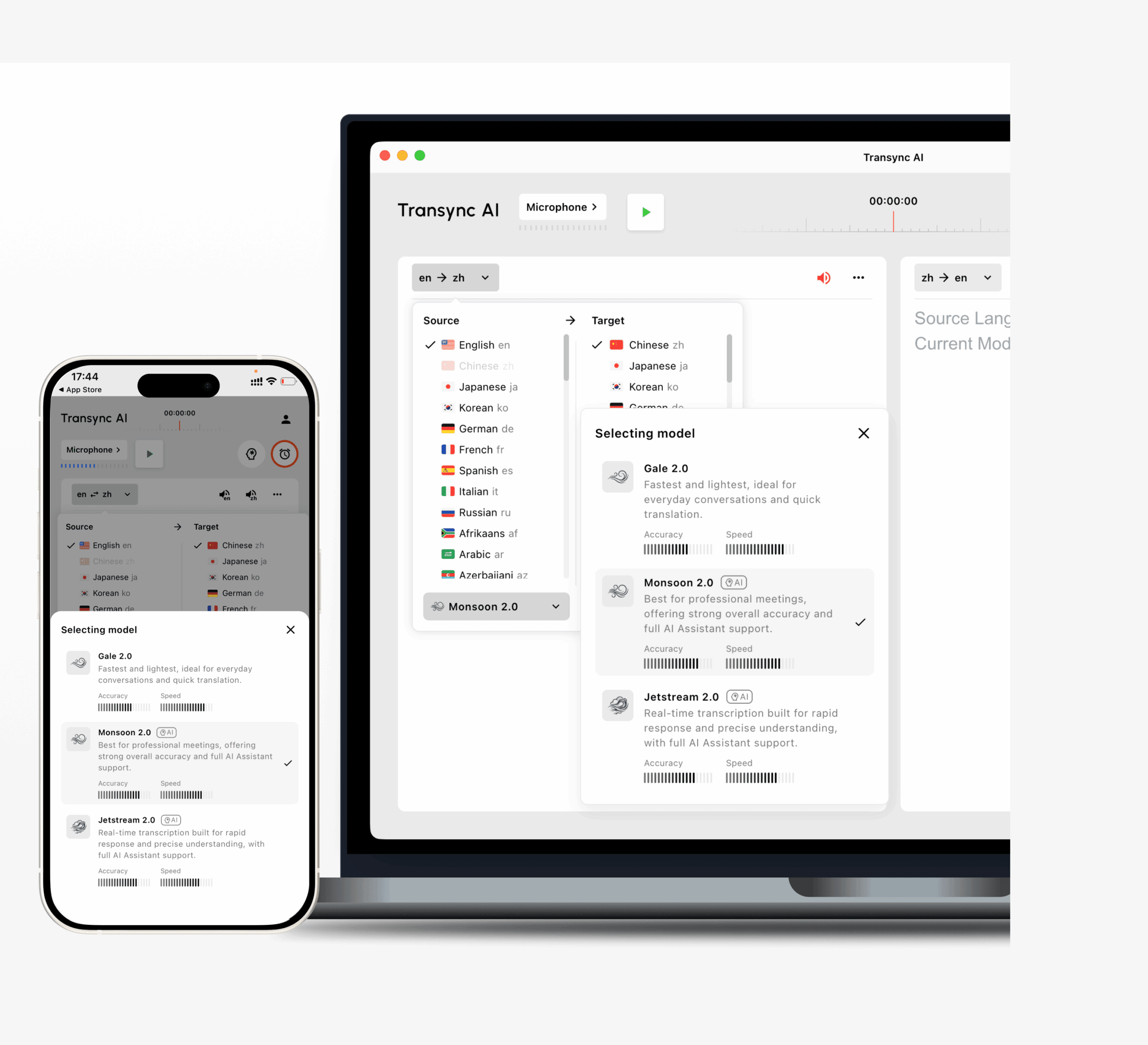
Transync AI v2.0 includes Gale 2.0, Monsoon 2.0, and Jetstream 2.0 models.
The updated models are designed to improve speed, accuracy, continuity, and stability in real-world speech, including:
- Short sentences
- Mixed-language communication
- Noisy environments
- Irregular pauses
- Incomplete sentence boundaries
Users can explore the real-time translation tool and review the current supported languages.
 Two-Way Translation Without Constant Button Switching
 Two-Way Translation Without Constant Button Switching
A live conversation often alternates between two languages.
For example:
- Speaker A asks a question in English.
- Speaker B responds in Japanese.
- Speaker A follows up in English.
- Speaker B corrects a detail in Japanese.
A useful live translator should distinguish between the selected languages without forcing participants to change the input language after every turn.
Transync AI can automatically distinguish the speaker’s language within a selected two-way translation task.
This is helpful for:
- Client calls
- Interviews
- Supplier discussions
- Office visits
- Customer service
- Classes
- Travel conversations
Natural turn-taking still matters. If both participants speak at exactly the same time, any automated system may lose or mix part of the input.
Bilingual Subtitles vs. Translation-Only Captions
Showing only the target language creates a clean interface. Showing both languages provides more verification.
Bilingual subtitles help users:
- Check names
- Verify numbers
- Compare terminology
- Identify recognition errors
- Understand sentence structure
- Follow the original speaker
Transync AI displays original and translated content side by side.
This is especially valuable for professional communication where a small error in a quantity, date, or model number can change the meaning.
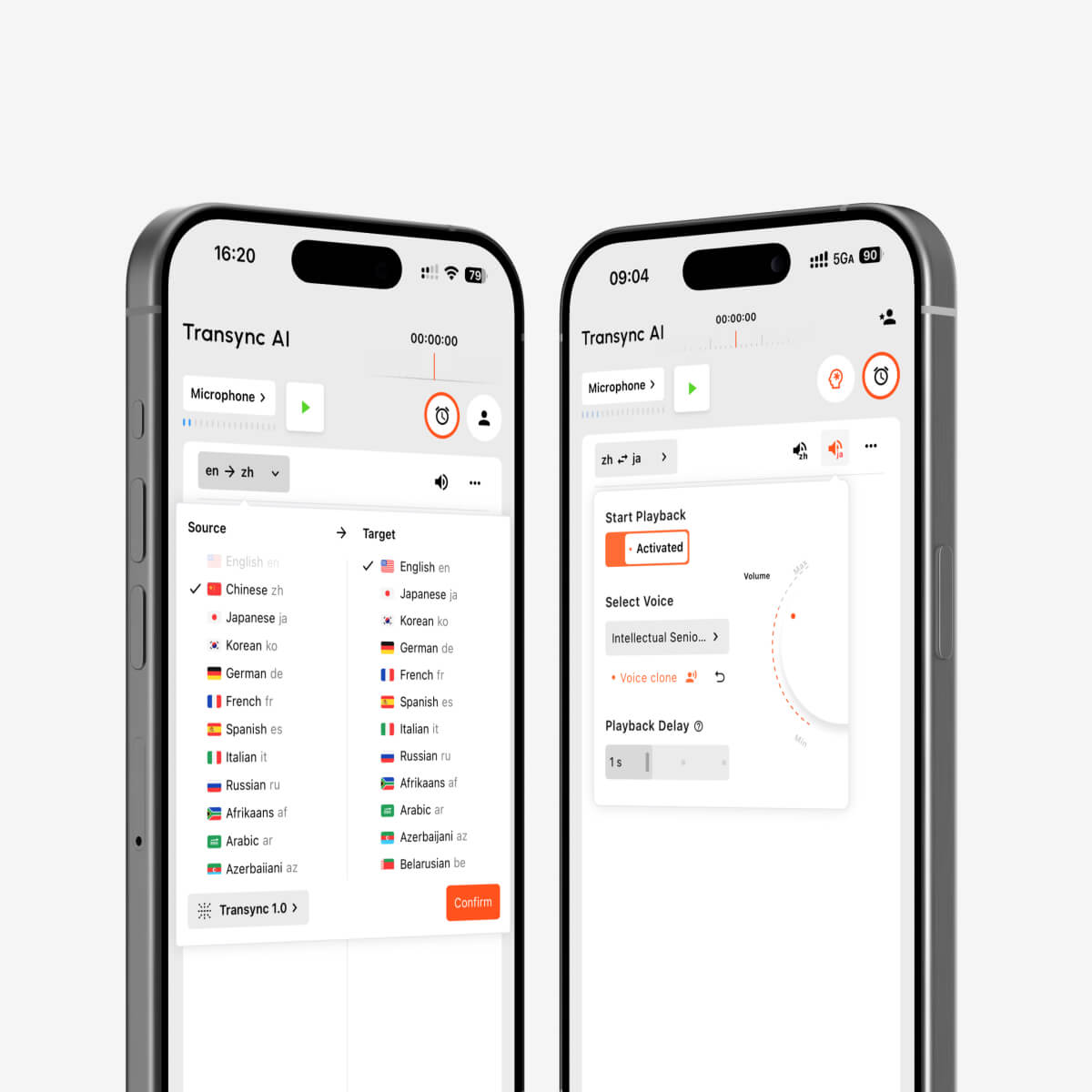
AI Voice Output and Voice Cloning
Translated voice can help communication feel more direct.
Transync AI supports multiple AI voices, with different tones and speeds for scenarios such as:
- Business meetings
- Classes
- Casual conversations
- Product demonstrations
- International calls
Users can preview voices before beginning the task.
Voice cloning allows translated speech to use a voice resembling the user’s own voice. This can make presentations and international conversations feel more personal.
Voice data is securely stored and is not used for AI training.
Explore AI Voice Translator & Speech Output.
Live Meeting Translation for Zoom, Teams, and Google Meet
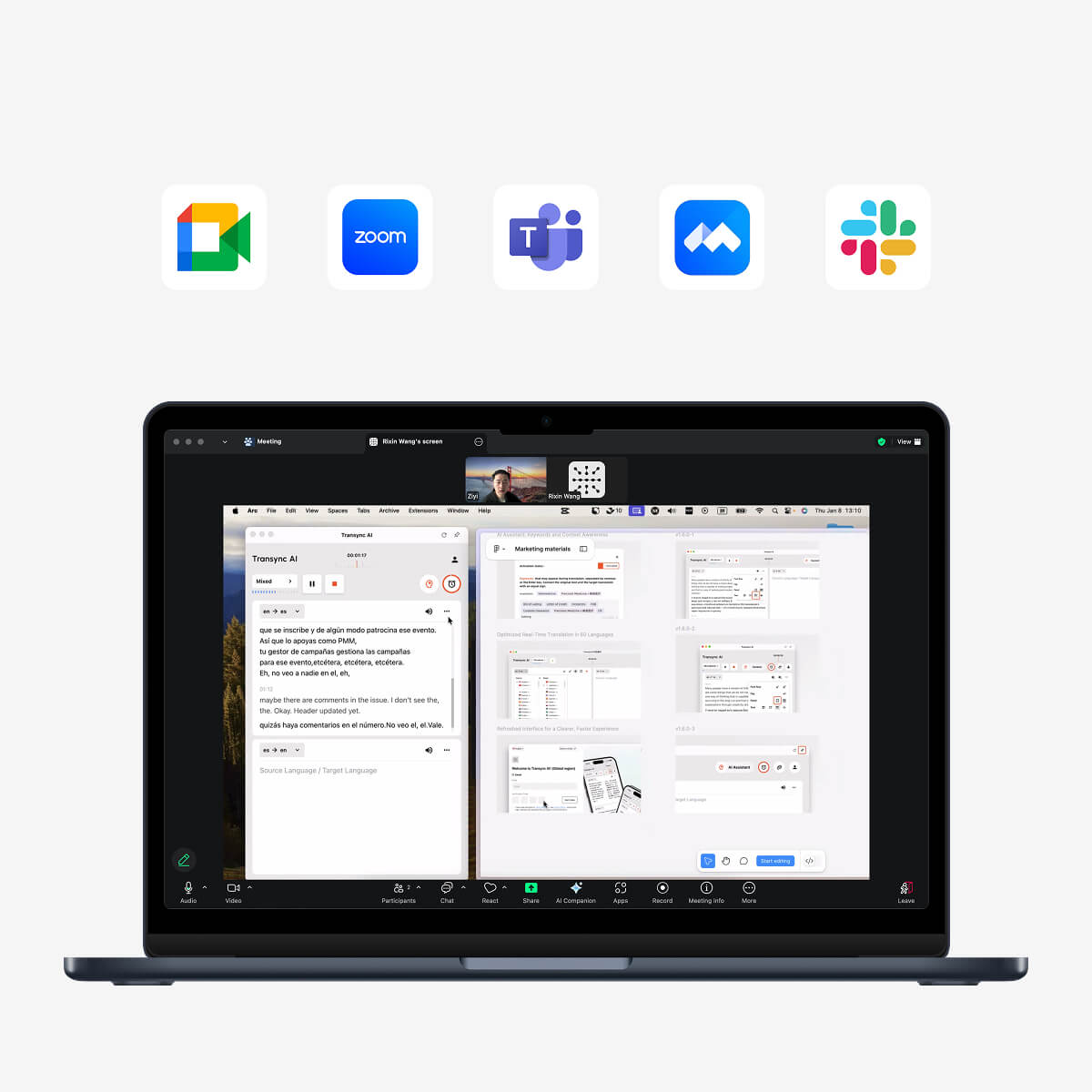
Transync AI operates as standalone software rather than a browser or meeting plugin.
It can run alongside:
- Zoom
- Microsoft Teams
- Google Meet
For subtitles, Transync AI captures the meeting audio and displays the original and translated content.
For translated voice output, users may need to configure system audio or a virtual microphone so other participants can hear the generated translation.
A standalone workflow can be helpful for people who use several meeting platforms and do not want to depend on one platform’s built-in translation options.
See AI Live Meeting Translation for Zoom, Teams, and Google Meet.
Compatible with major online meeting platforms for seamless real-time translation
Floating Subtitles During Presentations
During a meeting, participants may need to open:
- Slides
- Spreadsheets
- Product pages
- Local documents
- Design tools
- Demonstration software
- Browser tabs
If subtitles remain inside the translator window, users must keep switching applications.
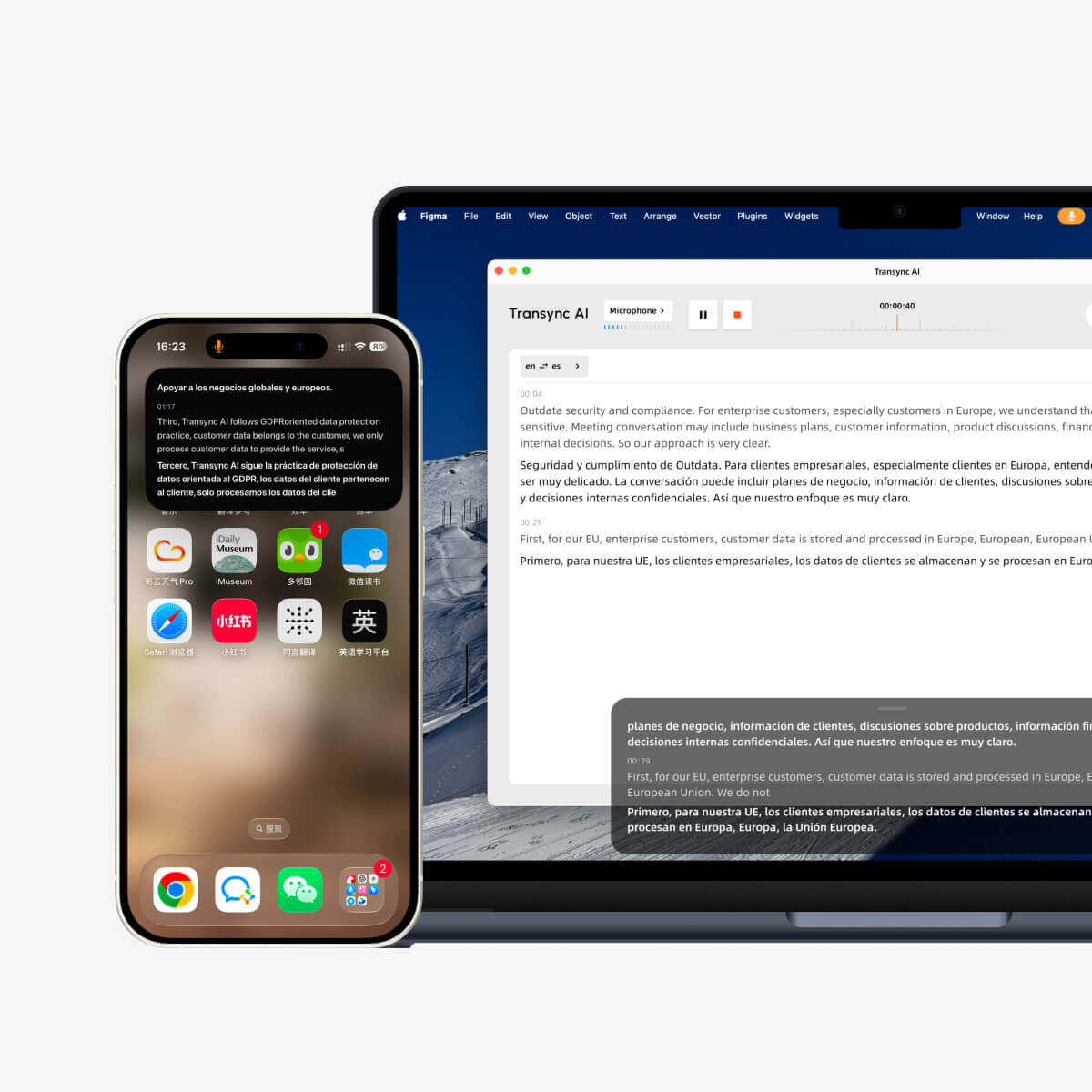
Transync AI provides Picture-in-Picture subtitles on supported Mac, Windows, and iOS workflows.
The floating subtitle window can remain above other applications, helping users read translations while presenting or multitasking.
The desktop floating window can also remember its previous position and supports pause and resume controls in the updated workflow.
Learn more from Picture-in-Picture Floating Subtitles.
What Happens After the Live Conversation?
Real-time understanding is only part of the workflow.
After a meeting, users may need to review:
- Decisions
- Deadlines
- Tasks
- Questions
- Product requirements
- Prices
- Delivery dates
- Speaker commitments
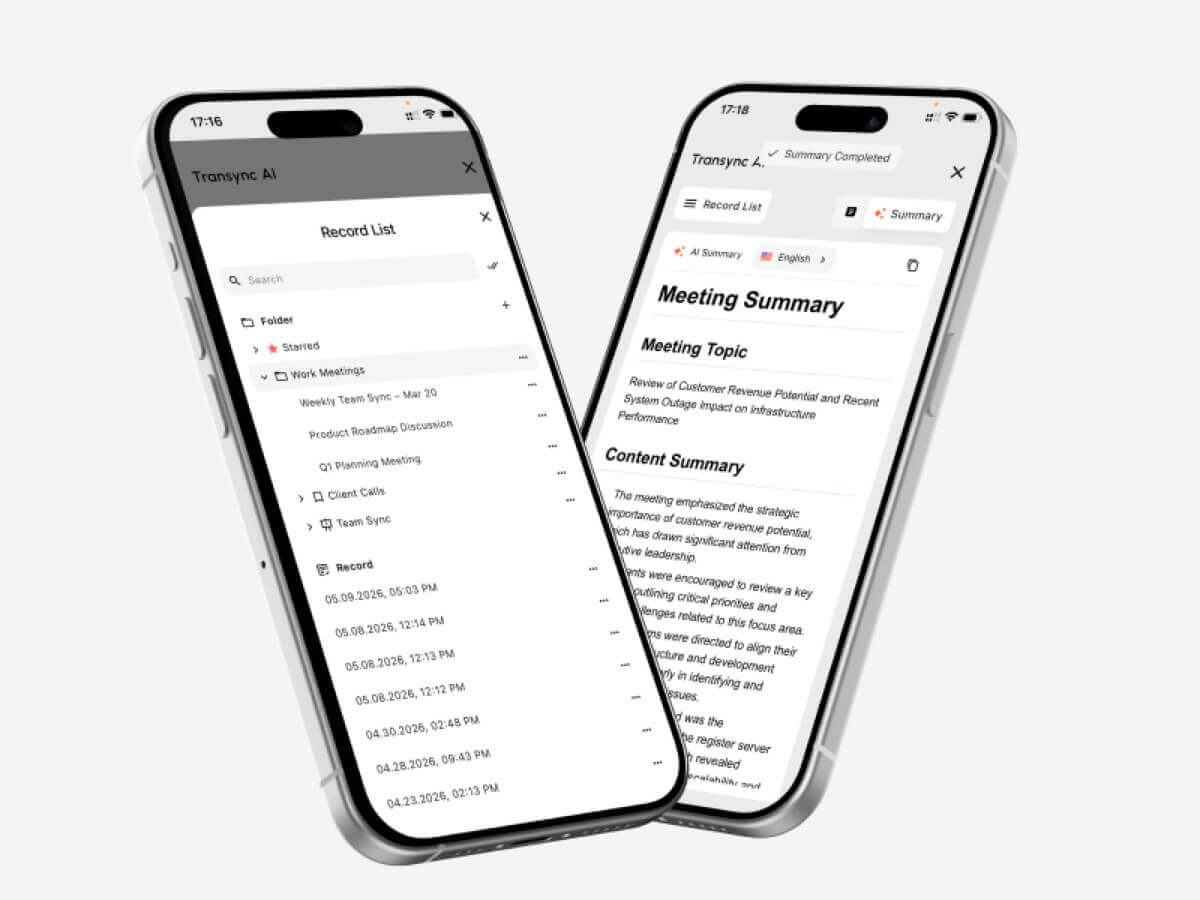
Transync AI includes AI-generated meeting notes that extract key information from the conversation.
Meeting notes save review time, but important information should still be verified against the translation record.
Always check:
- Names
- Numbers
- Dates
- Prices
- Technical terms
- Legal or contractual commitments
Explore AI Meeting Notes with Real-Time Translation.
 Live Language Translator vs. Text Translator
 Live Language Translator vs. Text Translator
| Feature | Text translator | Live language translator |
| Main input | Typed or pasted text | Spoken audio |
| Timing | Translation after input is complete | Translation during communication |
| Two-way conversation | Usually manual | Often supported |
| Microphone capture | Optional | Essential |
| Subtitle latency | Not relevant | Critical |
| Voice output | Sometimes available | Common in advanced tools |
| Speaker changes | Not relevant | Must be handled |
| Meeting support | Usually limited | Core use case for some tools |
| Notes and summaries | Rare | Available in meeting-focused tools |
| Best use | Messages, webpages, and documents | Calls, meetings, classes, and conversations |
A text translator may still be the better option for:
- Documents
- Emails
- Webpages
- Written localization
- Content that requires editing
A live translator is more useful when people cannot pause communication to type every sentence.
Live Language Translator vs. Human Interpreter
| Factor | AI live translator | Human interpreter |
| Availability | Usually immediate | Often requires scheduling |
| Cost | Subscription or usage-based | Usually billed by time or event |
| Routine communication | Practical for frequent use | May be costly for daily use |
| Cultural nuance | May miss subtle implications | Better at interpreting intent |
| Technical terminology | Can improve with keywords | Depends on interpreter expertise |
| Meeting notes | May be generated automatically | Usually a separate service |
| Professional responsibility | Limited | Professional standards may apply |
| Best use | Routine meetings and conversations | High-stakes or sensitive situations |
Use a qualified human interpreter when an error could affect:
- Medical treatment
- Legal rights
- Contract terms
- Immigration status
- Personal safety
- Regulatory compliance
- Financial decisions
- Government proceedings
- Sensitive employment matters
AI can improve access, but it does not assume professional responsibility for the consequences of an error.
How Much Does a Live Language Translator Cost?
Translation products may charge by:
- Minute
- Hour
- User
- Seat
- Meeting
- Event
- Monthly subscription
- API usage
For live communication, compare included translation time rather than only the monthly fee.
| Transync AI plan | Price | Included usage | Best for |
| Free | $0 | 40 minutes for new users | Initial testing |
| Personal Premium | $8.99/month | 10 hours during the active membership period | Individuals and regular meetings |
| Enterprise | $24.99/month/seat | Up to 40 hours per month per seat | Teams and organizations |
| Time Card | From $0.70/hour | Additional translation time | Users with changing monthly demand |
Time Card hours do not expire, but they can only be used while a membership is active.
Before choosing a plan, estimate:
- Monthly meeting hours
- Number of participants
- Number of users
- Frequency of translated voice use
- Number of language pairs
- Team management requirements
- Need for enterprise compliance
Common Live Translation Problems
The tool stops recognizing speech
Possible causes include:
- Low speaker volume
- A distant microphone
- Background noise
- Incorrect audio source
- Network interruption
- The model treating speech as noise
Move closer to the microphone, increase the input volume, or pause and restart the translation task.
The translation appears in fragments
Short fragments may result from:
- Irregular pauses
- Incomplete sentences
- Weak audio
- Very fast speech
- Long continuous sessions
Speak in complete thoughts when possible and allow natural sentence boundaries.
Product names are translated incorrectly
Add the name as a keyword and include relevant meeting context.
Voice output overlaps the next speaker
Use subtitles during fast discussion, or ask speakers to leave a short pause after each turn.
Several speakers are mixed together
Avoid simultaneous speech and use separate microphones when possible.
Translation becomes weaker in a long session
Test long-session stability before an important meeting. If quality changes, pause and restart the translation task.
Live Language Translator Limitations
No automated live translator is perfect.
Performance may be affected by:
- Loud background noise
- Room echo
- Weak microphones
- Unstable internet
- Multiple speakers
- Very fast speech
- Regional accents
- Slang
- Incomplete sentences
- Technical terms
- Rapid language switching
- Ambiguous expressions
Transync AI also has clear product boundaries:
- Offline mode is not available
- Image recognition is not supported
- Static text translation is not its primary use
- It operates as standalone software rather than a meeting plugin
- Usage is counted cumulatively across devices
- Audio and network conditions affect results
This makes Transync AI most suitable for live spoken communication rather than image translation, website localization, scanned documents, or offline travel translation.
A Practical Live Translation Workflow
Before the session
- Select the languages.
- Add names and terminology.
- Describe the meeting topic.
- Test the microphone.
- Select a voice.
- Check the internet connection.
- Confirm whether subtitles or voice output will be used.
During the session
- Speak clearly.
- Avoid overlapping speech.
- Keep bilingual subtitles visible.
- Confirm important numbers.
- Use floating captions while presenting.
- Pause briefly after technical explanations.
- Restart the task if recognition becomes unstable.
After the session
- Review meeting notes.
- Verify names and terminology.
- Confirm dates, prices, and quantities.
- Share the approved summary.
- Add newly encountered terms to the keyword list.
- Delete records that no longer need to be retained.
FAQ: Live Language Translator
What is a live language translator?
A live language translator listens to spoken language and produces translated subtitles or voice output while communication is happening.
What is the best live language translator?
The best tool depends on the language pair, environment, meeting platform, terminology, audio quality, session length, and whether users need subtitles, voice, or meeting notes.
Can a live language translator detect two languages?
Some tools can distinguish between two selected languages. Transync AI supports automatic language distinction during supported bidirectional translation tasks.
Can Transync AI translate Zoom meetings?
Yes. Transync AI can run alongside Zoom, Microsoft Teams, and Google Meet for real-time bilingual subtitles and translated voice workflows.
Does Transync AI support voice translation?
Yes. It supports AI voice broadcast, multiple voice choices, voice preview, and voice cloning.
Can live translation handle technical terms?
Performance improves when the tool supports keywords and context. Transync AI allows users to define important terms and describe the meeting background.
Can a live language translator work in a noisy environment?
It can, but accuracy may decrease. Use a close microphone, reduce background noise, and test the actual environment before an important conversation.
Can live translation replace a human interpreter?
It can support routine meetings, classes, travel, and everyday conversations. Human interpretation is still recommended for legal, medical, financial, regulatory, and other high-stakes situations.
Does Transync AI work offline?
No. Transync AI requires an internet connection and does not currently support offline translation.
Final Thoughts: A Live Language Translator Must Protect the Conversation
A live language translator is not valuable simply because it can convert one language into another.
It is valuable when it protects the flow of communication.
The translation should appear before the topic changes. Both participants should be able to speak. Important terminology should remain consistent. Captions should be readable. Voice output should not interrupt the conversation. Useful information should still be available after the session.
Transync AI combines two-way translation in 60 languages with bilingual subtitles, AI voice broadcast, voice cloning, keywords and context, meeting notes, and Picture-in-Picture captions.
That makes it particularly relevant to multilingual meetings, classes, interviews, supplier calls, presentations, and professional conversations where people need to understand one another immediately.
The most useful live translation tool is not necessarily the one with the longest language list.
It is the one that allows people to keep speaking, listening, and making decisions without the translation becoming another obstacle.
To begin, visit Transync AI, explore the real-time translation tool, or download the application for your preferred device.