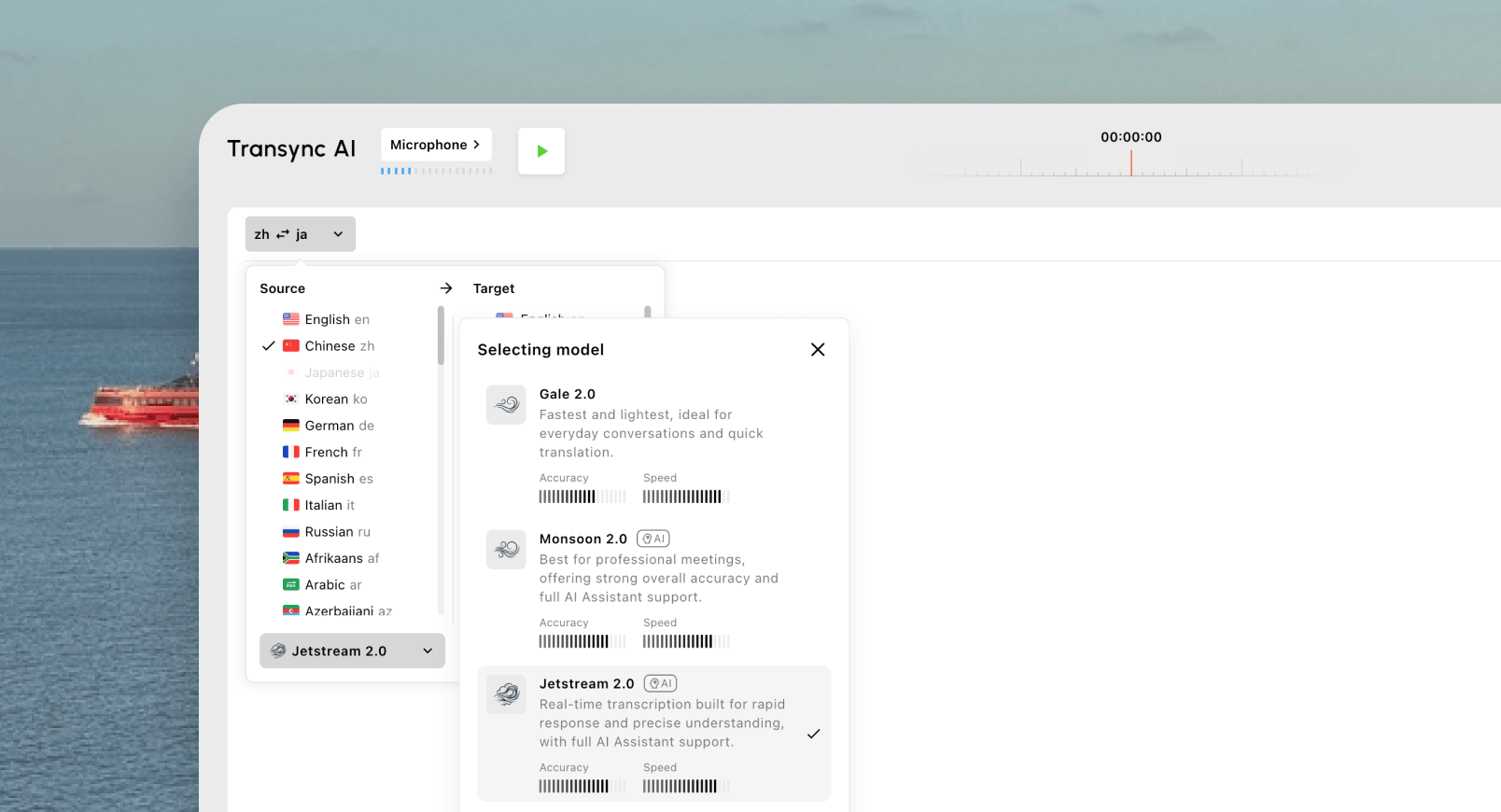
Google Translate live audio guide: learn how Live Translate, Conversation, Transcribe, headphones, and meeting translation workflows differ.
Google Translate live audio can help when typing is too slow and the language barrier is happening in real time.
You may need to order food while traveling, understand a train announcement, speak with someone face to face, follow a foreign-language lecture, or listen through headphones while another person talks.
Google Translate offers several speech-related features for these situations. However, they do not all work in the same way.
A one-sentence voice translation is different from a two-way conversation. Conversation mode is different from continuous transcription. Headphone-based Live Translate is different from translating a Zoom or Microsoft Teams meeting.
Understanding these differences helps you choose the correct mode—and recognize when a dedicated meeting translation tool may be more suitable.
Quick Answer: What Is Google Translate Live Audio?
The phrase Google Translate live audio generally refers to using Google Translate to listen to spoken language and produce translated text or audio with little delay.
Depending on the device, country, language, and application version, Google Translate may offer several related modes:
| Google Translate feature | What it does | Best for |
|---|---|---|
| Translate by speech | Translates a spoken word or short phrase | Quick questions and short responses |
| Conversation mode | Supports turn-by-turn bilingual conversation | Face-to-face travel conversations |
| Live Translate | Provides live speech translation with text, speakers, or headphones | Conversations, announcements, and listening |
| Face-to-Face mode | Splits the screen for two speakers | In-person bilingual communication |
| Text Only mode | Displays translations without audio playback | Quiet environments |
| Transcribe | Continuously translates longer speech in near real time | Lectures, speeches, and monologues |
| Google Meet Speech Translation | Translates speech during supported Meet calls | Selected Google Meet workflows |
The correct option depends on whether one person or two people are speaking, whether translated voice is needed, and whether the audio is a short phrase, a continuous speech, or an online meeting.
Google Translate Live Audio Is Not One Single Feature
Many users search for live audio translation and expect one button to handle every situation.
Google Translate instead separates speech translation into several workflows.

Translate by Speech
Translate by Speech is the simplest option.
A user selects two languages, taps the microphone, speaks a phrase, and receives a translation. In supported languages, the translated result can also be played aloud.
This works well for:
- Asking for directions
- Ordering food
- Checking into a hotel
- Translating a short question
- Pronouncing a phrase
- Confirming a price
- Communicating a basic request
It is less suitable for long, uninterrupted speech because the interaction is built around shorter units of input.
Conversation Mode
Conversation mode is designed for two people taking turns.
Google Translate can automatically detect when one selected language stops and the other begins. Translations can be displayed and played aloud through the phone speaker or connected headphones.
This makes it useful for:
- Travel conversations
- Informal face-to-face communication
- Short customer interactions
- Meeting someone who speaks another language
- Asking and answering basic questions
- Simple bilingual interviews
The experience still works best when both participants pause between turns and avoid speaking simultaneously.
Live Translate with Headphones
Google has expanded Live Translate so users can listen to real-time translations through compatible headphones.
The feature is intended for situations such as:
- Listening to someone speak another language
- Following an announcement
- Understanding a lecture
- Watching foreign-language media
- Joining a conversation while traveling
- Hearing translations without constantly looking at the screen
Google says the newer speech-to-speech system is designed to preserve more of the original speaker’s tone, emphasis, and cadence.
However, availability varies by:
- Country
- Mobile platform
- App version
- Language
- Connected headphones
- Account rollout
Users should update the Google Translate app and check whether the Live Translate option appears on their device.
Face-to-Face Mode
Face-to-Face mode divides the screen so each speaker can view the transcription and translation in the correct orientation.
This is helpful when two people are standing or sitting opposite one another.
Typical uses include:
- Hotel reception desks
- Store counters
- Exhibitions
- Campus visits
- Restaurant conversations
- Tourist information desks
- Informal office meetings
The split-screen format reduces the need to repeatedly turn the phone around.
Transcribe Mode
Transcribe is designed for longer, more continuous speech.
Google describes it as a way to translate in near real time while another person speaks. Examples include a lecture or speech.
Unlike a short voice query, Transcribe can continue processing spoken content and displaying the translation.
On supported Android workflows, users can save, rename, copy, and share transcripts afterward.
Transcribe is useful for:
- Lectures
- Presentations
- Speeches
- Classroom explanations
- Guided tours
- Longer monologues
- Public announcements
It is not the same as a full meeting assistant. It may not provide structured action items, detailed speaker management, business terminology controls, or a complete two-way meeting workflow.
1. Use Google Translate Live Audio for Short Face-to-Face Conversations
Google Translate is particularly convenient when two people are physically together and need immediate help.
A typical workflow is:
- Open the Google Translate mobile app.
- Select the two languages.
- Choose Live Translate or Conversation.
- Place the phone between both speakers.
- Speak in turns.
- Read or listen to each translation.
- Tap translated text to replay it when needed.
Tips for better results
- Speak one sentence at a time.
- Pause after each idea.
- Keep the phone close enough to hear clearly.
- Avoid speaking over the other person.
- Use ordinary sentence structure.
- Repeat important numbers.
- Show written names or addresses when possible.
For travel and everyday conversations, this setup is usually faster than typing every sentence.
 2. Use Headphones When You Mainly Need to Listen
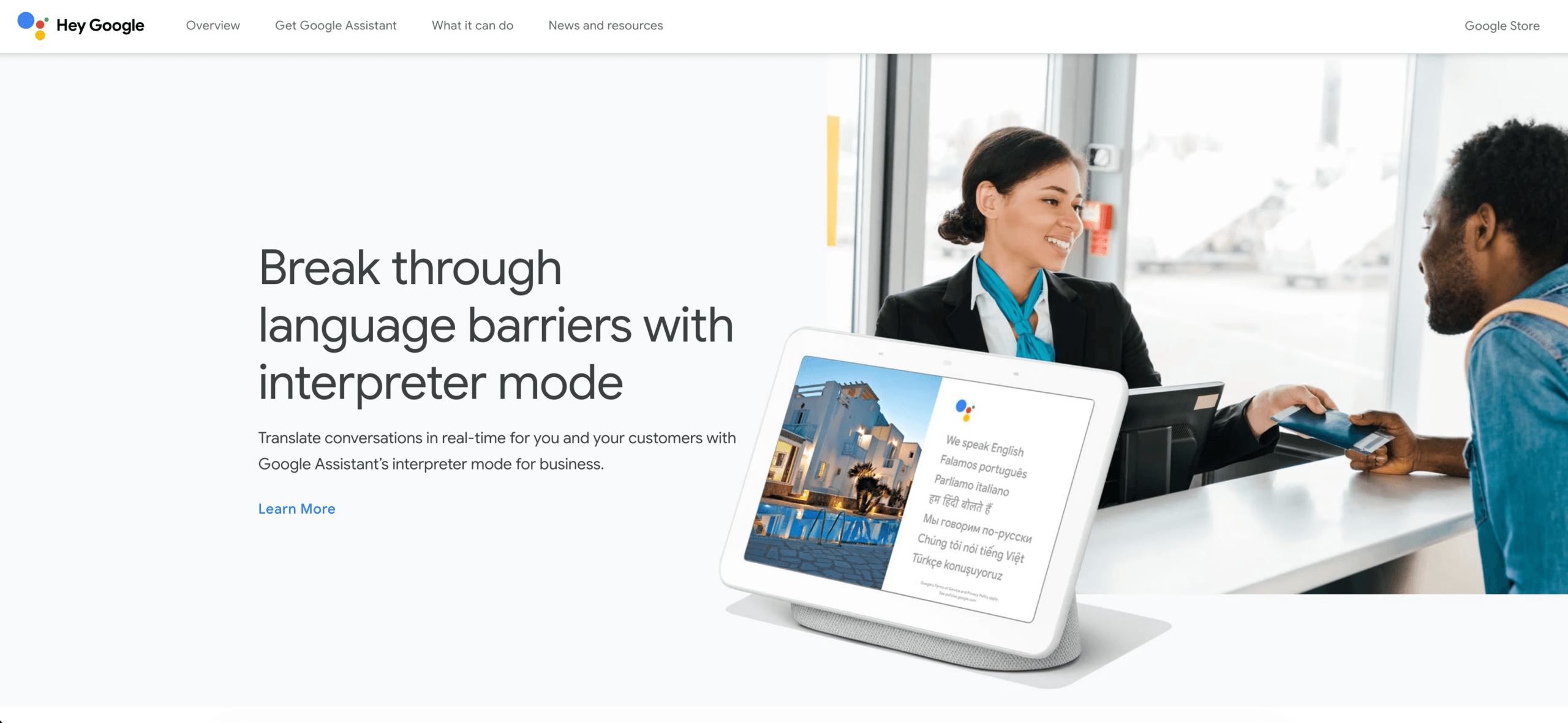 2. Use Headphones When You Mainly Need to Listen
Headphone translation is useful when the communication is mostly one-directional.
For example:
- A guide is speaking during a tour.
- A lecturer is presenting.
- A station announcement is playing.
- A group nearby is discussing something relevant.
- A television program is in another language.
- A family member is speaking at length.
Instead of holding the phone and reading continuously, users can hear the translated output through headphones.
When headphone translation is less suitable
It may be less practical when:
- Both people need frequent translated responses
- Several speakers talk at once
- The environment is extremely noisy
- The phone microphone is far from the speaker
- The conversation includes many technical terms
- The user needs a permanent, organized meeting record
- Other participants must hear the translated output
Headphone translation primarily helps the individual listener. It does not automatically create a complete multilingual meeting environment for everyone involved.
 3. Use Transcribe for Lectures and Longer Speech
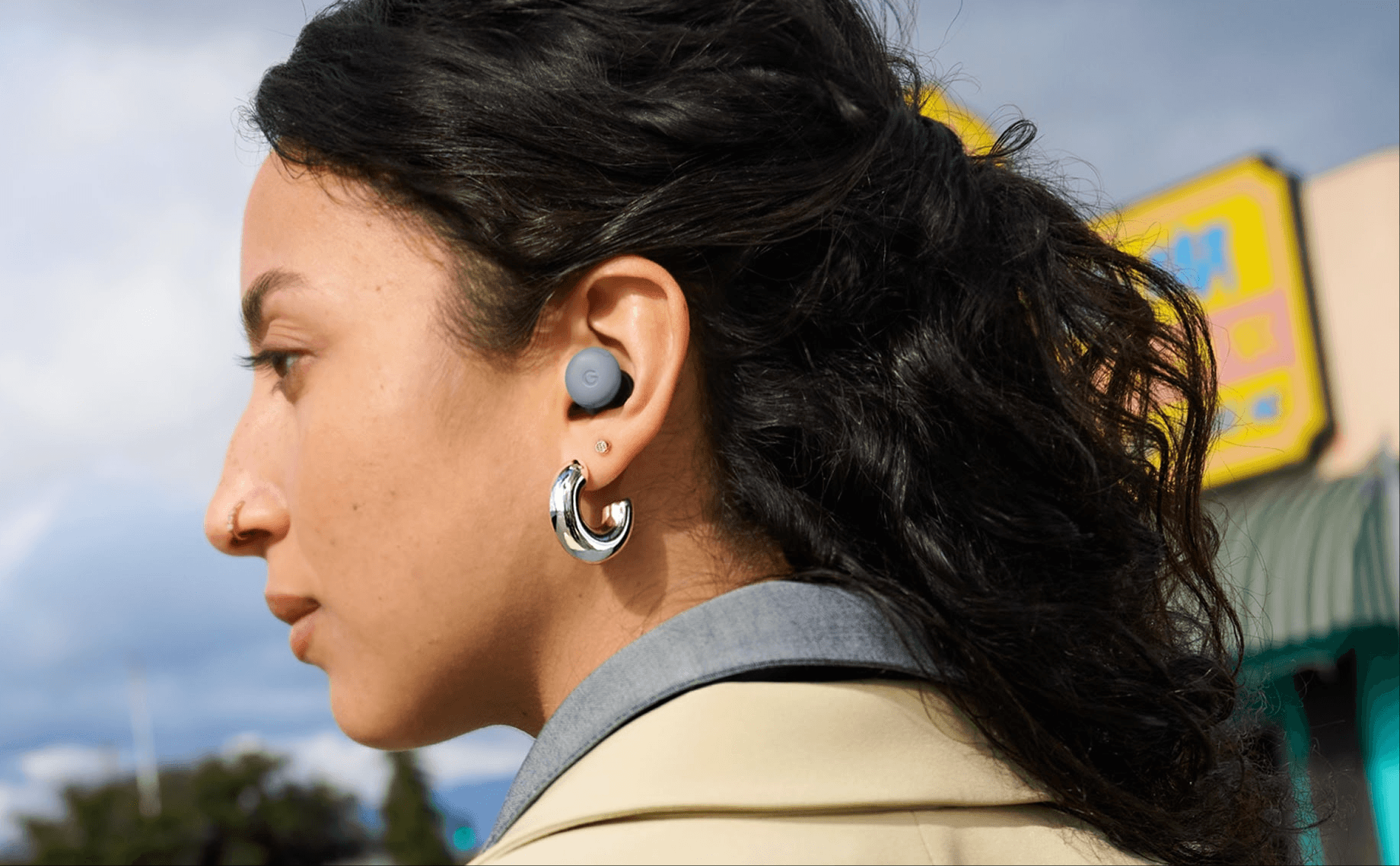 3. Use Transcribe for Lectures and Longer Speech
A continuous speech requires a different workflow from a two-person conversation.
Conversation mode expects turn-taking. Transcribe is more appropriate when one person speaks for an extended period.
Example scenarios
- A university lecture
- A conference presentation
- A public speech
- A classroom explanation
- A guided tour
- A training session
- A recorded interview played aloud
What to check before relying on Transcribe
- Is the source language supported?
- Is the speaker close enough to the microphone?
- Is the internet connection stable?
- Can the transcript be saved on the current platform?
- Are names and numbers being recognized correctly?
- Does the speaker use specialized terminology?
- Will the user need a summary afterward?
For general understanding, Transcribe can be highly useful. For professional documentation, the resulting text should still be reviewed.
4. Do Not Assume Google Translate Web Works Like the Mobile App
The Google Translate website can translate individual spoken words and phrases through a computer microphone.
However, Google’s current help documentation states that the web version cannot continuously talk and translate at the same time in the way the mobile Live Translate workflow can.
This distinction matters for users who want to translate:
- Browser meetings
- Zoom calls
- Microsoft Teams sessions
- Google Meet discussions
- Webinars
- Desktop audio
- Long online presentations
Opening Google Translate in another browser tab does not automatically create a full live meeting translator.
The tool may not capture system audio from another application in the required way, distinguish between meeting participants, provide bilingual floating captions, or send translated voice back into the meeting.
For these scenarios, a meeting-focused translation tool may be easier to manage.
5. Know When a Dedicated Meeting Translator Is Better
Google Translate live audio is strong for travel, listening, quick conversations, and selected continuous-speech situations.
A professional multilingual meeting may require additional capabilities.
Examples include:
- Two-way translation over Zoom
- Bilingual subtitles throughout a Teams call
- Translated voice played to other participants
- Industry terminology
- Product names
- Speaker names
- Meeting summaries
- Action items
- Floating captions above presentation slides
- Long-session stability
- Translation records
Transync AI is designed around this type of workflow.
Google Translate Live Audio vs. Transync AI
| Requirement | Google Translate | Transync AI |
| Short voice translation | Supported | Supported through real-time translation |
| Face-to-face conversation | Strong mobile use case | Supported for live conversations |
| Full-page text translation | Supported | Not supported |
| Image and camera translation | Supported | Not supported |
| Offline text translation | Available for selected languages | Not available |
| Continuous speech transcription | Available for selected languages | Live translation records and AI notes |
| Two-way meeting translation | Limited outside dedicated Google workflows | Core function |
| Zoom support | No dedicated standalone Zoom workflow | Runs alongside Zoom |
| Microsoft Teams support | No dedicated standalone Teams workflow | Runs alongside Teams |
| Google Meet support | Separate Google Meet features may be available | Runs alongside Google Meet |
| Bilingual side-by-side subtitles | Available in some mobile modes | Core interface |
| Translated voice output | Available in supported speech modes | AI voice broadcast |
| Voice cloning | Not a standard Google Translate feature | Supported |
| Custom keywords | Limited | Supported |
| Meeting context | Limited | Supported |
| AI meeting notes | Not a core Google Translate feature | Supported |
| Floating subtitles above desktop apps | Not a standard Google Translate workflow | Supported on compatible platforms |
The two products are not direct replacements in every scenario.
Google Translate is a broad translation utility covering text, images, speech, handwriting, offline language packs, and travel-oriented communication.
Transync AI is more specialized around continuous multilingual speech, online meetings, translated voice, bilingual captions, and meeting documentation.
How Transync AI Handles Live Meeting Audio
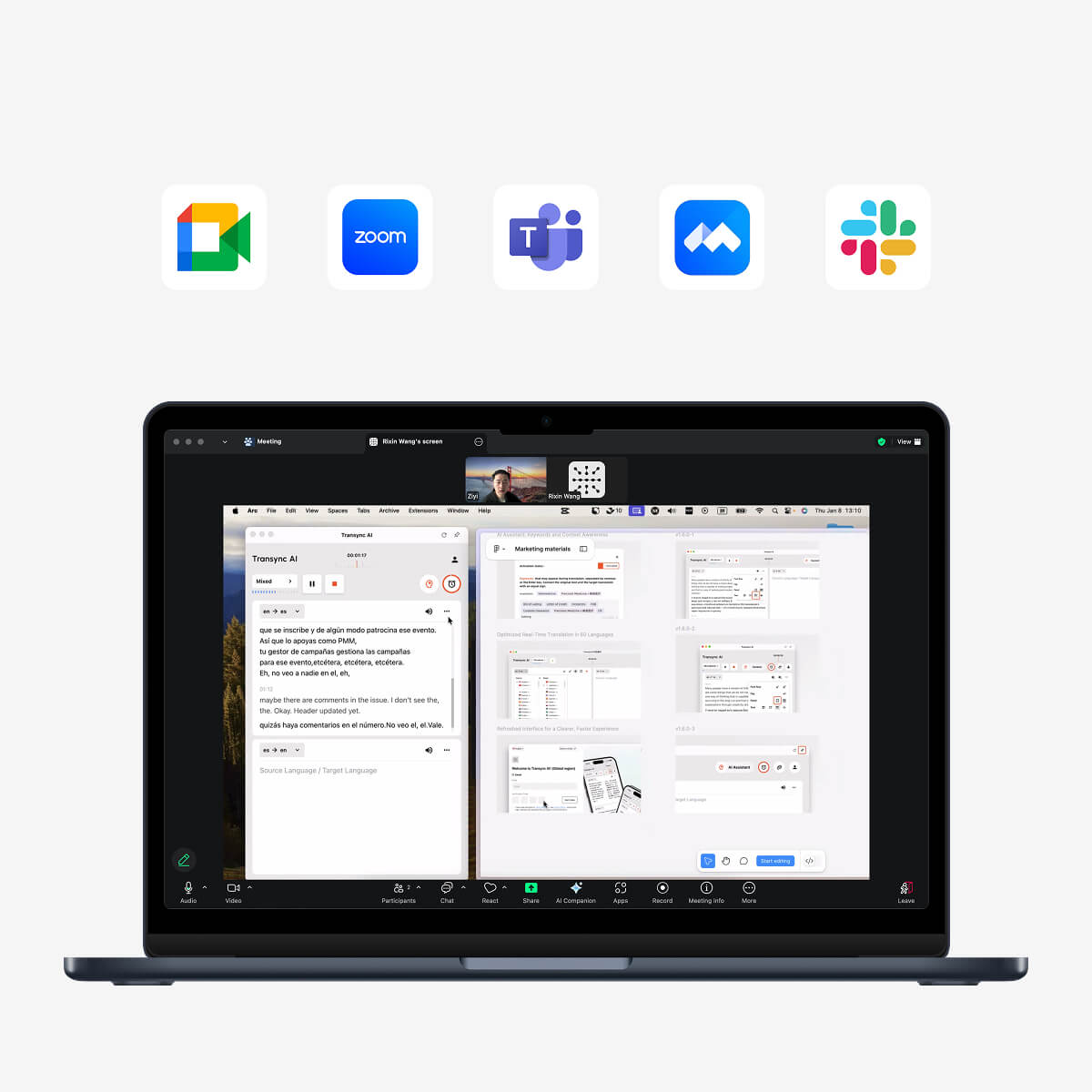
Transync AI runs as standalone software rather than as a browser extension or meeting plugin.
It can be used alongside:
- Zoom
- Microsoft Teams
- Google Meet
The workflow includes:
- Two-way translation in 60 languages
- More than 1,000 language pairs
- Automatic distinction between the two selected languages
- Original and translated subtitles
- AI voice broadcast
- Multiple voice options
- Voice preview
- Voice cloning
- Keywords and context
- AI meeting notes
- Picture-in-Picture subtitles
This is useful when translation must support participation rather than only listening.
Explore AI Live Meeting Translation for Zoom, Teams, and Google Meet.
Keywords and Context for Technical Conversations
Live translation becomes more difficult when the conversation includes specialist language.
Examples include:
- Brand names
- Product models
- Personal names
- Abbreviations
- Medical or scientific terms
- Engineering vocabulary
- Industry-specific meanings
Consider the sentence:
John from the APAC engineering team will review the Model X300 photovoltaic inverter specifications.
A general system may misunderstand:
- John
- APAC
- Model X300
- Photovoltaic inverter
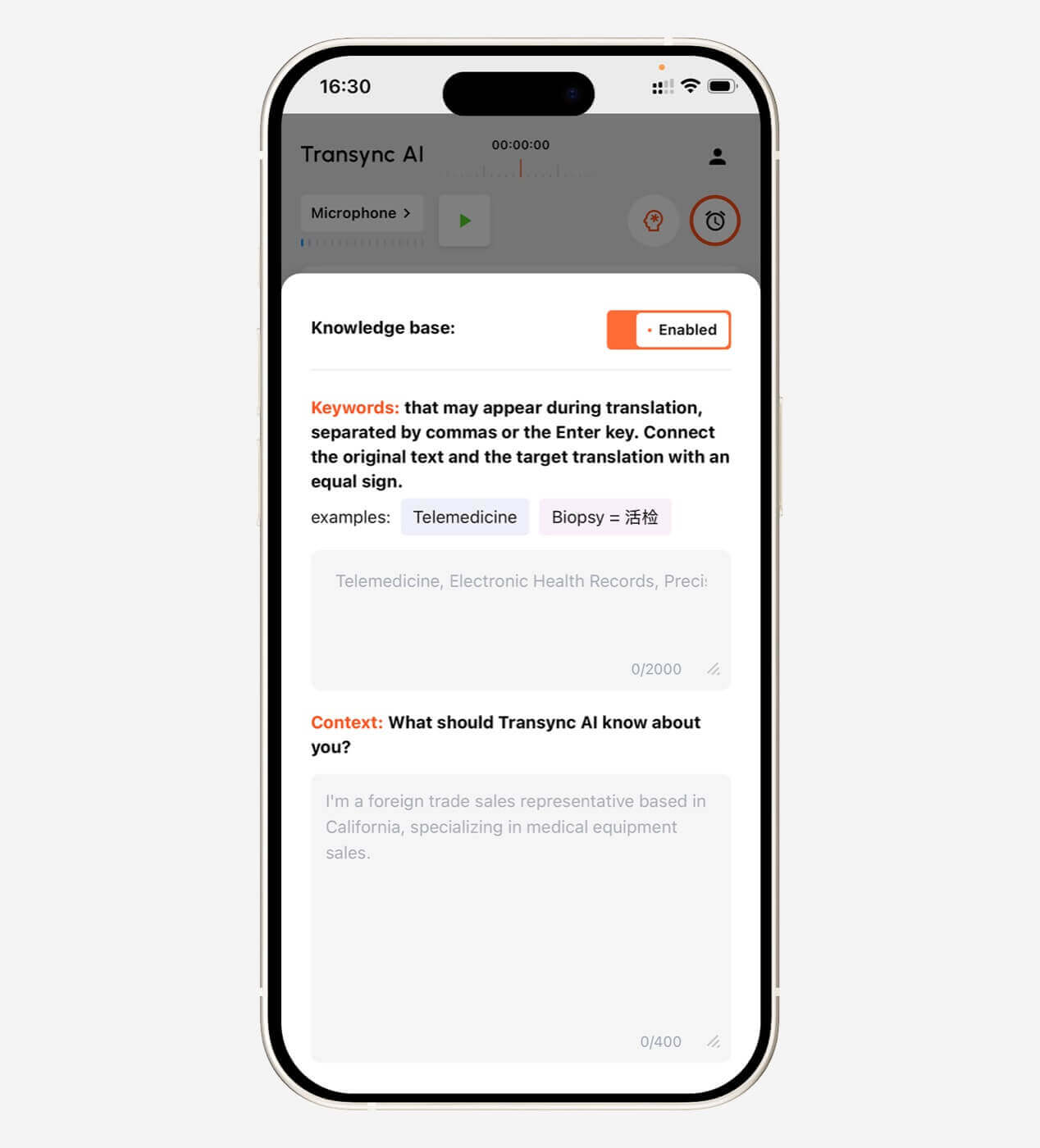
Transync AI allows users to enter keywords such as:
- Transync AI = 同言翻译
- photovoltaic inverter
- Model X300
- APAC
- John Smith
- semiconductor packaging
- supply chain optimization
Users can also add context:
This is a supplier meeting about renewable energy equipment, technical specifications, installation schedules, production capacity, and regional compliance.
This can improve terminology consistency in professional meetings.
Learn more from AI Assistant Keywords Context.
 How to Use Transync AI for Online Meeting Audio
 How to Use Transync AI for Online Meeting Audio
Step 1: Select the language pair
Choose the two languages used in the meeting.
Examples:
- English ↔ Spanish
- English ↔ Japanese
- Chinese ↔ English
- Korean ↔ English
- French ↔ German
Step 2: Add keywords
Enter names, product models, abbreviations, and technical terms.
Step 3: Describe the meeting
Add information about the industry, participants, and discussion topic.
Step 4: Join the meeting
Open Zoom, Microsoft Teams, or Google Meet normally.
Step 5: Start Transync AI
Choose the appropriate audio source and begin translation.
Step 6: Enable voice output if needed
For other participants to hear translated audio, system-audio or virtual-microphone setup may be required.
Step 7: Use floating subtitles
Activate Picture-in-Picture mode to keep bilingual captions visible while viewing slides, documents, or other applications.
Step 8: Review the notes
After the meeting, verify the AI meeting notes, names, dates, numbers, decisions, and action items.
Google Translate Live Audio for Travel vs. Business
The best tool depends on the situation.
| Scenario | Recommended workflow |
| Asking for directions | Google Translate Speech or Conversation |
| Ordering food | Google Translate Conversation |
| Listening to an announcement | Live Translate with headphones |
| Following a lecture | Google Translate Transcribe |
| Reading a sign | Google Translate camera translation |
| Translating a webpage | Google Translate web or browser translation |
| Joining a bilingual Zoom call | Dedicated meeting translator |
| Running a multilingual supplier meeting | Meeting translator with terminology controls |
| Presenting translated speech | Tool with voice output and audio routing |
| Creating action items after a call | Tool with AI meeting notes |
| Legal or medical discussion | Professional human interpreter |
How to Improve Live Audio Translation Accuracy
The following practices help across most speech translation tools.
Use a clear microphone
Place the microphone close enough to the speaker and avoid covering it.
Reduce background noise
Turn off nearby media, close noisy windows, and move away from crowds when possible.
Speak in complete thoughts
Very long or fragmented sentences are harder to translate accurately.
Pause naturally
A short pause gives the system time to identify sentence boundaries.
Avoid overlapping speech
Two speakers talking simultaneously may cause missing or mixed output.
Repeat numbers
Dates, prices, addresses, and quantities should be confirmed.
Check proper names
Names and brands often resemble ordinary words.
Add terminology when possible
For professional tools, prepare keywords and context before the session.
Use headphones carefully
Headphones improve listening privacy but may change how translated audio is shared with others.
Common Google Translate Live Audio Problems
The Live Translate button does not appear
Possible reasons include:
- The app is not updated
- The feature has not reached the account or region
- The language is unsupported
- The selected mode requires headphones
- The device platform does not yet support the feature
- The rollout is still in progress
The microphone does not detect speech
Check:
- Microphone permissions
- Bluetooth microphone selection
- Device volume
- Distance from the speaker
- Background noise
- Internet connectivity
The translation stops between sentences
The app may be waiting for the next speaker, processing a pause, or treating the current speech as complete.
Try speaking more clearly and avoiding long silent gaps.
The translation uses the wrong language
Confirm both selected languages and avoid using language detection when the source language is already known.
The audio overlaps the speaker
Voice output takes time. Ask participants to pause briefly before responding.
For fast professional conversation, subtitles may be less disruptive than translated voice.
The transcript contains incorrect names
Spell or show the name in writing. For business meetings, use a tool that supports custom keywords.
Privacy Considerations
Live audio translation requires microphone access.
Before translating professional or sensitive conversations:
- Inform participants
- Review local recording and privacy laws
- Check the service’s data policy
- Avoid unnecessary confidential information
- Confirm how transcripts are stored
- Limit access to meeting records
- Delete data that no longer needs to be retained
Transync AI states that user data is not used for AI training. Organizations should still review the complete privacy and compliance documentation before using any translation service for confidential communication.
Limitations of Google Translate Live Audio
Google Translate is useful, but it is not a guaranteed replacement for a human interpreter.
Common limitations include:
- Background noise
- Strong accents
- Regional slang
- Several people speaking together
- Technical terms
- Ambiguous sentences
- Fast speech
- Microphone quality
- Internet connectivity
- Feature availability by region
- Different language support across modes
Its broad feature set also means some workflows are intentionally lightweight.
For example, Google Translate is not primarily designed as a complete business meeting workspace with terminology preparation, floating desktop captions, action items, and organization-level user management.
Limitations of Transync AI
Transync AI also has clear boundaries:
- Offline mode is not available
- Image recognition is not supported
- Static text translation is not its primary use
- It is standalone software rather than a meeting plugin
- Usage is counted cumulatively across devices
- Network and audio quality affect performance
- Human review is still needed for high-stakes information
This makes Transync AI more suitable for live multilingual speech than for signs, scanned images, webpages, or offline travel translation.
When Should You Use a Human Interpreter?
Use a qualified interpreter when an error could affect:
- Medical treatment
- Legal rights
- Contract terms
- Personal safety
- Immigration status
- Financial decisions
- Regulatory compliance
- Government proceedings
- Sensitive employee matters
Google Translate and Transync AI can reduce language barriers in routine communication. They do not assume professional responsibility for the consequences of an incorrect translation.
FAQ: Google Translate Live Audio
What is Google Translate live audio?
Google Translate live audio refers to speech translation features that listen to spoken language and produce translated text or voice with little delay.
How do I use Live Translate?
Open the Google Translate mobile app, select the languages, tap Live Translate, and choose a mode such as Conversation, Text Only, Listening, or custom output settings where available.
Can Google Translate translate a live conversation?
Yes. Conversation and Live Translate modes can support turn-by-turn communication between two selected languages.
Can I hear translations through headphones?
Yes, in supported regions, languages, platforms, and app versions. Google’s newer Live Translate workflow supports real-time translated audio through connected headphones.
Can Google Translate continuously translate a lecture?
The Transcribe feature is designed for near-real-time translation of longer speech such as lectures and presentations, but supported languages differ from other translation modes.
Can I use Google Translate live audio on a computer?
The web version can translate spoken words and phrases, but Google currently directs users to the mobile app for simultaneous continuous talk-and-translate workflows.
Can Google Translate translate a Zoom call?
It is not designed as a universal standalone Zoom meeting translator. A user may attempt device-level workarounds, but a dedicated meeting translation tool generally offers a more complete workflow.
Can Transync AI translate Zoom audio?
Yes. Transync AI can run alongside Zoom, Microsoft Teams, and Google Meet to provide bilingual subtitles and translated voice workflows.
Does Transync AI support AI voice output?
Yes. It supports AI voice broadcast, multiple voices, voice preview, and voice cloning.
Does Google Translate work offline?
Selected text-translation language packs are available offline. Live speech features may require connectivity and differ by language and mode.
Does Transync AI work offline?
No. Transync AI currently requires an internet connection.
Final Thoughts: Use Google Translate Live Audio for the Right Job
Google Translate live audio is most useful when speed and convenience matter more than a complex professional workflow.
It works especially well for:
- Travel
- Short face-to-face conversations
- Quick questions
- Announcements
- Listening through headphones
- Lectures and speeches
- Everyday multilingual communication
Its speech features now cover several different modes, so users should choose carefully between short speech translation, conversation, Live Translate, Face-to-Face, and Transcribe.
For multilingual business meetings, the requirements often go further.
Teams may need two-way translation, bilingual subtitles, technical keywords, translated voice, floating captions, meeting notes, and support across Zoom, Microsoft Teams, and Google Meet.
Transync AI is designed for that workflow.
The best choice is not based only on which tool supports more languages. It depends on whether you are translating a phrase, listening to a speech, talking face to face, or trying to keep an international meeting moving.
To explore a meeting-focused alternative, visit Transync AI, review the live meeting translation workflow, or download the application for your preferred device.