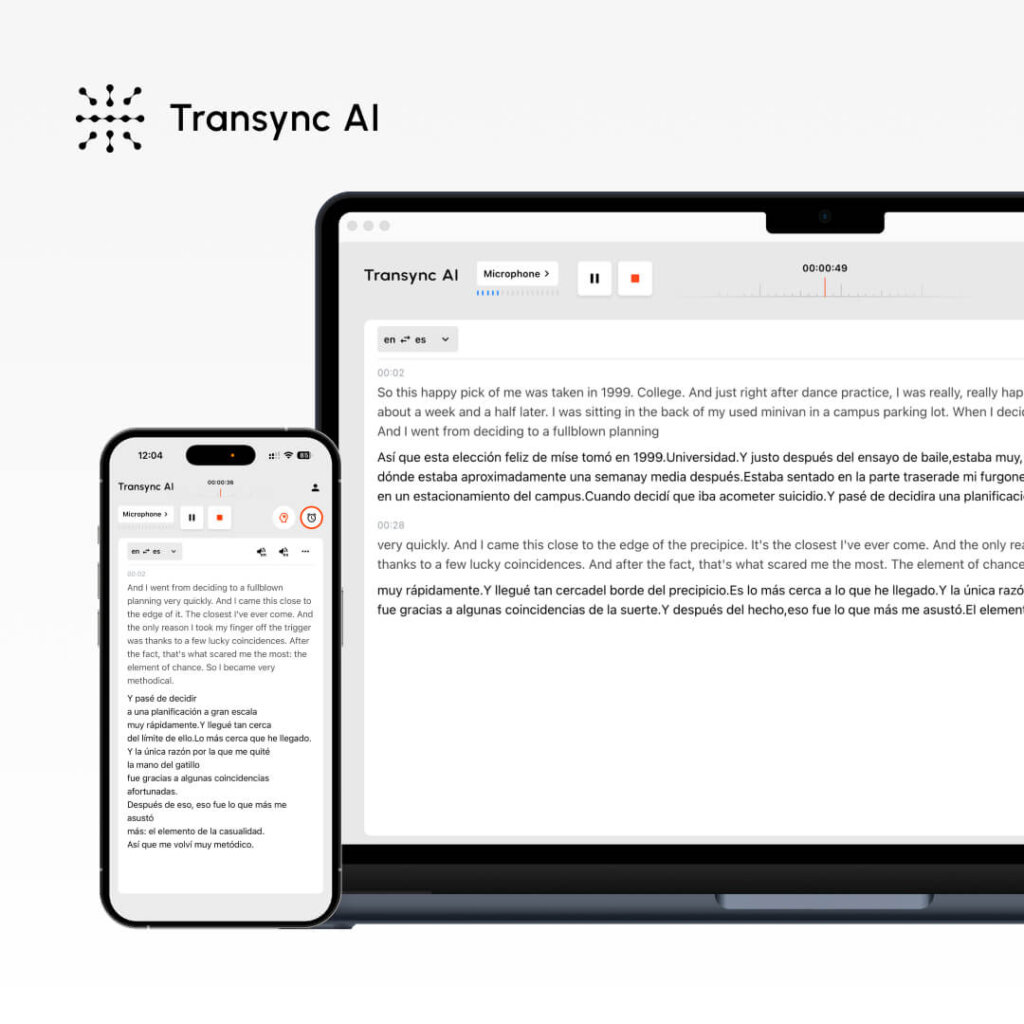
Vuoi usare la traduzione in tempo reale ma non sai come impostarla? La traduzione in tempo reale può sembrare complessa, ma le soluzioni moderne la rendono incredibilmente semplice, se si conoscono i passaggi giusti.
Questa guida completa ti guiderà passo passo nell'utilizzo efficace di Live Translate, dalla configurazione iniziale alle funzionalità avanzate. Che tu stia conducendo una chiamata di vendita internazionale, gestendo una riunione di team distribuiti o ospitando un webinar multilingue, imparerai esattamente come utilizzare Live Translate per una comunicazione fluida.
Ci concentreremo su Transync AI (la soluzione più semplice) e copre anche JotMe e altri, così puoi scegliere la soluzione più adatta alle tue esigenze.
Cos'è Live Translate? (E perché ne hai bisogno)
Traduzione in tempo reale Converte il linguaggio parlato in un'altra lingua in tempo reale durante le riunioni. A differenza della traduzione tradizionale (che richiede l'attesa dell'interprete), la traduzione in tempo reale avviene istantaneamente, consentendo una conversazione naturale tra parlanti di lingue diverse.
Scenari comuni in cui si utilizza la traduzione in tempo reale:
✅ chiamate di vendita – Rappresentante commerciale inglese che chiama un potenziale cliente di lingua spagnola ✅ Riunioni di squadra – Team distribuito con più lingue native ✅ Assistenza clienti – Addetto all'assistenza in inglese che aiuta un cliente spagnolo ✅ Webinar – Presentatore che parla inglese a un pubblico internazionale ✅ Conferenze – Numerosi relatori e partecipanti in diverse lingue ✅ Colloqui di lavoro – Intervistatore e candidato parlano lingue diverse ✅ Sessioni di formazione – Insegnanti e studenti di ogni livello linguistico ✅ Trattative commerciali – Discussioni multi-partito in più lingue ✅ Chiamate vocali WhatsApp – Traduzione in tempo reale nelle chiamate personali/professionali ✅ Incontri di persona – Discussioni multilingue faccia a faccia con sottotitoli
Vantaggi principali della traduzione in tempo reale: Nessuna attesa per l'interpretazione. La conversazione scorre in modo naturale e in tempo reale.
Come usare Live Translate: Transync AI (opzione più semplice)
Passaggio 1: crea il tuo account Transync AI
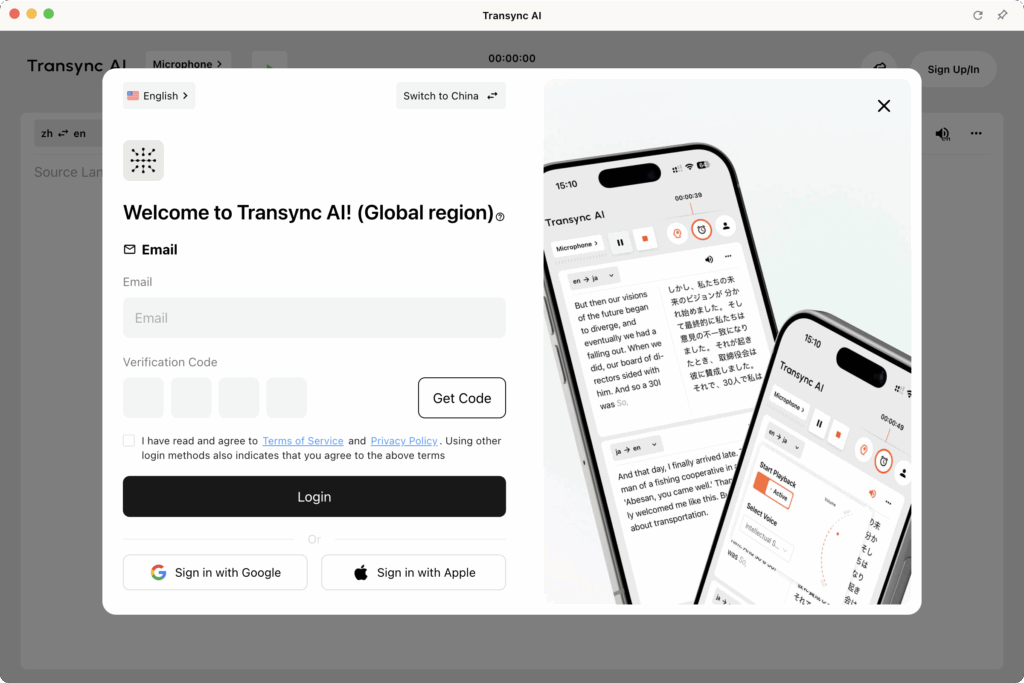
Tempo richiesto: 2 minuti
Processo:
- Visita il sito web di Transync AI (transync.ai)
- Fai clic su "Iscriviti" o "Inizia"“
- Inserisci il tuo indirizzo email
- Crea password (minimo 8 caratteri, inclusi maiuscole/minuscole/numeri)
- Verifica email (controlla la posta in arrivo per il link di verifica)
- Fare clic sul collegamento di verifica (accesso automatico)
Cosa ottieni:
- ✅ Prova gratuita di traduzione in tempo reale di 40 minuti (solo il primo mese)
- ✅ Accesso a tutte le funzionalità durante la prova
- ✅ Supporto completo in 60 lingue
- ✅ Accesso alla piattaforma (Zoom, Teams, Meet, Webex, WhatsApp)
Consiglio da professionista: Crea un account almeno 24 ore prima del tuo primo incontro per assicurarti che tutto sia impostato correttamente.
Passaggio 2: preparare la configurazione audio
Tempo richiesto: 2-3 minuti (una tantum)
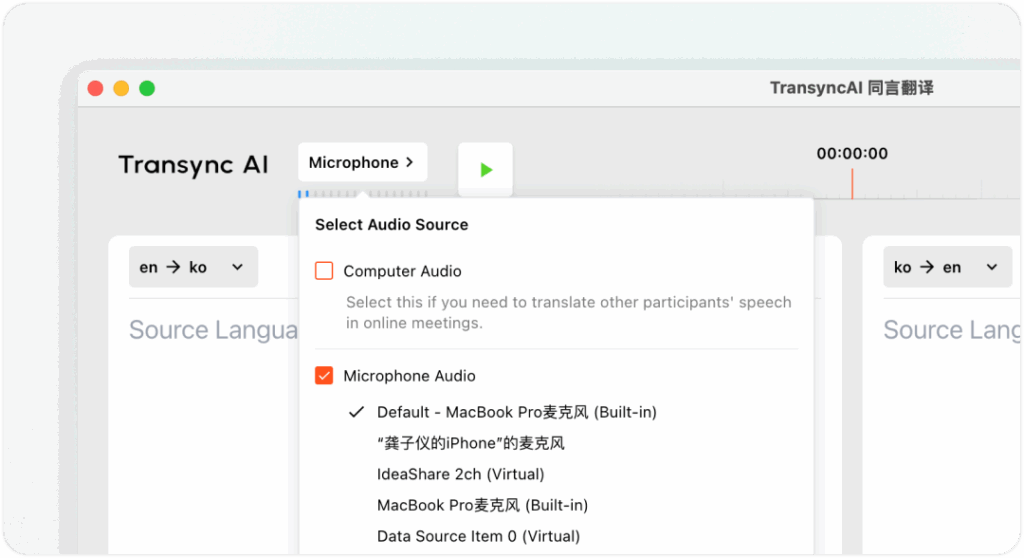
Perché è importante: Transync AI cattura l'audio dal tuo computer o dal microfono per tradurre il tuo discorso e trasmetterlo ai partecipanti alla riunione. Una corretta configurazione audio garantisce:
- ✅ Acquisizione audio chiara (traduzione accurata)
- ✅ Rilevamento corretto del microfono (riconosce la tua voce)
- ✅ Configurazione dell'uscita dell'altoparlante (gli altri ascoltano le traduzioni)
Passaggi di installazione:
1. Controlla il tuo microfono:
- Apri le impostazioni di Transync AI
- Vai su “Ingresso audio”
- Seleziona il tuo microfono (solitamente "Microfono predefinito" o il nome del tuo dispositivo)
- Fare clic su "Prova microfono"“
- Di' qualche parola
- Conferma di sentire la riproduzione
2. Controlla l'altoparlante/uscita audio:
- Vai su "Uscita audio"“
- Seleziona il tuo altoparlante (solitamente "Altoparlante predefinito" o il nome del dispositivo)
- Fare clic su "Test altoparlante"“
- Conferma di aver sentito l'audio del test
3. Per le riunioni di persona (con sottotitoli):
- Collegare un altoparlante esterno o delle cuffie
- Assicurarsi che il volume dell'altoparlante sia adeguato per tutti i partecipanti
- Transync AI visualizzerà i sottotitoli + riprodurrà le traduzioni ad alta voce
Per la scatola audio del computer:
- In Transync AI, seleziona la casella "Audio del computer"
- Ciò consente a Transync AI di catturare l'audio del sistema (le voci degli altri relatori)
- Essenziale per l'integrazione Zoom/Teams/Meet/Webex
- Garantisce che Transync AI ascolti tutti i partecipanti alla riunione
Consiglio da professionista: Effettuare un test audio 5 minuti prima di riunioni importanti per evitare problemi tecnici.
Passaggio 3: configura le impostazioni di traduzione in tempo reale
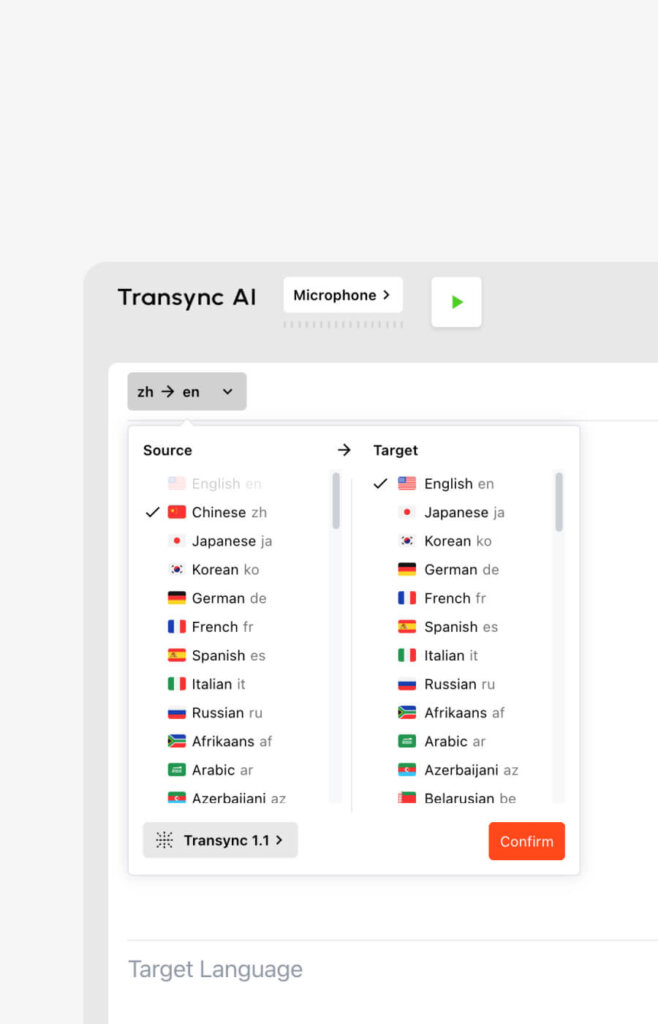
Tempo richiesto: 1-2 minuti (base) o 3-5 minuti (avanzato)
Impostazioni di base (2 minuti):
- Accedi a Transync AI
- Vai su “Impostazioni” nel cruscotto
- Seleziona “Traduzione”
- Scegli la tua lingua madre (ciò di cui parli)
- Scegli la lingua di destinazione (quello che vuoi sentire)
Importante: Transync AI rileva automaticamente le lingue durante la riunione, quindi queste sono le impostazioni predefinite ma non le restrizioni.
Impostazioni avanzate: impostazione di parole chiave e contesto (facoltativo, per una maggiore precisione)
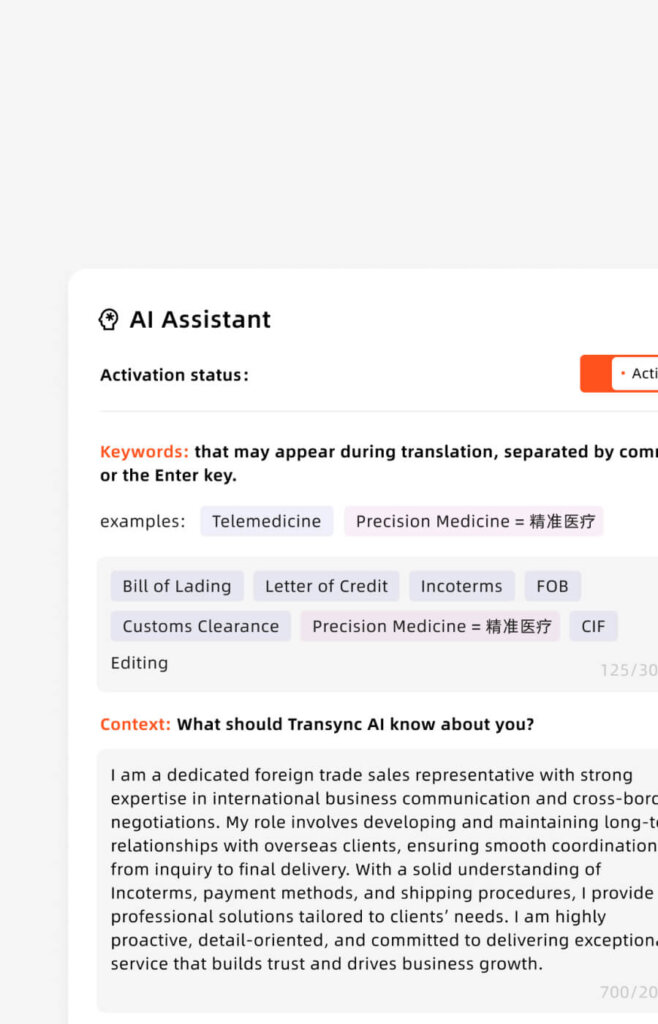
Quando usare: Solo per riunioni tecniche, specialistiche o importanti
Perché utilizzarlo: Precisione predefinita 95% → Con parole chiave: 95%+ (soprattutto in termini tecnici)
Passaggi:
- Vai su “Impostazioni” → “Parole chiave e contesto”
- Fai clic su "Aggiungi parole chiave"“
- Inserisci termini specifici del settore (separati da virgole)
- Esempio: “API, microservizi, pipeline di distribuzione, GitHub”
- Esempio: “farmaceutico, molecola, biomarcatore, approvazione FDA”
- Esempio: “contratto, clausola di responsabilità, proprietà intellettuale, royalties”
- Fai clic su "Aggiungi traduzioni"“ (facoltativo – definire come devono essere tradotti)
- Esempio: “API = Interfaz de Programación de Aplicaciones (mantieni come API in spagnolo)”
- Esempio: “GitHub = GitHub (termine tecnico, nessuna traduzione)”
- Aggiungi contesto (di cosa tratta il tuo incontro)
- Esempio: "Questa è una discussione tecnica di ingegneria del software"“
- Esempio: "Questa è una trattativa commerciale per una partnership farmaceutica"“
- Salva le impostazioni
Nota importante: L'impostazione della parola chiave/contesto è OPZIONALE. Per conversazioni informali, salta completamente questo passaggio. Per discussioni specialistiche, migliora notevolmente la precisione.
Investimento di tempo vs. beneficio:
- Tempo di installazione: 2-5 minuti
- Miglioramento della precisione: +3-5%
- Vale la pena per: riunioni tecniche/legali/mediche/di negoziazione
- Non vale la pena per: conversazioni casuali
Passaggio 4: avvia la riunione e attiva la traduzione in tempo reale
Tempo richiesto: 30 secondi
Per le riunioni Zoom:
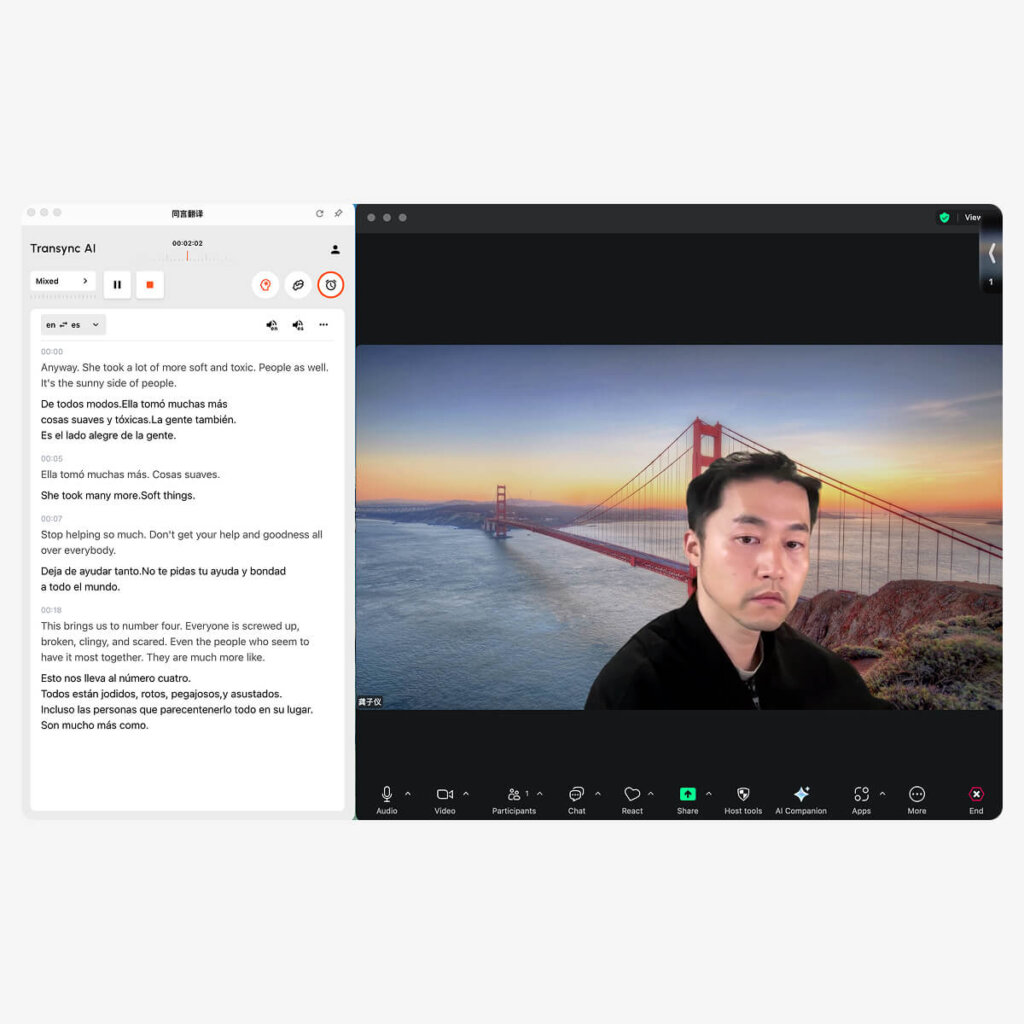
- Apri Transync AI (applicazione desktop o browser)
- Seleziona la tua coppia di lingue (ad esempio, inglese → spagnolo)
- Seleziona la casella "Audio del computer" ✅
- Fai clic su "Avvia traduzione"“
- Apri Zoom e inizia la riunione normalmente
- Transync AI ascolta automaticamente per ingrandire l'audio
- Appaiono le traduzioni in tempo reale nella finestra Transync AI
- Facoltativo: seleziona "Avvia riproduzione"“ nell'angolo in alto a destra
- Se selezionato: altri ascoltano la trasmissione audio tradotta
- Se non selezionato: solo tu vedi le traduzioni (gli altri non le sentono)
- Se si condivide lo schermo: Seleziona "Includi audio del computer" nelle opzioni di condivisione di Zoom
- Ciò consente la trasmissione dell'audio tradotto ai partecipanti
Per le riunioni di Microsoft Teams:

- Apri Transync AI (applicazione desktop o browser)
- Seleziona la tua coppia di lingue (ad esempio, inglese → spagnolo)
- Seleziona la casella "Audio del computer" ✅
- Fai clic su "Avvia traduzione"“
- Apri Teams e avvia la riunione normalmente
- Transync AI ascolta automaticamente all'audio di Teams
- Appaiono le traduzioni in tempo reale nella finestra Transync AI
- Facoltativo: seleziona "Avvia riproduzione"“ nell'angolo in alto a destra
- Se si condivide lo schermo: Seleziona "Includi audio di sistema" nelle opzioni di condivisione di Teams
Per le riunioni di Google Meet:
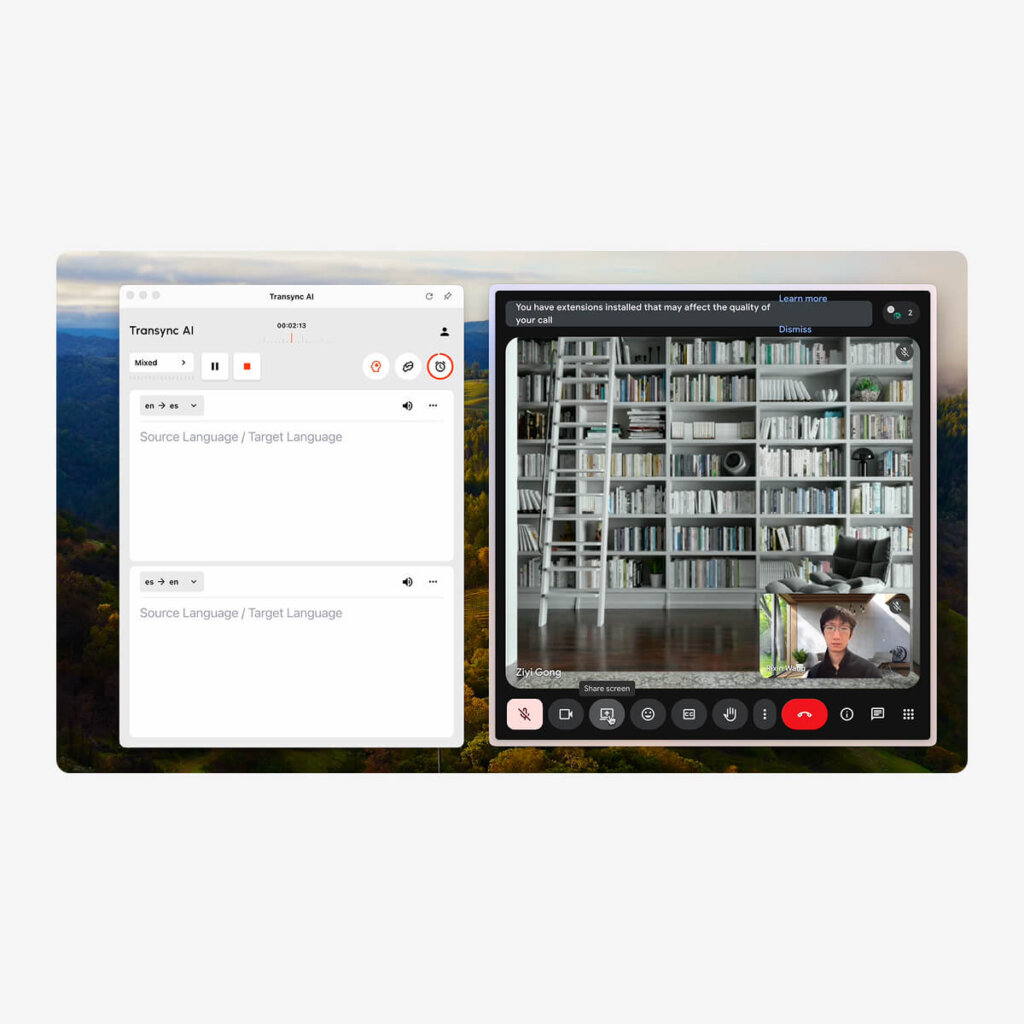
- Apri Transync AI (applicazione desktop o browser)
- Seleziona la tua coppia di lingue (ad esempio, inglese → spagnolo)
- Seleziona la casella "Audio del computer" ✅
- Fai clic su "Avvia traduzione"“
- Apri Google Meet e avvia la riunione normalmente
- Transync AI ascolta automaticamente per incontrare l'audio
- Appaiono le traduzioni in tempo reale nella finestra Transync AI
- Facoltativo: seleziona "Avvia riproduzione"“ nell'angolo in alto a destra
- Se si condivide lo schermo: Seleziona l'opzione "Condividi audio di sistema" in Meet
Per Webex Meetings:
- Apri Transync AI (applicazione desktop o browser)
- Seleziona la tua coppia di lingue
- Seleziona la casella "Audio del computer" ✅
- Fai clic su "Avvia traduzione"“
- Apri Webex e avvia la riunione normalmente
- Transync AI ascolta automaticamente all'audio Webex
- Appaiono le traduzioni in tempo reale nella finestra Transync AI
- Facoltativo: seleziona "Avvia riproduzione"“ nell'angolo in alto a destra
- Se si condivide lo schermo: Seleziona l'opzione "Condividi audio del computer"
Per le chiamate vocali WhatsApp (configurazione unica):
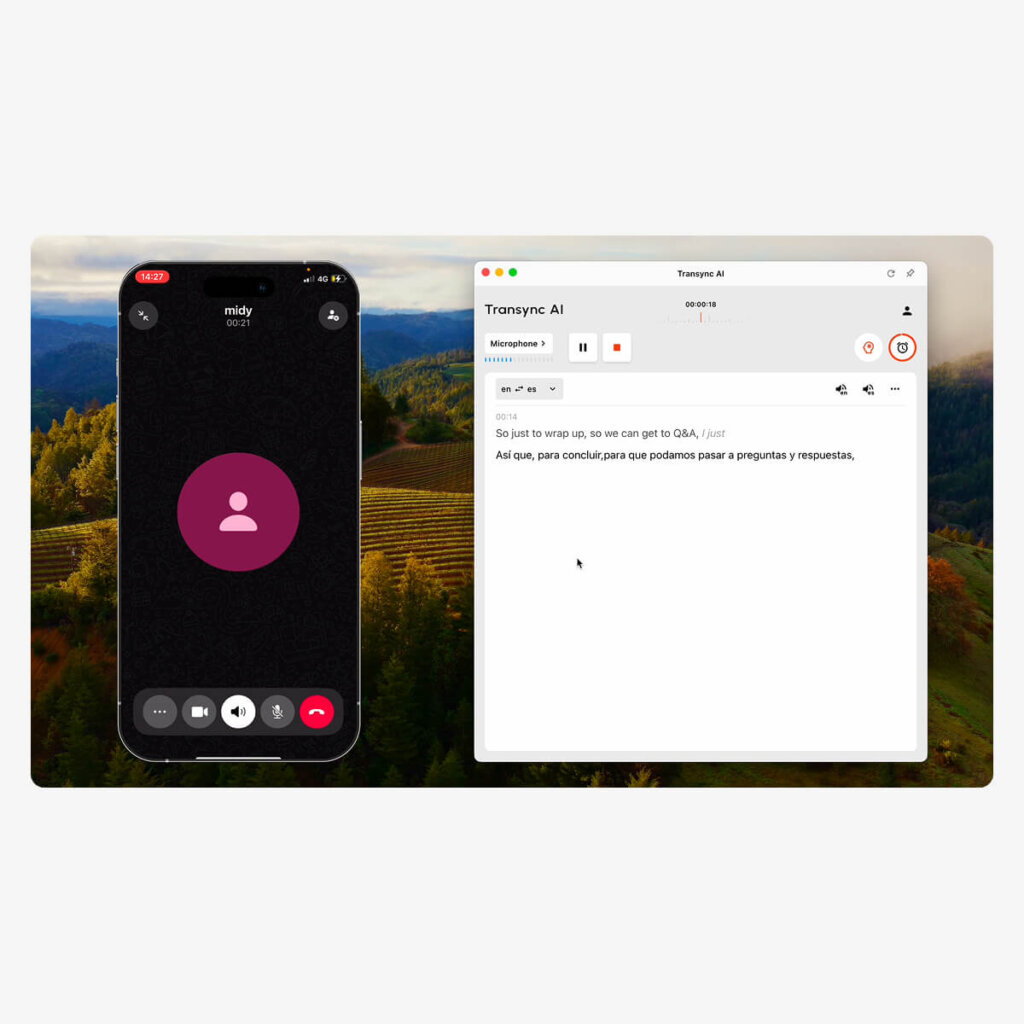
Importante: Le chiamate vocali di WhatsApp richiedono una configurazione diversa poiché avvengono su telefono cellulare:
- Apri Transync AI sul tuo computer (applicazione desktop)
- Conferma la selezione della sorgente del microfono (il microfono del tuo computer)
- Fai clic su "Avvia traduzione"“
- Apri WhatsApp sul tuo telefono
- Avvia o ricevi una chiamata vocale sul tuo telefono
- Attiva il vivavoce per la tua chiamata WhatsApp
- Tieni il telefono vicino al microfono del computer (così l'intelligenza artificiale Transync può sentire)
- OPPURE usa l'altoparlante Bluetooth per una migliore acquisizione audio
- Transync AI ascolterà e fornire traduzioni in tempo reale
- Vedi traduzioni nella finestra Transync AI sul tuo computer
- Facoltativo: seleziona "Avvia riproduzione"“ per ascoltare l'audio tradotto
- Al termine della chiamata:
- Clic “"FINE"” pulsante in Transync AI
- Ricevi automaticamente la trascrizione e il verbale della riunione
Nota: Per una migliore qualità di WhatsApp, utilizza l'altoparlante Bluetooth o la modalità altoparlante per garantire una cattura audio nitida.
Per incontri di persona (faccia a faccia):
- Imposta l'ingresso e l'uscita audio
- Il microfono cattura il discorso dalla sala riunioni
- L'oratore trasmette le traduzioni ai partecipanti
- Assicurare che la qualità audio sia chiara (ridurre al minimo il rumore di fondo)
- Seleziona le lingue di origine e di destinazione
- Esempio: inglese → spagnolo
- Esempio: Inglese → Mandarino + Spagnolo (più lingue di destinazione)
- Fare clic su "Avvia"“ per iniziare la traduzione
- I partecipanti parlano in modo naturale nella loro lingua preferita
- Transync AI visualizza i sottotitoli sullo schermo viene visualizzato:
- Trascrizione in lingua originale
- Traduzione in tempo reale
- L'audio viene trasmesso così tutti ascoltano le traduzioni
- Dopo l'incontro: Riepilogo generato dall'intelligenza artificiale + trascrizione completa automaticamente disponibile
Fase 5: Durante la riunione: utilizzo di Live Translate
Gestione della traduzione:
Pausa/Riprendi traduzione:
- Fare clic sull'icona di pausa se si desidera parlare solo nella lingua madre
- Fare clic su Riprendi per riavviare la traduzione
- Utile per conversazioni riservate
- Stato: Traduzione sospesa/ripresa immediatamente
Cambia lingua a metà riunione:
- Fare clic sul menu a discesa della lingua in Transync AI
- Seleziona una coppia di lingue diversa
- L'intelligenza artificiale di Transync si adatta istantaneamente (latenza <100 ms)
- Utile se un nuovo partecipante si unisce parlando una lingua diversa
Trascrizione del monitoraggio in diretta:
- La trascrizione in tempo reale appare nel pannello Transync AI
- Mostra sia il testo originale che quello tradotto
- Ricercabile in tempo reale
- Aiuta a verificare l'accuratezza della traduzione
Abilita/Disabilita riproduzione:
- “Il pulsante "Avvia riproduzione" controlla se gli altri ascoltano le traduzioni
- Abilitato: i partecipanti alla riunione ascoltano l'audio tradotto
- Disabilitato: solo tu vedi le traduzioni (gli altri non lo sanno)
- Può essere attivato/disattivato durante la riunione
Condividi il contenuto tradotto:
- Fare clic sul pulsante "Condividi" per visualizzare la traduzione sullo schermo
- Utile per la presentazione a un pubblico tradotto
- Mostra l'originale + la traduzione affiancati
Fase 6: Dopo la riunione: accedi ai record di traduzione in tempo reale
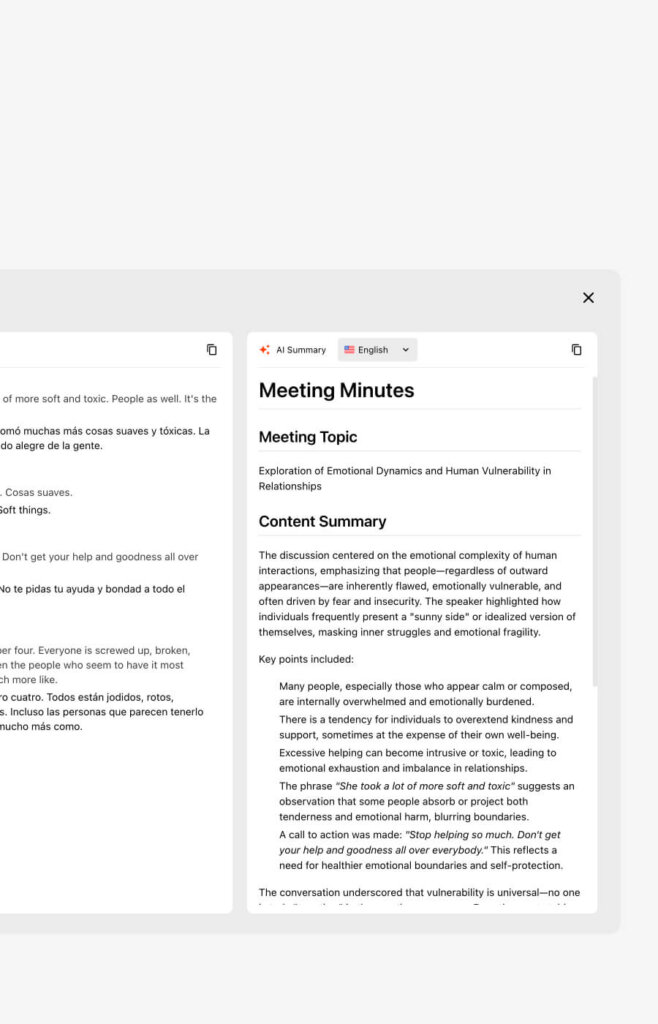
Tempo richiesto: Immediato (automatico)
Disponibile subito dopo la riunione:
- Vai alla dashboard di Transync AI
- Fai clic su "Riunioni recenti"“ o "Storia dell'incontro"“
- Seleziona la tua riunione
- Accedi al riepilogo automatico
- Riepilogo bilingue dei punti chiave
- Elementi di azione estratti e assegnati
- Partecipanti e la/le loro lingua/e
- Durata e timestamp della riunione
- Scarica la trascrizione completa
- Formato PDF con attribuzione del relatore
- Timestamp per ogni scambio
- Testo sia originale che tradotto
- Documento ricercabile
- Esporta per la condivisione del team
- Condividi il PDF con i partecipanti
- Importazione nel sistema di documentazione
- Archivio in magazzino conforme
Come utilizzare Live Translate: guide specifiche per piattaforma
Transync AI + Zoom (flusso di lavoro completo)
Configurazione completa (3 minuti in totale):
- Apri Transync AI sul tuo computer
- Seleziona la coppia di lingue: Inglese → Spagnolo (esempio)
- Seleziona la casella "Audio del computer"
- Fai clic su "Avvia traduzione"“ pulsante
- Apri Zoom e avviare/partecipare alla riunione normalmente
- Transync AI rileva automaticamente Zoom audio
- Vedi le traduzioni apparire nella finestra Transync AI
- Facoltativo – Abilita riproduzione:
- Seleziona il pulsante "Avvia riproduzione"
- Fai clic su "Condividi schermo" in Zoom
- Seleziona "Includi audio del computer"“
- I partecipanti alla riunione ora ascoltano le traduzioni in spagnolo
Durante la riunione:
- Parli inglese in modo naturale
- I partecipanti di lingua spagnola ascoltano la traduzione inglese → spagnolo
- Gli ispanofoni rispondono in spagnolo
- Gli anglofoni ascoltano la traduzione spagnolo → inglese
- Tutto in tempo reale, latenza <100 ms
Dopo l'incontro:
- Fare clic su "Termina traduzione" in Transync AI
- Visualizza la trascrizione (entrambe le lingue)
- Scarica il riepilogo della riunione sull'intelligenza artificiale
- Accesso alla dashboard di Transync AI
Transync AI + Microsoft Teams (flusso di lavoro completo)
Configurazione completa (3 minuti in totale):
- Apri Transync AI sul tuo computer
- Seleziona la coppia di lingue (ad esempio, inglese → spagnolo)
- Seleziona la casella "Audio del computer"
- Fai clic su "Avvia traduzione"“
- Squadre aperte e avviare/partecipare alla riunione normalmente
- Transync AI ascolta automaticamente all'audio di Teams
- Vedi traduzioni nella finestra Transync AI
- Facoltativo – Abilita riproduzione:
- Seleziona il pulsante "Avvia riproduzione"
- Fai clic su "Condividi" in Teams
- Seleziona "Il tuo schermo"“
- Seleziona "Includi audio di sistema"“
- I partecipanti alla riunione ascoltano l'audio tradotto
Nota importante: Teams rileva automaticamente Transync AI (a differenza di Zoom che necessita di un decoder audio per computer). L'installazione è ancora più semplice.
Transync AI + Google Meet (flusso di lavoro completo)
Configurazione completa (3 minuti in totale):
- Apri Transync AI
- Seleziona la coppia di lingue
- Seleziona la casella "Audio del computer"
- Fai clic su "Avvia traduzione"“
- Apri Google Meet normalmente
- Transync AI ascolta automaticamente
- Vedi traduzioni nella finestra Transync AI
- Facoltativo – Traduzioni radiotelevisive:
- Seleziona "Avvia riproduzione"“
- Fai clic su "Presenta ora" in Meet
- Seleziona "Tutto lo schermo"“
- Seleziona "Condividi audio"“
- I partecipanti ascoltano le traduzioni
Transync AI + chiamate vocali WhatsApp (configurazione mobile)
Differenza fondamentale: WhatsApp funziona sul telefono, Transync AI sul computer = richiede una configurazione speciale
Configurazione completa (2 minuti):
- Apri Transync AI sul tuo computer
- Conferma la sorgente del microfono (microfono del computer)
- Fai clic su "Avvia traduzione"“
- Apri WhatsApp sul tuo telefono
- Avvia o ricevi una chiamata vocale
- Abilita vivavoce al telefono
- Posizionare il telefono vicino al microfono del computer (oppure usa un altoparlante Bluetooth)
- Posizionare il telefono a 15-30 cm dal microfono
- Utilizza l'altoparlante Bluetooth per una cattura ottimale
- Vedi le traduzioni apparire nella finestra Transync AI
- Facoltativo – Ascolta la riproduzione audio:
- Seleziona il pulsante "Avvia riproduzione"
- Transync AI pronuncia l'audio tradotto
- Durante la chiamata:
- Parli nella tua lingua
- Il chiamante di WhatsApp sente la traduzione
- Transync AI cattura tutto
- Dopo la chiamata:
- Fare clic su "Fine" in Transync AI
- Ricevi immediatamente la trascrizione + il riepilogo
Suggerimenti professionali per WhatsApp:
- Utilizzare un altoparlante Bluetooth (acquisizione audio più chiara)
- Ridurre al minimo il rumore di fondo della stanza
- Parla chiaramente nel microfono del telefono
- Configurazione del test con prima chiamata di pratica rapida
Come utilizzare Live Translate: funzionalità avanzate
Caratteristica 1: Impostazione di parole chiave e contesto (per una precisione specializzata)
Quando usare:
- Riunioni tecniche (ingegneristiche, mediche, legali)
- Negoziazioni di settore (contratti con termini specifici)
- Discussioni accademiche (terminologia di ricerca)
- Discussioni aziendali con vocabolario specializzato
Come configurare:
Esempio 1 – Riunione di ingegneria del software:
- Vai su Impostazioni → Parole chiave e contesto
- Aggiungi parole chiave: "API, microservizi, distribuzione, Docker, CI/CD, GitHub, repository"“
- Aggiungi traduzioni: “API = API (non tradotto), repository = repositorio”
- Aggiungi contesto: "Conferenza tecnica di ingegneria del software"“
- Salva
Risultato: Termini tecnici tradotti perfettamente, discussione generale chiara
Esempio 2 – Discussione sulla partnership farmaceutica:
- Aggiungi parole chiave: “biomarcatore, molecola, approvazione FDA, sperimentazione clinica, brevetto”
- Aggiungi traduzioni: “biomarker = biomarcador, FDA = FDA (nessuna traduzione)”
- Aggiungere contesto: “Negoziazione di partnership farmaceutica con focus normativo”
- Salva
Risultato: Termini farmaceutici specializzati accurati, linguaggio legale preciso
Caratteristica 2: Display a doppio schermo (comprensione di entrambe le lingue)
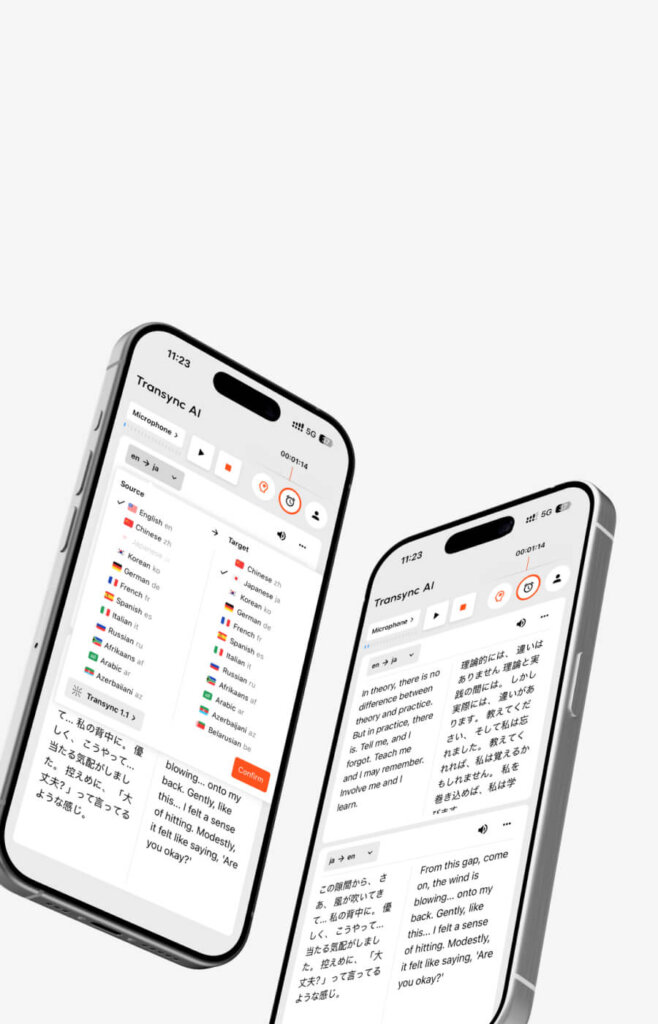
Cosa mostra:
- Lato sinistro: Lingua originale (ciò che la persona ha detto)
- Lato destro: Lingua tradotta (cosa significa traduzione)
- Sincronizzato in tempo reale
Perché utilizzarlo:
- Migliore comprensione (leggere + ascoltare)
- Verificare l'accuratezza della traduzione
- Aiutare i non madrelingua a capire meglio
- Per le presentazioni (il pubblico legge insieme)
Come attivare:
- Durante la riunione, cerca l'interruttore "Doppio schermo" in Transync AI
- Abilita interruttore
- Transync AI visualizza l'originale e la traduzione affiancati
Casi d'uso:
- Presentazione dei termini del contratto (entrambe le parti vedono esattamente le stesse parole)
- Soluzioni tecniche (codice visibile + tradotto)
- Sessioni di formazione (gli studenti leggono + ascoltano)
- Negoziazioni (evitare incomprensioni)
Funzionalità 3: Riepilogo della riunione AI (documentazione automatica)
Cosa genera automaticamente:
- Riassunto bilingue (originale + la tua lingua)
- Punti chiave della discussione estratti
- Elementi di azione con gli assegnatari
- Identificati i prossimi passi
- Partecipanti e timestamp
Come accedere:
- Al termine della riunione, fare clic su "Termina traduzione" in Transync AI
- Vai alla dashboard di Transync AI
- Fai clic su "Riunioni recenti"“
- Seleziona la tua riunione
- Scorri fino a "Riepilogo AI"“
- Rivedi, scarica come PDF o condividi con il team
Tempo risparmiato:
- Riunione di 60 minuti: consente di risparmiare 20-30 minuti di tempo di documentazione
- 20 riunioni/settimana: risparmia 6-10 ore/settimana
Funzionalità 4: Trascrizione in tempo reale (record ricercabile)
Disponibile durante la riunione:
- Il pannello di trascrizione in diretta mostra tutto ciò che viene detto
- Testo sia originale che tradotto
- Nomi dei relatori attribuiti
- Timestamp per ogni scambio
- Ricercabile in tempo reale
Come effettuare la ricerca:
- Durante la riunione, apri Transync AI
- Fare clic sulla scheda "Trascrizione"
- Usa Ctrl+F (o Cmd+F su Mac) per cercare
- Cerca per parola chiave (ad esempio, "budget", "tempistica", "approvazione")
- Visualizza tutte le menzioni all'istante
- Fare clic sul risultato per passare a quel timestamp
Come utilizzare Live Translate: risoluzione dei problemi
Problema 1: la latenza di traduzione sembra elevata
Sintomo: Notare un ritardo di 1-2 secondi tra il parlato e la traduzione
Probabili cause:
- Connessione Internet lenta (upload <10 Mbps)
- CPU del computer sovraccarica
- Il microfono rileva una sorgente audio sbagliata
Soluzioni:
- Chiudi altre app consumo di CPU
- Controlla la velocità di Internet (sono necessari 10+ Mbps)
- Verificare la sorgente del microfono nelle impostazioni di Transync AI
- Riavvia Transync AI e incontro
- Utilizzare la connessione cablata invece del WiFi (più stabile)
Latenza prevista:
- Transync AI: <100 ms (impercettibile)
- JotMe: 150-200 ms (leggermente percettibile)
Se si verificano >200 ms, risolvere immediatamente il problema.
Problema 2: la precisione è inferiore alle aspettative
Sintomo: Le traduzioni sembrano sbagliate o i termini tecnici non sono corretti
Cause:
- Nessuna impostazione di parole chiave/contesto (per discussioni tecniche)
- Accento molto forte o linguaggio poco chiaro
- Ambiente rumoroso
- Discorso rapido o interruzioni
Soluzioni:
Soluzione rapida:
- Parla più lentamente e chiaramente
- Ridurre al minimo il rumore di fondo
- Un oratore alla volta
- Pausa tra le frasi
Soluzione migliore:
- Utilizzare l'impostazione di parole chiave/contesto (se tecnica)
- Aggiungi termini specifici del settore + contesto
- Riavvia la traduzione
- Ripeti il test con le nuove impostazioni
Problema 3: la casella "Audio del computer" non funziona
Sintomo: Transync AI non cattura l'audio della riunione da Zoom/Teams/Meet
Soluzione:
- Verificare che Transync AI abbia selezionato il microfono corretto
- Apri le impostazioni di Transync AI
- Controllare il dispositivo "Ingresso audio"
- Dovrebbe mostrare l'input audio predefinito del tuo computer
- Controlla che la casella "Audio del computer" sia selezionata ✅
- Verifica i permessi del microfono
- macOS: Impostazioni → Privacy e sicurezza → Microfono → Consenti Transync AI
- Windows: Impostazioni → Privacy e sicurezza → Microfono → Consenti Transync AI
- Riavvia Transync AI (chiudere e riaprire completamente)
- Prova con una semplice chiamata (incontro non importante)
Problema 4: gli altri non riescono a sentire l'audio tradotto
Sintomo: Vedi le traduzioni ma i partecipanti alla riunione non le sentono
Soluzione:
Per Zoom:
- Controlla che il pulsante "Avvia riproduzione" sia abilitato ✅
- Fai clic su "Condividi schermo" in Zoom
- Seleziona "Includi suono del computer" ✅
- I partecipanti dovrebbero ora ascoltare le traduzioni
Per i team:
- Seleziona il pulsante "Avvia riproduzione" abilitato ✅
- Fai clic su "Condividi" in Teams
- Seleziona "Il tuo schermo"“
- Seleziona "Includi audio di sistema" ✅
- I partecipanti dovrebbero ascoltare le traduzioni
Per Google Meet:
- Seleziona "Avvia riproduzione" come abilitato ✅
- Fai clic su "Presenta ora"“
- Seleziona "Tutto lo schermo"“
- Seleziona "Condividi audio" ✅
- I partecipanti dovrebbero ascoltare le traduzioni
Punto chiave: “L'opzione "Avvia riproduzione" deve essere abilitata E devi condividere lo schermo con l'audio affinché altri possano ascoltare le traduzioni.
Problema 5: l'audio di WhatsApp non viene catturato
Sintomo: Transync AI non sente l'audio delle chiamate vocali di WhatsApp
Soluzione:
- Assicurarsi che il vivavoce sia attivo sul tuo telefono (critico)
- Posizionare il telefono vicino al microfono del computer (a 15-30 cm di distanza)
- Utilizzare l'altoparlante Bluetooth (meglio dell'altoparlante del telefono)
- Verifica il microfono nelle impostazioni di Transync AI è la fonte corretta
- Microfono di prova in Transync AI prima della chiamata
- Ridurre al minimo il rumore di fondo nella stanza
- Prova con chiamata di pratica Primo
La migliore configurazione per WhatsApp:
- Telefono in vivavoce
- Altoparlante Bluetooth a 6-12 pollici dal microfono del computer
- Stanza silenziosa (ridurre al minimo il rumore di fondo)
- Microfono Transync AI impostato sull'input di sistema predefinito
Come utilizzare Live Translate: buone pratiche
Buona pratica 1: eseguire test prima di riunioni importanti
Quando: Fatelo 24 ore prima delle riunioni critiche
Passaggi:
- Pianifica una chiamata di prova con un collega
- Entrambi abilitano la traduzione in tempo reale
- Verificare che la latenza sia accettabile (previsti <100 ms)
- Controlla la qualità e la precisione della voce
- Prova le impostazioni delle parole chiave se utilizzi termini specializzati
- Verifica la compatibilità della piattaforma (Zoom/Teams/Meet funziona)
- Prova la condivisione dello schermo con audio
Perché: Evita problemi tecnici durante importanti chiamate di vendita o trattative.
Migliore pratica 2: parlare chiaramente per una maggiore precisione
Evitare: ❌ Borbottio o parlare troppo velocemente ❌ Forte rumore di fondo ❌ Interruzione (più interlocutori contemporaneamente) ❌ Dizione poco chiara
Invece: ✅ Parla in modo naturale ma chiaro ✅ Ambiente silenzioso (riduci al minimo il rumore di fondo) ✅ Un oratore alla volta ✅ Usa l'impostazione parola chiave/contesto per termini specializzati ✅ Fai una pausa tra le frasi
Migliore pratica 3: utilizzare l'impostazione delle parole chiave SOLO per discussioni specializzate
Quando impostare le parole chiave: Riunioni tecniche, legali, mediche, di negoziazione Quando NON impostare parole chiave: Conversazione generale, incontri informali
Perché: L'impostazione delle parole chiave richiede dai 2 ai 5 minuti, ma offre un vantaggio minimo per le conversazioni informali. Riservatela a casi d'uso specifici in cui la precisione è fondamentale.
Buona pratica 4: verificare l'accuratezza della traduzione
Per discussioni importanti:
- Monitora la trascrizione in diretta durante la riunione
- Controlla i termini chiave sono tradotti correttamente
- Se si nota un errore:
- Riformula la frase
- Utilizzare un linguaggio più semplice
- Aggiungi contesto
- Dopo l'incontro:
- Trascrizione della recensione
- Verificare le informazioni critiche
- In caso di dubbi, contattare per iscritto
Buona pratica 5: gestire le aspettative dei partecipanti
Prima dell'incontro, dire ai partecipanti:
“"Oggi utilizziamo la traduzione in tempo reale. Funziona in tempo reale, quindi sentirete la traduzione simultaneamente. Se qualcosa non vi è chiaro, chiedete subito chiarimenti, non aspettate la fine della riunione."”
Perché: Crea aspettative, previene la confusione, incoraggia le domande.
Come utilizzare Live Translate: casi d'uso reali
Caso d'uso 1: chiamata di vendita internazionale (tramite Zoom)
Impostare:
- Apri Transync AI
- Seleziona Inglese → Spagnolo
- Seleziona "Audio del computer"“
- Fai clic su "Avvia traduzione"“
- Apri normalmente la chiamata Zoom
- Transync AI ascolta automaticamente
Durante la chiamata:
- Parli inglese (discorso di vendita)
- Il potenziale cliente di lingua spagnola sente immediatamente la traduzione in spagnolo
- Il potenziale cliente risponde in spagnolo
- Senti subito la traduzione in inglese
- Conversazione naturale, latenza <100 ms
Dopo la chiamata:
- Accedi alla trascrizione in entrambe le lingue
- Riepilogo della revisione dell'IA (punti chiave + passaggi successivi)
- Condividi note bilingue con il team
Caso d'uso 2: Standup di team distribuito (tramite Teams)
Impostare:
- Apri Transync AI
- Seleziona Inglese → Spagnolo
- Aggiungi parole chiave: "sprint, story point, distribuzione, QA"“
- Aggiungi contesto: "standup di ingegneria del software"“
- Seleziona "Audio del computer"“
- Fai clic su "Avvia traduzione"“
- Riunione Open Teams
Risultato:
- L'ingegnere di lingua spagnola parla spagnolo
- Gli ingegneri di lingua inglese ascoltano la traduzione spagnolo → inglese
- L'ingegnere di lingua inglese parla inglese
- L'ingegnere di lingua spagnola ascolta la traduzione inglese → spagnolo
- 25% riunione più veloce (nessun attrito linguistico)
- Il riepilogo AI estrae automaticamente gli elementi dell'azione
Caso d'uso 3: chiamata vocale WhatsApp (con il cliente)
Impostare:
- Apri Transync AI sul computer
- Fai clic su "Avvia traduzione"“
- Apri WhatsApp sul telefono
- Avvia chiamata vocale
- Abilita vivavoce
- Posizionare il telefono vicino al microfono del computer (o utilizzare un altoparlante Bluetooth)
Durante la chiamata:
- Parli inglese (agente di supporto)
- Il cliente parla spagnolo
- Transync AI traduce in entrambe le direzioni
- Vedi le traduzioni nella finestra Transync AI
- Conversazione naturale
Dopo la chiamata:
- Fare clic su "Fine" in Transync AI
- Ricevi la trascrizione + il verbale della riunione
- Condividi con il team del servizio clienti
Caso d'uso 4: Riunione di persona (faccia a faccia)
Impostare:
- Apri Transync AI
- Imposta microfono (cattura l'audio della stanza)
- Imposta l'altoparlante (trasmette le traduzioni)
- Seleziona la coppia di lingue (inglese ↔ spagnolo)
- Fare clic su "Avvia"“
Durante la riunione:
- I partecipanti parlano naturalmente nella loro lingua
- Transync AI visualizza i sottotitoli (originale + traduzione)
- Trasmettere l'audio nelle lingue di destinazione
- Tutti i partecipanti possono seguire
Dopo l'incontro:
- Riepilogo dell'IA in entrambe le lingue
- Trascrizione completa ricercabile
- Elementi di azione estratti
🎥 Guarda come usare Transync AI
Come utilizzare Live Translate: confronto tra costi e piattaforme
| Soluzione | Tempo di installazione | Costo mensile | Prova gratuita | Latenza | Piattaforme | Ideale per |
|---|---|---|---|---|---|---|
| Transync AI | <1 minuto | $8.99 | 40 minuti ✅ | <100 ms | Zoom, Teams, Meet, Webex, WhatsApp | Incontri professionali |
| JotMe | 2-3 minuti | $9 | 20 minuti | 150-200 ms | Zoom, Meet, Teams, Webex, LINE | Uso generale |
| Talo | 1 minuto | $80+ | NO | 120 ms | Zoom, Teams, Meet | Impresa |
| Mondano | 10+ minuti | $500+ | NO | 200 ms+ | Zoom, Webex, Teams | Grandi eventi |
Conclusione: come utilizzare Live Translate
La traduzione in tempo reale non è più complessa o costosa. Soluzioni moderne come Transync AI rendono il tutto straordinariamente semplice:
✅ <1 minuto per l'attivazione (seleziona le lingue, clicca su Start) ✅ <100 ms di latenza (conversazione impercettibile e naturale) ✅ Precisione 95%+ (99% su termini tecnici con parole chiave) ✅ Prova gratuita di 40 minuti (valutazione del rischio zero) ✅ Documentazione automatica (trascrizioni + riassunti) ✅ Funziona su tutte le piattaforme (Zoom, Teams, Meet, Webex, WhatsApp)
Inizia oggi stesso la tua prova gratuita e scopri come la traduzione in tempo reale elimina le barriere linguistiche nelle tue riunioni.
IOSe vuoi un'esperienza di nuova generazione, Transync AI apre la strada alla traduzione in tempo reale basata sull'intelligenza artificiale, che mantiene le conversazioni fluide e naturali. Puoi provalo gratis Ora.