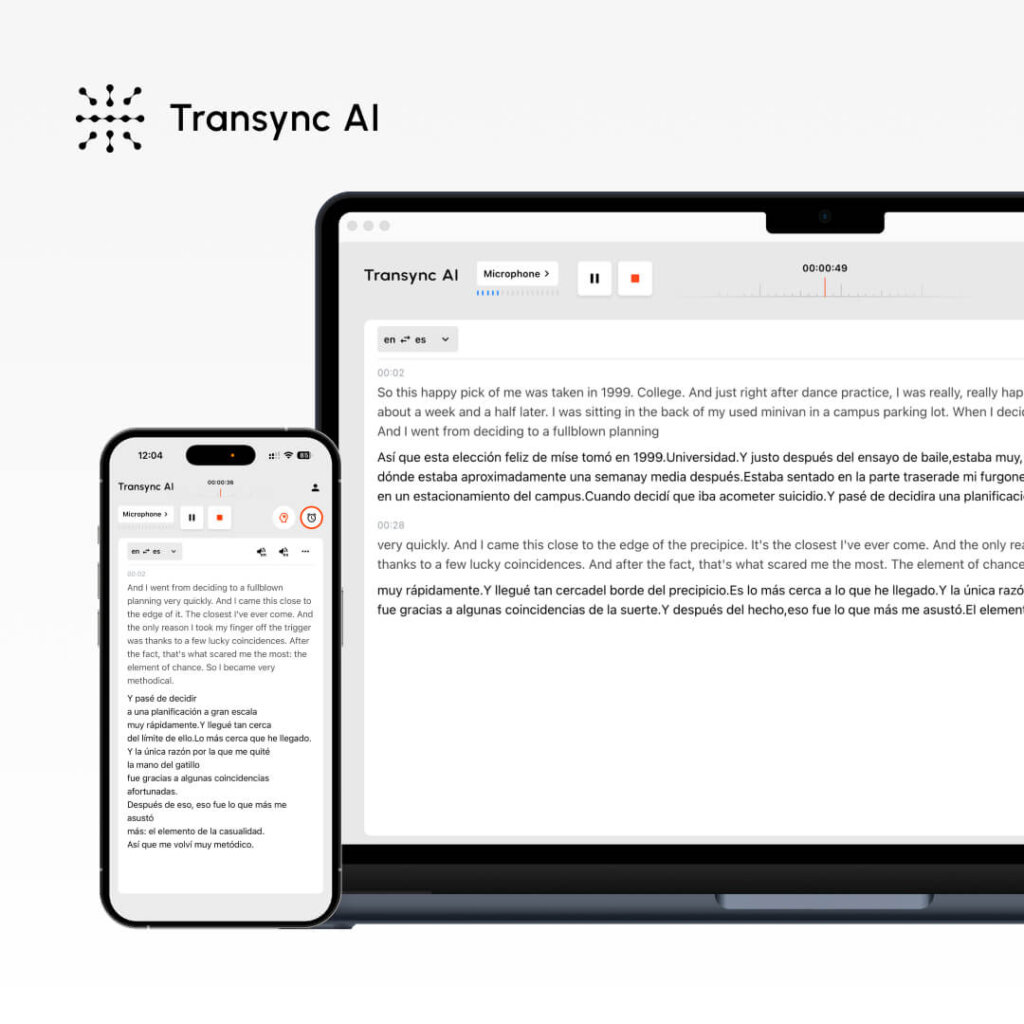
¿Quieres usar la traducción en tiempo real, pero no sabes cómo configurarla? La traducción en tiempo real puede parecer compleja, pero las soluciones modernas la simplifican notablemente si conoces los pasos correctos.
Esta guía completa le explica cómo usar Live Translate eficazmente, desde la configuración inicial hasta las funciones avanzadas. Ya sea que esté realizando una llamada de ventas internacional, gestionando una reunión de equipo distribuida o presentando un seminario web multilingüe, aprenderá exactamente cómo usar Live Translate para una comunicación fluida.
Nos centraremos en Transinc IA (la solución más fácil) mientras también cubre JotMe y otros para que pueda elegir el que mejor se adapte a sus necesidades.
¿Qué es Live Translate? (Y por qué lo necesitas)
Traducción en vivo Convierte el idioma hablado a otro idioma en tiempo real durante las reuniones. A diferencia de la traducción tradicional (que requiere esperar la interpretación), la traducción en vivo se realiza al instante, lo que permite una conversación natural entre hablantes de diferentes idiomas.
Escenarios comunes en los que utilizarías traducción en vivo:
✅ llamadas de ventas – Representante de ventas en inglés llamando a un cliente potencial hispanohablante ✅ Reuniones de equipo – Equipo distribuido con múltiples idiomas nativos ✅ Atención al cliente – Agente de soporte en inglés que ayuda a clientes españoles ✅ Seminarios web – Anfitrión hablando inglés a una audiencia internacional ✅ Conferencias – Múltiples ponentes y asistentes en diferentes idiomas ✅ Entrevistas de trabajo – Entrevistador y candidato hablando idiomas diferentes ✅ Sesiones de entrenamiento – Instructores y estudiantes a través de la brecha lingüística ✅ Negociaciones comerciales – Discusiones multipartitas en distintos idiomas ✅ Llamadas de voz de WhatsApp – Traducción en tiempo real en llamadas personales/profesionales ✅ Reuniones en persona – Charlas multilingües cara a cara con subtítulos
Ventaja clave de la traducción en vivo: Sin esperas de interpretación. La conversación fluye con naturalidad en tiempo real.
Cómo usar Live Translate: Transyc AI (la opción más sencilla)
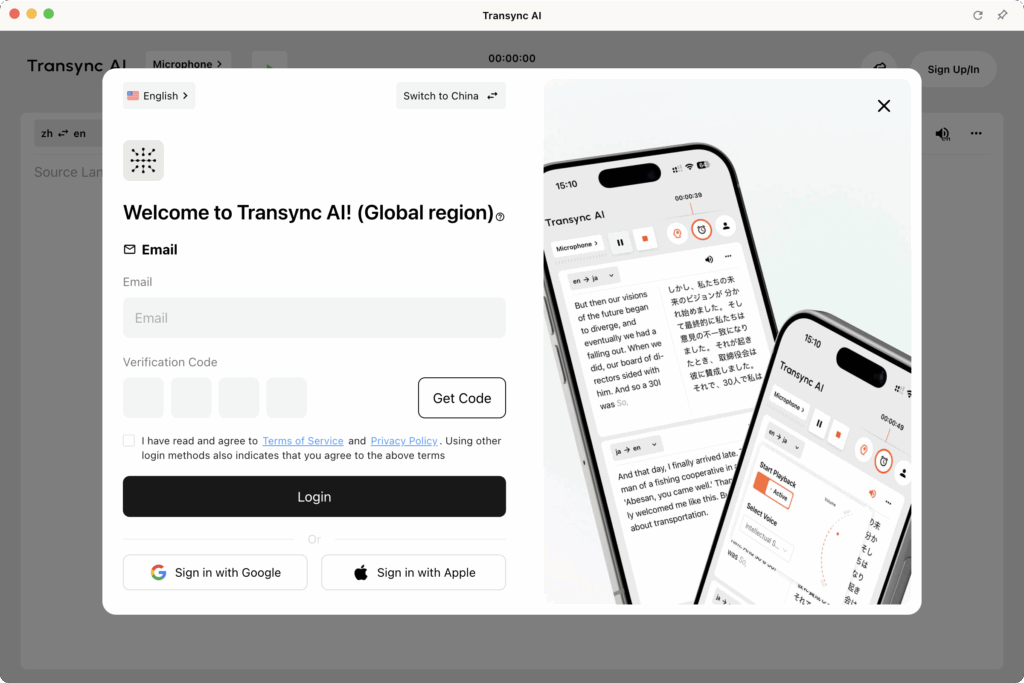
Paso 1: Crea tu cuenta de Transyn AI
Tiempo requerido: 2 minutos
Proceso:
- Visita el sitio web de Transync AI (transinc.ai)
- Haga clic en “Registrarse” o “Comenzar”
- Introduzca su dirección de correo electrónico
- Crear contraseña (mínimo 8 caracteres, incluye mayúsculas, minúsculas y números)
- Verificar correo electrónico (revise la bandeja de entrada para obtener el enlace de verificación)
- Haga clic en el enlace de verificación (iniciado sesión automáticamente)
Lo que obtienes:
- ✅ Prueba gratuita de traducción en vivo de 40 minutos (solo el primer mes)
- ✅ Acceso a todas las funciones durante la prueba
- ✅ Soporte completo en 60 idiomas
- ✅ Acceso a plataformas (Zoom, Teams, Meet, Webex, WhatsApp)
Consejo profesional: Crea una cuenta al menos 24 horas antes de tu primera reunión para asegurarte de que todo esté configurado correctamente.
Paso 2: Prepare su configuración de audio
Tiempo requerido: 2-3 minutos (una sola vez)
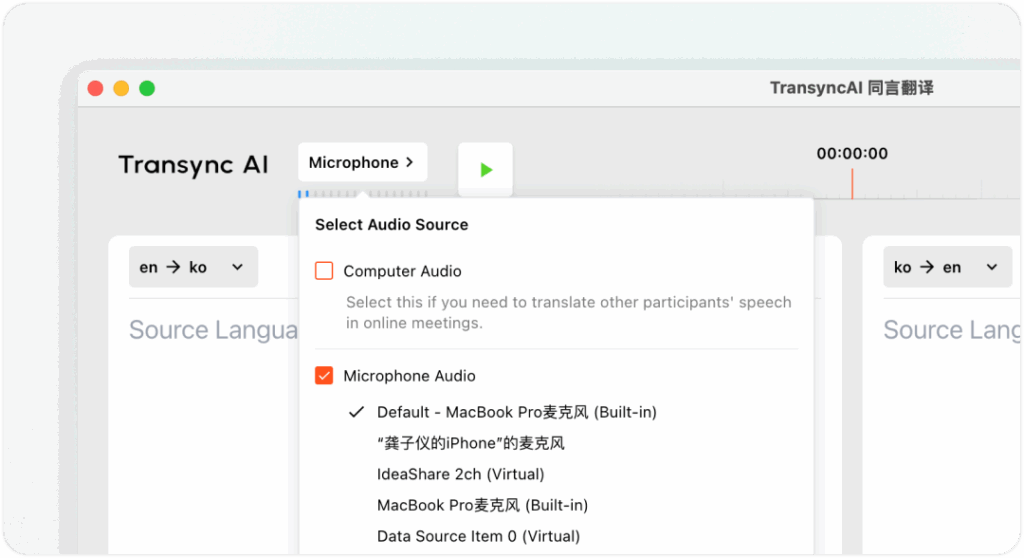
Por qué esto es importante: Transync AI captura el audio de su computadora o micrófono para traducir su discurso y transmitir las traducciones a los participantes de la reunión. Una configuración de audio adecuada garantiza:
- ✅ Captura de audio clara (traducción precisa)
- ✅ Detección adecuada del micrófono (reconoce tu voz)
- ✅ Configuración de salida de altavoz (otros escuchan las traducciones)
Pasos de configuración:
1. Comprueba tu micrófono:
- Abrir la configuración de Transync AI
- Vaya a “Entrada de audio”
- Seleccione su micrófono (normalmente “Micrófono predeterminado” o el nombre de su dispositivo)
- Haga clic en “Probar micrófono”
- Di algunas palabras
- Confirma que te escuchas a ti mismo reproduciendo
2. Verifique su altavoz/salida de audio:
- Vaya a “Salida de audio”
- Seleccione su altavoz (normalmente “Altavoz predeterminado” o el nombre del dispositivo)
- Haga clic en "Probar altavoz"“
- Confirme que escucha el audio de prueba
3. Para reuniones presenciales (con subtítulos):
- Conectar un altavoz externo o unos auriculares
- Asegúrese de que el volumen del altavoz sea adecuado para todos los participantes.
- Transync AI mostrará subtítulos y reproducirá traducciones en voz alta
Para caja de audio de computadora:
- En Transycn AI, marque la casilla “Audio de computadora”
- Esto permite que Trasync AI capture el audio del sistema (las voces de otros oradores).
- Esencial para la integración de Zoom/Teams/Meet/Webex
- Garantiza que Transync AI escuche a todos los participantes de la reunión
Consejo profesional: Realice una prueba de audio 5 minutos antes de reuniones importantes para evitar problemas técnicos.
Paso 3: Configura tus ajustes de Live Translate
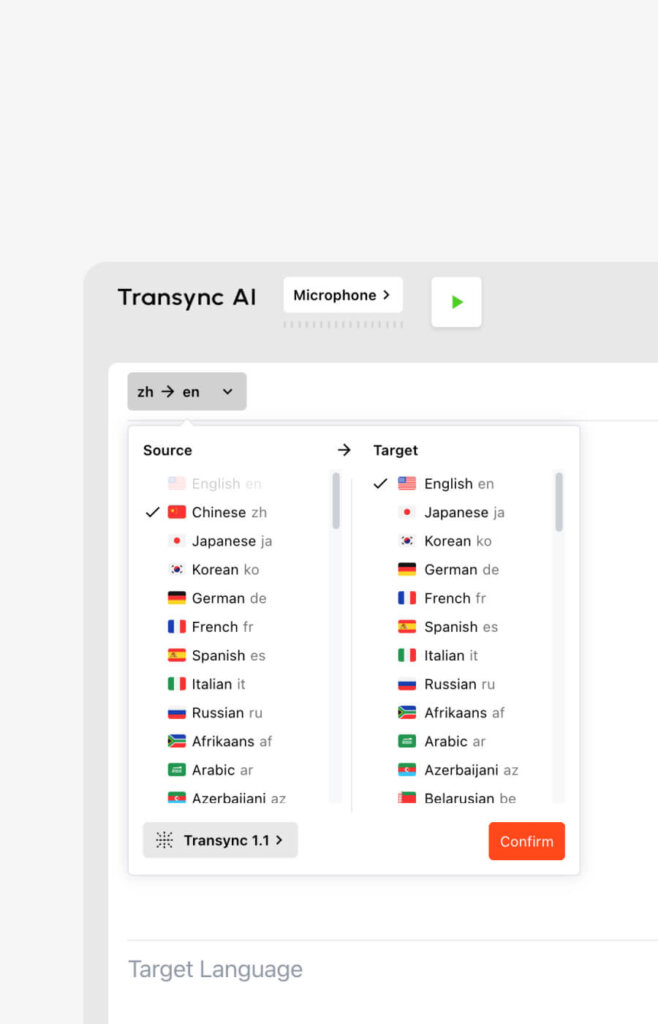
Tiempo requerido: 1-2 minutos (básico) o 3-5 minutos (avanzado)
Configuración básica (2 minutos):
- Iniciar sesión en Transync AI
- Vaya a “Configuración” en el tablero
- Seleccione “Traducción”
- Elige tu idioma nativo (lo que hablas)
- Elija el idioma de destino (lo que quieres oir)
Importante: Transync AI detecta automáticamente los idiomas en su reunión, por lo que estos son sus valores predeterminados, pero no restricciones.
Configuración avanzada: configuración de palabras clave y contexto (opcional para mayor precisión)
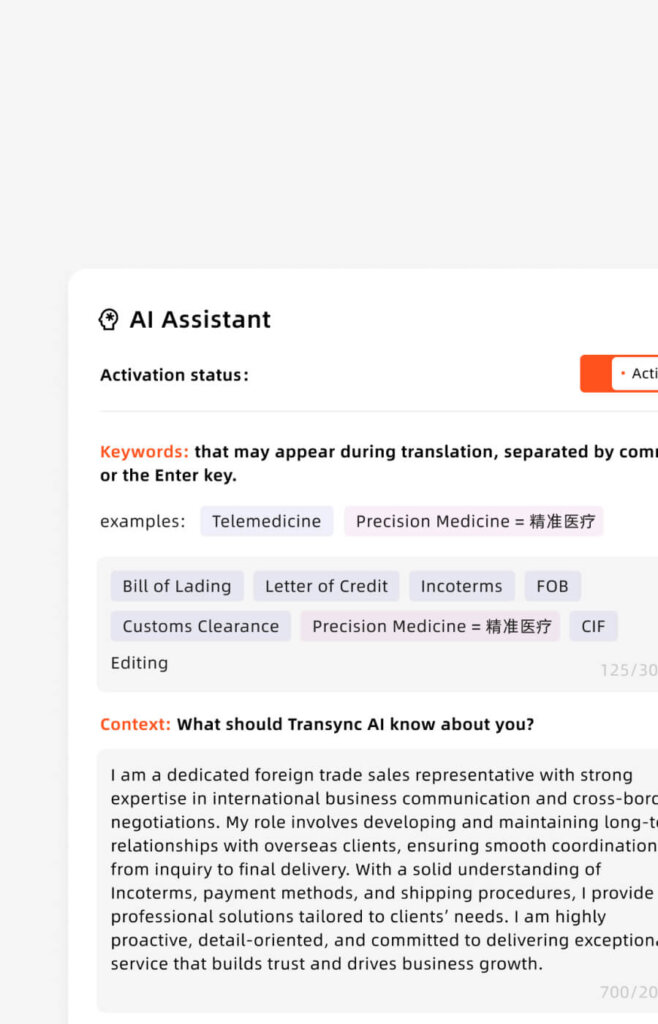
Cuándo utilizarlo: Sólo para reuniones técnicas, especializadas o importantes.
¿Por qué usarlo? Precisión predeterminada 95% → Con palabras clave: 95%+ (especialmente en términos técnicos)
Pasos:
- Vaya a “Configuración” → “Palabras clave y contexto”
- Haga clic en “Agregar palabras clave”
- Introduzca términos específicos de la industria (separados por comas)
- Ejemplo: “API, microservicios, canalización de implementación, GitHub”
- Ejemplo: “farmacéutico, molécula, biomarcador, aprobación de la FDA”
- Ejemplo: “contrato, cláusula de responsabilidad, propiedad intelectual, regalías”
- Haga clic en “Agregar traducciones” (opcional – define cómo deben traducirse)
- Ejemplo: “API = Interfaz de Programación de Aplicaciones (mantener como API en español)”
- Ejemplo: “GitHub = GitHub (término técnico, sin traducción)”
- Añadir contexto (de qué se trata tu reunión)
- Ejemplo: “Esta es una discusión técnica de ingeniería de software”
- Ejemplo: “Esta es una negociación comercial para una asociación farmacéutica”
- Guardar configuración
Nota importante: La configuración de palabras clave/contexto es OPCIONAL. Para conversaciones informales, omite este paso por completo. Para discusiones especializadas, mejora significativamente la precisión.
Inversión de tiempo vs. beneficio:
- Tiempo de configuración: 2-5 minutos
- Mejora de la precisión: +3-5%
- Vale la pena para: reuniones técnicas/legales/médicas/de negociación
- No vale la pena para: conversaciones casuales
Paso 4: Inicie su reunión y active Live Translate
Tiempo requerido: 30 segundos
Para reuniones de Zoom:
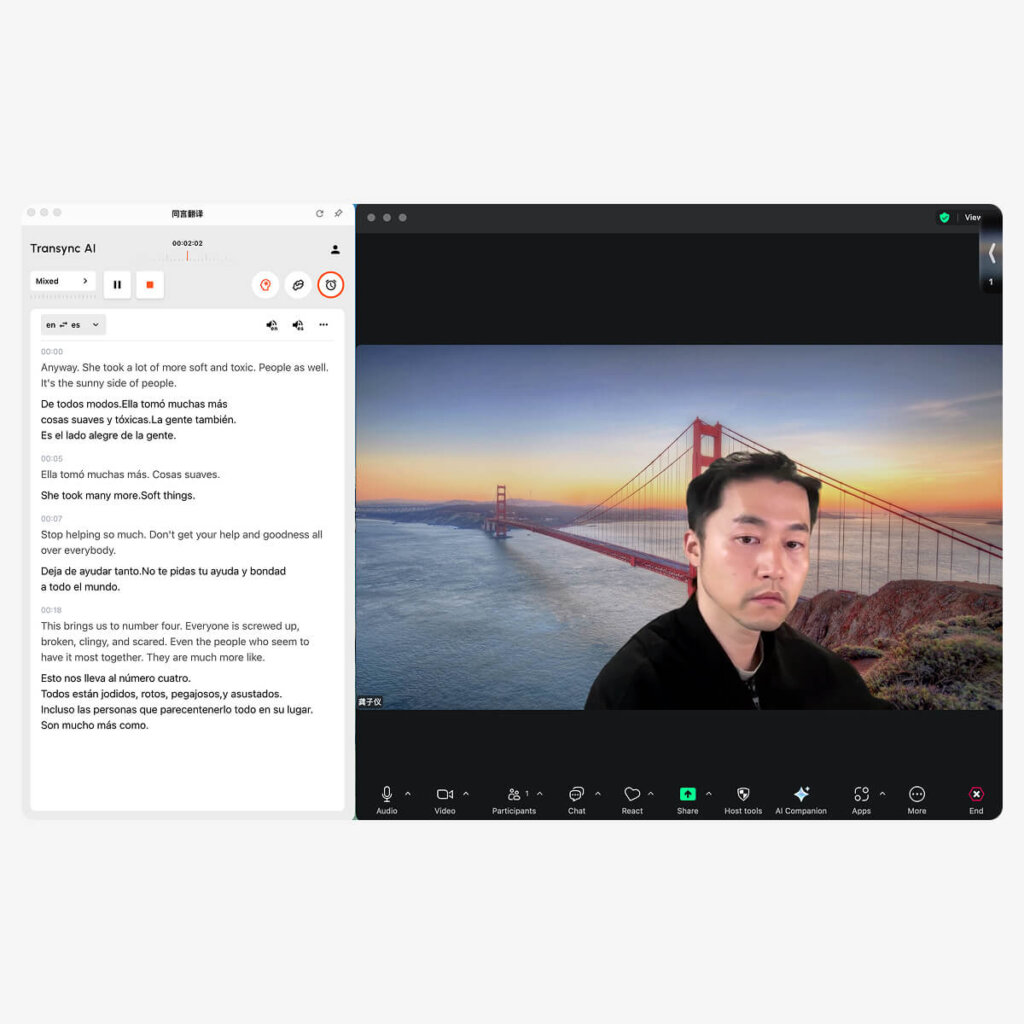
- Abrir Transync AI (aplicación de escritorio o navegador)
- Seleccione su par de idiomas (por ejemplo, inglés → español)
- Marque la casilla “Audio de computadora” ✅
- Haga clic en “Iniciar traducción”
- Abre Zoom y comienza tu reunión normalmente
- Transync AI escucha automáticamente Para ampliar el audio
- Aparecen traducciones en tiempo real en la ventana de Transync AI
- Opcional: Marque “Iniciar reproducción” en la esquina superior derecha
- Si está marcado: Otros escuchan la transmisión de audio traducida
- Si no está marcada: Solo usted ve las traducciones (los demás no las escuchan)
- Si comparte la pantalla: Seleccione “Incluir sonido de computadora” en las opciones para compartir de Zoom.
- Esto permite que el audio traducido se transmita a los asistentes.
Para reuniones de Microsoft Teams:

- Abrir Transync AI (aplicación de escritorio o navegador)
- Seleccione su par de idiomas (por ejemplo, inglés → español)
- Marque la casilla “Audio de computadora” ✅
- Haga clic en “Iniciar traducción”
- Abra Teams y comience su reunión normalmente
- Transync AI escucha automáticamente al audio de Teams
- Aparecen traducciones en tiempo real en la ventana de Transync AI
- Opcional: Marque “Iniciar reproducción” en la esquina superior derecha
- Si comparte la pantalla: Seleccione “Incluir audio del sistema” en las opciones para compartir de Teams
Para reuniones de Google Meet:
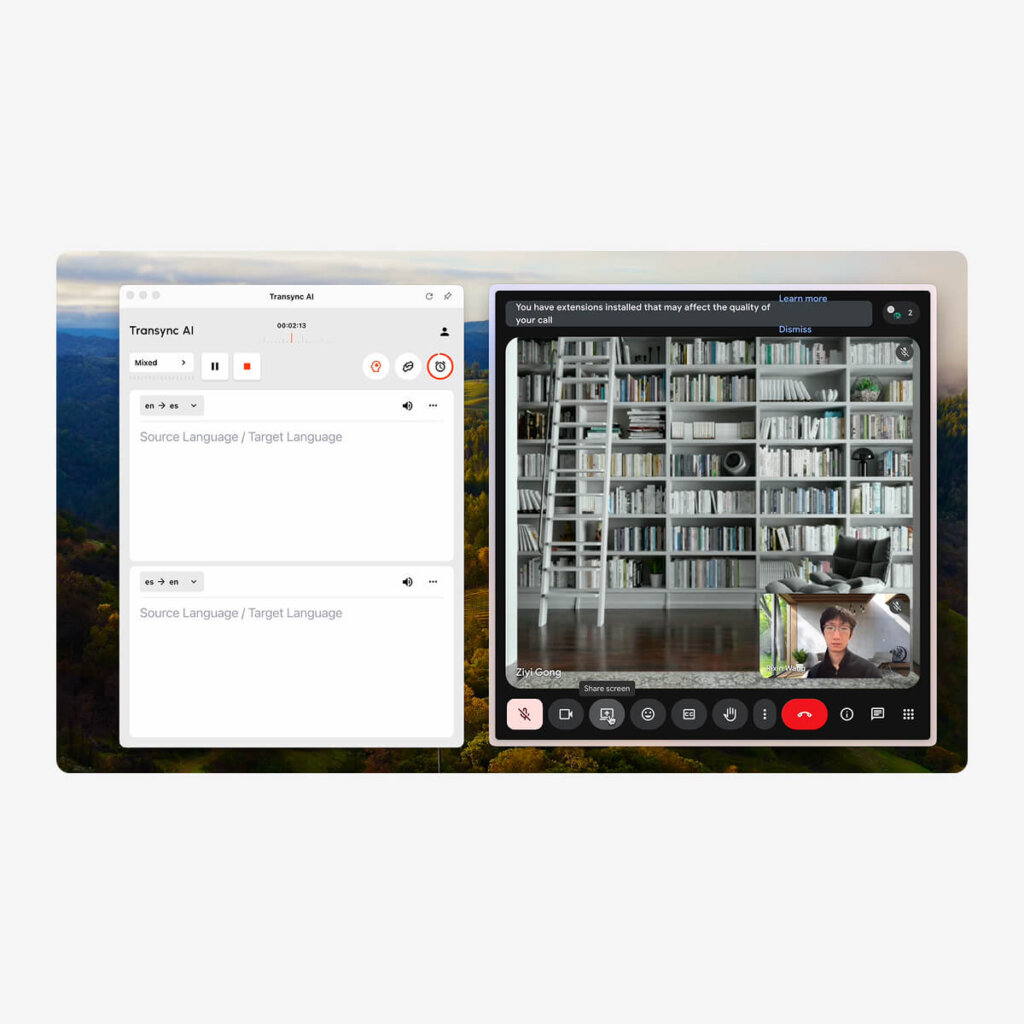
- Abrir Transync AI (aplicación de escritorio o navegador)
- Seleccione su par de idiomas (por ejemplo, inglés → español)
- Marque la casilla “Audio de computadora” ✅
- Haga clic en “Iniciar traducción”
- Abre Google Meet e inicia tu reunión normalmente
- Transync AI escucha automáticamente Para conocer el audio
- Aparecen traducciones en tiempo real en la ventana de Transync AI
- Opcional: Marque “Iniciar reproducción” en la esquina superior derecha
- Si comparte la pantalla: Seleccione la opción “Compartir audio del sistema” en Meet
Para reuniones de Webex:
- Abrir Transync AI (aplicación de escritorio o navegador)
- Seleccione su par de idiomas
- Marque la casilla “Audio de computadora” ✅
- Haga clic en “Iniciar traducción”
- Abra Webex e inicie su reunión normalmente
- Transync AI escucha automáticamente al audio de Webex
- Aparecen traducciones en tiempo real en la ventana de Transync AI
- Opcional: Marque “Iniciar reproducción” en la esquina superior derecha
- Si comparte la pantalla: Seleccione la opción “Compartir audio de computadora”
Para llamadas de voz de WhatsApp (configuración única):
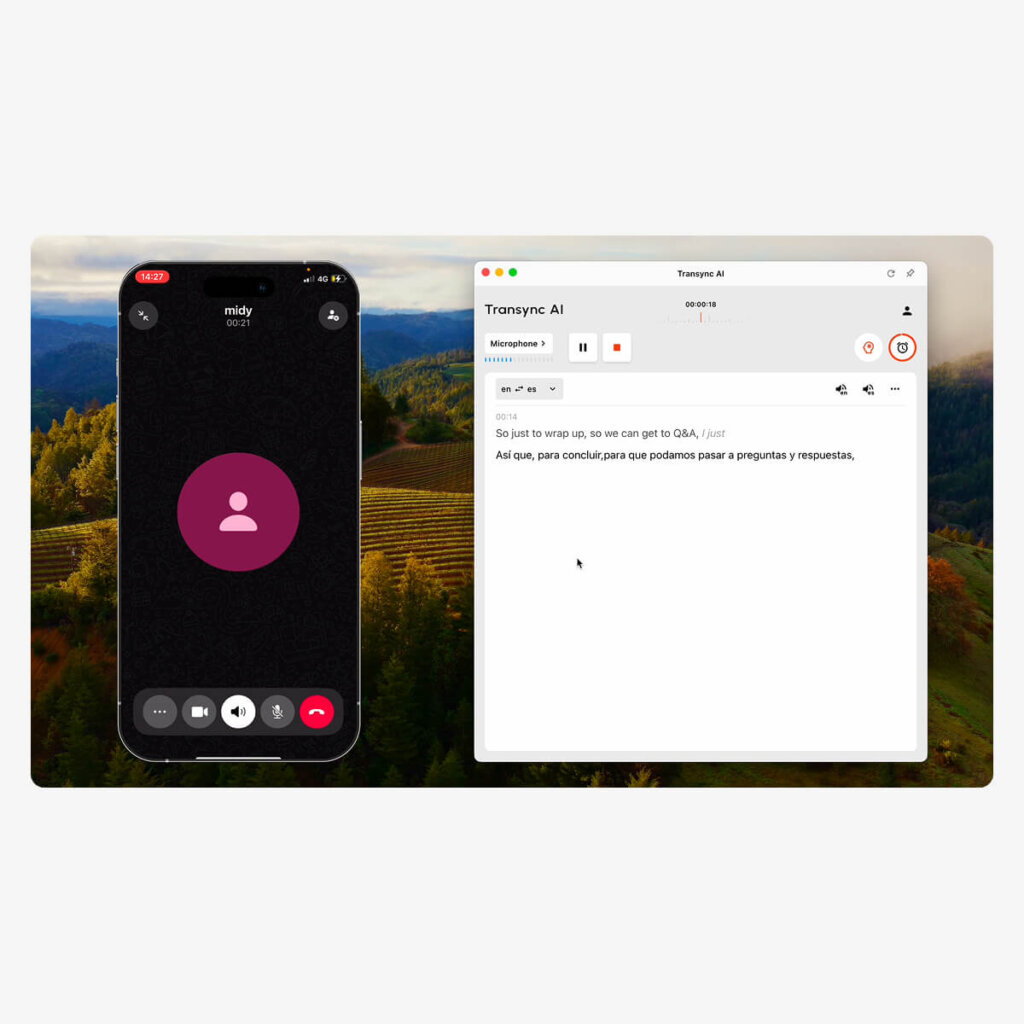
Importante: Las llamadas de voz de WhatsApp requieren una configuración diferente ya que se realizan en un teléfono móvil:
- Abrir Transync AI en tu computadora (aplicación de escritorio)
- Confirmar la selección de la fuente del micrófono (el micrófono de tu computadora)
- Haga clic en “Iniciar traducción”
- Abre WhatsApp en tu teléfono
- Iniciar o recibir una llamada de voz en tu teléfono
- Activar el altavoz del teléfono para tu llamada de WhatsApp
- Sostenga el teléfono cerca del micrófono de su computadora (para que Transycn AI pueda escuchar)
- O use un altavoz Bluetooth para una mejor captura de audio
- Transync AI escuchará y proporcionar traducciones en tiempo real
- Ver traducciones en la ventana de Transync AI en su computadora
- Opcional: Marque “Iniciar reproducción” para escuchar el audio traducido
- Después de finalizar la llamada:
- Hacer clic “"Fin"” botón en Transync AI
- Reciba transcripciones y actas de reuniones automáticamente
Nota: Para una mejor calidad de WhatsApp, utilice el altavoz Bluetooth o el modo altavoz para garantizar una captura de audio clara.
Para reuniones en persona (cara a cara):
- Configura tu entrada y salida de audio
- El micrófono captura el habla desde la sala de reuniones
- El orador transmite traducciones a los participantes
- Asegúrese de que la calidad del audio sea clara (minimice el ruido de fondo)
- Seleccionar los idiomas de origen y destino
- Ejemplo: Inglés → Español
- Ejemplo: Inglés → Mandarín + Español (varios idiomas de destino)
- Haga clic en “Iniciar” para comenzar la traducción
- Los participantes hablan con naturalidad en su idioma preferido
- Transync AI muestra subtítulos en pantalla mostrando:
- Transcripción en el idioma original
- Traducción en tiempo real
- El audio se transmite Así que todos escuchan las traducciones
- Después de la reunión: Resumen generado por IA + transcripción completa disponible automáticamente
Paso 5: Durante la reunión: uso de Live Translate
Gestión de la traducción:
Pausa/Reanudar traducción:
- Haga clic en el icono de pausa si desea hablar solo en su idioma nativo
- Haga clic en reanudar para reiniciar la traducción
- Útil para conversaciones secundarias confidenciales.
- Estado: Traducción pausada/reanudada inmediatamente
Cambiar idioma a mitad de la reunión:
- Haga clic en el menú desplegable de idioma en Transync AI
- Seleccione un par de idiomas diferente
- Transyc AI se adapta instantáneamente (latencia <100 ms)
- Útil si se une un nuevo participante que habla un idioma diferente.
Transcripción de Monitor Live:
- La transcripción en tiempo real aparece en el panel de Transync AI
- Muestra tanto el texto original como el traducido
- Buscable en tiempo real
- Ayuda a verificar la precisión de la traducción
Habilitar/Deshabilitar reproducción:
- “El botón ”Iniciar reproducción” controla si otros escuchan las traducciones
- Habilitado: Los participantes de la reunión escuchan el audio traducido
- Desactivado: Solo tú ves las traducciones (los demás no lo saben)
- Puede activar o desactivar durante la reunión
Compartir contenido traducido:
- Haga clic en el botón "Compartir" para mostrar la traducción en la pantalla
- Útil para presentar a una audiencia traducida.
- Muestra el original y la traducción uno al lado del otro
Paso 6: Después de la reunión: acceda a los registros de Live Translate
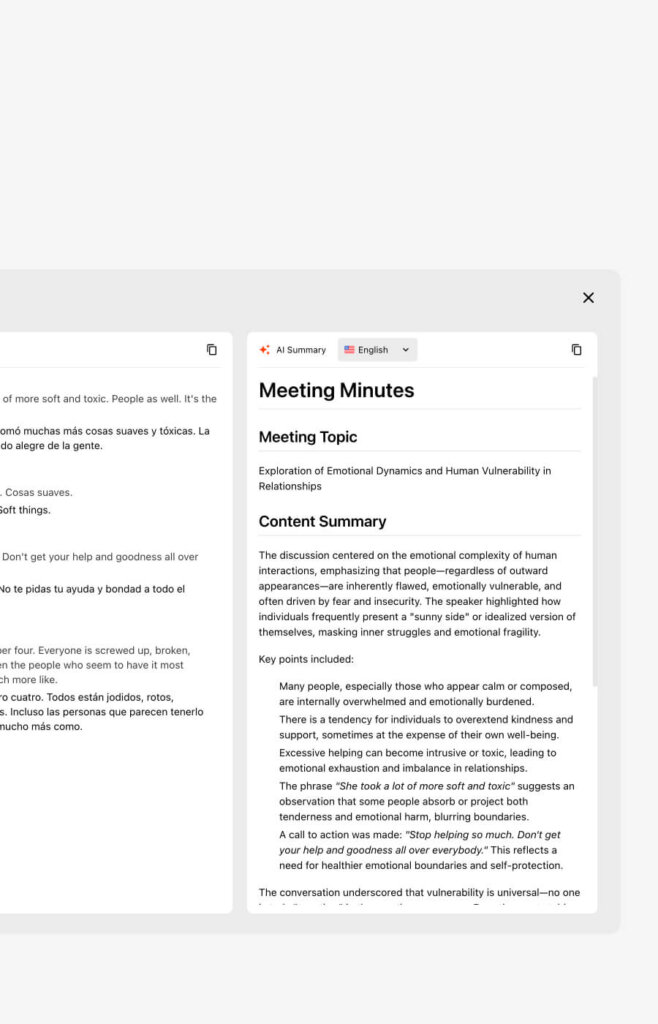
Tiempo requerido: Inmediato (automático)
Disponible al instante después de la reunión:
- Ir al panel de control de Transyc AI
- Haga clic en “Reuniones recientes” o “Historial de reuniones”
- Seleccione su reunión
- Acceso al resumen automático
- Resumen bilingüe de puntos clave
- Elementos de acción extraídos y asignados
- Participantes y su(s) idioma(s)
- Duración y marca de tiempo de la reunión
- Descargar la transcripción completa
- Formato PDF con atribución del orador
- Marcas de tiempo para cada intercambio
- Texto original y traducido
- Documento que se puede buscar
- Exportar para compartir en equipo
- Compartir PDF con los asistentes
- Importar al sistema de documentación
- Archivo en almacenamiento de conformidad
Cómo usar Live Translate: Guías específicas para cada plataforma
Transycn AI + Zoom (Flujo de trabajo completo)
Configuración completa (3 minutos en total):
- Abrir Transync AI en tu computadora
- Seleccione el par de idiomas: Inglés → Español (ejemplo)
- Marque la casilla “Audio de computadora”
- Haga clic en “Iniciar traducción” botón
- Abrir Zoom y comenzar/unirse a la reunión normalmente
- Transync AI detecta automáticamente Zoom de audio
- Ver traducciones aparecer en la ventana de Transync AI
- Opcional – Habilitar reproducción:
- Marque el botón “Iniciar reproducción”
- Haga clic en “Compartir pantalla” en Zoom
- Marca “Incluir sonido de computadora”
- Los asistentes a la reunión ahora escuchan traducciones al español
Durante la reunión:
- Hablas inglés con naturalidad
- Los participantes hispanohablantes escuchan la traducción inglés → español
- Los hispanohablantes responden en español
- Los angloparlantes escuchan la traducción al español → inglés
- Todo en tiempo real, latencia <100 ms
Después de la reunión:
- Haga clic en "Finalizar traducción" en Transync AI
- Ver transcripción (ambos idiomas)
- Descargar resumen de la reunión de IA
- Acceso al panel de control de Transync AI
Transyc AI + Microsoft Teams (Flujo de trabajo completo)
Configuración completa (3 minutos en total):
- Abrir Transync AI en tu computadora
- Seleccionar par de idiomas (por ejemplo, inglés → español)
- Marque la casilla “Audio de computadora”
- Haga clic en “Iniciar traducción”
- Equipos abiertos y comenzar/unirse a la reunión normalmente
- Transync AI escucha automáticamente al audio de Teams
- Ver traducciones en la ventana de Transync AI
- Opcional – Habilitar reproducción:
- Marque el botón “Iniciar reproducción”
- Haga clic en “Compartir” en Teams
- Seleccione “Su pantalla”
- Seleccione “Incluir audio del sistema”
- Los asistentes a la reunión escuchan el audio traducido
Nota importante: Teams detecta automáticamente la IA de Transync (a diferencia de Zoom, que requiere un dispositivo de audio). La configuración es aún más sencilla.
Transycn AI + Google Meet (Flujo de trabajo completo)
Configuración completa (3 minutos en total):
- Abrir Transync AI
- Seleccionar par de idiomas
- Marque la casilla “Audio de computadora”
- Haga clic en “Iniciar traducción”
- Abrir Google Meet normalmente
- Transyn AI escucha automáticamente
- Ver traducciones en la ventana de Transync AI
- Opcional – Traducciones de difusión:
- Marque “Iniciar reproducción”
- Haz clic en "Presentar ahora" en Meet
- Seleccione “Toda la pantalla”
- Seleccione “Compartir audio”
- Los asistentes escuchan traducciones
Transycn AI + Llamadas de voz de WhatsApp (Configuración móvil)
Diferencia clave: WhatsApp se ejecuta en el teléfono, Transycn AI en la computadora = requiere una configuración especial
Configuración completa (2 minutos):
- Abrir Transync AI en tu computadora
- Confirmar la fuente del micrófono (micrófono de computadora)
- Haga clic en “Iniciar traducción”
- Abrir WhatsApp en tu teléfono
- Iniciar o recibir una llamada de voz
- Habilitar el altavoz en el teléfono
- Coloque el teléfono cerca del micrófono de la computadora (o usa un altavoz Bluetooth)
- Coloque el teléfono a una distancia de 6 a 12 pulgadas del micrófono.
- Utilice el altavoz Bluetooth para una captura óptima
- Ver traducciones aparecer en la ventana de Transync AI
- Opcional: escuchar reproducción de audio:
- Marque el botón “Iniciar reproducción”
- Transync AI habla audio traducido
- Durante la llamada:
- Hablas en tu idioma
- La persona que llama por WhatsApp escucha la traducción
- Transync AI lo captura todo
- Después de la llamada:
- Haga clic en "Finalizar" en Transync AI
- Reciba transcripción + resumen inmediatamente
Consejos profesionales para WhatsApp:
- Utilice el altavoz Bluetooth (captura de audio más clara)
- Minimizar el ruido de fondo de la habitación
- Hable claramente al micrófono del teléfono.
- Configuración de prueba con llamada de práctica rápida primero
Cómo usar Live Translate: Funciones avanzadas
Característica 1: Configuración de palabras clave y contexto (para una precisión especializada)
Cuándo utilizarlo:
- Reuniones técnicas (ingeniería, médicas, legales)
- Negociaciones industriales (contratos con términos específicos)
- Discusiones académicas (terminología de investigación)
- Discusiones de negocios con vocabulario especializado
Cómo configurar:
Ejemplo 1 – Reunión de ingeniería de software:
- Vaya a Configuración → Palabras clave y contexto
- Agregar palabras clave: “API, microservicios, implementación, Docker, CI/CD, GitHub, repositorio”
- Añadir traducciones: “API = API (no traducida), repositorio = repositorio”
- Añadir contexto: “Reunión técnica de ingeniería de software”
- Ahorrar
Resultado: Términos técnicos traducidos perfectamente, discusión general también clara.
Ejemplo 2 – Discusión sobre la asociación farmacéutica:
- Añadir palabras clave: “biomarcador, molécula, aprobación de la FDA, ensayo clínico, patente”
- Añadir traducciones: “biomarker = biomarcador, FDA = FDA (sin traducción)”
- Añadir contexto: “Negociación de alianzas farmacéuticas con enfoque regulatorio”
- Ahorrar
Resultado: Términos farmacéuticos especializados precisos, lenguaje legal preciso
Característica 2: Visualización de doble pantalla (Comprensión de ambos idiomas)
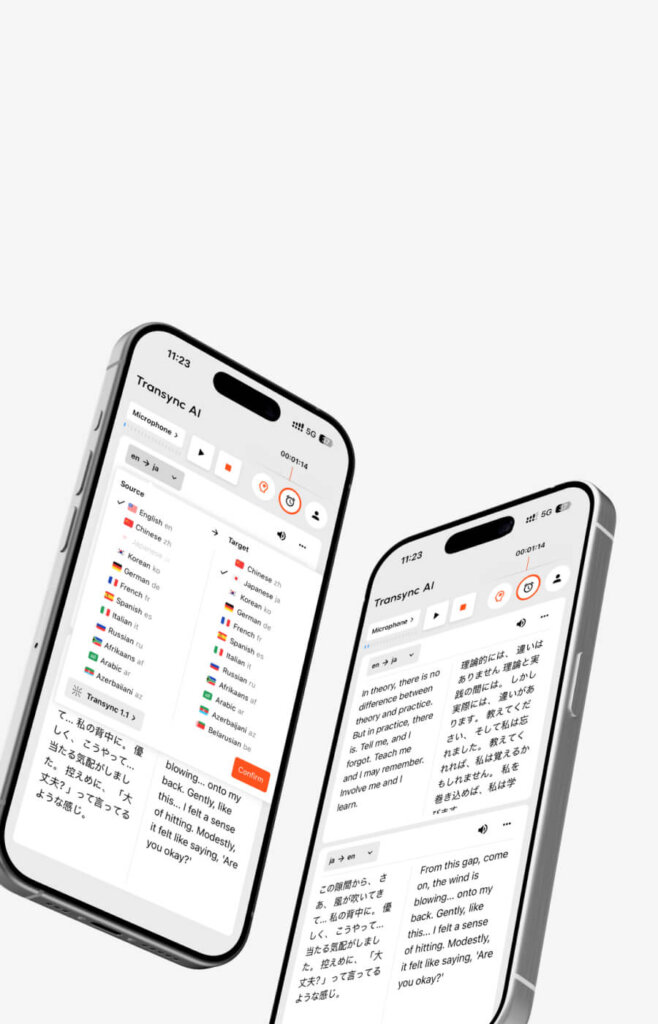
Lo que muestra:
- Lado izquierdo: Idioma original (lo que dijo la persona)
- Lado derecho: Idioma traducido (qué significa la traducción)
- Sincronizado en tiempo real
¿Por qué usarlo?
- Mejor comprensión (leer + escuchar)
- Verificar la precisión de la traducción
- Ayudar a los hablantes no nativos a comprender mejor
- Para presentaciones (la audiencia lee junto con el público)
Cómo activar:
- Durante la reunión, busque el interruptor de "Pantalla dual" en Transync AI
- Habilitar alternancia
- Transync AI muestra el original y la traducción uno al lado del otro
Casos de uso:
- Presentando los términos del contrato (ambas partes ven exactamente las mismas palabras)
- Tutoriales técnicos (código visible + traducido)
- Sesiones de formación (los estudiantes leen + escuchan)
- Negociaciones (evitar la falta de comunicación)
Característica 3: Resumen de la reunión con IA (Documentación automática)
Lo que genera automáticamente:
- Resumen bilingüe (original + tu idioma)
- Puntos clave de discusión extraídos
- Elementos de acción con asignados
- Próximos pasos identificados
- Participantes y marcas de tiempo
Cómo acceder:
- Una vez finalizada la reunión, haga clic en "Finalizar traducción" en Transync AI
- Ir al panel de control de Transyc AI
- Haga clic en “Reuniones recientes”
- Seleccione su reunión
- Desplácese hasta “Resumen de IA”
- Revisar, descargar como PDF o compartir con el equipo
Tiempo ahorrado:
- Reunión de 60 minutos: ahorra entre 20 y 30 minutos de tiempo de documentación
- 20 reuniones/semana: ahorra entre 6 y 10 horas/semana
Característica 4: Transcripción en tiempo real (registro con función de búsqueda)
Disponible durante la reunión:
- El panel de transcripción en vivo muestra todo lo que se dice
- Texto original y traducido
- Nombres de los oradores atribuidos
- Marcas de tiempo para cada intercambio
- Buscable en tiempo real
Cómo buscar:
- Durante la reunión, abra Transync AI
- Haga clic en la pestaña “Transcripción”
- Utilice Ctrl+F (o Cmd+F en Mac) para buscar
- Búsqueda por palabra clave (por ejemplo, “presupuesto”, “cronograma”, “aprobación”)
- Ver todas las menciones al instante
- Haga clic en el resultado para saltar a esa marca de tiempo
Cómo usar Live Translate: Solución de problemas
Problema 1: La latencia de la traducción parece alta
Síntoma: Notar un retraso de 1 a 2 segundos entre el habla y la traducción
Causas probables:
- Conexión a Internet lenta (<10 Mbps de subida)
- CPU de computadora sobrecargada
- El micrófono capta una fuente de audio incorrecta
Soluciones:
- Cerrar otras aplicaciones consumiendo CPU
- Comprobar la velocidad de Internet (necesita 10+ Mbps)
- Verificar la fuente del micrófono en la configuración de Transync AI
- Reiniciar Transync AI y reunión
- Utilice conexión por cable en lugar de WiFi (más estable)
Latencia esperada:
- Transycn AI: <100 ms (imperceptible)
- JotMe: 150-200ms (ligeramente perceptible)
Si experimenta >200 ms, solucione el problema de inmediato.
Problema 2: La precisión es menor de lo esperado
Síntoma: Las traducciones parecen fuera de lugar o los términos técnicos son incorrectos.
Causas:
- Sin configuración de palabras clave/contexto (para discusiones técnicas)
- Acento muy fuerte o habla poco clara
- Ambiente ruidoso
- Habla rápida o interrupciones
Soluciones:
Solución rápida:
- Habla más despacio y con claridad.
- Minimizar el ruido de fondo
- Un orador a la vez
- Pausa entre oraciones
Mejor solución:
- Utilice la configuración de palabra clave/contexto (si es técnico)
- Añadir términos específicos de la industria + contexto
- Reiniciar la traducción
- Vuelva a probar con la nueva configuración
Problema 3: El cuadro “Audio de computadora” no funciona
Síntoma: La IA de Transync no captura el audio de las reuniones de Zoom/Teams/Meet
Solución:
- Verifique que Trasync AI tenga seleccionado el micrófono correcto
- Abrir la configuración de IA de Transync
- Compruebe el dispositivo de “Entrada de audio”
- Debería mostrar la entrada de audio predeterminada de su computadora
- La casilla “Audio de computadora” está marcada ✅
- Verificar los permisos del micrófono
- macOS: Configuración → Privacidad y seguridad → Micrófono → Permitir Transync AI
- Windows: Configuración → Privacidad y seguridad → Micrófono → Permitir Transync AI
- Reiniciar Transync AI (cerrar completamente y volver a abrir)
- Prueba con llamada simple (reunión no importante)
Problema 4: Los demás no pueden escuchar el audio traducido
Síntoma: Ves las traducciones pero los participantes de la reunión no las escuchan
Solución:
Para Zoom:
- Comprueba que el botón “Iniciar reproducción” esté habilitado ✅
- Haga clic en “Compartir pantalla” en Zoom
- Seleccione “Incluir sonido de computadora” ✅
- Los asistentes ahora deberían escuchar las traducciones
Para equipos:
- Marca el botón “Iniciar reproducción” habilitado ✅
- Haga clic en “Compartir” en Teams
- Seleccione “Su pantalla”
- Marca “Incluir audio del sistema” ✅
- Los asistentes deben escuchar las traducciones
Para Google Meet:
- Marca la opción “Iniciar reproducción” habilitada ✅
- Haga clic en "Presentar ahora"“
- Seleccione “Toda la pantalla”
- Marca “Compartir audio” ✅
- Los asistentes deben escuchar las traducciones
Punto clave: “Iniciar reproducción” debe estar habilitado Y debe compartir la pantalla con audio para que otros puedan escuchar las traducciones.
Problema 5: No se captura el audio de WhatsApp
Síntoma: Transycn AI no escucha el audio de las llamadas de voz de WhatsApp
Solución:
- Asegúrese de que el altavoz esté encendido en tu teléfono (crítico)
- Coloque el teléfono cerca del micrófono de la computadora (de 6 a 12 pulgadas de distancia)
- Usar altavoz Bluetooth (mejor que el altavoz del teléfono)
- Verificar el micrófono en la configuración de Transycn AI es la fuente correcta
- Micrófono de prueba en Transync AI antes de la llamada
- Minimizar el ruido de fondo en la habitación
- Prueba con llamada de práctica primero
La mejor configuración para WhatsApp:
- Teléfono en altavoz
- Altavoz Bluetooth a 6-12 pulgadas del micrófono de la computadora
- Habitación tranquila (minimizar el ruido de fondo)
- Micrófono Transyc AI configurado como entrada de sistema predeterminada
Cómo usar Live Translate: Mejores prácticas
Mejor práctica 1: Realizar pruebas antes de reuniones importantes
Cuando: Haga esto 24 horas antes de las reuniones críticas.
Pasos:
- Programar una llamada de prueba con un colega
- Ambos permiten la traducción en vivo
- Verifique que la latencia sea aceptable (se esperan menos de 100 ms)
- Compruebe la calidad y precisión de la voz
- Pruebe la configuración de palabras clave si utiliza términos especializados
- Verificar la compatibilidad de la plataforma (Zoom/Teams/Meet funciona)
- Prueba compartir pantalla con audio
Por qué: Evite problemas técnicos durante llamadas de ventas o negociaciones importantes.
Mejor práctica 2: Hablar con claridad para mayor precisión
Evitar: ❌ Murmurar o hablar demasiado rápido ❌ Ruido de fondo intenso ❌ Interrupciones (varios hablantes simultáneamente) ❌ Dicción poco clara
En cambio: ✅ Hablar con naturalidad pero con claridad ✅ Ambiente tranquilo (minimizar el ruido de fondo) ✅ Un hablante a la vez ✅ Utilizar la configuración de palabras clave/contexto para términos especializados ✅ Hacer pausas entre oraciones
Práctica recomendada 3: utilice la configuración de palabras clave SOLO para debates especializados
Cuándo establecer palabras clave: Reuniones técnicas, legales, médicas y de negociación. Cuándo NO establecer palabras clave: Conversación general, reuniones casuales.
Por qué: La configuración de palabras clave tarda de 2 a 5 minutos, pero ofrece un beneficio mínimo en conversaciones informales. Reserva esta opción para casos de uso especializados donde la precisión es crucial.
Práctica recomendada 4: Verificar la precisión de la traducción
Para discusiones importantes:
- Monitorear la transcripción en vivo durante la reunión
- Consulte los términos clave están traducidos correctamente
- Si se detecta un error:
- Reformula esa oración
- Utilice un lenguaje más sencillo
- Añadir contexto
- Después de la reunión:
- Revisar la transcripción
- Verificar información crítica
- Seguimiento por escrito en caso de duda.
Mejor práctica 5: Gestionar las expectativas de los participantes
Antes de la reunión, informe a los participantes:
“Hoy usamos traducción en vivo. Funciona en tiempo real, así que escucharán la traducción simultáneamente. Si algo no les queda claro, por favor, pidan una aclaración de inmediato; no esperen hasta el final de la reunión.”
Por qué: Establece expectativas, evita confusiones y fomenta las preguntas.
Cómo usar Live Translate: casos de uso reales
Caso de uso 1: Llamada de ventas internacional (vía Zoom)
Configuración:
- Abrir Transync AI
- Seleccione Inglés → Español
- Marcar “Audio de computadora”
- Haga clic en “Iniciar traducción”
- Abra la llamada de Zoom normalmente
- Transync AI escucha automáticamente
Durante la llamada:
- Hablas inglés (argumento de venta)
- Un prospecto hispanohablante escucha la traducción al español instantáneamente
- El prospecto responde en español
- Escucharás la traducción al inglés al instante.
- Conversación natural, latencia <100ms
Después de la llamada:
- Transcripción de acceso en ambos idiomas
- Resumen de la revisión de IA (puntos clave + próximos pasos)
- Comparte notas bilingües con el equipo
Caso de uso 2: Reunión de equipo distribuida (a través de Teams)
Configuración:
- Abrir Transync AI
- Seleccione Inglés → Español
- Añadir palabras clave: “sprint, puntos de historia, implementación, control de calidad”
- Añadir contexto: “conferencia de ingeniería de software”
- Marcar “Audio de computadora”
- Haga clic en “Iniciar traducción”
- Reunión de equipos abiertos
Resultado:
- Ingeniero hispanohablante habla español
- Los ingenieros angloparlantes escuchan la traducción español-inglés
- El ingeniero de habla inglesa habla inglés
- Ingeniero hispanohablante escucha traducción inglés → español
- 25% Reunión más rápida (sin fricción con el idioma)
- El resumen de IA extrae elementos de acción automáticamente
Caso de uso 3: Llamada de voz de WhatsApp (con el cliente)
Configuración:
- Abra Transync AI en la computadora
- Haga clic en “Iniciar traducción”
- Abrir WhatsApp en el teléfono
- Iniciar llamada de voz
- Habilitar el altavoz
- Coloque el teléfono cerca del micrófono de la computadora (o use un altavoz Bluetooth)
Durante la llamada:
- Hablas inglés (agente de soporte)
- El cliente habla español
- Transync AI traduce ambas direcciones
- Verá traducciones en la ventana de Transync AI
- Conversación natural
Después de la llamada:
- Haga clic en "Finalizar" en Transync AI
- Recibir transcripción + actas de la reunión
- Compartir con el equipo de atención al cliente
Caso de uso 4: Reunión presencial
Configuración:
- Abrir Transync AI
- Configurar el micrófono (captura el audio de la sala)
- Establecer altavoz (transmite traducciones)
- Seleccione el par de idiomas (inglés ↔ español)
- Haga clic en “Iniciar”
Durante la reunión:
- Los participantes hablan naturalmente en su idioma.
- Transync AI muestra subtítulos (originales + traducción)
- Transmisión de audio en los idiomas de destino
- Todos los participantes pueden seguir
Después de la reunión:
- Resumen de IA en ambos idiomas
- Transcripción completa con función de búsqueda
- Elementos de acción extraídos
👉Obtenga más información sobre Transync AI
Cómo usar Live Translate: Comparación de costes y plataformas
| Solución | Tiempo de configuración | Costo mensual | Prueba gratuita | Estado latente | Plataformas | Mejor para |
|---|---|---|---|---|---|---|
| Transinc IA | <1 minuto | $8.99 | 40 minutos ✅ | <100 ms | Zoom, Teams, Meet, Webex, WhatsApp | Reuniones profesionales |
| JotMe | 2-3 minutos | $9 | 20 minutos | 150-200 ms | Zoom, Meet, Teams, Webex, LINE | Uso general |
| Talo | 1 minuto | $80+ | No | 120 ms | Zoom, Teams, Meet | Empresa |
| Mundo | 10+ minutos | $500+ | No | 200 ms+ | Zoom, Webex, Equipos | Grandes eventos |
Conclusión: Cómo utilizar Live Translate
La traducción en vivo ya no es compleja ni costosa. Soluciones modernas como Transync AI lo hacen notablemente sencillo:
✅ <1 minuto para activar (seleccione idiomas, haga clic en Iniciar) ✅ <100 ms de latencia (conversación natural e imperceptible) ✅ Precisión del 95%+ (99% en términos técnicos con palabras clave) ✅ Prueba gratuita de 40 minutos (evaluación de riesgo cero) ✅ Documentación automática (transcripciones + resúmenes) ✅ Funciona en todas las plataformas (Zoom, Teams, Meet, Webex, WhatsApp)
Comience su prueba gratuita hoy y experimente cómo Live Translate elimina las barreras lingüísticas en sus reuniones.
ISi quieres una experiencia de próxima generación, Transinc IA lidera el camino con la traducción en tiempo real impulsada por IA que permite que las conversaciones fluyan con naturalidad. Puedes Pruébalo gratis ahora.