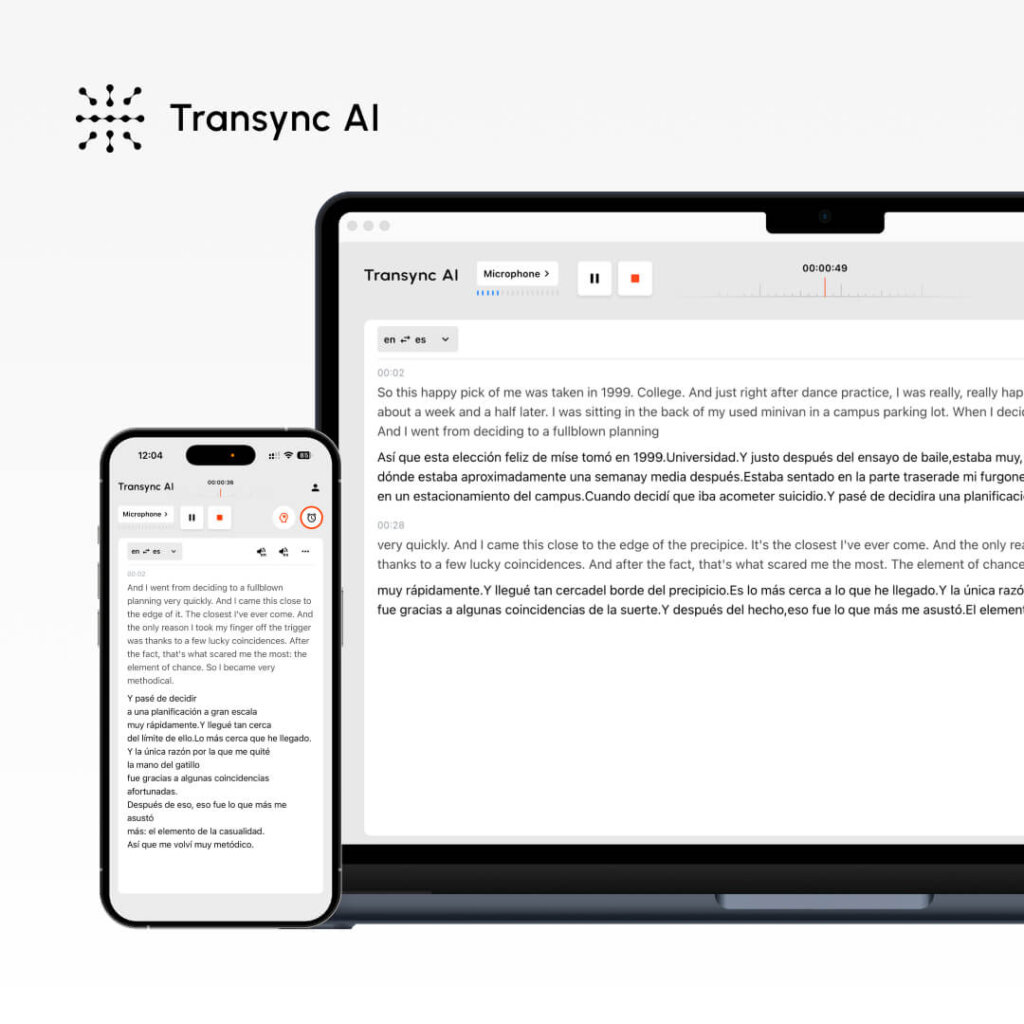
Bạn muốn sử dụng dịch thuật trực tiếp nhưng không chắc cách thiết lập? Dịch thuật thời gian thực có vẻ phức tạp, nhưng các giải pháp hiện đại giúp việc này trở nên vô cùng đơn giản—nếu bạn biết các bước đúng.
Hướng dẫn toàn diện này sẽ hướng dẫn bạn cách sử dụng dịch thuật trực tiếp hiệu quả, từ thiết lập ban đầu đến các tính năng nâng cao. Cho dù bạn đang thực hiện cuộc gọi bán hàng quốc tế, quản lý cuộc họp nhóm phân tán hay tổ chức hội thảo trực tuyến đa ngôn ngữ, bạn sẽ học được chính xác cách sử dụng dịch thuật trực tiếp để giao tiếp liền mạch.
Chúng ta sẽ tập trung vào AI đồng bộ (Giải pháp dễ nhất) đồng thời cũng bao gồm JotMe và các ứng dụng khác để bạn có thể chọn ứng dụng phù hợp nhất với nhu cầu của mình.
Live Translate là gì? (Và tại sao bạn cần nó)
Dịch thuật trực tiếp Ứng dụng này chuyển đổi ngôn ngữ nói sang ngôn ngữ khác trong thời gian thực trong các cuộc họp. Không giống như dịch thuật truyền thống (yêu cầu chờ phiên dịch), dịch thuật trực tiếp diễn ra tức thì, cho phép cuộc trò chuyện tự nhiên giữa những người nói các ngôn ngữ khác nhau.
Các trường hợp phổ biến mà bạn sẽ sử dụng dịch trực tiếp:
✅ Cuộc gọi bán hàng – Nhân viên bán hàng nói tiếng Anh gọi điện cho khách hàng tiềm năng nói tiếng Tây Ban Nha ✅ Các cuộc họp nhóm – Đội ngũ phân tán với nhiều ngôn ngữ mẹ đẻ khác nhau ✅ Hỗ trợ khách hàng – Nhân viên hỗ trợ tiếng Anh giúp đỡ khách hàng nói tiếng Tây Ban Nha ✅ Hội thảo trực tuyến – Người dẫn chương trình nói tiếng Anh với khán giả quốc tế ✅ Hội nghị – Nhiều diễn giả và người tham dự đến từ nhiều ngôn ngữ khác nhau ✅ Phỏng vấn xin việc – Người phỏng vấn và ứng viên nói các ngôn ngữ khác nhau ✅ Các buổi huấn luyện – Giảng viên và sinh viên vượt qua rào cản ngôn ngữ ✅ Đàm phán kinh doanh – Thảo luận đa bên nhiều ngôn ngữ ✅ Cuộc gọi thoại WhatsApp – Dịch thuật thời gian thực trong các cuộc gọi cá nhân/chuyên nghiệp ✅ Các cuộc họp trực tiếp – Thảo luận trực tiếp đa ngôn ngữ có phụ đề
Ưu điểm chính của dịch thuật trực tiếp: Không cần chờ phiên dịch. Cuộc trò chuyện diễn ra tự nhiên trong thời gian thực.
Hướng dẫn sử dụng dịch trực tiếp: Transync AI (Tùy chọn dễ nhất)
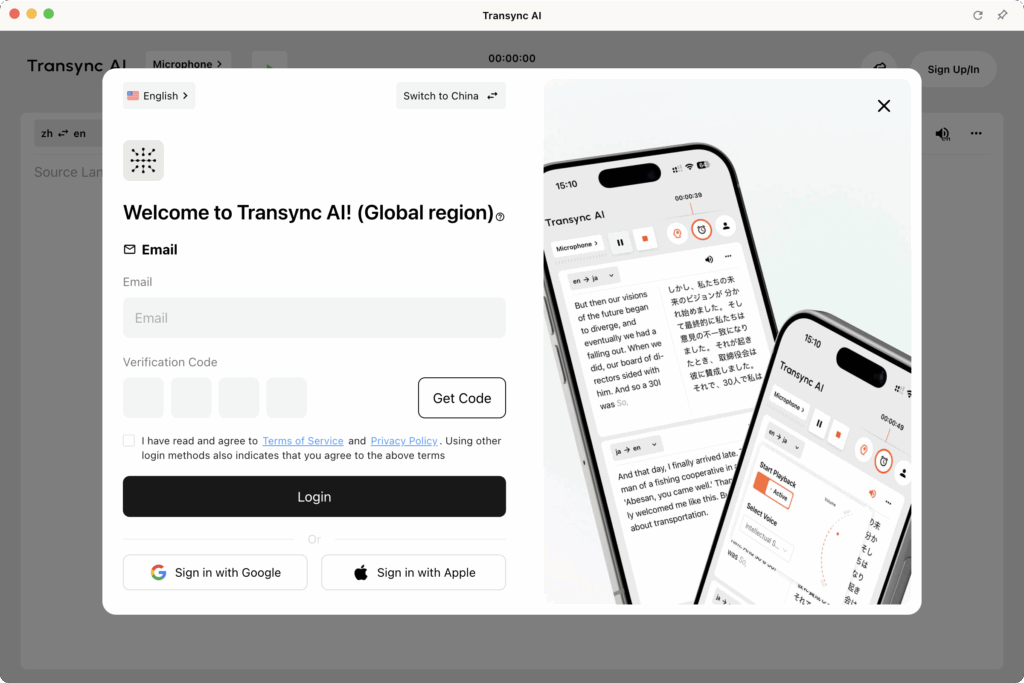
Bước 1: Tạo tài khoản Transync AI của bạn
Thời gian cần thiết: 2 phút
Quá trình:
- Hãy truy cập trang web Transync AI. (transsync.ai)
- Nhấp vào “Đăng ký” hoặc “Bắt đầu”
- Nhập địa chỉ email của bạn
- Tạo mật khẩu (Tối thiểu 8 ký tự, bao gồm chữ hoa/chữ thường/số)
- Xác minh email (Kiểm tra hộp thư đến để nhận liên kết xác minh)
- Nhấp vào liên kết xác minh (Đăng nhập tự động)
Những gì bạn nhận được:
- ✅ Dùng thử dịch thuật trực tiếp miễn phí 40 phút (chỉ áp dụng trong tháng đầu tiên)
- ✅ Được truy cập đầy đủ các tính năng trong thời gian dùng thử
- ✅ Hỗ trợ đầy đủ 60 ngôn ngữ
- ✅ Truy cập nền tảng (Zoom, Teams, Meet, Webex, WhatsApp)
Mẹo hay: Hãy tạo tài khoản ít nhất 24 giờ trước cuộc họp đầu tiên để đảm bảo mọi thứ được thiết lập đúng cách.
Bước 2: Chuẩn bị thiết lập âm thanh
Thời gian cần thiết: 2-3 phút (một lần)
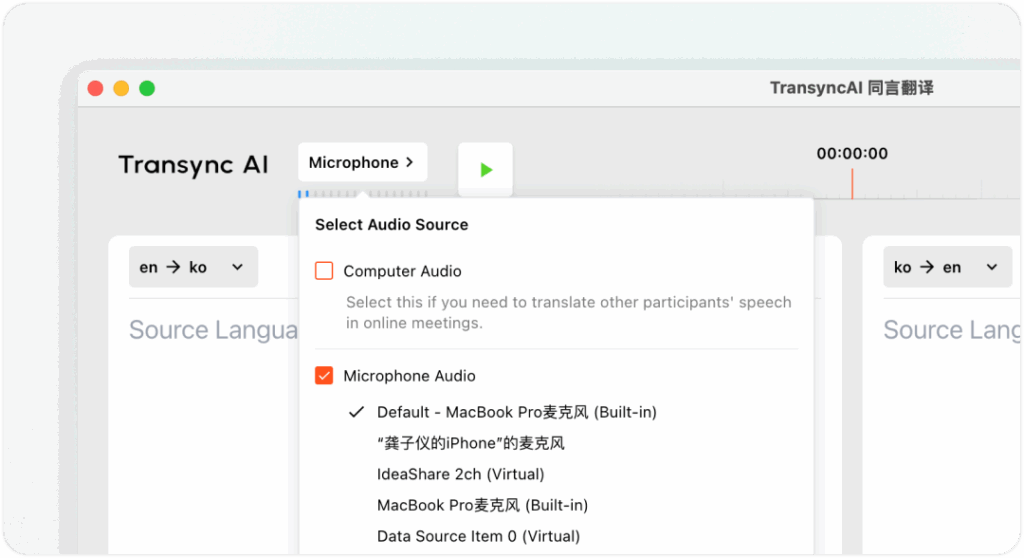
Vì sao điều này quan trọng: Transync AI thu âm từ máy tính hoặc micro của bạn để dịch lời nói và phát bản dịch cho những người tham gia cuộc họp. Thiết lập âm thanh đúng cách đảm bảo:
- ✅ Thu âm rõ ràng (dịch chính xác)
- ✅ Nhận diện micro chính xác (nhận diện giọng nói của bạn)
- ✅ Cấu hình đầu ra loa (người khác nghe bản dịch)
Các bước thiết lập:
1. Kiểm tra micro của bạn:
- Mở cài đặt Transync AI
- Vào mục “Đầu vào âm thanh”
- Chọn micro của bạn (thường là “Micro mặc định” hoặc tên thiết bị của bạn)
- Nhấp vào “Kiểm tra micro”
- Hãy nói vài lời
- Hãy xác nhận bạn nghe được giọng mình khi phát lại.
2. Kiểm tra loa/đầu ra âm thanh của bạn:
- Vào mục “Đầu ra âm thanh”
- Chọn loa của bạn (thường là “Loa mặc định” hoặc tên thiết bị)
- Nhấp vào “Kiểm tra loa”
- Hãy xác nhận bạn nghe thấy âm thanh thử nghiệm.
3. Dành cho các cuộc họp trực tiếp (có phụ đề):
- Kết nối loa ngoài hoặc tai nghe.
- Đảm bảo âm lượng loa đủ lớn cho tất cả người tham gia.
- Transync AI sẽ hiển thị phụ đề và phát bản dịch bằng giọng nói.
Dành cho hộp âm thanh máy tính:
- Trong Transync AI, hãy chọn ô “Âm thanh máy tính”.
- Điều này cho phép Transync AI thu âm thanh hệ thống (giọng nói của những người nói khác).
- Cần thiết cho việc tích hợp Zoom/Teams/Meet/Webex
- Đảm bảo Transync AI nghe được tất cả người tham gia cuộc họp.
Mẹo hay: Hãy kiểm tra âm thanh 5 phút trước các cuộc họp quan trọng để tránh các sự cố kỹ thuật.
Bước 3: Cấu hình cài đặt dịch trực tiếp
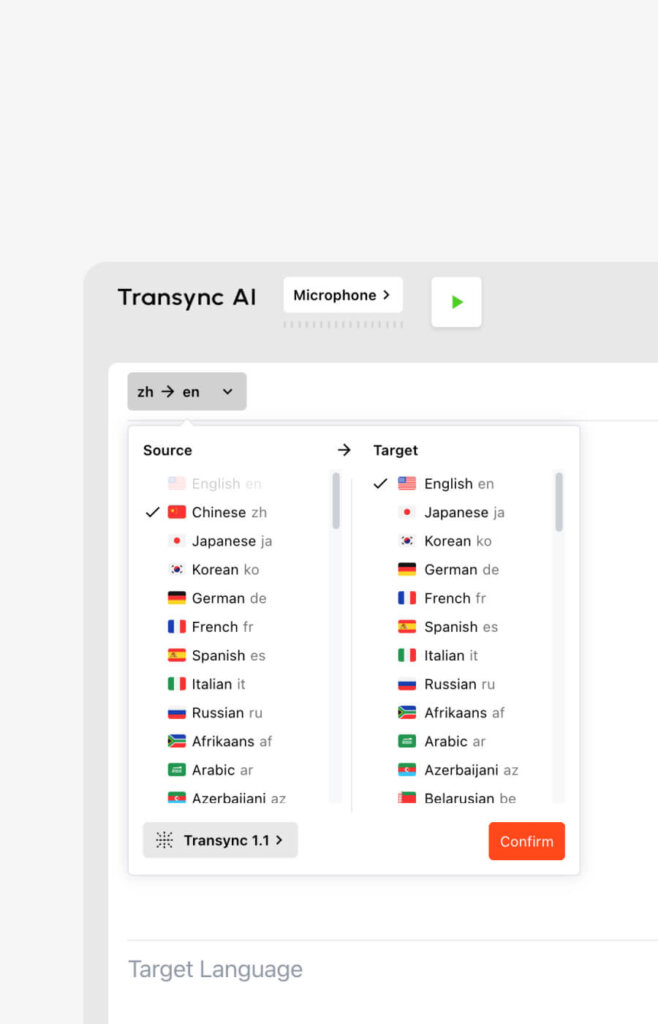
Thời gian cần thiết: 1-2 phút (cơ bản) hoặc 3-5 phút (nâng cao)
Cài đặt cơ bản (2 phút):
- Đăng nhập vào Transync AI
- Vào mục “Cài đặt” trên bảng điều khiển
- Chọn “Dịch thuật”
- Chọn ngôn ngữ mẹ đẻ của bạn (những gì bạn nói)
- Chọn ngôn ngữ mục tiêu (Điều bạn muốn nghe)
Quan trọng: Transync AI tự động phát hiện ngôn ngữ trong cuộc họp của bạn, vì vậy đây là các ngôn ngữ mặc định chứ không phải là các hạn chế.
Cài đặt nâng cao: Cài đặt từ khóa và ngữ cảnh (Tùy chọn – Để có độ chính xác tốt hơn)
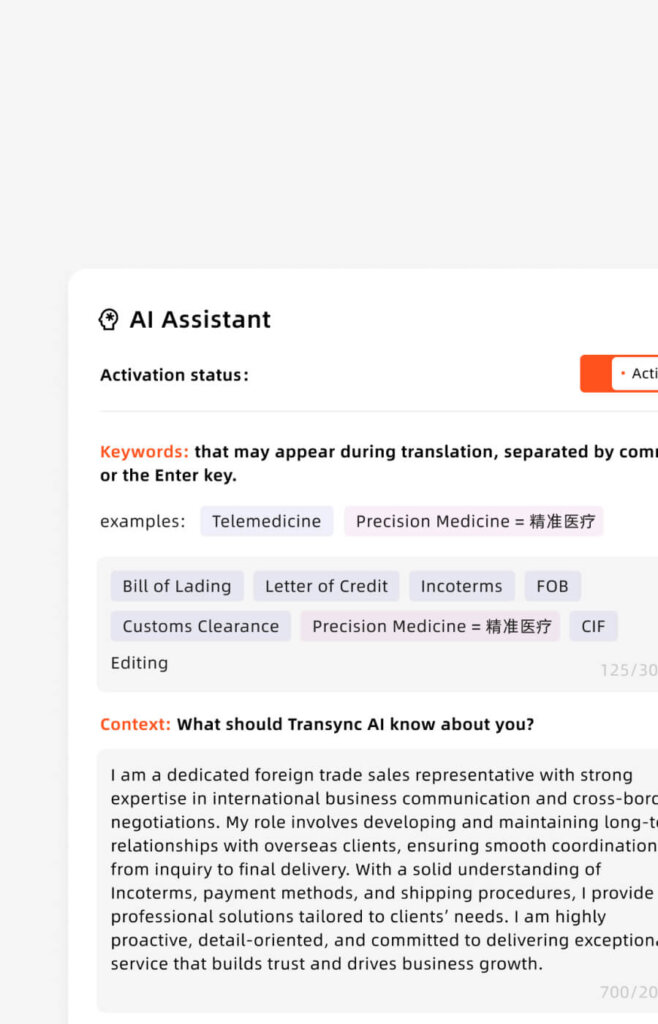
Khi nào nên sử dụng: Chỉ dành cho các cuộc họp kỹ thuật, chuyên ngành hoặc quan trọng.
Tại sao nên sử dụng nó: Độ chính xác mặc định 95% → Với từ khóa: 95%+ (đặc biệt là về thuật ngữ kỹ thuật)
Các bước:
- Vào mục “Cài đặt” → “Từ khóa & Ngữ cảnh”
- Nhấp vào “Thêm từ khóa”
- Nhập các thuật ngữ chuyên ngành (phân cách bằng dấu phẩy)
- Ví dụ: “API, microservices, deployment pipeline, GitHub”
- Ví dụ: “dược phẩm, phân tử, dấu ấn sinh học, phê duyệt của FDA”
- Ví dụ: “hợp đồng, điều khoản trách nhiệm pháp lý, sở hữu trí tuệ, tiền bản quyền”
- Nhấp vào “Thêm bản dịch” (Tùy chọn – xác định cách dịch các đoạn văn này)
- Ví dụ: “API = Interfaz de Programación de Aplicaciones (giữ dưới dạng API bằng tiếng Tây Ban Nha)”
- Ví dụ: “GitHub = GitHub (thuật ngữ chuyên ngành, không cần dịch)”
- Thêm ngữ cảnh (Nội dung cuộc họp của bạn là gì)
- Ví dụ: “Đây là một cuộc thảo luận kỹ thuật về kỹ thuật phần mềm”
- Ví dụ: “Đây là cuộc đàm phán kinh doanh về hợp tác trong lĩnh vực dược phẩm”
- Lưu cài đặt
Lưu ý quan trọng: Cài đặt từ khóa/ngữ cảnh là KHÔNG BẮT BUỘC. Đối với các cuộc trò chuyện thông thường, bạn có thể bỏ qua bước này hoàn toàn. Còn đối với các cuộc thảo luận chuyên ngành, bước này giúp cải thiện đáng kể độ chính xác.
Thời gian đầu tư so với lợi ích thu được:
- Thời gian thiết lập: 2-5 phút
- Cải thiện độ chính xác: +3-5%
- Phù hợp cho: các cuộc họp kỹ thuật/pháp lý/y tế/đàm phán
- Không đáng dùng cho: các cuộc trò chuyện thông thường
Bước 4: Bắt đầu cuộc họp và kích hoạt tính năng dịch trực tiếp
Thời gian cần thiết: 30 giây
Dành cho các cuộc họp Zoom:
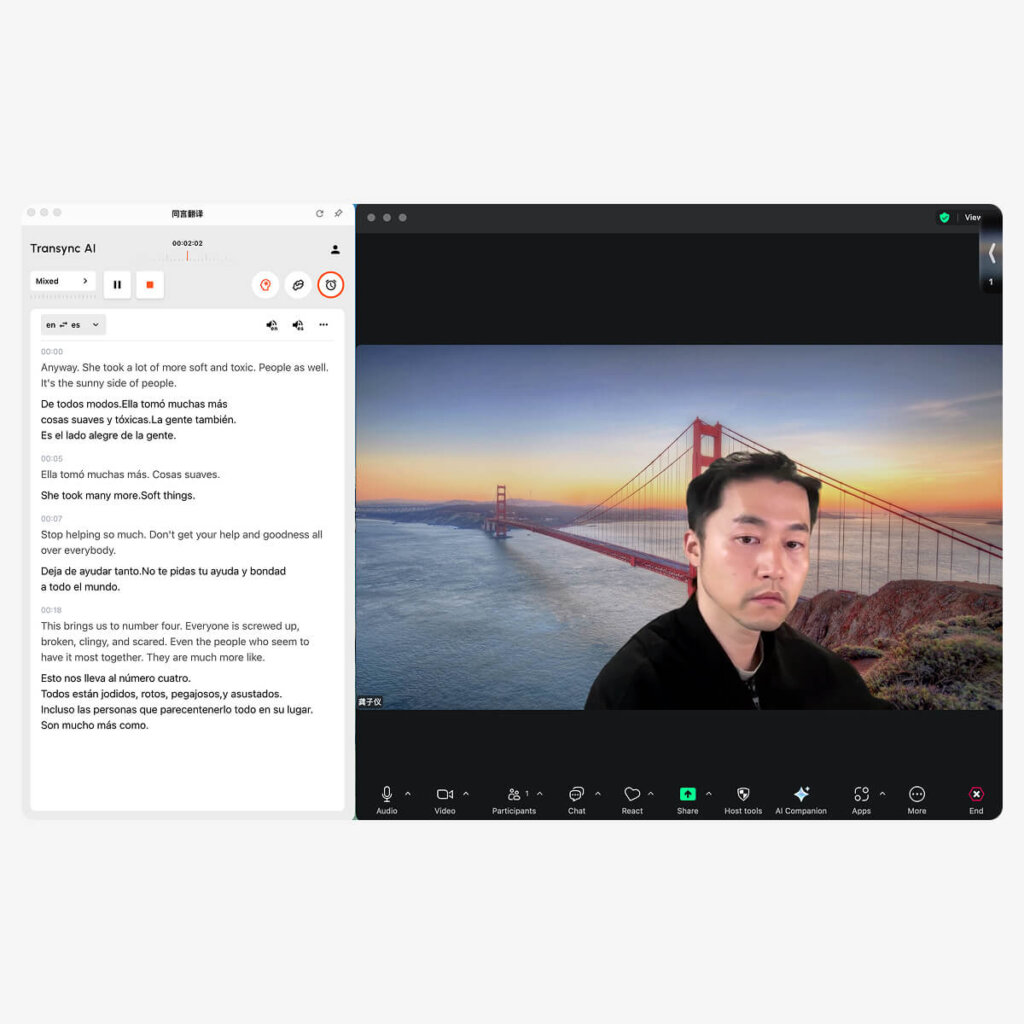
- AI Transync mở (ứng dụng máy tính hoặc trình duyệt)
- Chọn cặp ngôn ngữ của bạn (Ví dụ: tiếng Anh → tiếng Tây Ban Nha)
- Chọn ô “Âm thanh máy tính”. ✅
- Nhấp vào “Bắt đầu dịch”
- Mở Zoom và bắt đầu cuộc họp của bạn thông thường
- Transync AI tự động lắng nghe âm thanh Zoom
- Bản dịch thời gian thực xuất hiện trong cửa sổ Transync AI
- Tùy chọn: Chọn “Bắt đầu phát lại” ở góc trên bên phải
- Nếu được chọn: Những người khác sẽ nghe được bản phát thanh đã được dịch.
- Nếu không được chọn: Chỉ bạn mới thấy bản dịch (người khác không nghe thấy)
- Nếu chia sẻ màn hình: Chọn “Bao gồm âm thanh máy tính” trong tùy chọn chia sẻ Zoom.
- Điều này cho phép phát lại âm thanh đã được dịch cho người tham dự.
Dành cho các cuộc họp Microsoft Teams:

- AI Transync mở (ứng dụng máy tính hoặc trình duyệt)
- Chọn cặp ngôn ngữ của bạn (Ví dụ: tiếng Anh → tiếng Tây Ban Nha)
- Chọn ô “Âm thanh máy tính”. ✅
- Nhấp vào “Bắt đầu dịch”
- Mở Teams và bắt đầu cuộc họp của bạn thông thường
- Transync AI tự động lắng nghe âm thanh đến Teams
- Bản dịch thời gian thực xuất hiện trong cửa sổ Transync AI
- Tùy chọn: Chọn “Bắt đầu phát lại” ở góc trên bên phải
- Nếu chia sẻ màn hình: Chọn “Bao gồm âm thanh hệ thống” trong tùy chọn chia sẻ Teams.
Dành cho các cuộc họp Google Meet:
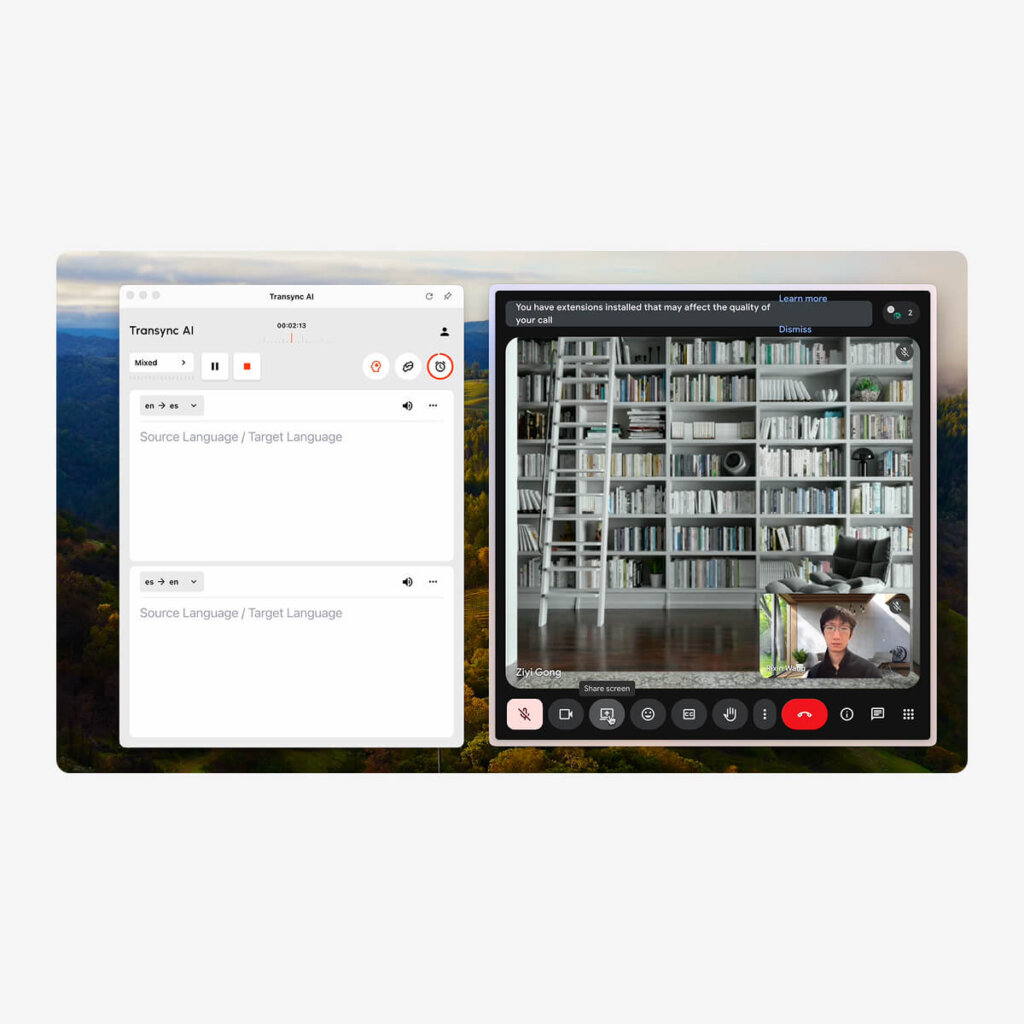
- AI Transync mở (ứng dụng máy tính hoặc trình duyệt)
- Chọn cặp ngôn ngữ của bạn (Ví dụ: tiếng Anh → tiếng Tây Ban Nha)
- Chọn ô “Âm thanh máy tính”. ✅
- Nhấp vào “Bắt đầu dịch”
- Mở Google Meet và bắt đầu cuộc họp của bạn. thông thường
- Transync AI tự động lắng nghe để đáp ứng âm thanh
- Bản dịch thời gian thực xuất hiện trong cửa sổ Transync AI
- Tùy chọn: Chọn “Bắt đầu phát lại” ở góc trên bên phải
- Nếu chia sẻ màn hình: Chọn tùy chọn “Chia sẻ âm thanh hệ thống” trong Meet.
Đối với cuộc họp Webex:
- AI Transync mở (ứng dụng máy tính hoặc trình duyệt)
- Chọn cặp ngôn ngữ của bạn
- Chọn ô “Âm thanh máy tính”. ✅
- Nhấp vào “Bắt đầu dịch”
- Mở Webex và bắt đầu cuộc họp của bạn thông thường
- Transync AI tự động lắng nghe âm thanh Webex
- Bản dịch thời gian thực xuất hiện trong cửa sổ Transync AI
- Tùy chọn: Chọn “Bắt đầu phát lại” ở góc trên bên phải
- Nếu chia sẻ màn hình: Chọn tùy chọn “Chia sẻ âm thanh máy tính”.
Dành cho cuộc gọi thoại WhatsApp (Thiết lập đặc biệt):
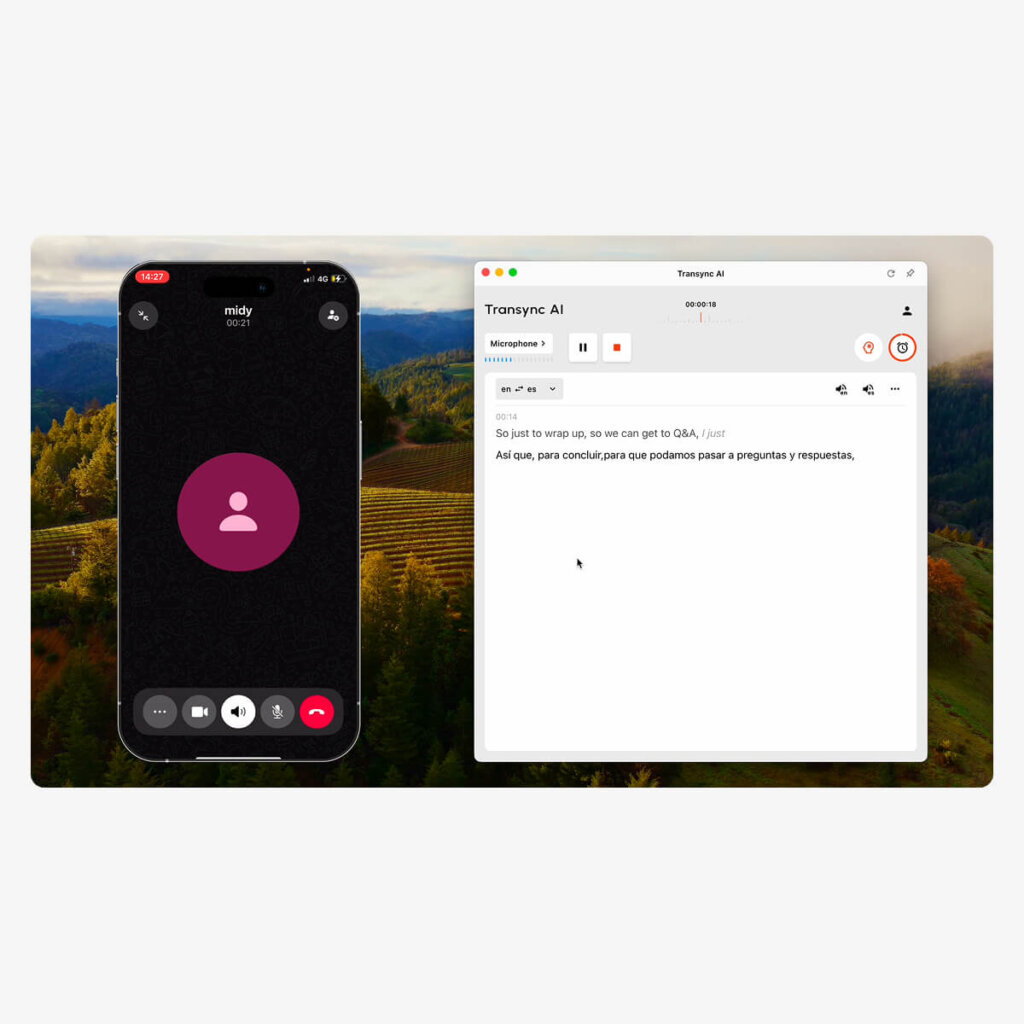
Quan trọng: Cuộc gọi thoại WhatsApp yêu cầu thiết lập khác vì nó được sử dụng trên điện thoại di động:
- AI Transync mở trên máy tính của bạn (ứng dụng dành cho máy tính để bàn)
- Xác nhận lựa chọn nguồn micro (micrô máy tính của bạn)
- Nhấp vào “Bắt đầu dịch”
- Mở WhatsApp trên điện thoại của bạn
- Bắt đầu hoặc nhận cuộc gọi thoại trên điện thoại của bạn
- Bật loa ngoài cho cuộc gọi WhatsApp của bạn
- Giữ điện thoại gần micro của máy tính. (để Transync AI có thể nghe thấy)
- Hoặc sử dụng loa Bluetooth để thu âm tốt hơn.
- Transync AI sẽ lắng nghe và cung cấp bản dịch theo thời gian thực
- Xem các bản dịch trong cửa sổ Transync AI trên máy tính của bạn
- Tùy chọn: Chọn “Bắt đầu phát lại” để nghe bản dịch âm thanh
- Sau khi cuộc gọi kết thúc:
- Nhấp chuột “"Kết thúc"” nút trong Transync AI
- Nhận bản ghi và biên bản cuộc họp tự động.
Ghi chú: Để có chất lượng âm thanh WhatsApp tốt hơn, hãy sử dụng loa Bluetooth hoặc chế độ loa ngoài để đảm bảo thu âm rõ ràng.
Đối với các cuộc họp trực tiếp (gặp mặt):
- Thiết lập đầu vào và đầu ra âm thanh của bạn
- Microphone thu âm giọng nói từ phòng họp
- Người phát thanh truyền tải bản dịch đến người tham dự.
- Đảm bảo chất lượng âm thanh rõ ràng (giảm thiểu tiếng ồn xung quanh).
- Chọn ngôn ngữ nguồn và ngôn ngữ đích
- Ví dụ: Tiếng Anh → Tiếng Tây Ban Nha
- Ví dụ: Tiếng Anh → Tiếng Quan Thoại + Tiếng Tây Ban Nha (nhiều ngôn ngữ đích)
- Nhấp vào “Bắt đầu” để bắt đầu dịch
- Người tham gia nói chuyện một cách tự nhiên bằng ngôn ngữ ưa thích của họ
- Transync AI hiển thị phụ đề Trên màn hình hiển thị:
- Bản ghi ngôn ngữ gốc
- Bản dịch thời gian thực
- Âm thanh được phát sóng vậy nên tất cả mọi người đều nghe được bản dịch
- Sau cuộc gặp: Bản tóm tắt do AI tạo + bản ghi đầy đủ được cung cấp tự động
Bước 5: Sử dụng tính năng dịch trực tiếp trong suốt cuộc họp
Quản lý công tác dịch thuật:
Tạm dừng/Tiếp tục dịch:
- Nhấp vào biểu tượng tạm dừng nếu bạn chỉ muốn nói bằng ngôn ngữ mẹ đẻ.
- Nhấp vào "Tiếp tục" để tiếp tục dịch.
- Hữu ích cho các cuộc trò chuyện riêng tư
- Trạng thái: Quá trình dịch tạm dừng/tiếp tục ngay lập tức
Chuyển đổi ngôn ngữ giữa cuộc họp:
- Nhấp vào menu thả xuống ngôn ngữ trong Transync AI
- Chọn cặp ngôn ngữ khác
- Transync AI thích ứng tức thì (độ trễ <100ms)
- Hữu ích nếu người tham gia mới nói một ngôn ngữ khác.
Theo dõi bản ghi trực tiếp:
- Bản ghi chép theo thời gian thực hiển thị trong bảng điều khiển Transync AI.
- Hiển thị cả văn bản gốc và văn bản đã dịch.
- Có thể tìm kiếm trong thời gian thực
- Giúp kiểm tra độ chính xác của bản dịch.
Bật/Tắt chế độ phát lại:
- “Nút ”Bắt đầu phát lại” điều khiển việc người khác có nghe được bản dịch hay không.
- Đã bật: Người tham dự cuộc họp nghe được âm thanh đã được dịch
- Đã tắt: Chỉ bạn mới thấy bản dịch (người khác không biết)
- Có thể bật/tắt trong khi cuộc họp diễn ra.
Chia sẻ nội dung đã dịch:
- Nhấp vào nút “Chia sẻ” để hiển thị bản dịch trên màn hình.
- Hữu ích khi thuyết trình cho khán giả đã được dịch.
- Hiển thị bản gốc và bản dịch cạnh nhau.
Bước 6: Sau cuộc họp – Truy cập bản ghi dịch trực tiếp
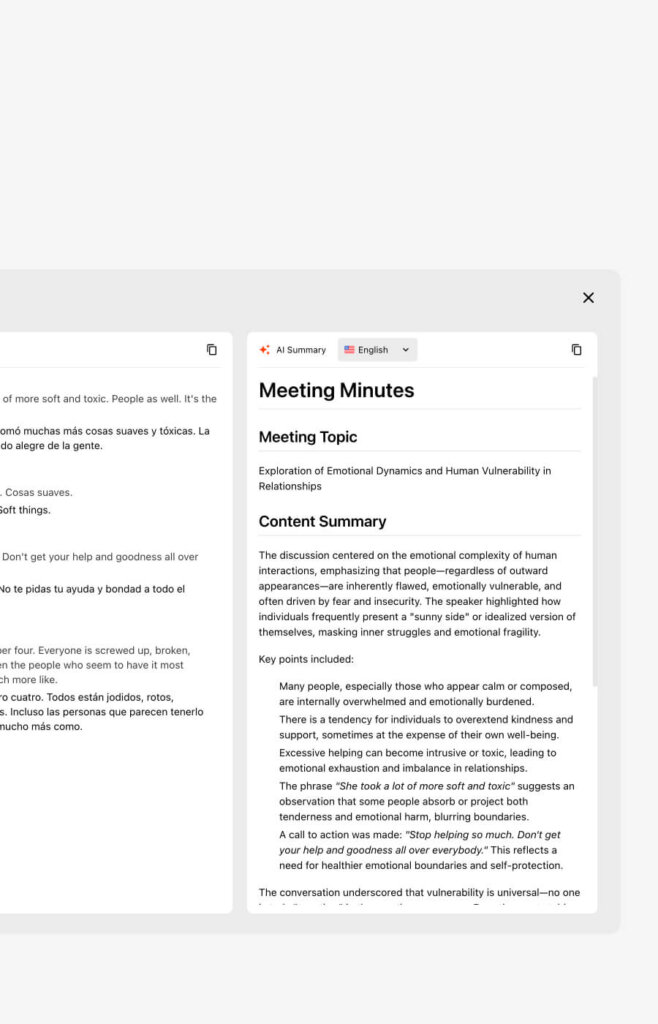
Thời gian cần thiết: Ngay lập tức (tự động)
Kết quả sau cuộc họp có sẵn ngay lập tức:
- Truy cập bảng điều khiển Transync AI
- Nhấp vào “Các cuộc họp gần đây” hoặc “Lịch sử cuộc họp”
- Chọn cuộc họp của bạn
- Truy cập bản tóm tắt tự động
- Tóm tắt song ngữ các điểm chính
- Các mục hành động đã được trích xuất và phân công.
- Người tham gia và ngôn ngữ của họ
- Thời lượng và thời gian diễn ra cuộc họp
- Tải xuống bản ghi đầy đủ
- Định dạng PDF có ghi rõ tác giả
- Dấu thời gian cho mỗi lần trao đổi
- Cả văn bản gốc và văn bản dịch
- Tài liệu có thể tìm kiếm
- Xuất file để chia sẻ nhóm
- Chia sẻ file PDF với người tham dự
- Nhập vào hệ thống tài liệu
- Lưu trữ theo quy định.
Hướng dẫn sử dụng Live Translate: Hướng dẫn dành riêng cho từng nền tảng
Transync AI + Zoom (Quy trình làm việc hoàn chỉnh)
Hoàn tất thiết lập (tổng cộng 3 phút):
- AI Transync mở trên máy tính của bạn
- Chọn cặp ngôn ngữ: Tiếng Anh → Tiếng Tây Ban Nha (ví dụ)
- Chọn ô “Âm thanh máy tính”.
- Nhấp vào “Bắt đầu dịch” cái nút
- Mở Zoom và bắt đầu/tham gia cuộc họp bình thường
- Transync AI tự động phát hiện Âm thanh Zoom
- Xem các bản dịch xuất hiện trong cửa sổ Transync AI
- Tùy chọn – Bật chế độ phát lại:
- Chọn nút “Bắt đầu phát lại”.
- Nhấp vào “Chia sẻ màn hình” trong Zoom.
- Chọn tùy chọn “Bao gồm âm thanh máy tính”
- Những người tham dự cuộc họp giờ đây có thể nghe bản dịch tiếng Tây Ban Nha.
Trong cuộc họp:
- Bạn nói tiếng Anh một cách tự nhiên.
- Người tham gia nói tiếng Tây Ban Nha nghe bản dịch từ tiếng Anh sang tiếng Tây Ban Nha.
- Người nói tiếng Tây Ban Nha trả lời bằng tiếng Tây Ban Nha.
- Người nói tiếng Anh nghe bản dịch tiếng Tây Ban Nha sang tiếng Anh.
- Hoàn toàn thời gian thực, độ trễ <100ms
Sau cuộc họp:
- Nhấp vào “Kết thúc dịch” trong Transync AI.
- Xem bản ghi (cả hai ngôn ngữ)
- Tải xuống bản tóm tắt cuộc họp AI
- Truy cập vào bảng điều khiển Transync AI
Transync AI + Microsoft Teams (Quy trình làm việc hoàn chỉnh)
Hoàn tất thiết lập (tổng cộng 3 phút):
- AI Transync mở trên máy tính của bạn
- Chọn cặp ngôn ngữ (Ví dụ: tiếng Anh → tiếng Tây Ban Nha)
- Chọn ô “Âm thanh máy tính”.
- Nhấp vào “Bắt đầu dịch”
- Đội ngũ mở và bắt đầu/tham gia cuộc họp bình thường
- Transync AI tự động lắng nghe âm thanh đến Teams
- Xem các bản dịch trong cửa sổ Transync AI
- Tùy chọn – Bật chế độ phát lại:
- Chọn nút “Bắt đầu phát lại”.
- Nhấp vào “Chia sẻ” trong Teams.
- Chọn “Màn hình của bạn”
- Chọn “Bao gồm âm thanh hệ thống”
- Những người tham dự cuộc họp nghe bản dịch âm thanh.
Lưu ý quan trọng: Teams tự động phát hiện Transync AI (không giống như Zoom cần hộp âm thanh của máy tính). Quá trình thiết lập thậm chí còn đơn giản hơn.
Transync AI + Google Meet (Quy trình làm việc hoàn chỉnh)
Hoàn tất thiết lập (tổng cộng 3 phút):
- AI Transync mở
- Chọn cặp ngôn ngữ
- Chọn ô “Âm thanh máy tính”.
- Nhấp vào “Bắt đầu dịch”
- Mở Google Meet thông thường
- Transync AI lắng nghe tự động
- Xem các bản dịch trong cửa sổ Transync AI
- Tùy chọn – Bản dịch phát sóng:
- Chọn "Bắt đầu phát lại"“
- Nhấp vào “Trình bày ngay” trong Meet
- Chọn “Toàn màn hình của bạn”
- Chọn “Chia sẻ âm thanh”
- Người tham dự được nghe bản dịch.
Transync AI + Cuộc gọi thoại WhatsApp (Thiết lập trên thiết bị di động)
Điểm khác biệt chính: WhatsApp chạy trên điện thoại, Transync AI chạy trên máy tính = yêu cầu thiết lập đặc biệt.
Hoàn tất thiết lập (2 phút):
- AI Transync mở trên máy tính của bạn
- Xác nhận nguồn micro (mic máy tính)
- Nhấp vào “Bắt đầu dịch”
- Mở WhatsApp trên điện thoại của bạn
- Bắt đầu hoặc nhận cuộc gọi thoại
- Bật loa ngoài trên điện thoại
- Đặt điện thoại gần micro của máy tính. (hoặc sử dụng loa Bluetooth)
- Đặt điện thoại cách micrô khoảng 6-12 inch.
- Sử dụng loa Bluetooth để thu âm tối ưu.
- Xem các bản dịch xuất hiện trong cửa sổ Transync AI
- Tùy chọn – Nghe lại bản ghi âm:
- Chọn nút “Bắt đầu phát lại”.
- Transync AI đọc bản ghi âm đã được dịch
- Trong khi gọi điện:
- Bạn nói bằng ngôn ngữ của bạn
- Người gọi WhatsApp nghe được bản dịch
- Transync AI ghi lại mọi thứ
- Sau cuộc gọi:
- Nhấp vào “Kết thúc” trong Transync AI
- Nhận bảng điểm và tóm tắt ngay lập tức
Mẹo hữu ích khi sử dụng WhatsApp:
- Sử dụng loa Bluetooth (thu âm rõ hơn)
- Giảm thiểu tiếng ồn xung quanh phòng.
- Nói rõ ràng vào micrô điện thoại
- Thử nghiệm thiết lập với cuộc gọi thực hành nhanh trước.
Hướng dẫn sử dụng Live Translate: Các tính năng nâng cao
Tính năng 1: Cài đặt từ khóa và ngữ cảnh (Để đạt độ chính xác chuyên biệt)
Khi nào nên sử dụng:
- Các cuộc họp kỹ thuật (kỹ thuật, y tế, pháp lý)
- Đàm phán trong ngành (hợp đồng với các điều khoản cụ thể)
- Thảo luận học thuật (thuật ngữ nghiên cứu)
- Thảo luận kinh doanh với thuật ngữ chuyên ngành
Cách cấu hình:
Ví dụ 1 – Cuộc họp kỹ thuật phần mềm:
- Vào Cài đặt → Từ khóa & Ngữ cảnh
- Thêm từ khóa: “API, microservices, triển khai, Docker, CI/CD, GitHub, kho lưu trữ”
- Thêm bản dịch: “API = API (chưa dịch), repository = repositorio”
- Thêm ngữ cảnh: “Buổi họp kỹ thuật giao ban hàng ngày của nhóm kỹ sư phần mềm”
- Cứu
Kết quả: Các thuật ngữ chuyên ngành được dịch hoàn hảo, phần thảo luận chung cũng rất rõ ràng.
Ví dụ 2 – Thảo luận về hợp tác trong ngành dược phẩm:
- Thêm từ khóa: “chỉ dấu sinh học, phân tử, phê duyệt của FDA, thử nghiệm lâm sàng, bằng sáng chế”
- Thêm bản dịch: “biomarker = biomarcador, FDA = FDA (không có bản dịch)”
- Thêm ngữ cảnh: “Đàm phán hợp tác dược phẩm với trọng tâm là quy định pháp lý”
- Cứu
Kết quả: Thuật ngữ chuyên ngành dược phẩm chính xác, ngôn ngữ pháp lý chuẩn xác.
Tính năng 2: Màn hình kép (Hiểu cả hai ngôn ngữ)
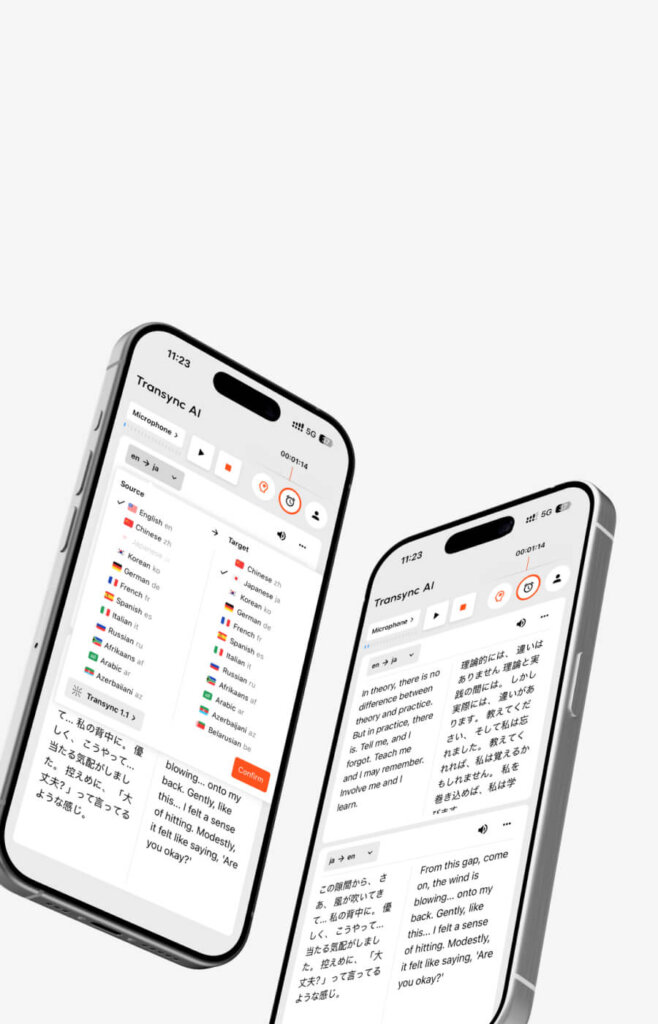
Điều nó thể hiện:
- Bên trái: Ngôn ngữ gốc (những gì người đó nói)
- Bên phải: Ngôn ngữ đã được dịch (ý nghĩa của việc dịch thuật)
- Đồng bộ hóa theo thời gian thực
Tại sao nên sử dụng nó:
- Khả năng hiểu tốt hơn (đọc + nghe)
- Kiểm tra độ chính xác của bản dịch
- Giúp người nói tiếng Anh không phải là tiếng mẹ đẻ hiểu rõ hơn
- Dành cho các bài thuyết trình (khán giả cùng đọc theo)
Cách kích hoạt:
- Trong khi họp, hãy tìm nút bật/tắt “Màn hình kép” trong Transync AI.
- Bật công tắc
- Transync AI hiển thị bản gốc và bản dịch cạnh nhau.
Các trường hợp sử dụng:
- Trình bày các điều khoản hợp đồng (cả hai bên đều thấy chính xác cùng một nội dung)
- Hướng dẫn kỹ thuật chi tiết (mã nguồn hiển thị + đã dịch)
- Các buổi đào tạo (học viên đọc + nghe)
- Đàm phán (tránh hiểu nhầm)
Tính năng 3: Tóm tắt cuộc họp bằng AI (Tự động lập tài liệu)
Những gì nó tự động tạo ra:
- Tóm tắt song ngữ (bản gốc + ngôn ngữ của bạn)
- Các điểm thảo luận chính được trích dẫn
- Các mục hành động với người được giao nhiệm vụ
- Các bước tiếp theo đã được xác định
- Người tham gia và mốc thời gian
Cách truy cập:
- Sau khi cuộc họp kết thúc, hãy nhấp vào “Kết thúc dịch thuật” trong Transync AI.
- Truy cập bảng điều khiển Transync AI
- Nhấp vào “Các cuộc họp gần đây”
- Chọn cuộc họp của bạn
- Cuộn xuống phần “Tóm tắt AI”
- Xem lại, tải xuống dưới dạng PDF hoặc chia sẻ với nhóm.
Thời gian tiết kiệm được:
- Cuộc họp 60 phút: tiết kiệm 20-30 phút thời gian lập tài liệu.
- 20 cuộc họp/tuần: tiết kiệm 6-10 giờ/tuần
Tính năng 4: Bản ghi chép thời gian thực (Bản ghi có thể tìm kiếm)
Có sẵn trong suốt cuộc họp:
- Bảng ghi chép trực tiếp hiển thị mọi thứ đã được nói.
- Cả văn bản gốc và văn bản dịch
- Tên người phát ngôn được ghi nhận.
- Thời gian cụ thể cho mỗi lần trao đổi
- Có thể tìm kiếm trong thời gian thực
Cách tìm kiếm:
- Trong lúc họp, hãy mở Transync AI.
- Nhấp vào tab “Bản ghi”
- Sử dụng tổ hợp phím Ctrl+F (hoặc Cmd+F trên máy Mac) để tìm kiếm.
- Tìm kiếm theo từ khóa (ví dụ: “ngân sách”, “tiến độ”, “phê duyệt”)
- Xem tất cả các đề cập ngay lập tức
- Nhấp vào kết quả để chuyển đến mốc thời gian đó.
Hướng dẫn sử dụng Live Translate: Khắc phục sự cố
Vấn đề 1: Độ trễ dịch thuật có vẻ cao
Triệu chứng: Nhận thấy độ trễ 1-2 giây giữa lời nói và bản dịch
Nguyên nhân có thể là:
- Tốc độ kết nối internet chậm (<10 Mbps tải lên)
- CPU máy tính bị quá tải
- Microphone thu âm sai nguồn âm thanh
Giải pháp:
- Đóng các ứng dụng khác tiêu tốn CPU
- Kiểm tra tốc độ internet (Cần tốc độ mạng 10 Mbps trở lên)
- Kiểm tra nguồn micro. trong cài đặt Transync AI
- Khởi động lại Transync AI và cuộc họp
- Sử dụng kết nối có dây thay vì WiFi (ổn định hơn)
Độ trễ dự kiến:
- Transync AI: <100ms (không thể nhận biết)
- JotMe: 150-200ms (hơi dễ nhận thấy)
Nếu gặp hiện tượng >200ms, hãy khắc phục sự cố ngay lập tức.
Vấn đề 2: Độ chính xác thấp hơn dự kiến
Triệu chứng: Bản dịch có vẻ không chính xác hoặc thuật ngữ chuyên ngành không đúng.
Nguyên nhân:
- Không có cài đặt từ khóa/ngữ cảnh (cho các cuộc thảo luận kỹ thuật)
- Giọng nói có âm điệu rất nặng hoặc không rõ ràng.
- Môi trường ồn ào
- Nói nhanh hoặc bị gián đoạn
Giải pháp:
Giải pháp nhanh:
- Hãy nói chậm hơn và rõ ràng hơn.
- Giảm thiểu tiếng ồn xung quanh
- Mỗi lần chỉ một người phát biểu.
- Tạm dừng giữa các câu
Giải pháp tốt hơn:
- Sử dụng cài đặt từ khóa/ngữ cảnh (nếu mang tính kỹ thuật)
- Thêm các thuật ngữ chuyên ngành và ngữ cảnh.
- Khởi động lại quá trình dịch
- Kiểm tra lại với cài đặt mới.
Vấn đề 3: Hộp “Âm thanh máy tính” không hoạt động
Triệu chứng: Transync AI không thu âm được âm thanh cuộc họp từ Zoom/Teams/Meet.
Giải pháp:
- Kiểm tra xem Transync AI đã chọn đúng micro chưa.
- Mở cài đặt Transync AI
- Kiểm tra thiết bị “Đầu vào âm thanh”.
- Nên hiển thị đầu vào âm thanh mặc định của máy tính bạn.
- Đã chọn ô “Âm thanh máy tính”. ✅
- Xác minh quyền truy cập micro
- macOS: Cài đặt → Quyền riêng tư & Bảo mật → Micrô → Cho phép Transync AI
- Windows: Cài đặt → Quyền riêng tư & Bảo mật → Micrô → Cho phép Transync AI
- Khởi động lại Transync AI (Đóng cửa hoàn toàn và mở cửa lại)
- Kiểm tra với cuộc gọi đơn giản (cuộc họp không quan trọng)
Vấn đề 4: Người khác không nghe được âm thanh đã dịch
Triệu chứng: Bạn thấy bản dịch nhưng người tham dự cuộc họp không nghe thấy chúng.
Giải pháp:
Dành cho Zoom:
- Kiểm tra xem nút “Bắt đầu phát lại” đã được bật chưa ✅
- Nhấp vào “Chia sẻ màn hình” trong Zoom.
- Chọn “Bao gồm âm thanh máy tính” ✅
- Những người tham dự giờ đây sẽ được nghe bản dịch.
Dành cho các đội:
- Kiểm tra xem nút “Bắt đầu phát” đã được kích hoạt chưa ✅
- Nhấp vào “Chia sẻ” trong Teams.
- Chọn “Màn hình của bạn”
- Chọn “Bao gồm âm thanh hệ thống” ✅
- Người tham dự nên được nghe bản dịch.
Dành cho Google Meet:
- Kiểm tra xem tùy chọn “Bắt đầu phát” đã được bật chưa ✅
- Nhấp vào “Trình bày ngay”
- Chọn “Toàn màn hình của bạn”
- Chọn “Chia sẻ âm thanh” ✅
- Người tham dự nên được nghe bản dịch.
Điểm mấu chốt: “Bạn phải bật tùy chọn "Bắt đầu phát lại" VÀ phải chia sẻ màn hình kèm âm thanh để người khác có thể nghe bản dịch.
Vấn đề 5: Âm thanh WhatsApp không được ghi lại
Triệu chứng: Transync AI không nghe được âm thanh cuộc gọi thoại WhatsApp
Giải pháp:
- Đảm bảo loa ngoài đang được bật. trên điện thoại của bạn (rất quan trọng)
- Đặt điện thoại gần micro của máy tính. (Cách 6-12 inch)
- Sử dụng loa Bluetooth (Tốt hơn loa điện thoại)
- Kiểm tra cài đặt micro trong Transync AI. nguồn tin chính xác
- Kiểm tra micro trong Transync AI trước khi gọi
- Giảm thiểu tiếng ồn xung quanh trong phòng
- Kiểm tra bằng cuộc gọi thực hành Đầu tiên
Cấu hình tối ưu nhất cho WhatsApp:
- Điện thoại đang bật loa ngoài
- Loa Bluetooth, đặt cách micrô máy tính 6-12 inch.
- Phòng yên tĩnh (giảm thiểu tiếng ồn xung quanh)
- Micrô Transync AI được đặt làm đầu vào hệ thống mặc định
Hướng dẫn sử dụng Live Translate: Các phương pháp tốt nhất
Thực hành tốt nhất 1: Kiểm tra trước các cuộc họp quan trọng
Khi: Hãy làm việc này 24 giờ trước các cuộc họp quan trọng.
Các bước:
- Lên lịch cuộc gọi kiểm tra với đồng nghiệp
- Cả hai đều cho phép dịch trực tiếp
- Kiểm tra xem độ trễ có chấp nhận được không (<100ms dự kiến)
- Kiểm tra chất lượng và độ chính xác của giọng nói.
- Kiểm tra cài đặt từ khóa nếu sử dụng các thuật ngữ chuyên ngành.
- Kiểm tra khả năng tương thích nền tảng (Zoom/Teams/Meet hoạt động tốt)
- Thử nghiệm chia sẻ màn hình kèm âm thanh.
Tại sao: Tránh các sự cố kỹ thuật trong các cuộc gọi bán hàng hoặc đàm phán quan trọng.
Phương pháp tốt nhất 2: Nói rõ ràng để đạt độ chính xác cao hơn
Tránh xa: ❌ Nói lẩm bẩm hoặc nói quá nhanh ❌ Tiếng ồn xung quanh quá lớn ❌ Ngắt lời (nhiều người nói cùng lúc) ❌ Phát âm không rõ ràng
Thay vì: ✅ Nói chuyện tự nhiên nhưng rõ ràng ✅ Môi trường yên tĩnh (giảm thiểu tiếng ồn xung quanh) ✅ Chỉ một người nói tại một thời điểm ✅ Sử dụng từ khóa/ngữ cảnh cho các thuật ngữ chuyên ngành ✅ Tạm dừng giữa các câu
Thực hành tốt nhất 3: Chỉ sử dụng cài đặt từ khóa cho các cuộc thảo luận chuyên biệt.
Khi nào nên đặt từ khóa: Các cuộc họp kỹ thuật, pháp lý, y tế, đàm phán Khi nào KHÔNG nên đặt từ khóa: Trò chuyện thông thường, gặp gỡ thân mật
Tại sao: Việc thiết lập từ khóa mất 2-5 phút nhưng mang lại lợi ích tối thiểu cho các cuộc hội thoại thông thường. Chỉ nên sử dụng trong các trường hợp chuyên biệt, nơi độ chính xác là cực kỳ quan trọng.
Thực hành tốt nhất 4: Kiểm tra độ chính xác của bản dịch
Dành cho các cuộc thảo luận quan trọng:
- Theo dõi bản ghi trực tiếp trong cuộc họp
- Kiểm tra các thuật ngữ chính được dịch chính xác
- Nếu phát hiện lỗi:
- Hãy diễn đạt lại câu đó.
- Hãy sử dụng ngôn ngữ đơn giản hơn.
- Thêm ngữ cảnh
- Sau cuộc gặp:
- Bản ghi xem lại
- Xác minh thông tin quan trọng
- Nếu có bất kỳ thắc mắc nào, hãy liên hệ lại bằng văn bản.
Thực hành tốt nhất 5: Quản lý kỳ vọng của người tham gia
Trước khi cuộc họp diễn ra, hãy thông báo cho người tham dự:
“Hôm nay chúng ta sẽ sử dụng phiên dịch trực tiếp. Hệ thống hoạt động theo thời gian thực, vì vậy quý vị sẽ nghe được bản dịch ngay lập tức. Nếu có bất kỳ điều gì chưa rõ ràng, vui lòng yêu cầu làm rõ ngay lập tức – đừng đợi đến cuối cuộc họp.”
Tại sao: Giúp thiết lập kỳ vọng, tránh nhầm lẫn và khuyến khích đặt câu hỏi.
Hướng dẫn sử dụng Live Translate: Các trường hợp sử dụng thực tế
Trường hợp sử dụng 1: Cuộc gọi bán hàng quốc tế (qua Zoom)
Cài đặt:
- AI Transync mở
- Chọn tiếng Anh → tiếng Tây Ban Nha
- Kiểm tra mục "Âm thanh máy tính".“
- Nhấp vào “Bắt đầu dịch”
- Mở cuộc gọi Zoom như bình thường
- Transync AI tự động lắng nghe
Trong khi gọi điện:
- Bạn nói tiếng Anh (bài thuyết trình bán hàng)
- Khách hàng tiềm năng nói tiếng Tây Ban Nha nghe được bản dịch tiếng Tây Ban Nha ngay lập tức.
- Khách hàng tiềm năng trả lời bằng tiếng Tây Ban Nha
- Bạn nghe được bản dịch tiếng Anh ngay lập tức.
- Trò chuyện tự nhiên, độ trễ <100ms
Sau cuộc gọi:
- Xem bản ghi bằng cả hai ngôn ngữ
- Đánh giá tóm tắt AI (các điểm chính + các bước tiếp theo)
- Chia sẻ ghi chú song ngữ với nhóm.
Trường hợp sử dụng 2: Họp nhóm định kỳ từ xa (qua Teams)
Cài đặt:
- AI Transync mở
- Chọn tiếng Anh → tiếng Tây Ban Nha
- Thêm từ khóa: “sprint, story points, deployment, QA”
- Thêm ngữ cảnh: “cuộc họp giao ban kỹ thuật phần mềm”
- Kiểm tra mục "Âm thanh máy tính".“
- Nhấp vào “Bắt đầu dịch”
- Cuộc họp Open Teams
Kết quả:
- Kỹ sư nói tiếng Tây Ban Nha
- Các kỹ sư nói tiếng Anh nghe bản dịch từ tiếng Tây Ban Nha sang tiếng Anh.
- Kỹ sư nói tiếng Anh
- Kỹ sư nói tiếng Tây Ban Nha nghe tiếng Anh → Bản dịch tiếng Tây Ban Nha
- 25% cuộc họp nhanh hơn (không có rào cản ngôn ngữ)
- Tóm tắt AI tự động trích xuất các mục hành động.
Trường hợp sử dụng 3: Cuộc gọi thoại WhatsApp (với khách hàng)
Cài đặt:
- Mở Transync AI trên máy tính
- Nhấp vào “Bắt đầu dịch”
- Mở WhatsApp trên điện thoại
- Bắt đầu cuộc gọi thoại
- Bật loa ngoài
- Đặt điện thoại gần micrô của máy tính (hoặc sử dụng loa Bluetooth).
Trong khi gọi điện:
- Bạn nói tiếng Anh (nhân viên hỗ trợ)
- Khách hàng nói tiếng Tây Ban Nha
- Transync AI dịch cả hai chiều
- Bạn có thể thấy các bản dịch trong cửa sổ Transync AI.
- Cuộc trò chuyện tự nhiên
Sau cuộc gọi:
- Nhấp vào “Kết thúc” trong Transync AI
- Nhận bản ghi chép + biên bản cuộc họp
- Chia sẻ với nhóm chăm sóc khách hàng
Trường hợp sử dụng 4: Cuộc gặp trực tiếp (mặt đối mặt)
Cài đặt:
- AI Transync mở
- Đặt micro (để thu âm thanh trong phòng)
- Cài đặt loa (phát bản dịch)
- Chọn cặp ngôn ngữ (tiếng Anh ↔ tiếng Tây Ban Nha)
- Nhấp vào “Bắt đầu”
Trong cuộc họp:
- Người tham gia nói chuyện một cách tự nhiên bằng ngôn ngữ của họ.
- Transync AI hiển thị phụ đề (bản gốc + bản dịch)
- Phát sóng âm thanh bằng các ngôn ngữ mục tiêu
- Tất cả người tham gia đều có thể theo dõi
Sau cuộc gặp:
- Tóm tắt về AI bằng cả hai ngôn ngữ
- Bản ghi đầy đủ có thể tìm kiếm
- Các mục hành động đã được trích xuất
🎥 Xem cách sử dụng Transync AI
Hướng dẫn sử dụng Live Translate: So sánh chi phí và nền tảng
| Giải pháp | Thời gian thiết lập | Chi phí hàng tháng | Dùng thử miễn phí | Độ trễ | Nền tảng | Tốt nhất cho |
|---|---|---|---|---|---|---|
| AI đồng bộ | <1 phút | $8.99 | 40 phút ✅ | <100ms | Zoom, Teams, Meet, Webex, WhatsApp | Các cuộc họp chuyên nghiệp |
| JotMe | 2-3 phút | $9 | 20 phút | 150-200ms | Zoom, Meet, Teams, Webex, LINE | Sử dụng thông thường |
| Talo | 1 phút | $80+ | KHÔNG | 120ms | Zoom, Teams, Meet | Doanh nghiệp |
| Wordly | Hơn 10 phút | $500+ | KHÔNG | 200ms+ | Zoom, Webex, Teams | Các sự kiện lớn |
Kết luận: Cách sử dụng dịch trực tiếp
Phiên dịch trực tiếp không còn phức tạp hay tốn kém nữa. Các giải pháp hiện đại như Transync AI giúp việc này trở nên vô cùng đơn giản:
✅ <1 phút để kích hoạt (Chọn ngôn ngữ, sau đó nhấp vào Bắt đầu) ✅ Độ trễ <100ms (cuộc trò chuyện tự nhiên, không gây chú ý) ✅ Độ chính xác 95%+ (99% về thuật ngữ kỹ thuật kèm từ khóa) ✅ Dùng thử miễn phí 40 phút (Đánh giá rủi ro bằng không) ✅ Tài liệu tự động (bản ghi + tóm tắt) ✅ Hoạt động trên mọi nền tảng (Zoom, Teams, Meet, Webex, WhatsApp)
Hãy bắt đầu dùng thử miễn phí ngay hôm nay và trải nghiệm cách dịch trực tiếp giúp loại bỏ rào cản ngôn ngữ trong các cuộc họp của bạn.
INếu bạn muốn có trải nghiệm thế hệ tiếp theo, AI đồng bộ dẫn đầu với tính năng dịch thuật thời gian thực, hỗ trợ bởi AI giúp cuộc trò chuyện diễn ra tự nhiên. Bạn có thể dùng thử miễn phí Hiện nay.