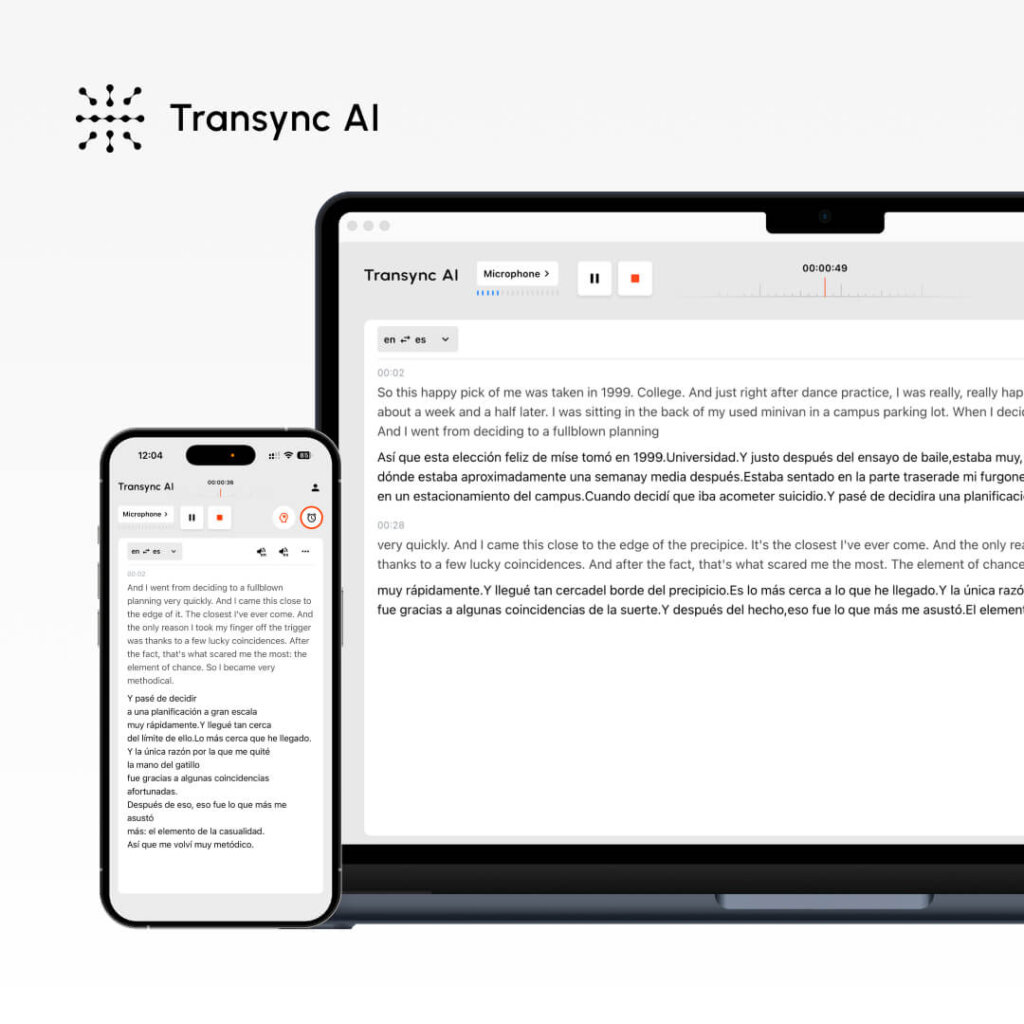
Vous souhaitez utiliser la traduction instantanée mais vous ne savez pas comment la configurer ? La traduction en temps réel peut sembler complexe, mais les solutions modernes la rendent remarquablement simple, à condition de connaître les étapes à suivre.
Ce guide complet vous explique comment utiliser efficacement la traduction instantanée, de la configuration initiale aux fonctionnalités avancées. Que vous meniez un appel commercial international, gériez une réunion d'équipe à distance ou organisiez un webinaire multilingue, vous apprendrez précisément comment utiliser la traduction instantanée pour une communication fluide.
Nous nous concentrerons sur Transync AI (la solution la plus simple) tout en couvrant JotMe et d'autres solutions afin que vous puissiez choisir celle qui correspond le mieux à vos besoins.
Qu'est-ce que la traduction en direct ? (Et pourquoi vous en avez besoin)
Traduction en direct Elle convertit la langue parlée en une autre langue en temps réel pendant les réunions. Contrairement à la traduction traditionnelle (qui nécessite l'attente d'un interprète), la traduction en direct est instantanée, permettant une conversation naturelle entre des personnes parlant des langues différentes.
Scénarios courants où vous utiliseriez la traduction en direct :
✅ appels de vente – Un commercial anglophone appelle un prospect hispanophone ✅ Réunions d'équipe – Équipe répartie avec plusieurs langues maternelles ✅ Service client – Un agent d'assistance anglophone aide un client espagnol ✅ Webinaires – Animateur s'adressant à un public international en anglais ✅ Conférences – Plusieurs intervenants et participants parlant différentes langues ✅ entretiens d'embauche – L’intervieweur et le candidat parlent des langues différentes ✅ séances d'entraînement – Des enseignants et des étudiants par-delà la barrière linguistique ✅ Négociations commerciales – Discussions multipartites et multilingues ✅ appels vocaux WhatsApp – Traduction en temps réel lors d'appels personnels/professionnels ✅ Réunions en présentiel – Discussions multilingues en face à face avec sous-titres
Principal avantage de la traduction en direct : Plus besoin d'attendre une interprétation. La conversation se déroule naturellement et en temps réel.
Comment utiliser Live Translate : Transync AI (option la plus simple)
Étape 1 : Créez votre compte Transync AI
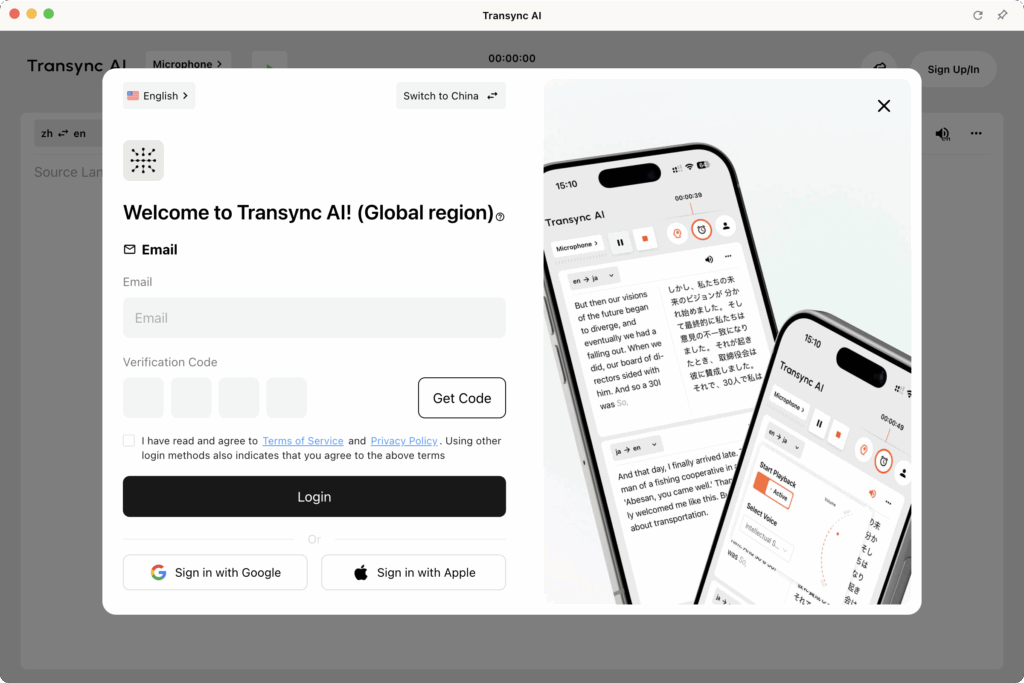
Temps requis : 2 minutes
Processus:
- Visitez le site web de Transync AI (transync.ai)
- Cliquez sur “ S’inscrire ” ou “ Commencer ”.”
- Saisissez votre adresse e-mail
- Créer un mot de passe (8 caractères minimum, majuscules/minuscules/chiffres inclus)
- Vérifier l'e-mail (Consultez votre boîte de réception pour le lien de vérification)
- Cliquez sur le lien de vérification (connexion automatique)
Ce que vous obtenez :
- ✅ Essai gratuit de 40 minutes de traduction en direct (premier mois seulement)
- ✅ Accès à toutes les fonctionnalités pendant la période d'essai
- ✅ Prise en charge complète de 60 langues
- ✅ Accès aux plateformes (Zoom, Teams, Meet, Webex, WhatsApp)
Conseil de pro : Créez un compte au moins 24 heures avant votre première réunion afin de vous assurer que tout est correctement configuré.
Étape 2 : Préparez votre configuration audio
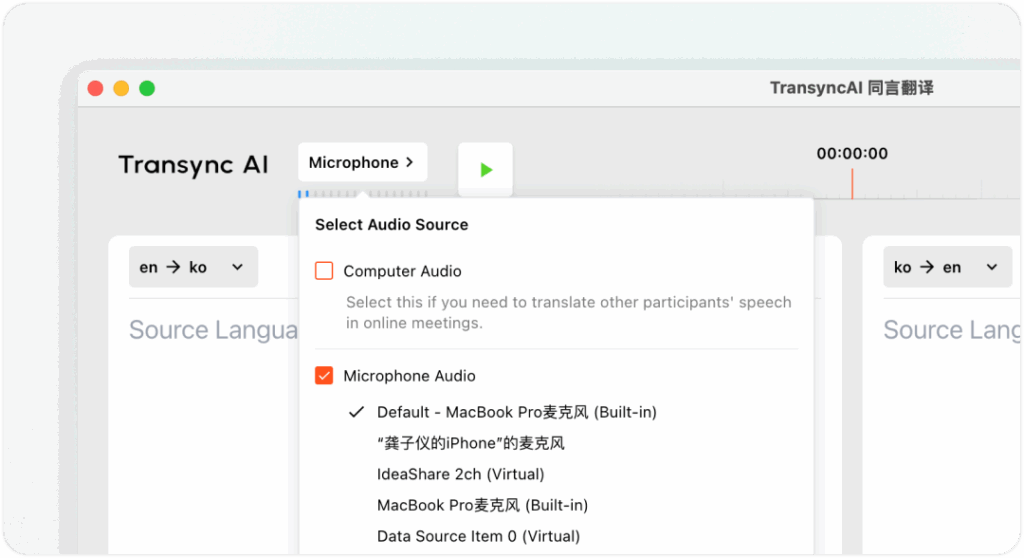
Temps requis : 2 à 3 minutes (une seule fois)
Pourquoi c'est important : Transync AI capture l'audio de votre ordinateur ou de votre microphone pour traduire votre discours et diffuser les traductions aux participants de la réunion. Une configuration audio correcte garantit :
- ✅ Capture audio claire (traduction précise)
- ✅ Détection correcte du microphone (reconnaissance de votre voix)
- ✅ Configuration de la sortie audio (les autres entendent les traductions)
Étapes d'installation :
1. Vérifiez votre microphone :
- Ouvrir les paramètres de Transync AI
- Allez dans “ Entrée audio ”
- Sélectionnez votre microphone (généralement “ Microphone par défaut ” ou le nom de votre appareil).
- Cliquez sur “ Tester le microphone ”
- Prononcez quelques mots
- Vérifiez que vous entendez bien votre propre enregistrement.
2. Vérifiez votre haut-parleur/sortie audio :
- Allez dans “ Sortie audio ”
- Sélectionnez votre haut-parleur (généralement “ Haut-parleur par défaut ” ou nom de l'appareil)
- Cliquez sur “ Tester le haut-parleur ”
- Veuillez confirmer que vous entendez bien l'audio de test.
3. Pour les réunions en présentiel (avec sous-titres) :
- Connectez un haut-parleur externe ou un casque.
- Assurez-vous que le volume des haut-parleurs soit suffisant pour tous les participants.
- Transync AI affichera les sous-titres et lira les traductions à voix haute.
Pour boîtier audio d'ordinateur :
- Dans Transync AI, cochez la case “ Audio de l'ordinateur ”.
- Cela permet à Transync AI de capturer l'audio du système (les voix des autres locuteurs).
- Indispensable pour l'intégration avec Zoom/Teams/Meet/Webex
- Transync AI s'assure que tous les participants à la réunion soient entendus.
Conseil de pro : Effectuez un test audio 5 minutes avant les réunions importantes afin d'éviter les problèmes techniques.
Étape 3 : Configurez vos paramètres de traduction en direct
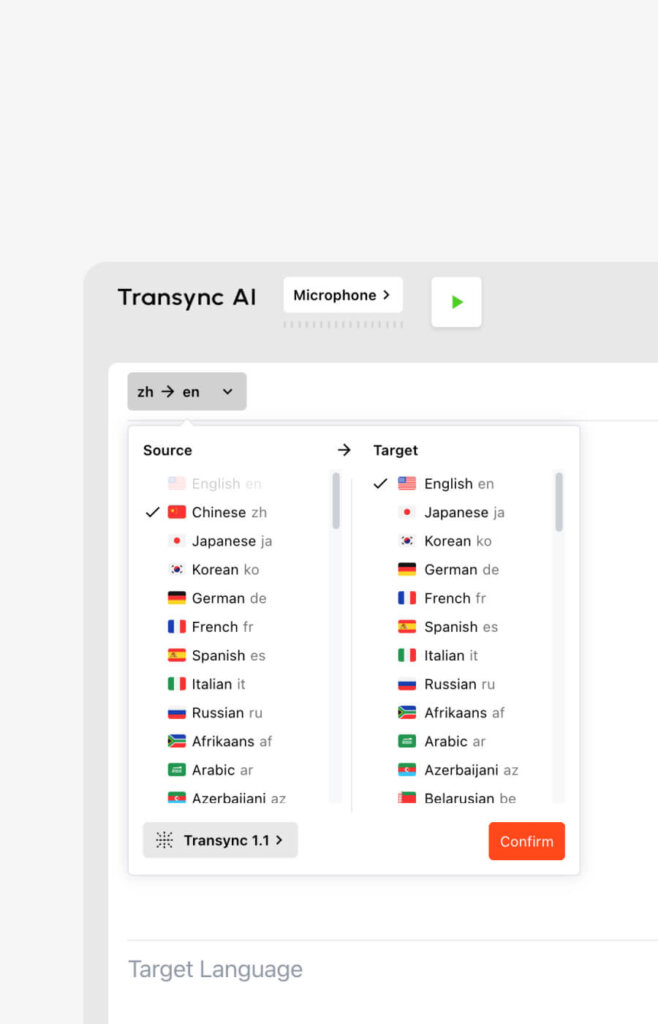
Temps requis : 1 à 2 minutes (niveau de base) ou 3 à 5 minutes (niveau avancé)
Paramètres de base (2 minutes) :
- Connectez-vous à Transync AI
- Allez dans “ Paramètres ” dans le tableau de bord
- Sélectionnez “ Traduction ”
- Choisissez votre langue maternelle (ce que vous dites)
- Choisissez la langue cible (Ce que vous voulez entendre)
Important: Transync AI détecte automatiquement les langues présentes lors de votre réunion ; ce sont donc vos langues par défaut, mais pas des restrictions.
Paramètres avancés : Paramètres des mots clés et du contexte (facultatif – pour une meilleure précision)
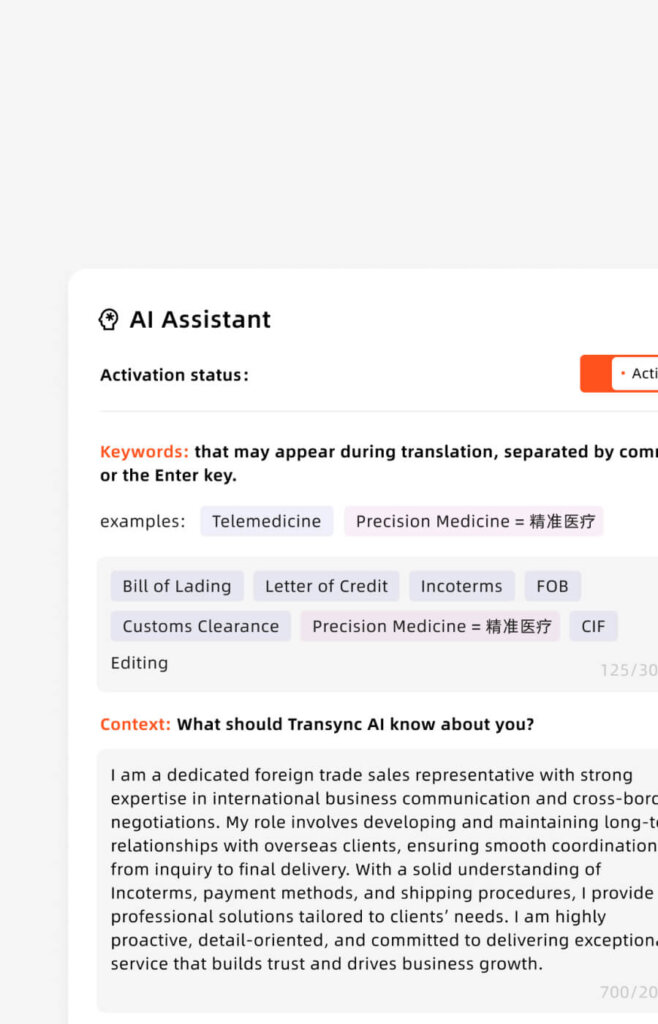
Quand l'utiliser : Uniquement pour les réunions techniques, spécialisées ou importantes
Pourquoi l'utiliser : Précision par défaut 95% → Avec les mots clés : 95%+ (en particulier sur les termes techniques)
Mesures:
- Allez dans “ Paramètres ” → “ Mots clés et contexte ”
- Cliquez sur “ Ajouter des mots-clés ”
- Saisissez les termes spécifiques à l'industrie (séparés par des virgules)
- Exemple : “ API, microservices, pipeline de déploiement, GitHub ”
- Exemple : “ produit pharmaceutique, molécule, biomarqueur, approbation de la FDA ”
- Exemple : “ contrat, clause de responsabilité, propriété intellectuelle, redevances ”
- Cliquez sur “ Ajouter des traductions ” (facultatif – précisez comment ces éléments doivent être traduits)
- Exemple : “ API = Interfaz de Programación de Aplicaciones (conserver comme API en espagnol) ”
- Exemple : “ GitHub = GitHub (terme technique, pas de traduction) ”
- Ajouter du contexte (Objet de votre réunion)
- Exemple : “ Ceci est une discussion technique sur le génie logiciel ”
- Exemple : “ Il s'agit d'une négociation commerciale en vue d'un partenariat pharmaceutique. ”
- Enregistrer les paramètres
Remarque importante : Le paramétrage des mots clés/du contexte est FACULTATIF. Pour les conversations informelles, vous pouvez ignorer cette étape. Pour les discussions spécialisées, elle améliore considérablement la précision.
Investissement en temps vs bénéfice :
- Temps d'installation : 2 à 5 minutes
- Amélioration de la précision : +3-5%
- Utile pour : réunions techniques/juridiques/médicales/de négociation
- Inutile pour : les conversations informelles
Étape 4 : Démarrez votre réunion et activez la traduction en direct
Temps requis : 30 secondes
Pour les réunions Zoom :
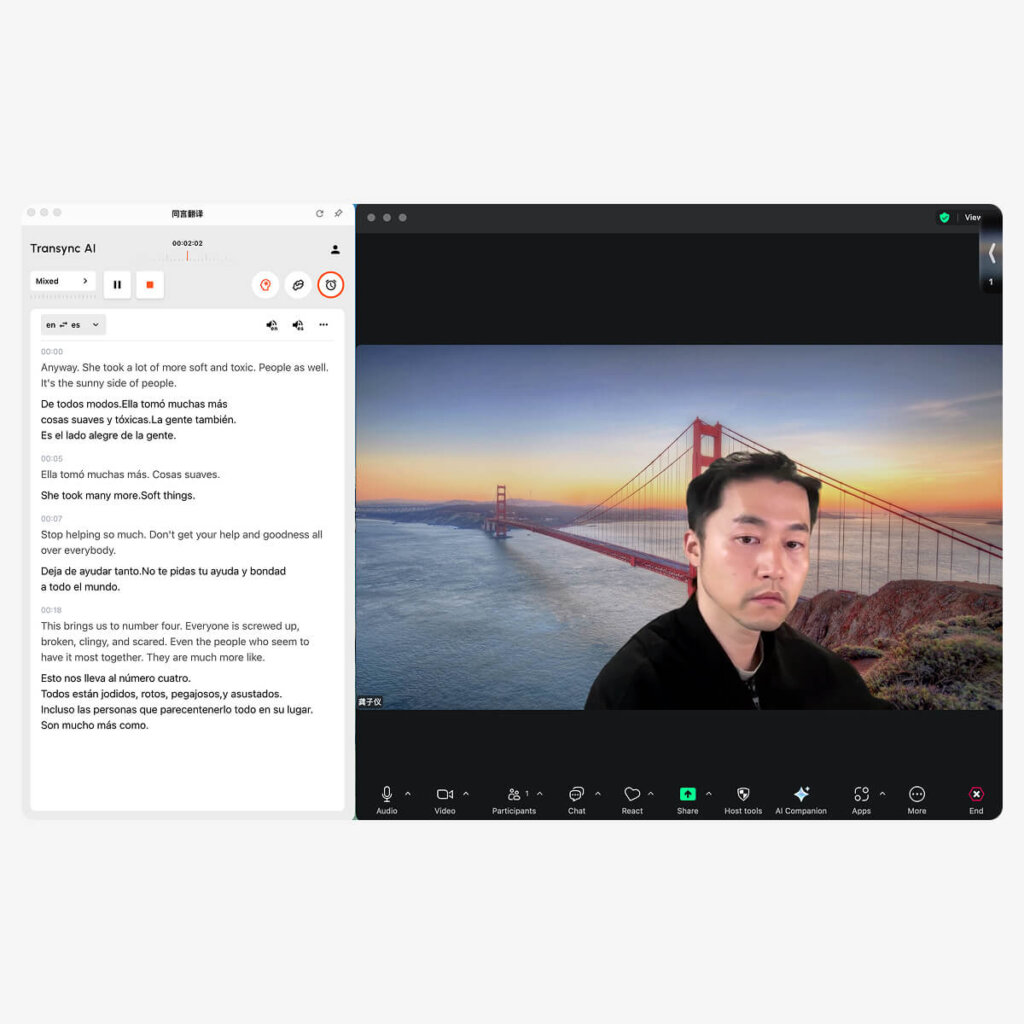
- Ouvrez Transync AI (application de bureau ou navigateur)
- Sélectionnez votre paire de langues (ex., anglais → espagnol)
- Cochez la case “ Audio de l'ordinateur ” ✅
- Cliquez sur “ Démarrer la traduction ”
- Ouvrez Zoom et démarrez votre réunion. normalement
- Transync AI écoute automatiquement audio Zoom
- Des traductions en temps réel apparaissent dans la fenêtre Transync AI
- Facultatif : cochez “ Démarrer la lecture ” dans le coin supérieur droit
- Si coché : D'autres personnes entendent la diffusion audio traduite
- Si cette option n'est pas cochée : vous seul verrez les traductions (les autres ne les entendront pas).
- En cas de partage d'écran : Sélectionnez “ Inclure le son de l'ordinateur ” dans les options de partage Zoom
- Cela permet la diffusion de l'audio traduit aux participants.
Pour les réunions Microsoft Teams :

- Ouvrez Transync AI (application de bureau ou navigateur)
- Sélectionnez votre paire de langues (ex., anglais → espagnol)
- Cochez la case “ Audio de l'ordinateur ” ✅
- Cliquez sur “ Démarrer la traduction ”
- Ouvrez Teams et démarrez votre réunion. normalement
- Transync AI écoute automatiquement vers l'audio Teams
- Des traductions en temps réel apparaissent dans la fenêtre Transync AI
- Facultatif : cochez “ Démarrer la lecture ” dans le coin supérieur droit
- En cas de partage d'écran : Sélectionnez “ Inclure l'audio système ” dans les options de partage Teams
Pour les réunions Google Meet :
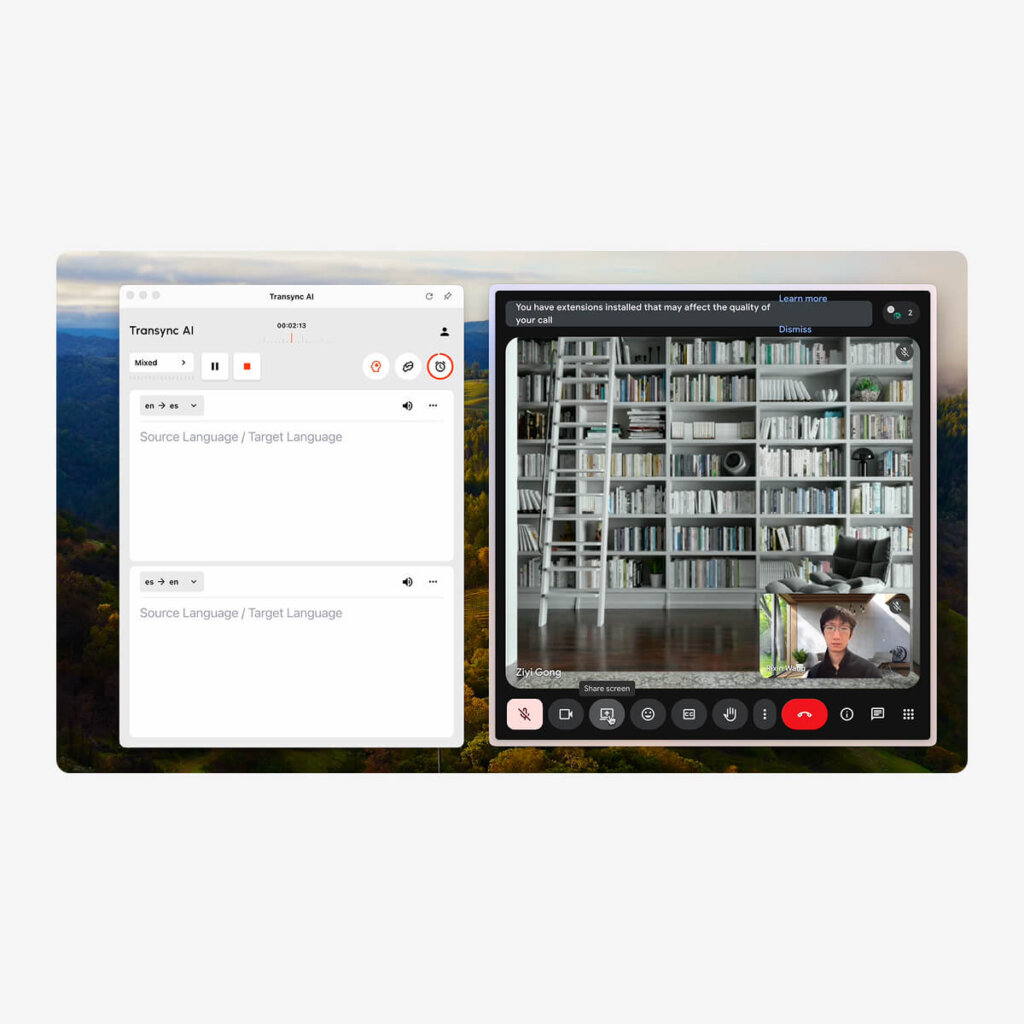
- Ouvrez Transync AI (application de bureau ou navigateur)
- Sélectionnez votre paire de langues (ex., anglais → espagnol)
- Cochez la case “ Audio de l'ordinateur ” ✅
- Cliquez sur “ Démarrer la traduction ”
- Ouvrez Google Meet et commencez votre réunion. normalement
- Transync AI écoute automatiquement pour rencontrer l'audio
- Des traductions en temps réel apparaissent dans la fenêtre Transync AI
- Facultatif : cochez “ Démarrer la lecture ” dans le coin supérieur droit
- En cas de partage d'écran : Sélectionnez l'option “ Partager l'audio du système ” dans Meet
Pour les réunions Webex :
- Ouvrez Transync AI (application de bureau ou navigateur)
- Sélectionnez votre paire de langues
- Cochez la case “ Audio de l'ordinateur ” ✅
- Cliquez sur “ Démarrer la traduction ”
- Ouvrez Webex et commencez votre réunion. normalement
- Transync AI écoute automatiquement vers l'audio Webex
- Des traductions en temps réel apparaissent dans la fenêtre Transync AI
- Facultatif : cochez “ Démarrer la lecture ” dans le coin supérieur droit
- En cas de partage d'écran : Sélectionnez l'option “ Partager l'audio de l'ordinateur ”.
Pour les appels vocaux WhatsApp (configuration unique) :
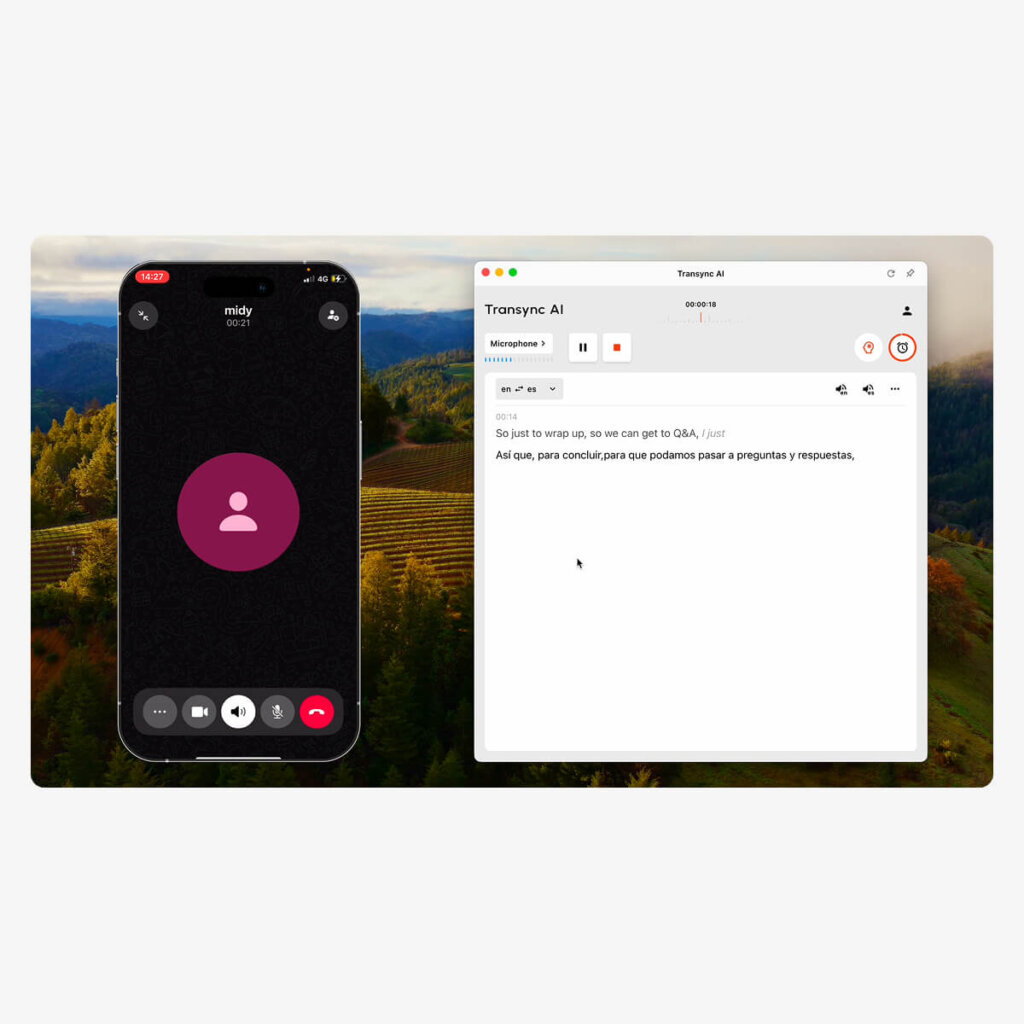
Important: Les appels vocaux WhatsApp nécessitent une configuration différente puisqu'ils sont effectués sur un téléphone mobile :
- Ouvrez Transync AI sur votre ordinateur (application de bureau)
- Confirmer la sélection de la source du microphone (le micro de votre ordinateur)
- Cliquez sur “ Démarrer la traduction ”
- Ouvrez WhatsApp sur votre téléphone
- Passer ou recevoir un appel vocal sur votre téléphone
- Activer le haut-parleur pour votre appel WhatsApp
- Approchez votre téléphone du microphone de votre ordinateur (pour que Transync AI puisse entendre)
- OU utilisez une enceinte Bluetooth pour une meilleure capture audio
- Transync AI sera à l'écoute et fournir des traductions en temps réel
- Voir les traductions dans la fenêtre Transync AI sur votre ordinateur
- Facultatif : cochez “ Démarrer la lecture ” pour écouter l'audio traduit
- Après la fin de l'appel :
- Cliquez “"Fin"” bouton dans Transync AI
- Recevez automatiquement la transcription et le compte rendu de réunion.
Note: Pour une meilleure qualité WhatsApp, utilisez un haut-parleur Bluetooth ou le mode haut-parleur pour garantir une capture audio claire.
Pour les réunions en présentiel (en face à face) :
- Configurez vos entrées et sorties audio
- Le microphone capte la parole dans la salle de réunion.
- L'orateur diffuse les traductions aux participants
- Assurez-vous que la qualité audio est claire (minimisez le bruit de fond).
- Sélectionnez les langues source et cible
- Exemple : Anglais → Espagnol
- Exemple : Anglais → Mandarin + Espagnol (plusieurs langues cibles)
- Cliquez sur “ Démarrer ” commencer la traduction
- Les participants s'expriment naturellement dans leur langue préférée
- Transync AI affiche les sous-titres affichage à l'écran :
- Transcription originale
- Traduction en temps réel
- Le son est diffusé Ainsi, tous entendent des traductions
- Après la réunion : Résumé généré par IA + transcription complète automatiquement disponibles
Étape 5 : Pendant votre réunion – Utilisation de la traduction en direct
Gestion de la traduction :
Pause/Reprise de la traduction :
- Cliquez sur l'icône de pause si vous souhaitez parler uniquement dans votre langue maternelle.
- Cliquez sur Reprendre pour relancer la traduction
- Utile pour des conversations parallèles confidentielles
- Statut : Traduction suspendue/reprise immédiatement
Changer de langue en cours de réunion :
- Cliquez sur le menu déroulant de langue dans Transync AI
- Sélectionnez une autre paire de langues
- Transync AI s'adapte instantanément (latence < 100 ms)
- Utile si un nouveau participant se joint à l'équipe en parlant une langue différente.
Transcription en direct du moniteur :
- La transcription en temps réel apparaît dans le panneau Transync AI
- Affiche le texte original et traduit
- Recherche possible en temps réel
- Contribue à vérifier l'exactitude de la traduction
Activer/Désactiver la lecture :
- “Le bouton ” Démarrer la lecture » détermine si les autres entendent les traductions.
- Activé : Les participants à la réunion entendent l'audio traduit
- Désactivé : Vous seul voyez les traductions (les autres ne le savent pas)
- Peut être activé/désactivé pendant la réunion
Partager le contenu traduit :
- Cliquez sur le bouton “ Partager ” pour afficher la traduction à l’écran.
- Utile pour les présentations à un public traduit
- Affiche le texte original et sa traduction côte à côte.
Étape 6 : Après la réunion – Accéder aux enregistrements de Live Translate
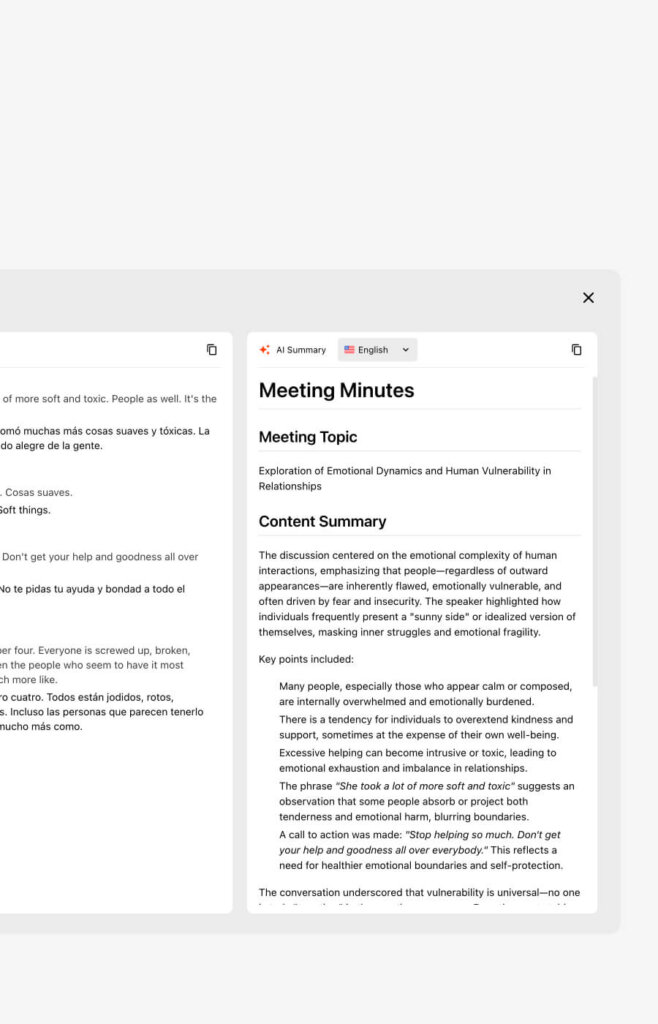
Temps requis : Immédiat (automatique)
Compte rendu de réunion disponible immédiatement :
- Accédez au tableau de bord Transync AI
- Cliquez sur “ Réunions récentes ” ou “ Historique des réunions ”
- Sélectionnez votre réunion
- Accès au résumé automatique
- Résumé bilingue des points clés
- Éléments d'action extraits et attribués
- Les participants et leur(s) langue(s)
- Durée et horodatage de la réunion
- Télécharger la transcription complète
- Format PDF avec mention de l'intervenant
- Horodatage de chaque échange
- Texte original et traduit
- Document consultable
- Exporter pour le partage en équipe
- Partager le PDF avec les participants
- Importer dans le système de documentation
- Archives en stockage conforme
Comment utiliser Live Translate : Guides spécifiques à chaque plateforme
Transync AI + Zoom (Flux de travail complet)
Installation complète (3 minutes au total) :
- Ouvrez Transync AI sur votre ordinateur
- Sélectionnez la paire de langues : Anglais → Espagnol (exemple)
- Cochez la case “ Audio de l'ordinateur ”
- Cliquez sur “ Démarrer la traduction ” bouton
- Ouvrir Zoom et démarrer/rejoindre une réunion normalement
- Transync AI détecte automatiquement Audio Zoom
- Voir les traductions apparaître dans la fenêtre Transync AI
- Facultatif – Activer la lecture :
- Cochez le bouton “ Démarrer la lecture ”.
- Cliquez sur “ Partager l’écran ” dans Zoom
- Cochez la case “ Inclure le son de l'ordinateur ”
- Les participants à la réunion entendent désormais des traductions en espagnol
Pendant la réunion :
- Vous parlez anglais naturellement
- Les participants hispanophones entendent la traduction en anglais → espagnol
- Les hispanophones répondent en espagnol
- Les anglophones entendent l'espagnol → traduction anglaise
- Tout est en temps réel, latence < 100 ms
Après la réunion :
- Cliquez sur “ Terminer la traduction ” dans Transync AI
- Voir la transcription (dans les deux langues)
- Télécharger le résumé de la réunion sur l'IA
- Accès au tableau de bord Transync AI
Transync AI + Microsoft Teams (Flux de travail complet)
Installation complète (3 minutes au total) :
- Ouvrez Transync AI sur votre ordinateur
- Sélectionnez une paire de langues (ex., anglais → espagnol)
- Cochez la case “ Audio de l'ordinateur ”
- Cliquez sur “ Démarrer la traduction ”
- Équipes ouvertes et démarrer/rejoindre une réunion normalement
- Transync AI écoute automatiquement vers l'audio Teams
- Voir les traductions dans la fenêtre Transync AI
- Facultatif – Activer la lecture :
- Cochez le bouton “ Démarrer la lecture ”.
- Cliquez sur “ Partager ” dans Teams
- Sélectionnez “ Votre écran ”
- Sélectionnez “ Inclure l’audio système ”
- Les participants à la réunion entendent l'audio traduit
Remarque importante : Teams détecte automatiquement Transync AI (contrairement à Zoom qui nécessite un boîtier audio sur ordinateur). La configuration est encore plus simple.
Transync AI + Google Meet (Flux de travail complet)
Installation complète (3 minutes au total) :
- Ouvrez Transync AI
- Sélectionnez une paire de langues
- Cochez la case “ Audio de l'ordinateur ”
- Cliquez sur “ Démarrer la traduction ”
- Ouvrir Google Meet normalement
- Transync AI écoute automatiquement
- Voir les traductions dans la fenêtre Transync AI
- Facultatif – Traductions pour la diffusion :
- Cochez “ Démarrer la lecture ”
- Cliquez sur “ Présenter maintenant ” dans Meet
- Sélectionnez “ Votre écran entier ”
- Sélectionnez “ Partager l’audio ”
- Les participants entendent des traductions
Transync AI + Appels vocaux WhatsApp (Configuration mobile)
Différence principale : WhatsApp fonctionne sur téléphone, Transync AI sur ordinateur = nécessite une configuration spéciale
Installation complète (2 minutes) :
- Ouvrez Transync AI sur votre ordinateur
- Confirmer la source du microphone (microphone d'ordinateur)
- Cliquez sur “ Démarrer la traduction ”
- Ouvrir WhatsApp sur votre téléphone
- Passer ou recevoir un appel vocal
- Activer le haut-parleur au téléphone
- Placez le téléphone près du microphone de l'ordinateur. (ou utiliser une enceinte Bluetooth)
- Positionnez le téléphone à 15-30 cm du micro.
- Utilisez une enceinte Bluetooth pour une capture optimale
- Voir les traductions apparaître dans la fenêtre Transync AI
- Facultatif – Écouter la lecture audio :
- Cochez le bouton “ Démarrer la lecture ”.
- Transync AI lit l'audio traduit
- Pendant l'appel :
- Vous parlez dans votre langue
- L'appelant WhatsApp entend la traduction
- Transync AI capture tout
- Après l'appel :
- Cliquez sur “ Terminer ” dans Transync AI
- Recevez immédiatement la transcription et le résumé.
Conseils de pro pour WhatsApp :
- Utilisez une enceinte Bluetooth (capture audio plus claire)
- Réduisez le bruit de fond de la pièce
- Parlez clairement dans le microphone du téléphone.
- Testez la configuration en commençant par un appel d'entraînement rapide.
Utilisation de Live Translate : Fonctionnalités avancées
Fonctionnalité 1 : Paramétrage des mots clés et du contexte (pour une précision spécialisée)
Quand l'utiliser :
- Réunions techniques (ingénierie, médecine, droit)
- Négociations sectorielles (contrats à clauses spécifiques)
- Discussions académiques (terminologie de recherche)
- Discussions commerciales avec un vocabulaire spécialisé
Comment configurer :
Exemple 1 – Réunion d'ingénierie logicielle :
- Accédez à Paramètres → Mots clés et contexte
- Ajouter des mots-clés : “ API, microservices, déploiement, Docker, CI/CD, GitHub, dépôt ”
- Ajouter des traductions : “ API = API (non traduit), dépôt = dépôt ”
- Ajouter du contexte : “ Réunion technique quotidienne sur le développement logiciel ”
- Sauvegarder
Résultat: Les termes techniques ont été parfaitement traduits, et la discussion générale est également claire.
Exemple 2 – Discussion sur un partenariat pharmaceutique :
- Ajouter des mots-clés : “ biomarqueur, molécule, approbation de la FDA, essai clinique, brevet ”
- Ajouter des traductions : “ biomarqueur = biomarcador, FDA = FDA (pas de traduction) ”
- Ajouter le contexte : “ Négociation de partenariat pharmaceutique axée sur les aspects réglementaires ”
- Sauvegarder
Résultat: Termes pharmaceutiques spécialisés précis, langage juridique précis
Fonctionnalité 2 : Affichage double écran (Compréhension des deux langues)
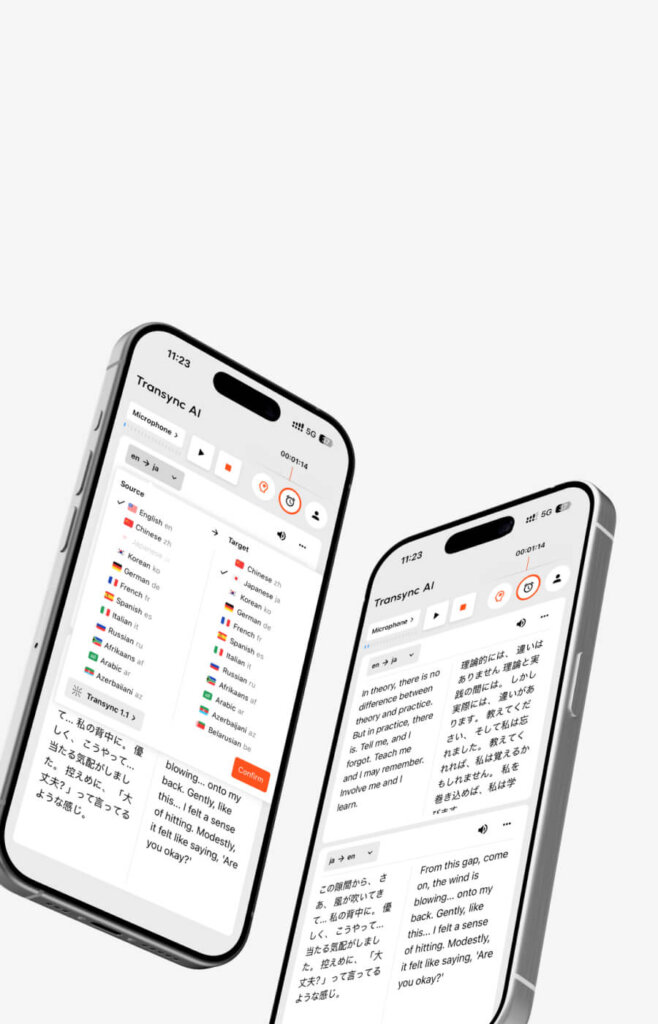
Ce que cela montre :
- Côté gauche : Langue originale (ce que la personne a dit)
- Côté droit : Langue traduite (signification de la traduction)
- Synchronisé en temps réel
Pourquoi l'utiliser :
- Meilleure compréhension (lecture + écoute)
- Vérifier l'exactitude de la traduction
- Aider les personnes dont la langue maternelle n'est pas la langue maternelle à mieux comprendre
- Pour les présentations (le public lit en même temps)
Comment activer :
- Pendant la réunion, recherchez l'option “ Double écran ” dans Transync AI.
- Activer le bouton bascule
- Transync AI affiche le texte original et sa traduction côte à côte.
Cas d'utilisation :
- Présentation des termes du contrat (les deux parties voient exactement les mêmes termes)
- Explications techniques (code visible + traduit)
- Séances de formation (les étudiants lisent et écoutent)
- Négociations (éviter les malentendus)
Fonctionnalité 3 : Résumé de réunion par IA (documentation automatique)
Ce qu'il génère automatiquement :
- Résumé bilingue (langue originale + votre langue)
- Points clés de discussion extraits
- Éléments d'action avec responsables
- Les prochaines étapes identifiées
- Participants et horodatage
Comment y accéder :
- Une fois la réunion terminée, cliquez sur “ Terminer la traduction ” dans Transync AI.
- Accédez au tableau de bord Transync AI
- Cliquez sur “ Réunions récentes ”
- Sélectionnez votre réunion
- Défilez jusqu'à “ Résumé de l'IA ”
- Consultez-le, téléchargez-le au format PDF ou partagez-le avec votre équipe.
Gain de temps :
- Réunion de 60 minutes : gain de 20 à 30 minutes de temps consacré à la documentation
- 20 réunions par semaine : gain de 6 à 10 heures par semaine
Fonctionnalité 4 : Transcription en temps réel (enregistrement consultable)
Disponible pendant la réunion :
- Le panneau de transcription en direct affiche tout ce qui est dit.
- Texte original et traduit
- Noms des intervenants attribués
- Horodatage de chaque échange
- Recherche possible en temps réel
Comment effectuer une recherche :
- Pendant la réunion, ouvrez Transync AI
- Cliquez sur l'onglet “ Transcription ”.
- Utilisez Ctrl+F (ou Cmd+F sur Mac) pour effectuer une recherche.
- Recherche par mot-clé (ex. : “ budget ”, “ échéancier ”, “ approbation ”)
- Voir toutes les mentions instantanément
- Cliquez sur le résultat pour accéder à l'horodatage correspondant.
Comment utiliser Live Translate : Dépannage
Problème 1 : La latence de traduction semble élevée
Symptôme: Constatation d'un délai de 1 à 2 secondes entre la parole et la traduction
Causes probables :
- Connexion Internet lente (<10 Mbps en upload)
- Processeur de l'ordinateur surchargé
- Le microphone capte une source audio incorrecte.
Solutions :
- Fermez les autres applications consommation du processeur
- Vérifier la vitesse internet (Nécessite au moins 10 Mbps)
- Vérifier la source du microphone dans les paramètres de Transync AI
- Redémarrer Transync IA et réunion
- Utilisez une connexion filaire au lieu du Wi-Fi (plus stable)
Latence attendue :
- Transync AI : <100 ms (imperceptible)
- JotMe : 150-200 ms (légèrement perceptible)
Si le délai est supérieur à 200 ms, veuillez procéder immédiatement à un dépannage.
Problème 2 : La précision est inférieure aux attentes
Symptôme: Les traductions semblent erronées ou les termes techniques incorrects.
Causes :
- Aucun paramétrage de mots-clés/contexte (pour les discussions techniques)
- accent très prononcé ou élocution peu claire
- Environnement bruyant
- Débit de parole rapide ou interruptions
Solutions :
Solution rapide :
- Parlez plus lentement et plus clairement.
- Réduisez le bruit de fond
- Un intervenant à la fois
- Pause entre les phrases
Meilleure solution :
- Utiliser la configuration par mots-clés/contexte (si technique)
- Ajouter des termes et un contexte spécifiques au secteur
- Relancer la traduction
- Réessayez avec les nouveaux paramètres
Problème 3 : Le boîtier “ Audio de l’ordinateur ” ne fonctionne pas
Symptôme: Transync AI ne capture pas l'audio des réunions Zoom/Teams/Meet
Solution:
- Vérifiez que Transync AI a sélectionné le bon microphone.
- Ouvrir les paramètres de Transync AI
- Vérifiez le périphérique “ Entrée audio ”.
- Devrait afficher l'entrée audio par défaut de votre ordinateur
- La case “ Audio de l'ordinateur ” est cochée. ✅
- Vérifier les autorisations du microphone
- macOS : Réglages → Confidentialité et sécurité → Microphone → Autoriser Transync AI
- Windows : Paramètres → Confidentialité et sécurité → Microphone → Autoriser Transync AI
- Redémarrer Transync IA (Fermer complètement et rouvrir)
- Test avec un appel simple (Réunion sans importance)
Problème 4 : Les autres ne peuvent pas entendre l’audio traduit
Symptôme: Vous voyez les traductions, mais les participants à la réunion ne les entendent pas.
Solution:
Pour Zoom :
- Vérifiez que le bouton “ Démarrer la lecture ” est activé ✅
- Cliquez sur “ Partager l’écran ” dans Zoom
- Sélectionnez “ Inclure le son de l'ordinateur ” ✅
- Les participants devraient maintenant entendre les traductions
Pour les équipes :
- Vérifiez que le bouton “ Démarrer la lecture ” est activé ✅
- Cliquez sur “ Partager ” dans Teams
- Sélectionnez “ Votre écran ”
- Cochez “ Inclure l'audio système ” ✅
- Les participants devraient entendre les traductions
Pour Google Meet :
- Cochez la case “ Lancer la lecture ” activée ✅
- Cliquez sur “ Présenter maintenant ”
- Sélectionnez “ Votre écran entier ”
- Cochez “ Partager l’audio ” ✅
- Les participants devraient entendre les traductions
Point clé : “L’option ” Démarrer la lecture » doit être activée ET vous devez partager votre écran avec l’audio pour que les autres puissent entendre les traductions.
Problème 5 : L’audio de WhatsApp n’est pas capturé
Symptôme: Transync AI ne détecte pas l'audio des appels vocaux WhatsApp
Solution:
- Assurez-vous que le haut-parleur est activé. sur votre téléphone (essentiel)
- Placez votre téléphone près du microphone de l'ordinateur. (à une distance de 15 à 30 cm)
- Utilisez une enceinte Bluetooth (meilleur que le haut-parleur du téléphone)
- Vérifier le microphone dans les paramètres Transync AI est la source correcte
- Microphone de test dans Transync AI avant l'appel
- Réduisez le bruit de fond dans la chambre
- Testez avec un appel d'entraînement. d'abord
Configuration optimale pour WhatsApp :
- Téléphone en mode haut-parleur
- Enceinte Bluetooth à 15-30 cm du micro de l'ordinateur
- Chambre calme (minimisation du bruit de fond)
- Microphone Transync AI configuré sur l'entrée système par défaut
Comment utiliser Live Translate : Bonnes pratiques
Meilleure pratique n° 1 : Tester avant les réunions importantes
Quand: Faites-le 24 heures avant les réunions importantes.
Mesures:
- Planifiez un appel test avec votre collègue.
- Les deux permettent la traduction en direct
- Vérifier que la latence est acceptable (<100 ms attendue)
- Vérifier la qualité et la précision de la voix
- Testez les paramètres de mots clés si vous utilisez des termes spécialisés.
- Vérifiez la compatibilité de la plateforme (Zoom/Teams/Meet fonctionnent)
- Testez le partage d'écran avec audio.
Pourquoi: Évitez les problèmes techniques lors d'un appel de vente ou d'une négociation importante.
Meilleure pratique n° 2 : Parlez clairement pour une meilleure précision
Éviter: ❌ Marmonnements ou débit trop rapide ❌ Bruit de fond important ❌ Interruptions (plusieurs personnes parlent simultanément) ❌ Élocution peu claire
Plutôt: ✅ Parlez naturellement et clairement ✅ Environnement calme (minimisez les bruits de fond) ✅ Une seule personne à la fois ✅ Utilisez des mots-clés et le contexte pour les termes techniques ✅ Faites une pause entre les phrases
Bonne pratique n° 3 : Utilisez le paramétrage par mots-clés UNIQUEMENT pour les discussions spécialisées.
Quand définir des mots-clés : Réunions techniques, juridiques, médicales et de négociation Quand NE PAS définir de mots-clés : Conversations générales, rencontres informelles
Pourquoi: Le paramétrage des mots-clés prend 2 à 5 minutes, mais n'apporte qu'un bénéfice minime pour les conversations informelles. À réserver aux cas d'usage spécifiques où la précision est essentielle.
Meilleure pratique n° 4 : Vérifier l’exactitude de la traduction
Pour les discussions importantes :
- Suivre la transcription en direct pendant la réunion
- Vérifier les termes clés sont traduits correctement
- Si une erreur est constatée :
- Reformulez cette phrase
- Utilisez un langage plus simple
- Ajouter du contexte
- Après la réunion :
- Révision de la transcription
- Vérifier les informations critiques
- En cas de doute, veuillez confirmer par écrit.
Meilleure pratique n° 5 : Gérer les attentes des participants
Avant la réunion, informez les participants :
“ Nous utilisons aujourd'hui la traduction simultanée. Elle fonctionne en temps réel, vous entendrez donc la traduction en même temps que le texte. Si quelque chose n'est pas clair, n'hésitez pas à demander des précisions immédiatement ; n'attendez pas la fin de la réunion. ”
Pourquoi: Définit les attentes, évite la confusion, encourage les questions.
Comment utiliser Live Translate : cas d’utilisation concrets
Cas d'utilisation 1 : Appel commercial international (via Zoom)
Installation:
- Ouvrez Transync AI
- Sélectionner Anglais → Espagnol
- Cochez “ Audio de l'ordinateur ”
- Cliquez sur “ Démarrer la traduction ”
- Ouvrir l'appel Zoom normalement
- Transync AI écoute automatiquement
Pendant l'appel :
- Vous parlez anglais (argumentaire de vente)
- Le prospect hispanophone entend instantanément la traduction espagnole
- Le prospect répond en espagnol
- Vous entendez la traduction anglaise instantanément
- Conversation naturelle, latence < 100 ms
Après l'appel :
- Accédez à la transcription dans les deux langues
- Résumé de l'IA (points clés + prochaines étapes)
- Partager des notes bilingues avec l'équipe
Cas d'utilisation 2 : Réunion quotidienne d'équipe distribuée (via Teams)
Installation:
- Ouvrez Transync AI
- Sélectionner Anglais → Espagnol
- Ajouter les mots-clés : “ sprint, points d’histoire, déploiement, assurance qualité ”
- Ajouter du contexte : “ réunion debout d’ingénierie logicielle ”
- Cochez “ Audio de l'ordinateur ”
- Cliquez sur “ Démarrer la traduction ”
- Réunion ouverte sur Teams
Résultat:
- Ingénieur hispanophone parle espagnol
- Des ingénieurs anglophones entendent de l'espagnol → traduction anglaise
- Ingénieur anglophone parle anglais
- Un ingénieur hispanophone entend de l'anglais → traduction espagnole
- 25% Réunion plus rapide (sans barrière linguistique)
- Le résumé IA extrait automatiquement les éléments d'action.
Cas d'utilisation 3 : Appel vocal WhatsApp (avec le client)
Installation:
- Ouvrez Transync AI sur votre ordinateur.
- Cliquez sur “ Démarrer la traduction ”
- Ouvrir WhatsApp sur le téléphone
- Démarrer un appel vocal
- Activer le haut-parleur
- Placez votre téléphone près du micro de l'ordinateur (ou utilisez une enceinte Bluetooth).
Pendant l'appel :
- Vous parlez anglais (agent de support)
- Le client parle espagnol
- Transync AI traduit dans les deux sens
- Vous voyez les traductions dans la fenêtre Transync AI
- conversation naturelle
Après l'appel :
- Cliquez sur “ Terminer ” dans Transync AI
- Recevez la transcription et le compte rendu de la réunion.
- Partager avec l'équipe du service client
Cas d'utilisation 4 : Réunion en personne (face à face)
Installation:
- Ouvrez Transync AI
- Configurer le microphone (capture l'audio de la pièce)
- Haut-parleur configuré (traductions des diffusions)
- Sélectionnez la paire de langues (anglais ↔ espagnol)
- Cliquez sur “ Démarrer ”
Pendant la réunion :
- Les participants s'expriment naturellement dans leur langue.
- Transync AI affiche les sous-titres (original + traduction)
- Diffuser l'audio dans les langues cibles
- Tous les participants peuvent suivre
Après la réunion :
- Résumé de l'IA dans les deux langues
- Transcription complète consultable
- Éléments d'action extraits
🎥 Regardez comment utiliser Transync AI
👉En savoir plus sur Transync AI
Comment utiliser Live Translate : Comparaison des coûts et des plateformes
| Solution | Temps de préparation | Coût mensuel | Essai gratuit | Latence | Plateformes | Idéal pour |
|---|---|---|---|---|---|---|
| Transync AI | <1 min | $8.99 | 40 min ✅ | <100 ms | Zoom, Teams, Meet, Webex, WhatsApp | Réunions professionnelles |
| JotMe | 2-3 min | $9 | 20 min | 150-200 ms | Zoom, Meet, Teams, Webex, LINE | Usage général |
| Talo | 1 min | $80+ | Non | 120 ms | Zoom, Teams, Meet | Entreprise |
| Mondial | 10+ min | $500+ | Non | 200 ms+ | Zoom, Webex, Teams | grands événements |
Conclusion : Comment utiliser Live Translate
La traduction en direct n'est plus complexe ni coûteuse. Les solutions modernes comme Transync AI rendent la chose remarquablement simple :
✅ Activation en moins d'une minute (sélectionnez les langues, cliquez sur Démarrer) ✅ Latence < 100 ms (conversation imperceptible et naturelle) ✅ Précision 95%+ (99% : termes techniques et mots-clés) ✅ Essai gratuit de 40 minutes (évaluation du risque zéro) ✅ Documentation automatique (transcriptions + résumés) ✅ Fonctionne sur toutes les plateformes (Zoom, Teams, Meet, Webex, WhatsApp)
Démarrez votre essai gratuit dès aujourd'hui et découvrez comment la traduction en direct élimine les barrières linguistiques lors de vos réunions.
jeSi vous voulez une expérience de nouvelle génération, Transync AI ouvre la voie avec une traduction en temps réel, optimisée par l'IA, qui assure un flux naturel des conversations. Vous pouvez essayez-le gratuitement maintenant.