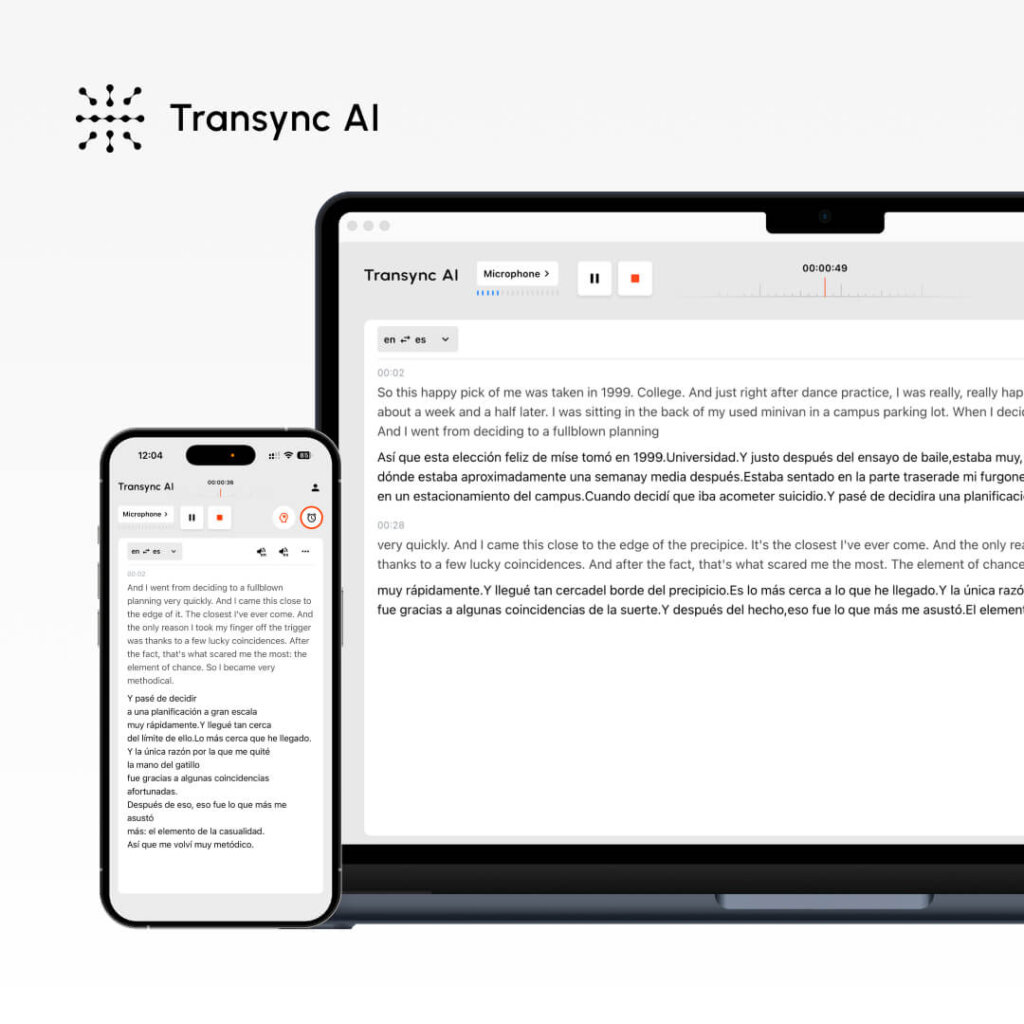
Wil je live vertalen gebruiken, maar weet je niet hoe je het moet instellen? Realtime vertalen lijkt misschien complex, maar moderne oplossingen maken het opmerkelijk eenvoudig – als je de juiste stappen volgt.
Deze uitgebreide handleiding leidt u stap voor stap door het effectieve gebruik van Live Translate, van de eerste installatie tot de geavanceerde functies. Of u nu een internationaal verkoopgesprek voert, een vergadering met een gedistribueerd team beheert of een meertalig webinar organiseert, u leert precies hoe u Live Translate kunt gebruiken voor een naadloze communicatie.
We zullen ons concentreren op Transync AI (de eenvoudigste oplossing) en we behandelen ook JotMe en andere opties, zodat je de beste keuze voor jouw behoeften kunt maken.
Wat is Live Translate? (En waarom je het nodig hebt)
Live vertaling Zet gesproken taal in realtime om naar een andere taal tijdens vergaderingen. In tegenstelling tot traditionele vertaling (waarbij je moet wachten op een tolk), vindt live vertalen direct plaats, waardoor een natuurlijk gesprek mogelijk is tussen sprekers van verschillende talen.
Veelvoorkomende situaties waarin je live vertaling zou gebruiken:
✅ Verkoopgesprekken – Engelse verkoper belt Spaanstalige potentiële klant ✅ Teamvergaderingen – Verspreid team met meerdere moedertalen ✅ Klantenservice – Engelstalige supportmedewerker helpt Spaanse klant ✅ Webinars – Presentator die Engels spreekt voor een internationaal publiek ✅ Conferenties – Meerdere sprekers en deelnemers in verschillende talen ✅ sollicitatiegesprekken – Interviewer en kandidaat spreken verschillende talen ✅ Trainingssessies – Docenten en studenten over de taalbarrière heen ✅ Zakelijke onderhandelingen – Discussies tussen meerdere partijen in verschillende talen ✅ WhatsApp-spraakoproepen – Realtime vertaling tijdens privé-/zakelijke gesprekken ✅ Persoonlijke bijeenkomsten – Face-to-face meertalige gesprekken met ondertiteling
Belangrijkste voordeel van live vertaling: Geen wachttijd voor interpretatie. Het gesprek verloopt natuurlijk en in realtime.
Hoe gebruik je Live Translate: Transync AI (de makkelijkste optie)?
Stap 1: Maak uw Transync AI-account aan.
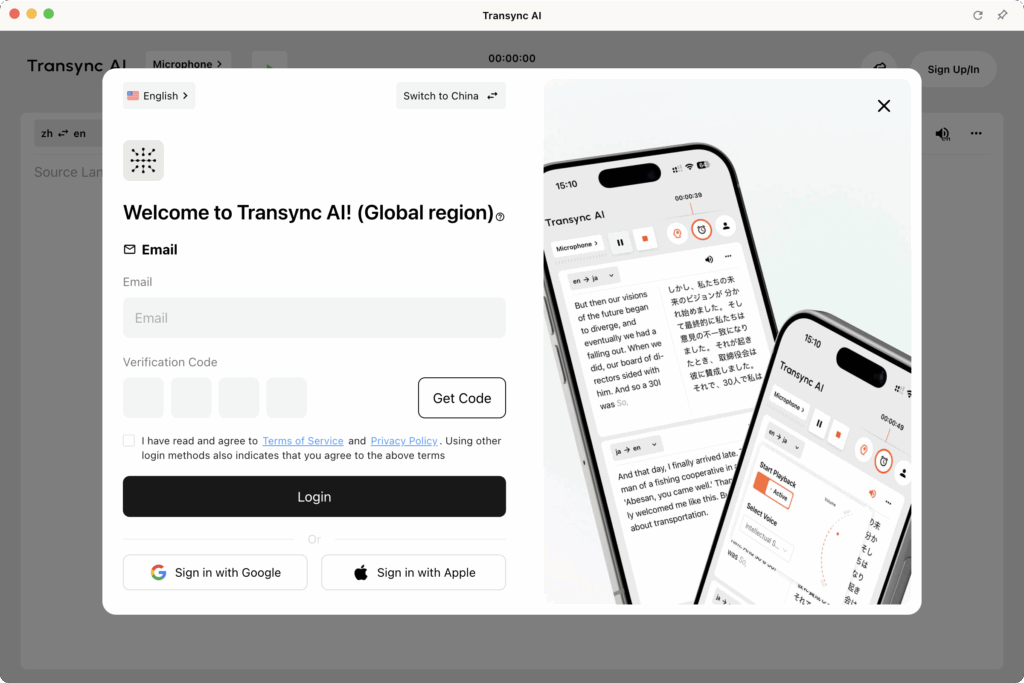
Benodigde tijd: 2 minuten
Proces:
- Bezoek de Transync AI-website (transync.ai)
- Klik op 'Aanmelden' of 'Aan de slag'.“
- Voer uw e-mailadres in
- Wachtwoord aanmaken (minimaal 8 tekens, inclusief hoofdletters/kleine letters/cijfers)
- E-mailadres verifiëren (controleer je inbox voor de verificatielink)
- Klik op de verificatielink. (automatisch ingelogd)
Wat je krijgt:
- ✅ Gratis proefperiode van 40 minuten voor live vertaling (alleen de eerste maand)
- ✅ Toegang tot alle functies tijdens de proefperiode
- ✅ Volledige ondersteuning voor 60 talen
- ✅ Toegang tot platformen (Zoom, Teams, Meet, Webex, WhatsApp)
Pro-tip: Maak minstens 24 uur voor uw eerste vergadering een account aan, zodat alles correct kan worden ingesteld.
Stap 2: Bereid je audio-installatie voor.
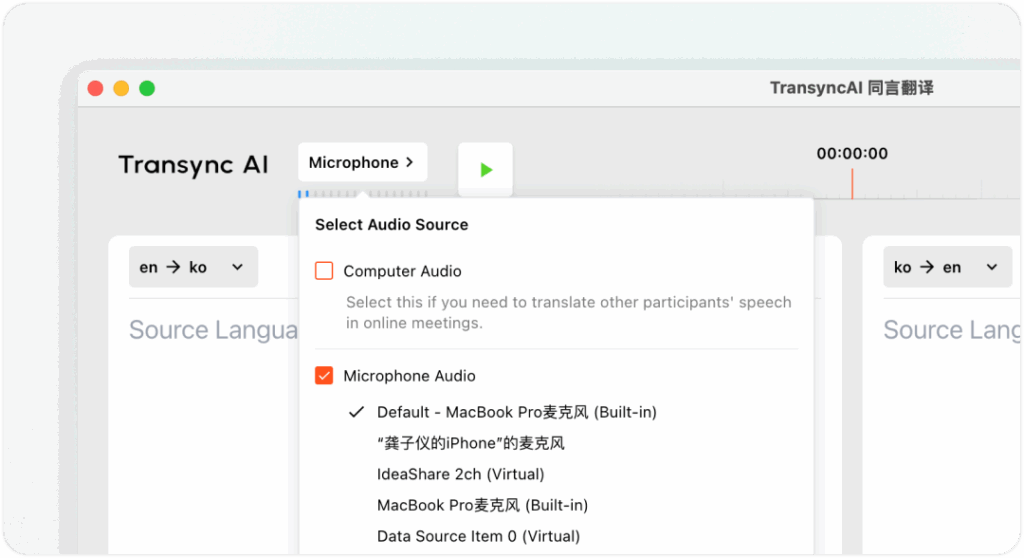
Benodigde tijd: 2-3 minuten (eenmalig)
Waarom dit belangrijk is: Transync AI legt audio vast van uw computer of microfoon om uw spraak te vertalen en de vertalingen naar de deelnemers van de vergadering te streamen. Een correcte audio-instelling zorgt voor:
- ✅ Duidelijke audio-opname (nauwkeurige vertaling)
- ✅ Correcte microfoondetectie (herkent uw stem)
- ✅ Luidsprekeruitvoerconfiguratie (anderen horen de vertalingen)
Installatiestappen:
1. Controleer je microfoon:
- Open de Transync AI-instellingen
- Ga naar “Audio-ingang”
- Selecteer je microfoon (meestal 'Standaardmicrofoon' of de naam van je apparaat).
- Klik op "Microfoon testen".“
- Spreek een paar woorden
- Bevestig dat je jezelf hoort afspelen.
2. Controleer uw luidspreker/audio-uitgang:
- Ga naar “Audio-uitvoer”
- Selecteer je luidspreker (meestal 'Standaardluidspreker' of de naam van het apparaat).
- Klik op "Luidspreker testen"“
- Bevestig dat u het testgeluid hoort.
3. Voor fysieke bijeenkomsten (met ondertiteling):
- Sluit een externe luidspreker of hoofdtelefoon aan.
- Zorg ervoor dat het luidsprekervolume voor alle deelnemers voldoende is.
- Transsync AI zal ondertitels weergeven en vertalingen hardop afspelen.
Voor computer audiobox:
- Schakel in Transync AI het vakje 'Computer Audio' in.
- Hierdoor kan Transync AI systeemgeluid (de stemmen van andere sprekers) vastleggen.
- Essentieel voor integratie met Zoom/Teams/Meet/Webex
- Zorgt ervoor dat Transync AI alle deelnemers aan de vergadering hoort.
Pro-tip: Doe 5 minuten voor belangrijke vergaderingen een audiotest om technische problemen te voorkomen.
Stap 3: Configureer uw Live Translate-instellingen
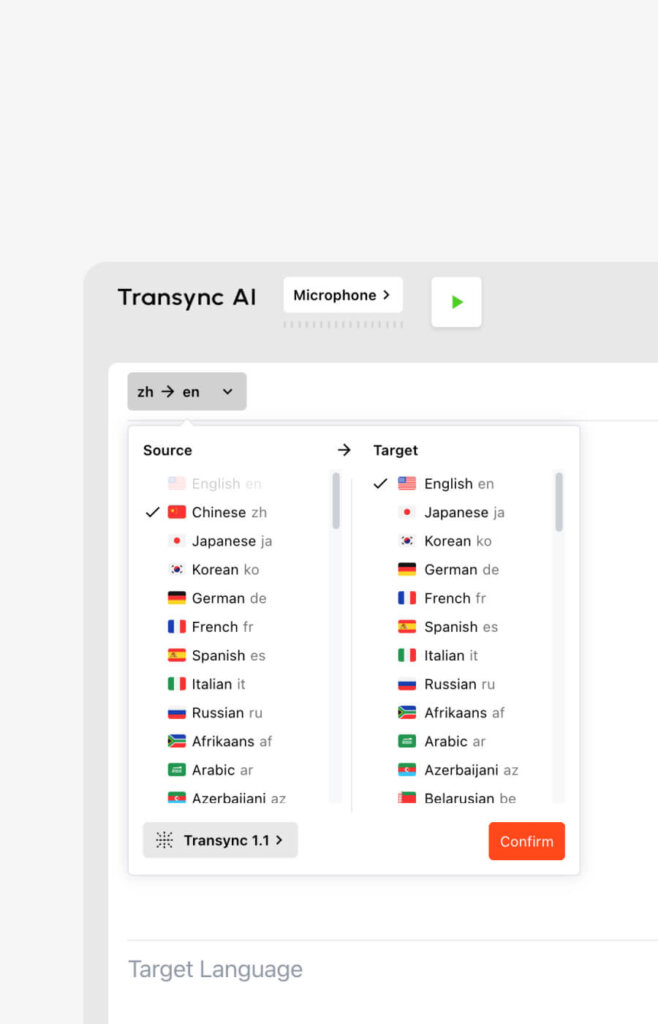
Benodigde tijd: 1-2 minuten (basis) of 3-5 minuten (gevorderd)
Basisinstellingen (2 minuten):
- Log in bij Transync AI
- Ga naar 'Instellingen'.“ in dashboard
- Selecteer “Vertaling”
- Kies je moedertaal (wat je zegt)
- Kies de doeltaal (wat je wilt horen)
Belangrijk: Transync AI detecteert automatisch de talen in uw vergadering, dus dit zijn uw standaardtalen en geen beperkingen.
Geavanceerde instellingen: Trefwoord- en contextinstellingen (optioneel – voor betere nauwkeurigheid)
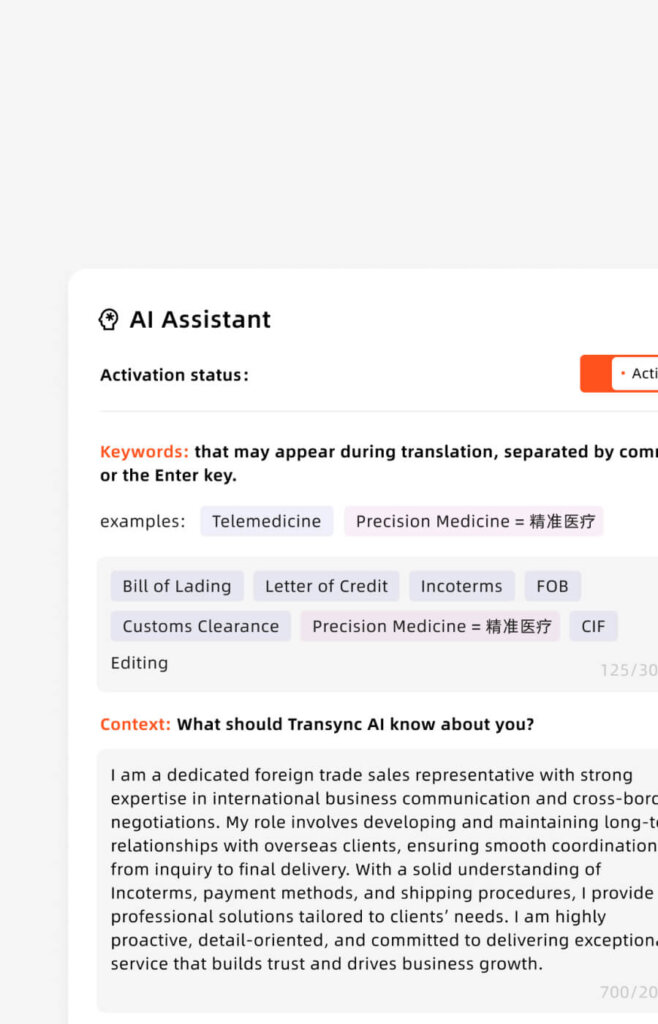
Wanneer te gebruiken: Uitsluitend voor technische, gespecialiseerde of belangrijke vergaderingen.
Waarom zou je het gebruiken? Standaardnauwkeurigheid 95% → Met trefwoorden: 95%+ (vooral bij technische termen)
Stappen:
- Ga naar “Instellingen” → “Trefwoorden en context”
- Klik op "Trefwoorden toevoegen".“
- Voer branchespecifieke termen in. (gescheiden door komma's)
- Voorbeeld: “API, microservices, implementatiepipeline, GitHub”
- Voorbeeld: “farmaceutisch, molecuul, biomarker, FDA-goedkeuring”
- Voorbeeld: “contract, aansprakelijkheidsclausule, intellectueel eigendom, royalty's”
- Klik op "Vertalingen toevoegen".“ (optioneel – definieer hoe deze vertaald moeten worden)
- Voorbeeld: “API = Interfaz de Programación de Aplicaciones (bewaren als API in het Spaans)”
- Voorbeeld: “GitHub = GitHub (technische term, geen vertaling)”
- Context toevoegen (waar uw vergadering over gaat)
- Voorbeeld: "Dit is een technische discussie over software-engineering."“
- Voorbeeld: "Dit is een zakelijke onderhandeling voor een farmaceutisch partnerschap."“
- Instellingen opslaan
Belangrijke opmerking: De instelling van het trefwoord/de context is OPTIONEEL. Voor informele gesprekken kunt u deze stap volledig overslaan. Voor specialistische discussies verbetert het de nauwkeurigheid aanzienlijk.
Tijdsinvestering versus baten:
- Opzettijd: 2-5 minuten
- Nauwkeurigheidsverbetering: +3-5%
- De moeite waard voor: technische/juridische/medische/onderhandelingsbijeenkomsten
- Niet de moeite waard voor: informele gesprekken
Stap 4: Start uw vergadering en activeer Live Translate
Benodigde tijd: 30 seconden
Voor Zoom-vergaderingen:
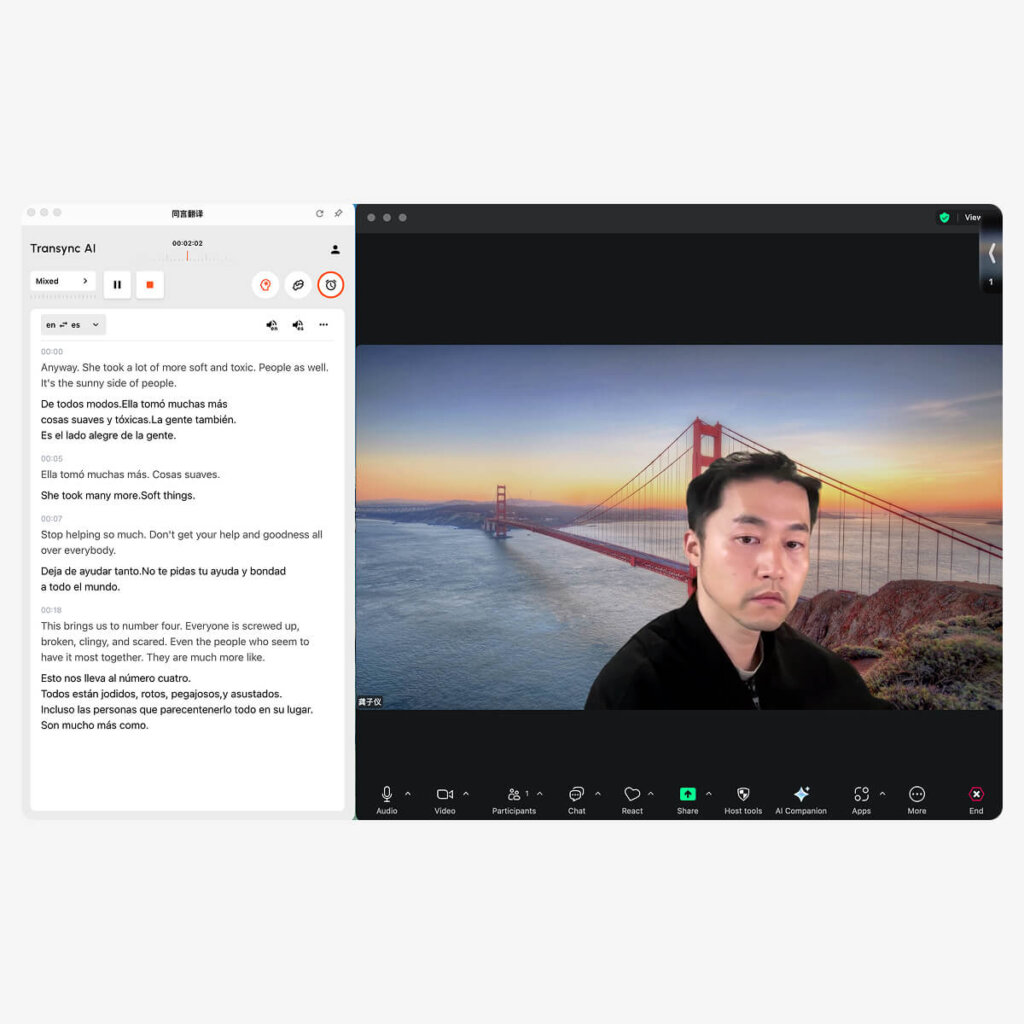
- Open Transync AI (desktop-app of browser)
- Selecteer uw taalpaar (bijv. Engels → Spaans)
- Vink het vakje "Computergeluid" aan. ✅
- Klik op "Vertaling starten"“
- Open Zoom en start je vergadering. normaal
- Transync AI luistert automatisch naar Zoom-audio
- Realtime vertalingen verschijnen in het Transync AI-venster
- Optioneel: Vink "Afspelen starten" aan.“ in de rechterbovenhoek
- Indien aangevinkt: Anderen horen de vertaalde audio-uitzending
- Indien niet aangevinkt: Alleen jij ziet de vertalingen (anderen horen ze niet).
- Bij het delen van het scherm: Selecteer 'Computergeluid inschakelen' in de deelopties van Zoom.
- Dit maakt het mogelijk om vertaalde audio naar de deelnemers uit te zenden.
Voor Microsoft Teams-vergaderingen:

- Open Transync AI (desktop-app of browser)
- Selecteer uw taalpaar (bijv. Engels → Spaans)
- Vink het vakje "Computergeluid" aan. ✅
- Klik op "Vertaling starten"“
- Open Teams en start je vergadering. normaal
- Transync AI luistert automatisch naar Teams-audio
- Realtime vertalingen verschijnen in het Transync AI-venster
- Optioneel: Vink "Afspelen starten" aan.“ in de rechterbovenhoek
- Bij het delen van het scherm: Selecteer 'Systeemgeluid inschakelen' in de deelopties van Teams.
Voor Google Meet-vergaderingen:
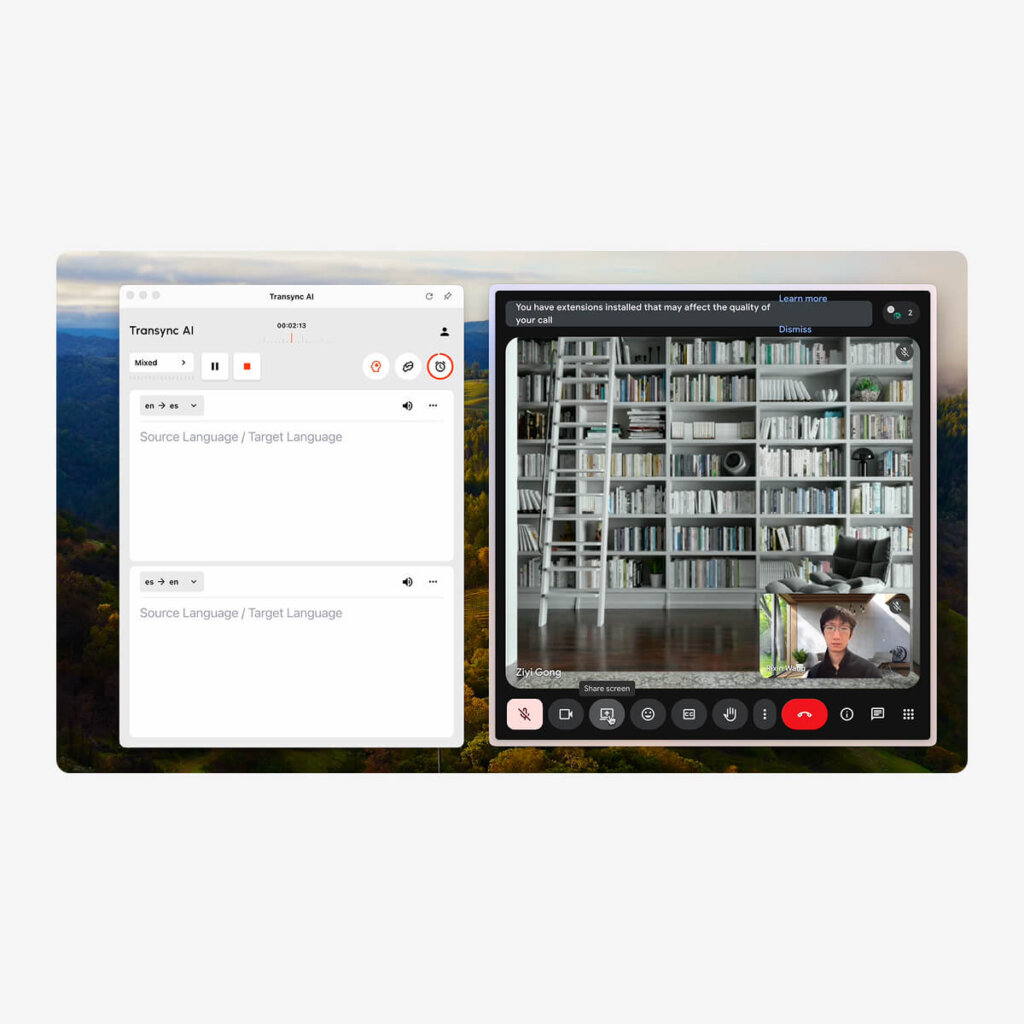
- Open Transync AI (desktop-app of browser)
- Selecteer uw taalpaar (bijv. Engels → Spaans)
- Vink het vakje "Computergeluid" aan. ✅
- Klik op "Vertaling starten"“
- Open Google Meet en start je vergadering. normaal
- Transync AI luistert automatisch om audio te ontmoeten
- Realtime vertalingen verschijnen in het Transync AI-venster
- Optioneel: Vink "Afspelen starten" aan.“ in de rechterbovenhoek
- Bij het delen van het scherm: Selecteer de optie 'Systeemgeluid delen' in Meet.
Voor Webex-vergaderingen:
- Open Transync AI (desktop-app of browser)
- Selecteer uw taalpaar
- Vink het vakje "Computergeluid" aan. ✅
- Klik op "Vertaling starten"“
- Open Webex en start uw vergadering. normaal
- Transync AI luistert automatisch naar Webex-audio
- Realtime vertalingen verschijnen in het Transync AI-venster
- Optioneel: Vink "Afspelen starten" aan.“ in de rechterbovenhoek
- Bij het delen van het scherm: Selecteer de optie 'Computergeluid delen'.
Voor WhatsApp-spraakoproepen (unieke instellingen):
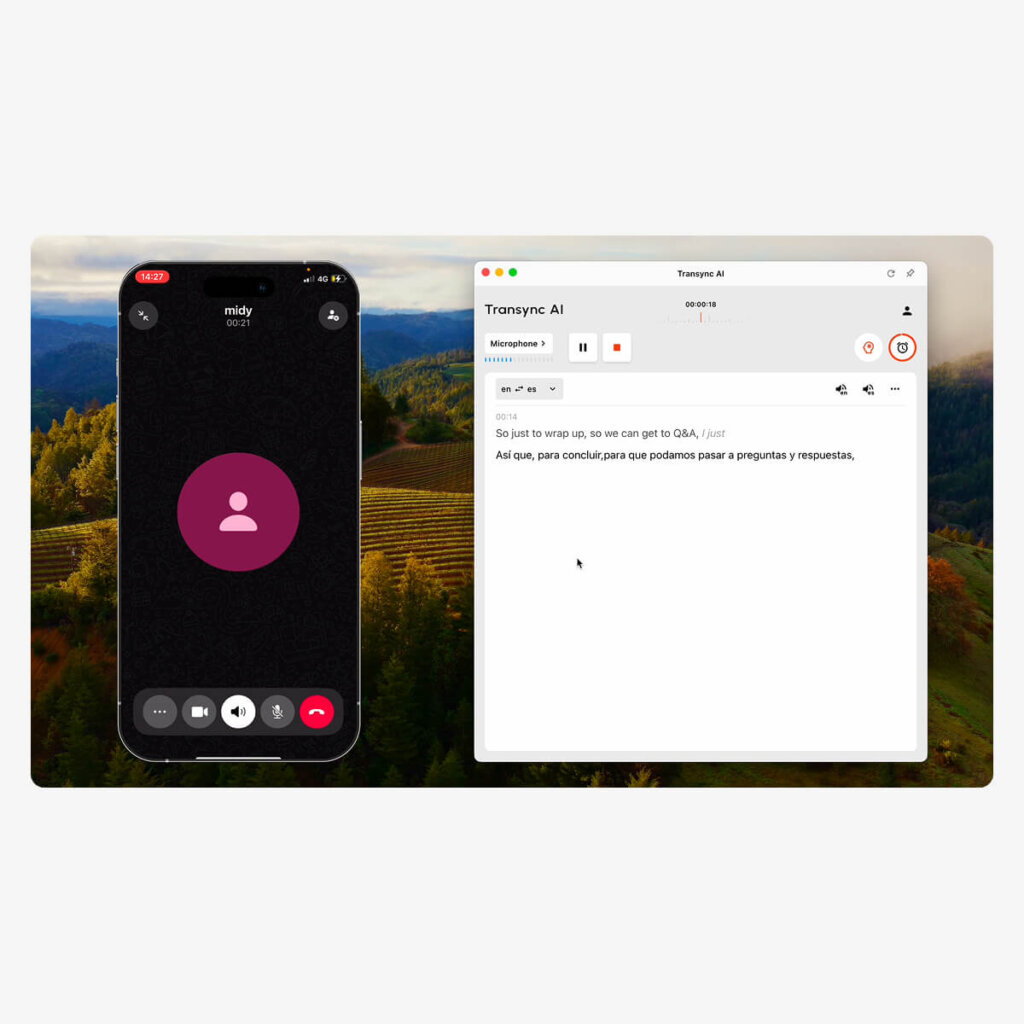
Belangrijk: Voor spraakoproepen via WhatsApp is een andere configuratie vereist, aangezien het op een mobiele telefoon gebeurt:
- Open Transync AI op uw computer (desktop-app)
- Bevestig de selectie van de microfoonbron. (de microfoon van je computer)
- Klik op "Vertaling starten"“
- Open WhatsApp op je telefoon.
- Een spraakoproep starten of ontvangen. op je telefoon
- Schakel de luidsprekerfunctie in. voor je WhatsApp-oproep
- Houd de telefoon dicht bij de microfoon van uw computer. (zodat Transync AI kan horen)
- Of gebruik een Bluetooth-luidspreker voor een betere geluidsopname.
- Transync AI zal luisteren en realtime vertalingen aanbieden
- Zie vertalingen in het Transync AI-venster op uw computer
- Optioneel: Vink "Afspelen starten" aan.“ om de vertaalde audio te beluisteren
- Na afloop van het gesprek:
- Klik “"Einde"” knop in Transync AI
- Ontvang automatisch transcripten en notulen van de vergadering.
Opmerking: Voor een betere geluidskwaliteit in WhatsApp kun je een Bluetooth-luidspreker of de luidsprekermodus gebruiken om een heldere audio-opname te garanderen.
Voor persoonlijke ontmoetingen (face-to-face):
- Stel je audio-ingang en -uitgang in.
- Microfoon vangt spraak op vanuit de vergaderruimte
- De spreker geeft de vertalingen door aan de deelnemers.
- Zorg voor een heldere geluidskwaliteit (minimaliseer achtergrondgeluid).
- Selecteer de bron- en doeltaal.
- Voorbeeld: Engels → Spaans
- Voorbeeld: Engels → Mandarijn + Spaans (meerdere doeltalen)
- Klik op "Start"“ om de vertaling te starten
- De deelnemers spreken natuurlijk. in hun voorkeurstaal
- Transsync AI geeft ondertitels weer. Op het scherm wordt het volgende weergegeven:
- Transcript in de oorspronkelijke taal
- Realtime vertaling
- Audio wordt uitgezonden zodat iedereen de vertalingen hoort
- Na de bijeenkomst: Door AI gegenereerde samenvatting + volledige transcriptie automatisch beschikbaar
Stap 5: Tijdens uw vergadering – Live Translate gebruiken
Vertaling beheren:
Vertaling pauzeren/hervatten:
- Klik op het pauze-icoon als u alleen in uw moedertaal wilt spreken.
- Klik op 'Hervatten' om de vertaling te hervatten.
- Handig voor vertrouwelijke gesprekken.
- Status: Vertaling gepauzeerd/direct hervat
Wissel van taal midden in de vergadering:
- Klik op het taalkeuzemenu in Transync AI.
- Selecteer een ander taalpaar
- Transync AI past zich direct aan (<100ms latentie)
- Handig als er een nieuwe deelnemer bijkomt die een andere taal spreekt.
Live transcriptie van de monitor:
- Het realtime transcript verschijnt in het Transync AI-paneel.
- Toont zowel de originele als de vertaalde tekst.
- In realtime doorzoekbaar
- Helpt bij het controleren van de nauwkeurigheid van de vertaling.
Afspelen inschakelen/uitschakelen:
- “Met de knop "Afspelen starten" kunt u bepalen of anderen de vertalingen horen.
- Ingeschakeld: Deelnemers aan de vergadering horen de vertaalde audio.
- Uitgeschakeld: Alleen jij ziet de vertalingen (anderen weten er niets van).
- Kan tijdens de vergadering worden in- of uitgeschakeld.
Vertaalde inhoud delen:
- Klik op de knop 'Delen' om de vertaling op het scherm weer te geven.
- Handig voor presentaties aan een vertaald publiek.
- Toont het origineel en de vertaling naast elkaar.
Stap 6: Na de vergadering – Toegang tot Live Translate-opnamen
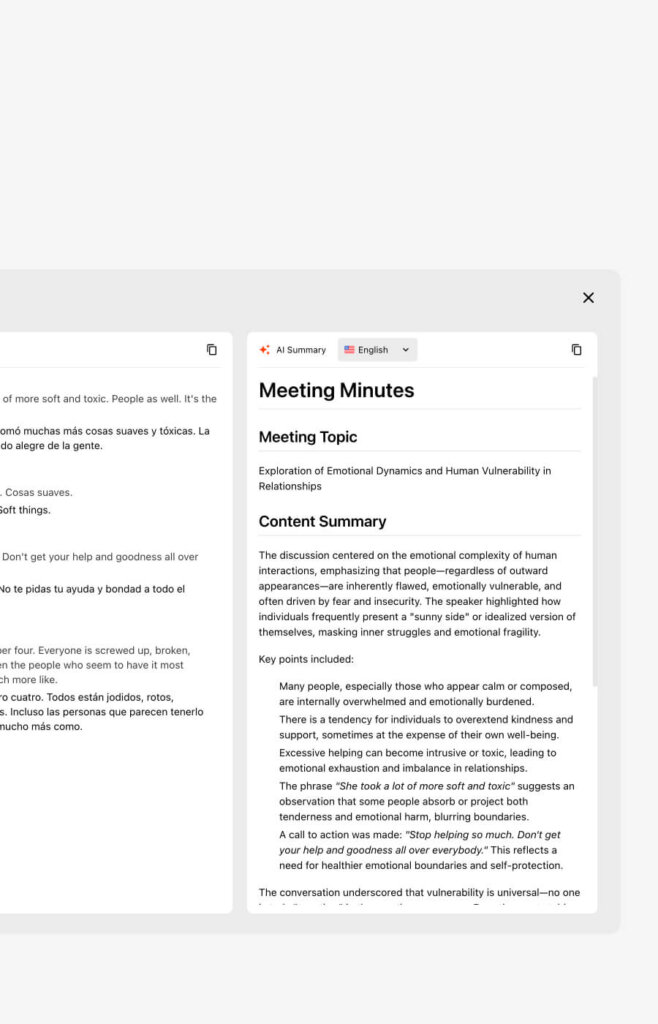
Benodigde tijd: Onmiddellijk (automatisch)
Na afloop van de vergadering direct beschikbaar:
- Ga naar het Transync AI-dashboard
- Klik op “Recente vergaderingen” of “Vergadergeschiedenis”
- Selecteer uw vergadering
- Automatische samenvatting openen
- Tweetalige samenvatting van de belangrijkste punten
- Actiepunten geëxtraheerd en toegewezen
- Deelnemers en hun taal/talen
- Duur en tijdstempel van de vergadering
- Download het volledige transcript
- PDF-formaat met vermelding van de spreker.
- Tijdstempels voor elke uitwisseling
- Zowel de originele als de vertaalde tekst.
- Doorzoekbaar document
- Exporteren voor delen in teamverband
- Deel de PDF met de deelnemers.
- Importeren naar documentatiesysteem
- Archiveren in conforme opslag
Hoe Live Translate te gebruiken: Platformspecifieke handleidingen
Transync AI + Zoom (complete workflow)
Volledige installatie (totaal 3 minuten):
- Open Transync AI op uw computer
- Selecteer een taalpaar: Engels → Spaans (voorbeeld)
- Vink het vakje "Computergeluid" aan.
- Klik op "Vertaling starten"“ knop
- Zoom openen en normaal gesproken een vergadering starten/eraan deelnemen
- Transync AI detecteert automatisch Zoom-audio
- Zie vertalingen verschijnen in het Transync AI-venster
- Optioneel – Afspelen inschakelen:
- Vink de knop "Afspelen starten" aan.
- Klik in Zoom op 'Scherm delen'.
- Vink "Computergeluid inschakelen" aan.“
- Deelnemers aan de vergadering horen nu Spaanse vertalingen.
Tijdens de vergadering:
- Je spreekt vloeiend Engels.
- Spaanstalige deelnemers horen Engels → Spaans vertaling
- Spaanstaligen antwoorden in het Spaans.
- Engelstaligen horen Spaans → Engels vertaling
- Alles in realtime, latentie <100 ms
Na de vergadering:
- Klik op "Vertaling beëindigen" in Transync AI.
- Bekijk het transcript (in beide talen)
- Download samenvatting van de AI-vergadering
- Toegang via het Transync AI-dashboard
Transync AI + Microsoft Teams (complete workflow)
Volledige installatie (totaal 3 minuten):
- Open Transync AI op uw computer
- Selecteer een taalpaar (bijv. Engels → Spaans)
- Vink het vakje "Computergeluid" aan.
- Klik op "Vertaling starten"“
- Open teams en normaal gesproken een vergadering starten/eraan deelnemen
- Transync AI luistert automatisch naar Teams-audio
- Zie vertalingen in het Transync AI-venster
- Optioneel – Afspelen inschakelen:
- Vink de knop "Afspelen starten" aan.
- Klik op 'Delen' in Teams.
- Selecteer “Uw scherm”
- Selecteer “Systeemgeluid inschakelen”
- Deelnemers aan de vergadering horen de vertaalde audio.
Belangrijke opmerking: Teams detecteert Transync AI automatisch (in tegenstelling tot Zoom, waarvoor een audiobox op de computer nodig is). De installatie is nog eenvoudiger.
Transync AI + Google Meet (complete workflow)
Volledige installatie (totaal 3 minuten):
- Open Transync AI
- Selecteer een taalpaar
- Vink het vakje "Computergeluid" aan.
- Klik op "Vertaling starten"“
- Open Google Meet normaal
- Transync AI luistert automatisch
- Zie vertalingen in het Transync AI-venster
- Optioneel – Uitzendvertalingen:
- Vink "Afspelen starten" aan.“
- Klik in Meet op 'Nu presenteren'.
- Selecteer “Uw hele scherm”
- Selecteer 'Audio delen'.“
- Aanwezigen horen vertalingen
Transync AI + WhatsApp-spraakoproepen (mobiele installatie)
Belangrijkste verschil: WhatsApp werkt op de telefoon, Transsync AI op de computer = vereist speciale configuratie
Volledige installatie (2 minuten):
- Open Transync AI op uw computer
- Bevestig de microfoonbron (computermicrofoon)
- Klik op "Vertaling starten"“
- WhatsApp openen op je telefoon
- Een spraakoproep starten of ontvangen.
- Schakel de luidsprekerfunctie in. aan de telefoon
- Plaats de telefoon dicht bij de microfoon van de computer. (of gebruik een Bluetooth-luidspreker)
- Plaats de telefoon 15-30 cm van de microfoon.
- Gebruik een Bluetooth-luidspreker voor optimale opname.
- Zie vertalingen verschijnen in het Transync AI-venster
- Optioneel – Audio afspelen:
- Vink de knop "Afspelen starten" aan.
- Transsync AI spreekt vertaalde audio uit
- Tijdens het gesprek:
- Je spreekt in je eigen taal.
- WhatsApp-beller hoort vertaling
- Transync AI legt alles vast.
- Na het gesprek:
- Klik op "Einde" in Transync AI.
- Ontvang direct het transcript en de samenvatting.
Professionele tips voor WhatsApp:
- Gebruik een Bluetooth-luidspreker (voor een betere geluidsopname).
- Minimaliseer achtergrondgeluid in de kamer.
- Spreek duidelijk in de microfoon van de telefoon.
- Testopstelling met een snelle oefenoproep eerst
Hoe Live Translate te gebruiken: Geavanceerde functies
Functie 1: Trefwoord- en contextinstelling (voor gespecialiseerde nauwkeurigheid)
Wanneer te gebruiken:
- Technische bijeenkomsten (techniek, geneeskunde, recht)
- Brancheonderhandelingen (contracten met specifieke voorwaarden)
- Academische discussies (onderzoeksterminologie)
- Zakelijke gesprekken met specialistische woordenschat
Hoe te configureren:
Voorbeeld 1 – Software-engineeringvergadering:
- Ga naar Instellingen → Trefwoorden en context
- Voeg trefwoorden toe: “API, microservices, deployment, Docker, CI/CD, GitHub, repository”
- Voeg vertalingen toe: “API = API (niet vertaald), repository = repository”
- Context toevoegen: “Technische stand-up voor software-engineering”
- Redden
Resultaat: Technische termen perfect vertaald, algemene discussie ook helder.
Voorbeeld 2 – Bespreking van een farmaceutisch partnerschap:
- Voeg trefwoorden toe: “biomarker, molecuul, FDA-goedkeuring, klinische proef, patent”
- Voeg vertalingen toe: “biomarker = biomarcador, FDA = FDA (geen vertaling)”
- Context toevoegen: “Onderhandelingen over farmaceutische partnerschappen met focus op regelgeving”
- Redden
Resultaat: Nauwkeurige specialistische farmaceutische terminologie, precieze juridische taal.
Functie 2: Weergave met dubbel scherm (begrijpt beide talen)
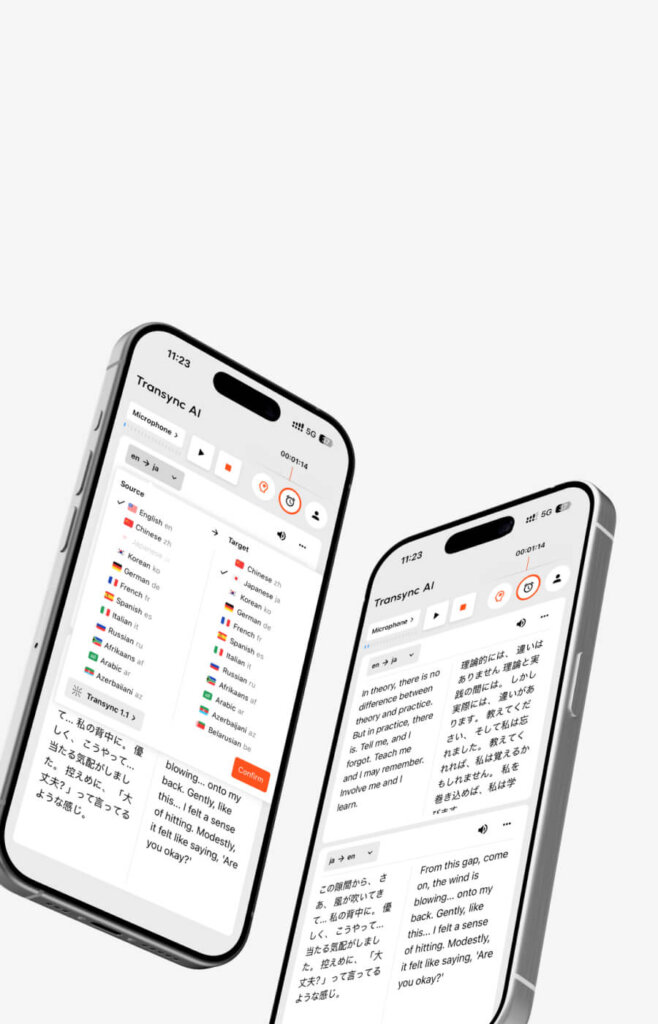
Wat het laat zien:
- Linkerzijde: Originele taal (wat de persoon zei)
- Rechterkant: Vertaalde taal (wat vertaling betekent)
- Gesynchroniseerd in realtime
Waarom zou je het gebruiken?
- Beter begrip (lezen + luisteren)
- Controleer de nauwkeurigheid van de vertaling.
- Help niet-moedertaalsprekers het beter te begrijpen.
- Voor presentaties (het publiek leest mee)
Hoe te activeren:
- Zoek tijdens de vergadering naar de optie 'Dubbel scherm' in Transync AI.
- Schakel de schakelaar in
- Transync AI toont het origineel en de vertaling naast elkaar.
Gebruiksscenario's:
- Het presenteren van de contractvoorwaarden (beide partijen zien exact dezelfde tekst)
- Technische handleidingen (code zichtbaar + vertaald)
- Trainingssessies (studenten lezen en luisteren)
- Onderhandelingen (miscommunicatie vermijden)
Functie 3: AI-vergaderingssamenvatting (automatische documentatie)
Wat het automatisch genereert:
- Tweetalige samenvatting (origineel + uw taal)
- Belangrijkste discussiepunten samengevat
- Actiepunten met toegewezen personen
- Volgende stappen geïdentificeerd
- Deelnemers en tijdstempels
Hoe krijg je toegang?
- Klik na afloop van de vergadering op 'Vertaling beëindigen' in Transync AI.
- Ga naar het Transync AI-dashboard
- Klik op “Recente vergaderingen”
- Selecteer uw vergadering
- Scrol naar “AI-samenvatting”
- Bekijk, download als pdf of deel met je team.
Tijdsbesparing:
- Vergadering van 60 minuten: bespaart 20-30 minuten aan documentatietijd.
- 20 vergaderingen per week: bespaart 6-10 uur per week.
Functie 4: Realtime transcriptie (doorzoekbare opname)
Beschikbaar tijdens de vergadering:
- Het live transcriptiepaneel toont alles wat er gezegd wordt.
- Zowel de originele als de vertaalde tekst.
- Namen van sprekers toegewezen
- Tijdstempels voor elke uitwisseling
- In realtime doorzoekbaar
Hoe te zoeken:
- Open Transync AI tijdens de vergadering.
- Klik op het tabblad "Transcript".
- Gebruik Ctrl+F (of Cmd+F op Mac) om te zoeken.
- Zoek op trefwoorden (bijv. “budget”, “tijdlijn”, “goedkeuring”).
- Bekijk alle vermeldingen direct.
- Klik op het resultaat om naar dat tijdstempel te springen.
Live Translate gebruiken: Probleemoplossing
Probleem 1: De vertaalvertraging lijkt hoog.
Symptoom: Er is een vertraging van 1-2 seconden merkbaar tussen spraak en vertaling.
Mogelijke oorzaken:
- Trage internetverbinding (<10 Mbps upload)
- De CPU van de computer is overbelast.
- De microfoon pikt een verkeerde audiobron op.
Oplossingen:
- Sluit andere apps CPU-gebruik
- Controleer je internetsnelheid (minimaal 10 Mbps nodig)
- Controleer de microfoonbron. in Transync AI-instellingen
- Transync AI opnieuw opstarten en ontmoeting
- Gebruik een bekabelde verbinding. in plaats van wifi (stabieler)
Verwachte latentie:
- Transync AI: <100 ms (onmerkbaar)
- JotMe: 150-200 ms (nauwelijks merkbaar)
Als de reactietijd langer dan 200 ms is, moet u direct naar de oorzaak zoeken.
Probleem 2: De nauwkeurigheid is lager dan verwacht.
Symptoom: De vertalingen lijken niet helemaal correct of de technische termen zijn onjuist.
Oorzaken:
- Geen trefwoord-/contextinstelling (voor technische discussies)
- Een zeer sterk accent of onduidelijke spraak.
- Lawaaierige omgeving
- Snel spreken of onderbrekingen
Oplossingen:
Snelle oplossing:
- Spreek langzamer en duidelijker.
- Minimaliseer achtergrondgeluid
- Eén spreker tegelijk
- Pauze tussen zinnen
Betere oplossing:
- Gebruik de instelling voor trefwoorden/context (indien technisch van aard).
- Voeg branchespecifieke termen en context toe.
- Vertaling opnieuw starten
- Test opnieuw met nieuwe instellingen
Probleem 3: Het vakje "Computergeluid" werkt niet.
Symptoom: Transync AI neemt geen audio op van vergaderingen via Zoom/Teams/Meet.
Oplossing:
- Controleer of Transync AI de juiste microfoon heeft geselecteerd.
- Transync AI-instellingen openen
- Vink het apparaat "Audio-ingang" aan.
- Dit zou de standaard audio-ingang van uw computer moeten weergeven.
- Controleer of het vakje "Computergeluid" is aangevinkt. ✅
- Controleer de microfoonrechten.
- macOS: Instellingen → Privacy en beveiliging → Microfoon → Transync AI toestaan
- Windows: Instellingen → Privacy en beveiliging → Microfoon → Transync AI toestaan
- Transync AI opnieuw opstarten (volledig sluiten en heropenen)
- Test met een eenvoudige oproep (niet belangrijke vergadering)
Probleem 4: Anderen kunnen de vertaalde audio niet horen.
Symptoom: U ziet de vertalingen, maar de deelnemers aan de vergadering horen ze niet.
Oplossing:
Voor Zoom:
- Controleer of de knop "Afspelen starten" is ingeschakeld ✅
- Klik in Zoom op 'Scherm delen'.
- Selecteer “Computergeluid inschakelen” ✅
- De aanwezigen zouden nu de vertalingen moeten horen.
Voor teams:
- Controleer of de knop "Afspelen starten" is ingeschakeld ✅
- Klik op 'Delen' in Teams.
- Selecteer “Uw scherm”
- Vink “Systeemgeluid inschakelen” aan ✅
- De aanwezigen dienen de vertalingen te kunnen horen.
Voor Google Meet:
- Controleer of "Afspelen starten" is ingeschakeld ✅
- Klik op "Nu presenteren"“
- Selecteer “Uw hele scherm”
- Vink “Audio delen” aan ✅
- De aanwezigen dienen de vertalingen te kunnen horen.
Kernpunt: “"Afspelen starten" moet ingeschakeld zijn EN u moet uw scherm met audio delen zodat anderen de vertalingen kunnen horen.
Probleem 5: WhatsApp-audio wordt niet opgenomen
Symptoom: Transsync AI hoort geen audio van WhatsApp-spraakoproepen.
Oplossing:
- Zorg ervoor dat de luidsprekerfunctie is ingeschakeld. op je telefoon (cruciaal)
- Plaats de telefoon dicht bij de microfoon van de computer. (15-30 cm afstand)
- Gebruik een Bluetooth-luidspreker (beter dan de luidspreker van een telefoon)
- Controleer de microfoon in de Transsync AI-instellingen. is de juiste bron
- Testmicrofoon in Transync AI vóór de oproep
- Minimaliseer achtergrondgeluid in de kamer
- Test met een oefengesprek Eerst
Optimale instellingen voor WhatsApp:
- Telefoon op luidspreker.
- Bluetooth-luidspreker op 15-30 cm afstand van de computermicrofoon
- Stille ruimte (minimaliseer achtergrondgeluid)
- Transsync AI-microfoon ingesteld als standaard systeeminvoer
Hoe Live Translate te gebruiken: beste werkwijzen
Beste praktijk 1: Test vóór belangrijke vergaderingen
Wanneer: Doe dit 24 uur voor belangrijke vergaderingen.
Stappen:
- Plan een testafspraak met een collega
- Beide bieden live vertaling.
- Controleer of de latentie acceptabel is (<100 ms verwacht).
- Controleer de spraakkwaliteit en nauwkeurigheid.
- Test de zoekwoordinstellingen als u gespecialiseerde termen gebruikt.
- Controleer de platformcompatibiliteit (Zoom/Teams/Meet werkt).
- Test schermdeling met audio
Waarom: Voorkom technische problemen tijdens belangrijke verkoopgesprekken of onderhandelingen.
Beste praktijk 2: Spreek duidelijk voor meer nauwkeurigheid
Voorkomen: ❌ Gemompel of te snel praten ❌ Veel achtergrondlawaai ❌ Onderbrekingen (meerdere sprekers tegelijk) ❌ Onduidelijke uitspraak
In plaats van: ✅ Spreek natuurlijk maar duidelijk ✅ Rustige omgeving (minimaliseer achtergrondgeluid) ✅ Eén spreker tegelijk ✅ Gebruik trefwoorden/context voor vakspecifieke termen ✅ Pauzeer tussen zinnen
Beste praktijk 3: Gebruik trefwoordinstellingen ALLEEN voor specialistische discussies.
Wanneer moet je trefwoorden instellen? Technische, juridische, medische en onderhandelingsbijeenkomsten Wanneer je GEEN trefwoorden moet instellen: Algemene gesprekken, informele ontmoetingen
Waarom: Het instellen van trefwoorden duurt 2-5 minuten, maar biedt weinig voordeel voor informele gesprekken. Gebruik deze functie alleen in specialistische situaties waar nauwkeurigheid cruciaal is.
Beste praktijk 4: Controleer de nauwkeurigheid van de vertaling
Voor belangrijke discussies:
- Volg het live transcript tijdens de vergadering
- Controleer de belangrijkste termen zijn correct vertaald
- Als er een fout wordt geconstateerd:
- Herschrijf die zin
- Gebruik eenvoudiger taalgebruik.
- Voeg context toe
- Na de bijeenkomst:
- Transcript bekijken
- Controleer cruciale informatie.
- Neem bij twijfel schriftelijk contact op.
Beste praktijk 5: Beheer de verwachtingen van de deelnemers
Vertel de deelnemers vóór de bijeenkomst het volgende:
“We maken vandaag gebruik van live vertaling. Het werkt in realtime, dus u hoort de vertaling tegelijkertijd. Als iets onduidelijk is, vraag dan direct om verduidelijking – wacht niet tot het einde van de vergadering.”
Waarom: Stelt verwachtingen vast, voorkomt verwarring en stimuleert vragen.
Hoe Live Translate te gebruiken: praktijkvoorbeelden
Gebruiksscenario 1: Internationaal verkoopgesprek (via Zoom)
Instellen:
- Open Transync AI
- Selecteer Engels → Spaans
- Schakel "Computergeluid" in.“
- Klik op "Vertaling starten"“
- Open het Zoom-gesprek normaal.
- Transync AI luistert automatisch
Tijdens het gesprek:
- Je spreekt Engels (verkooppraatje)
- De Spaanstalige klant hoort direct de Spaanse vertaling.
- Prospect antwoordt in het Spaans.
- Je hoort direct de Engelse vertaling.
- Natuurlijk gesprek, latentie <100 ms
Na het gesprek:
- Het transcript is in beide talen beschikbaar.
- Samenvatting van de AI-beoordeling (kernpunten + vervolgstappen)
- Deel tweetalige notities met het team.
Gebruiksscenario 2: Stand-up meeting op afstand van een team (via Teams)
Instellen:
- Open Transync AI
- Selecteer Engels → Spaans
- Voeg de volgende trefwoorden toe: “sprint, story points, deployment, QA”
- Voeg context toe: “stand-up voor software-engineering”
- Schakel "Computergeluid" in.“
- Klik op "Vertaling starten"“
- Open Teams-vergadering
Resultaat:
- Spaanssprekende ingenieur spreekt Spaans
- Engelstalige ingenieurs horen Spaans → Engels vertaling
- Engelssprekende ingenieur spreekt Engels
- Spaanssprekende ingenieur hoort Engels → Spaans vertaling
- 25% snellere vergadering (geen taalbarrière)
- AI-samenvatting extraheert automatisch actiepunten
Gebruiksscenario 3: WhatsApp-spraakoproep (met klant)
Instellen:
- Open Transync AI op de computer.
- Klik op "Vertaling starten"“
- Open WhatsApp op je telefoon
- Start een spraakoproep
- Schakel de luidsprekerfunctie in.
- Plaats de telefoon dicht bij de microfoon van de computer (of gebruik een Bluetooth-luidspreker).
Tijdens het gesprek:
- U spreekt Engels (medewerker klantenservice)
- De klant spreekt Spaans.
- Transync AI vertaalt in beide richtingen.
- Je ziet de vertalingen in het Transync AI-venster.
- Natuurlijk gesprek
Na het gesprek:
- Klik op "Einde" in Transync AI.
- Ontvang transcriptie + notulen van de vergadering
- Deel dit met het klantenserviceteam.
Gebruiksscenario 4: Persoonlijke ontmoeting (face-to-face)
Instellen:
- Open Transync AI
- Stel de microfoon in (neemt het omgevingsgeluid op).
- Stel de spreker in (zendt vertalingen uit)
- Selecteer een taalpaar (Engels ↔ Spaans)
- Klik op "Start"“
Tijdens de vergadering:
- De deelnemers spreken op een natuurlijke manier in hun eigen taal.
- Transsync AI toont ondertitels (origineel + vertaling)
- Audio uitzenden in de doeltalen.
- Alle deelnemers kunnen volgen
Na de bijeenkomst:
- AI-samenvatting in beide talen
- Volledig doorzoekbaar transcript
- Actiepunten geëxtraheerd
🎥 Bekijk hoe u Transync AI kunt gebruiken
👉Meer informatie over Transync AI
Hoe Live Translate te gebruiken: kosten- en platformvergelijking
| Oplossing | Insteltijd | Maandelijkse kosten | Gratis proefperiode | Latentie | Platformen | Het beste voor |
|---|---|---|---|---|---|---|
| Transync AI | <1 min | $8.99 | 40 min ✅ | <100ms | Zoom, Teams, Meet, Webex, WhatsApp | Professionele bijeenkomsten |
| JotMe | 2-3 min | $9 | 20 min | 150-200 ms | Zoom, Meet, Teams, Webex, LINE | Algemeen gebruik |
| Talo | 1 minuut | $80+ | Nee | 120 ms | Zoom, Teams, Meet | Onderneming |
| Wereldlijk | 10+ min | $500+ | Nee | 200 ms+ | Zoom, Webex, Teams | Grote evenementen |
Conclusie: Hoe gebruik je Live Translate?
Live vertalen is niet langer complex of duur. Moderne oplossingen zoals Transync AI maken het opmerkelijk eenvoudig:
✅ Activering duurt minder dan 1 minuut (Talen selecteren, klik op Start) ✅ <100ms latentie (onmerkbaar, natuurlijk gesprek) ✅ 95%+ nauwkeurigheid (99% over technische termen met trefwoorden) ✅ 40 minuten gratis proefperiode (risicovrije evaluatie) ✅ Automatische documentatie (transcripties + samenvattingen) ✅ Werkt op alle platforms. (Zoom, Teams, Meet, Webex, WhatsApp)
Start vandaag nog met uw gratis proefperiode en ervaar hoe live vertaling taalbarrières in uw vergaderingen wegneemt.
IAls u een next-generation ervaring wilt, Transync AI loopt voorop met realtime, AI-gestuurde vertalingen die gesprekken natuurlijk laten verlopen. U kunt probeer het gratis nu.